

ADDRESS absolute mode 4 does not follow the cell when rows are inserted
Updated
ADDRESS(row, column, [absolute_relative_mode]) returns text. Mode 1 is $C$10. Mode 2 is C$10. Mode 3 is $C10. Mode 4 is C10. None of those strings are a live reference. Insert a row above the target and a real formula =C10 becomes =C11. The text from ADDRESS(10,3,4) is still the characters C10, because the 10 you passed is still 10. INDIRECT of that text reads whatever sits at C10 now, which is the blank you inserted, not the value that moved down.
This page is the lock mode and the insert. R1C1 versus A1, and mode 0 as #NUM!, are ADDRESS / R1C1. Keep the Google Sheets UI in English.
Recreate it on a blank sheet
Section titled “Recreate it on a blank sheet”- Open a blank spreadsheet. In C10 type
target. The formulas stay in rows 1–7 so an insert at row 10 does not move them.
A live reference, typed before the insert. In G1 type live. In G2 enter =C10. G2 shows target.
Mode 1, the control. In E1 type m1. In E2 enter =ADDRESS(10,3,1). E2 shows $C$10. In E3 enter =INDIRECT(E2). E3 shows target.
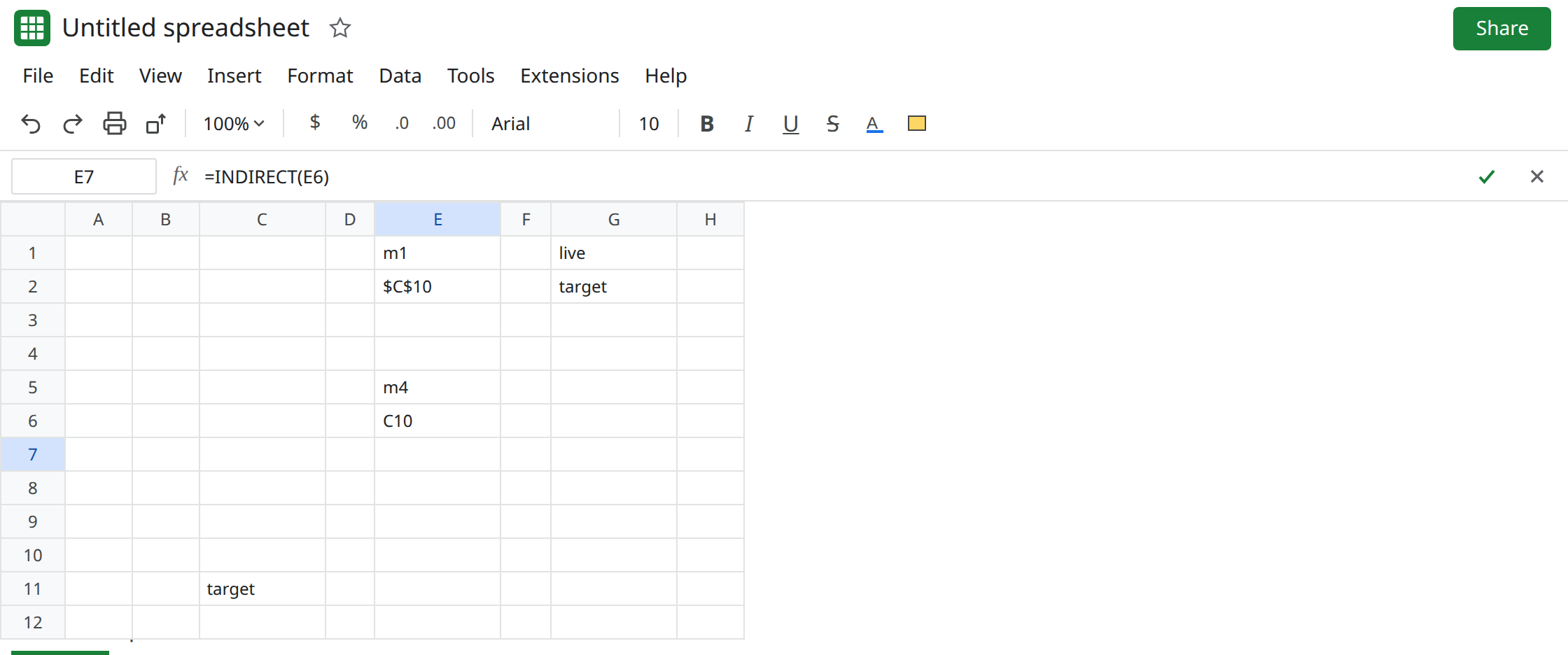
Mode 4 is relative text, not a relative formula. In E5 type m4. In E6 enter =ADDRESS(10,3,4). E6 shows C10 with no dollar signs. In E7 enter =INDIRECT(E6). E7 shows target. Same cell as E3. The missing dollars have not mattered yet. Leave E6 as C10.
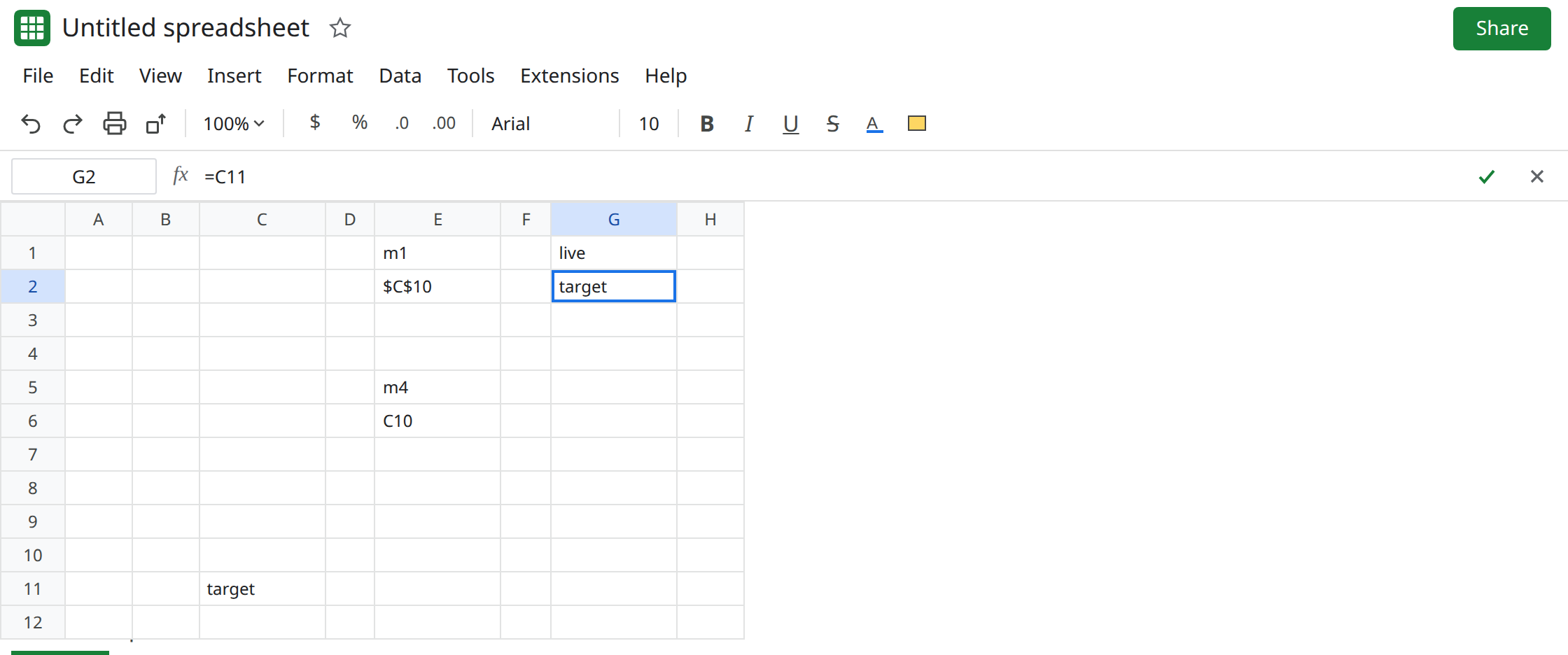
Insert a row above the value. Right-click row 10 and choose Insert 1 row above. target moves to C11. G2’s formula bar becomes =C11, and G2 still shows target. Sheets rewrote the live reference. E2 still shows $C$10. E6 still shows C10. The literals 10 and 3 were not rewritten. E3 and E7 are blank, because C10 is the new empty row. C11 holds target. No triangle. The labels did not follow the value.
Modes 2 and 3 are partial locks in the text. =ADDRESS(10,3,2) is C$10 (column relative, row absolute). =ADDRESS(10,3,3) is $C10 (column absolute, row relative). INDIRECT of either string still reads C10, the blank row, not C11. The $ matters when a real formula is copied across the sheet. It does not make this text watch the grid.
What is actually wrong
Section titled “What is actually wrong”- Argument 3 is a format for the label:
1both locks,2row lock,3column lock,4neither. People pick4to mean “a normal relative reference that will survive inserts.”ADDRESSnever creates that reference.INDIRECTof the textC10is always C10. - Inserting a row updates real addresses inside formulas. G2 became
=C11. It does not edit a calculated string whose row argument is the number10. After the insert,targetand the label disagree, with no error triangle. A blank looks like a successful read of an empty cell. - If the row argument is
ROW(C10)and the insert rewrites that reference toROW(C11),ADDRESSrebuilds$C$11orC11from the new row. Mode4versus mode1still only changes the dollar signs. Both can follow if the inputs follow. Mode4is not what makes them follow. - Copying
=INDIRECT(E6)to another cell does not slide the target the way copying=C10slides it. The text isC10everywhere.
This is not #NUM! from a mode of 0. Passing FALSE in the mode slot is that error. See ADDRESS / R1C1.
This is not a deleted-cell #REF!. See after you delete. E7’s formula still says INDIRECT(E6).
Leave E6 and E7 as the stale text read so the blank stays visible. target is in C11.
Use a real reference when the link should follow inserts. G2 is already that reference: the formula bar says =C11 and the cell shows target. Insert another row above C11 and watch G2. Sheets rewrites the address again. That is the behavior mode 4 did not provide.
Use mode 1 when you need a label you will paste into a document, and rebuild it from references that move: =ADDRESS(ROW(C11),COLUMN(C11),1). The text updates because ROW(C11) updates, not because mode 1 is magic. Then INDIRECT of that text reads the new label. If you do not need text, skip ADDRESS and INDIRECT.
Do not wrap E7 in IFERROR. A blank from a stale address is not an error, and a wrapper would hide a later #REF!. See IFERROR vs IFNA.
If ADDRESS shows C10 with no $ and INDIRECT does not follow an insert, the mode only formatted the text. Point a normal formula at the cell. If ADDRESS is #NUM!, the mode is not 1–4 and you are on the R1C1 page.