

IMPORTRANGE returns #REF! or stays on Loading after access is revoked
Updated
IMPORTRANGE keeps working only while this Google account can still open the source file. Remove that account from the source’s share list, transfer the file to a new owner who does not keep you on it, or open the destination while signed in as someone else, and the cell that used to spill goes back to #REF! or sits on Loading…. The formula text did not change. The permission did.
This page is access that used to exist. The first click is IMPORTRANGE access (You need to connect these sheets). A pull that never finishes on a file you can still open is IMPORTRANGE loading. A pull that is too big is IMPORTRANGE too large. A renamed named range is IMPORTRANGE named range. Keep the Google Sheets UI in English.
Recreate it on a blank sheet
Section titled “Recreate it on a blank sheet”- You need two spreadsheets and permission to change sharing on the source. In the source, A1
sku, B1name, A2101, B2Widget. Leave the tab namedSheet1. Copy the id from the URL (between/d/and/edit).
A pull that already works. In the destination, A1 enter =IMPORTRANGE("SOURCE_ID","Sheet1!A1:B2") with that id. If the tooltip says You need to connect these sheets, click Allow access once and wait for sku / 101 to spill. That spill is the control. If you have never connected these files, finish IMPORTRANGE access before the next step. This page starts after the spill is real.
Revoke the account that clicked Allow. On the source, click Share. Remove the Google account you are using in the destination, or set the link so this account is no longer a viewer. If you are the only owner, use a second Google account for the destination instead: share the source with that second account as Viewer, connect IMPORTRANGE while signed in as that account, then remove that account from Share. Do not delete the source file. Deleting the file is a different missing-sheet failure.
Return to the destination and reload. A1 is #REF!, or it returns to Loading… and does not spill. Hover A1. The tooltip is that you do not have permission to access that spreadsheet, or the connect prompt is back and Allow access cannot succeed. Leave A1 broken.
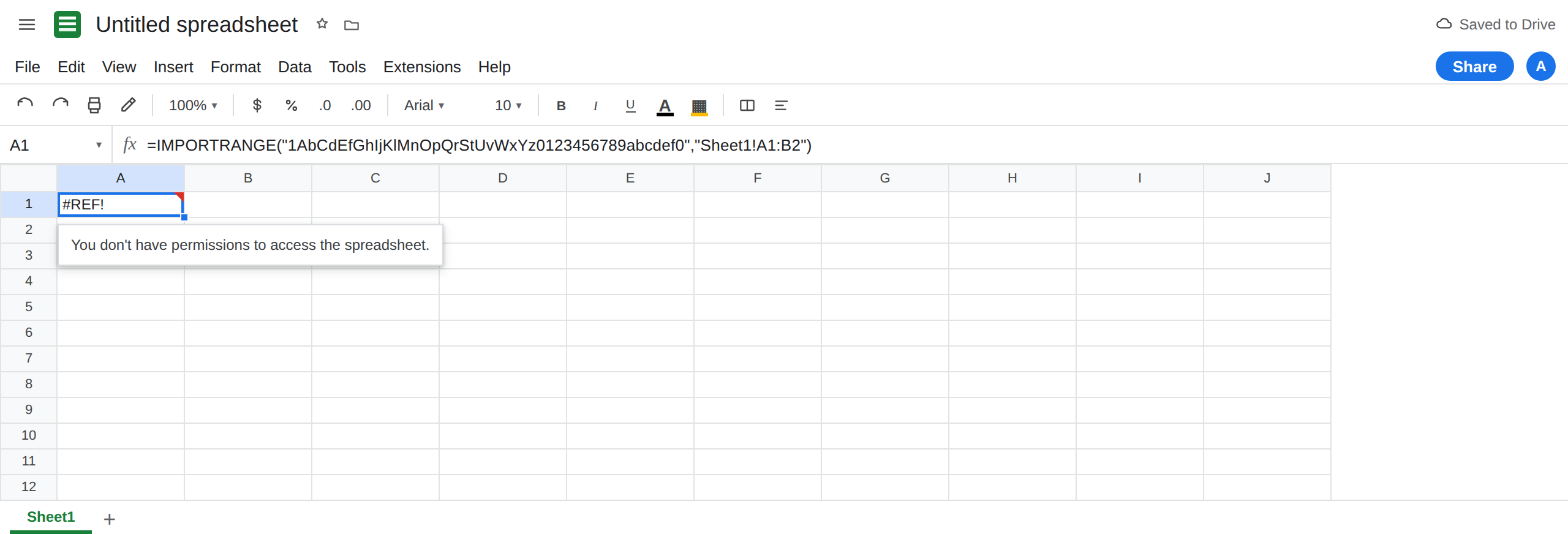
Switching accounts without unsharing. Open the same destination URL in a browser profile that is a different Google account, one that was never given Viewer on the source. A1 is #REF! there even while your original profile still spills. The Allow access grant is stored for the account that clicked, not for “anyone with the destination link.”
A wrong tab is not this. While you still have access, =IMPORTRANGE("SOURCE_ID","NoSuch!A1:B2") is also #REF!, and the tooltip is a missing sheet, not a permission sentence. If you cannot open the source URL in this browser at all, you are on this page, not the missing-tab page.
Leave A1 broken under the account that lost access.
What is actually wrong
Section titled “What is actually wrong”IMPORTRANGEreads the source as the signed-in user. Viewer is enough. When that user is removed, the destination formula has nothing it is allowed to read. The id string can still be perfect.- Allow access is not a share. It authorizes this destination file to pull, for this user, from a source that user can already open. If Share no longer lists them, the button is absent or the click fails. Asking the formula to “connect again” does not put them back on the source.
- A new owner who copies the destination does not inherit your click. They need their own access to the source, then their own Allow access.
Loading…after a revoke is the same family as a hung import, but the check is Share, not a faster network. See IMPORTRANGE loading only after you can open the source in this account.- The formula does not contain
#REF!as text. A deleted local cell does. See after you delete.
This is not Result too large. That message appears when the account can read the source and the range is too big. Do not shrink A1:B2 to fix a permission tooltip.
Leave the broken A1 on the account that lost access until Share is restored, so you can see the tooltip change.
Restore Viewer (or higher) for the account that has the destination open. On the source, Share, add that exact Google account, and confirm they can open the source URL in this browser. Reload the destination. If the prompt says You need to connect these sheets, click Allow access once. A1 should spill sku / 101 again.
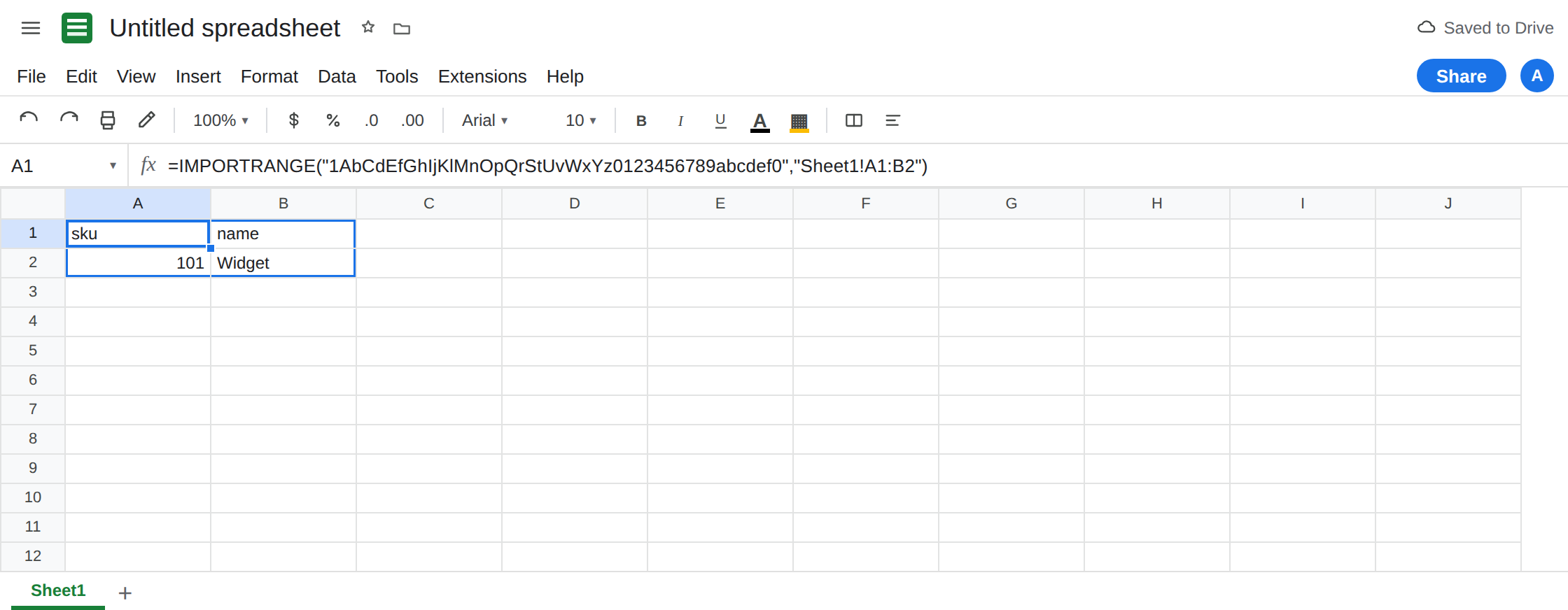
Same account in both tabs. If a second profile still shows #REF!, that profile is a different user. Either share the source with that user or switch back. Signing into the owner account “in the background” does not change the profile that has the sheet open.
Do not wrap A1 in IFERROR. You will hide both the permission #REF! and a later bad range. See IFERROR vs IFNA. IFNA does not catch #REF!.
If A1 broke after a share change or an account change, and the source URL will not open as this user, restore Viewer and connect again. If the source opens and the tooltip names a missing tab, edit the range string. That is not a revoke.