

Conditional formatting Text contains does not read a regular expression
Updated
Format → Conditional formatting → Text contains looks for a literal substring. The characters ^, $, ., and * are characters, not a pattern language. A rule whose text is ^East paints a cell that contains caret, E, a, s, t. It does not paint the cell East. The rule is not broken and it did not “fail to support regex.” It never promised regex. People who use QUERY matches or REGEXMATCH bring a pattern to this box and get no fill.
A custom formula’s $ locks are conditional formatting $. A formula that paints only the first column is CF formula range. QUERY contains versus matches is QUERY contains. Keep the Google Sheets UI in English. Sheet Error is an independent formula-error library, not a Google product.
Recreate it on a blank sheet
Section titled “Recreate it on a blank sheet”- Open a blank spreadsheet. In A1 type
name. A2East. A3Eastern. A4West. A5North East. A6^East.
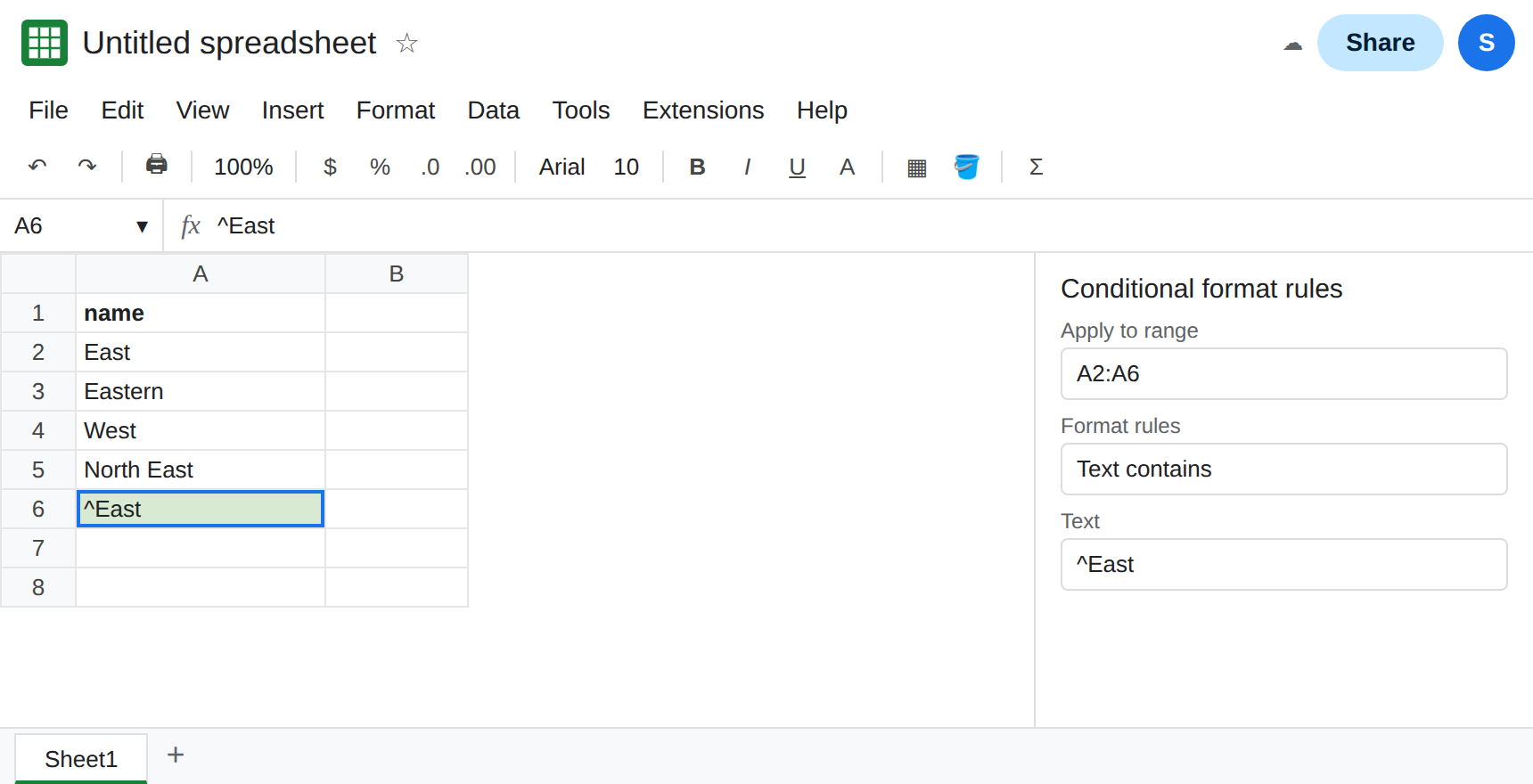
Text contains is literal. Select A2:A6. Format → Conditional formatting. Format rules: Text contains. In the box type ^East. Pick a fill. Done. Only A6 is filled. A6 is the cell whose text includes a caret. A2 East is not filled. ^ did not mean “start of the text.” Leave this rule as the miss.
The same menu, without the caret, is a substring. Edit the rule. Text contains: East. Done. A2, A3, A5, and A6 fill. A3 fills because Eastern contains those letters. A5 fills because North East contains them in the middle. A4 West does not. A6 still fills, because ^East contains East as well as a caret. Text contains does not mean “the whole cell.” Leave this as the substring rule so you can see how wide it is. There is still no regex.
Starts with is a different menu item, still not regex. Add a second rule on A2:A6, or change a copy of the column. Text starts with East fills A2 and A3. It does not fill A5. It does not fill A6, because A6 starts with ^. You did not write ^. The menu item is the anchor. Delete this second rule when you have seen it, or leave it under the first so both are visible. Rule order can hide a color. If a cell matches two rules, the rule higher in the list wins the format you notice.
A custom formula can take a real pattern. Edit a rule on A2:A6 to Custom formula is and enter =REGEXMATCH(A2,"^East"). A2 and A3 fill. A5 does not, because ^ means the start in REGEXMATCH. A6 does not, because it starts with a caret, not with E. A4 does not. That is the regex. It is not the Text contains box. REGEXMATCH is case-sensitive. east in a cell would not match ^East. See REGEXMATCH case.
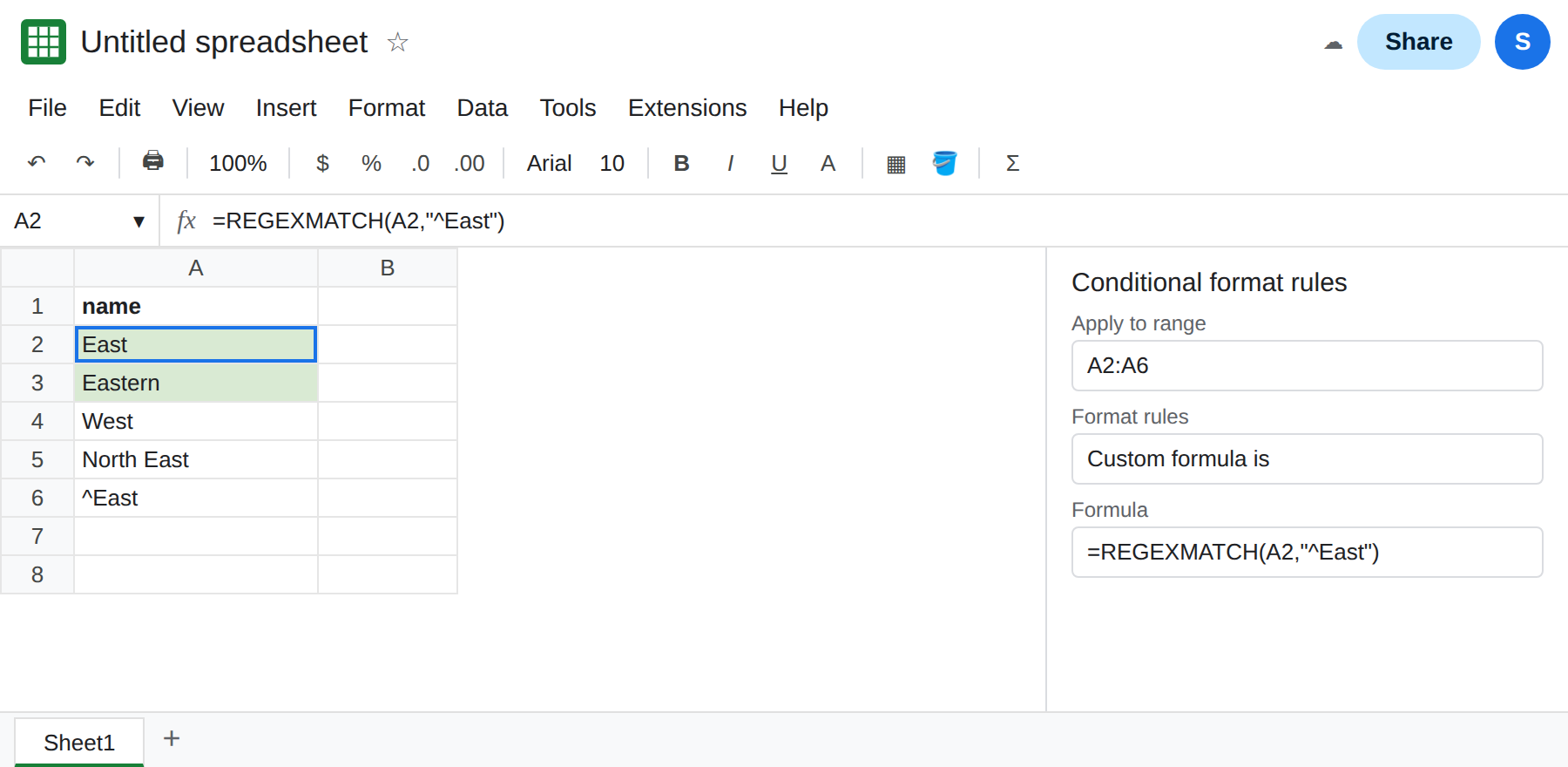
If the custom formula paints only column A of a wider range, the reference is relative. See CF formula range.
What is actually wrong
Section titled “What is actually wrong”- Text contains, Text does not contain, Text is exactly, Text starts with, and Text ends with store a literal. A pattern copied from a
QUERYmatchesclause, or fromREGEXMATCH, is searched for as typed.^Eastis five characters. No row in A2:A5 contains them, so a sheet without A6 shows no fill at all. That empty result is the “pattern never matches” scene. Eastas a literal matches more cells than a start anchor. Eastern and North East are supposed to match Text contains. If you wanted only the word East, Text is exactly is the literal whole-cell test.REGEXMATCH(A2,"^East$")is the regex whole-cell test.- Custom formula is the only slot in this panel that evaluates a formula.
=REGEXMATCH(A2,"^East")is written for the top-left cell of the range, same as any other custom formula.$still locks. See conditional formatting $. QUERYmatchesis a different engine inside a query string. A pattern that works there is not automatically a conditional-formatting rule. See QUERY contains.FILTERwithREGEXMATCHspills rows instead of painting them. See FILTER + REGEXMATCH.- There is no error triangle when nothing matches. The rule is quiet. A formula that is illegal is also quiet. Test
=REGEXMATCH(A2,"^East")in a normal cell. TRUE and FALSE down the column are the proof. A#VALUE!or#ERROR!in that cell means the pattern is not ready for the rule.
Leave one range on Text contains ^East so A6 stays the only filled cell, or keep A6 unfilled on a copy. Use a second range for the regex.
Use Text contains when you mean those characters. East paints every cell that includes that substring. Delete the caret if you pasted a pattern by habit.
Use a custom formula when you mean a pattern. On A2:A6: =REGEXMATCH(A2,"^East"). Add $ after the word (^East$) when Eastern should not match. Add (?i) when case should not matter, as REGEXMATCH case describes.
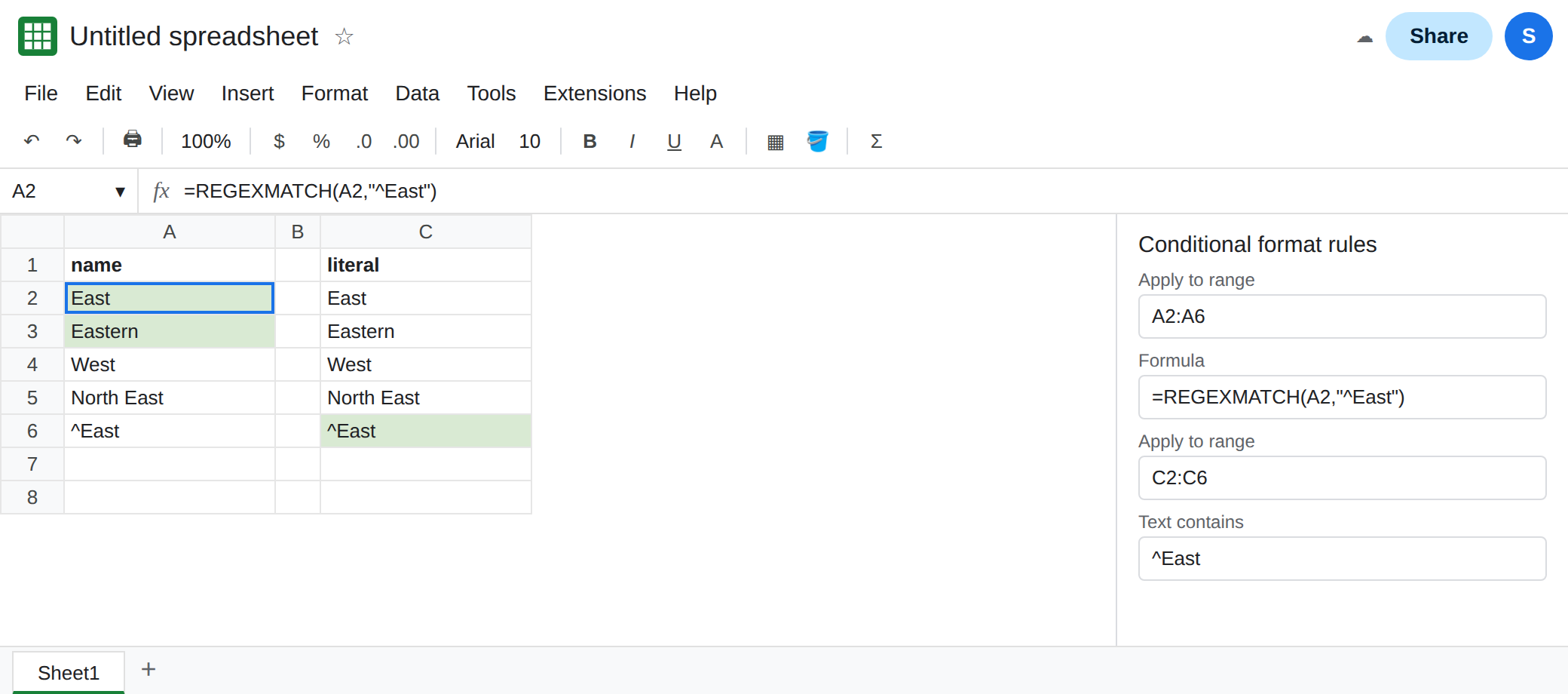
Do not put the pattern in Text contains and also wrap the column in REGEXMATCH in a hidden cell. One rule should be the one you can read in the panel.
If nothing paints and the box contains ^ or .*, you are in Text contains with a literal pattern. Switch to Custom formula is, or delete the metacharacters and type the substring you can see in the cell.