

Filter views and sheet filters show different rows to collaborators
Updated
Google Sheets has two filters that look alike and do not share a result. Data → Create a filter hides rows on the sheet. Everyone who has the file open sees those rows gone, and another editor can change the criteria. Data → Filter views → Create new filter view hides rows in a named view. Other people stay on the unfiltered grid, or on their own view. An argument about “I only see East” while a teammate sees every store is usually one of these, not a missing row.
The FILTER function, which spills a formula result, is FILTER no match. OR versus AND inside that function is FILTER OR vs AND. Keep the Google Sheets UI in English.
Recreate it on a blank sheet
Section titled “Recreate it on a blank sheet”- Open a blank spreadsheet. You will want a second Google account, or a colleague, for the last check. The single-account steps still show the two controls. In A1 type
store, B1qty. A2East, B210. A3West, B34. A4East, B46. A5North, B51.
A sheet filter hides rows for the file. Select A1:B5. Data → Create a filter. Filter icons appear on row 1. Open the icon on store. Clear West and North. OK. The sheet shows East only (rows 2 and 4). Row numbers skip. That is the shared filter. Leave it on for a moment and look at the menu: Data now offers a way to turn this filter off. This is not a filter view. There is no named view bar with Close.
Turn that off before you mix the two. Data → Remove filter (the wording next to Create a filter once a filter exists). All four data rows are back. If you leave the sheet filter on, the next step is harder to read.
A filter view hides rows for you. Select A1:B5. Data → Filter views → Create new filter view. A bar names the view (often “Filter 1”) with a name box and a close control. Filter store to East only. You see two East rows. Click the close control on that bar. The grid shows East, West, and North again. The view is still saved. Data → Filter views lists it. Open it. East only returns. Close it. The rows come back.
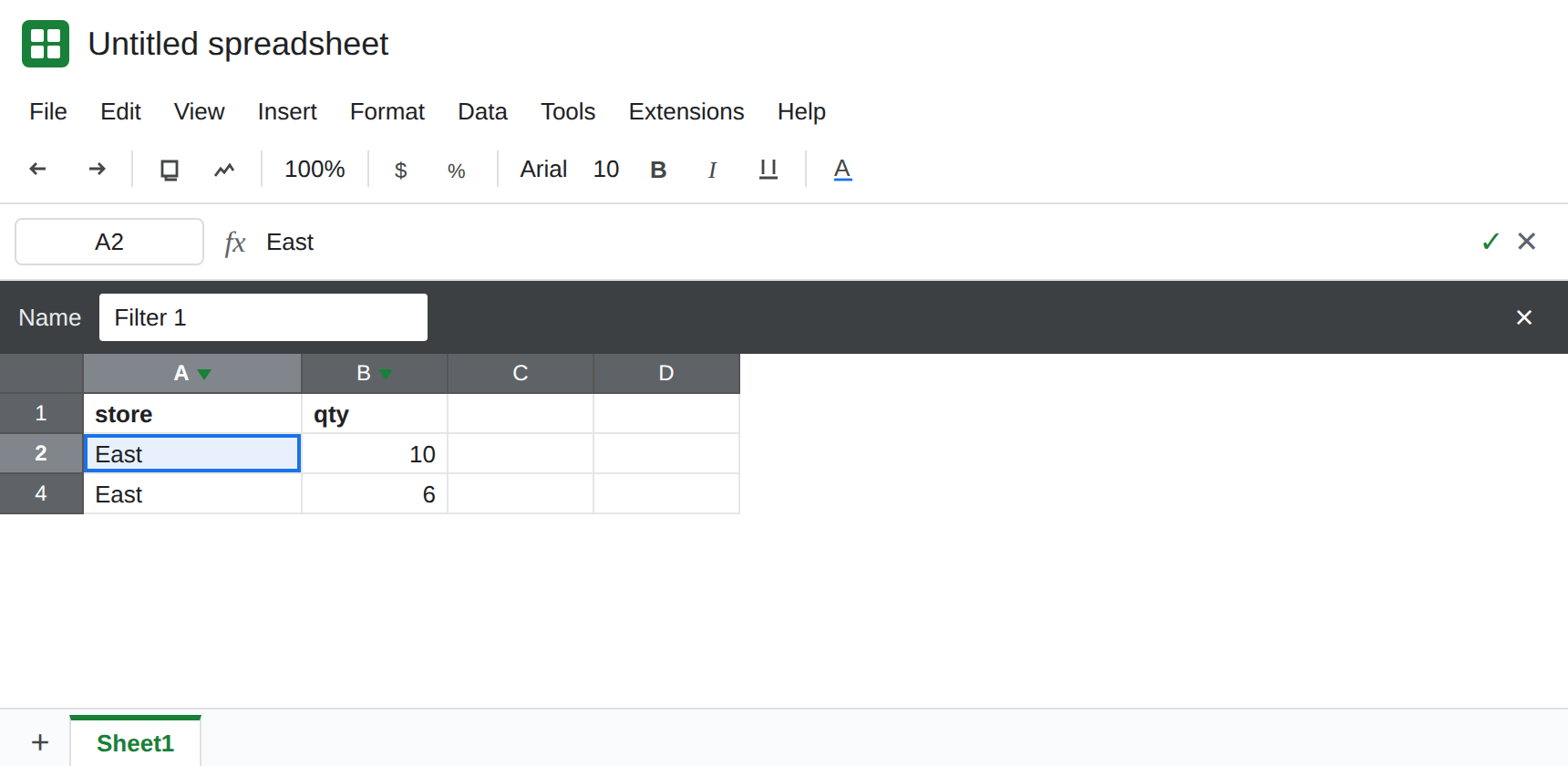
The other person. With the filter view closed on your screen, ask the other Editor to look at the same URL with no view applied. They see all four stores. Turn Create a filter back on and hide West. Reload as the other person. They see East and North only, matching you. Their screen moved because a sheet filter is part of the file. A filter view does not do that.
The link is the view. While your filter view is open, copy the browser URL. It contains fvid=. Send that URL. The recipient who can open the file lands in that named view, still without changing what everyone else sees on the plain URL. A recipient who was given only the plain link does not inherit your hidden rows.
=FILTER(A2:B5,A2:A5="East") in D2 is a formula spill. It does not hide rows 3 and 5. Both tools can be on one sheet and disagree. The function is FILTER no match when it returns #N/A.
What is actually wrong
Section titled “What is actually wrong”- Create a filter writes one criteria set onto the sheet. Editors share it. Viewers see whatever that filter currently hides. Two people cannot have two sheet filters on the same range at once.
- A filter view is a saved lens. Data → Filter views can hold more than one name. Only one is applied at a time for you. Closing it does not delete it. Removing it from the Filter views list does.
- A dark view bar means you are inside a view. No bar, and a filter icon that came from Create a filter, means the whole file is filtered. Read the menu before you argue about a missing West row.
- Sort inside a filter view reorders your view. Sort inside a sheet filter reorders the sheet. Those are different kinds of damage. This page is the hidden rows. Do not sort the only copy of a list while a sheet filter is on unless you mean to reorder it for everyone.
- Temporary views exist for people who can only view the file. Google’s help notes that a viewer can get a temporary filter view that is not saved for the owners. If a viewer says the filter vanished later, it was temporary. It was not a sheet filter you forgot to remove.
If everyone must see the same rows, use Data → Create a filter, set the criteria, and leave it. Tell the other editors that changing it changes their screen. Remove it when the shared cut is over.
If each person needs their own rows, remove the sheet filter. Data → Filter views → Create new filter view. Name it (East only). Close the bar when you want the full grid. Send the fvid URL only to people who should start inside that view.
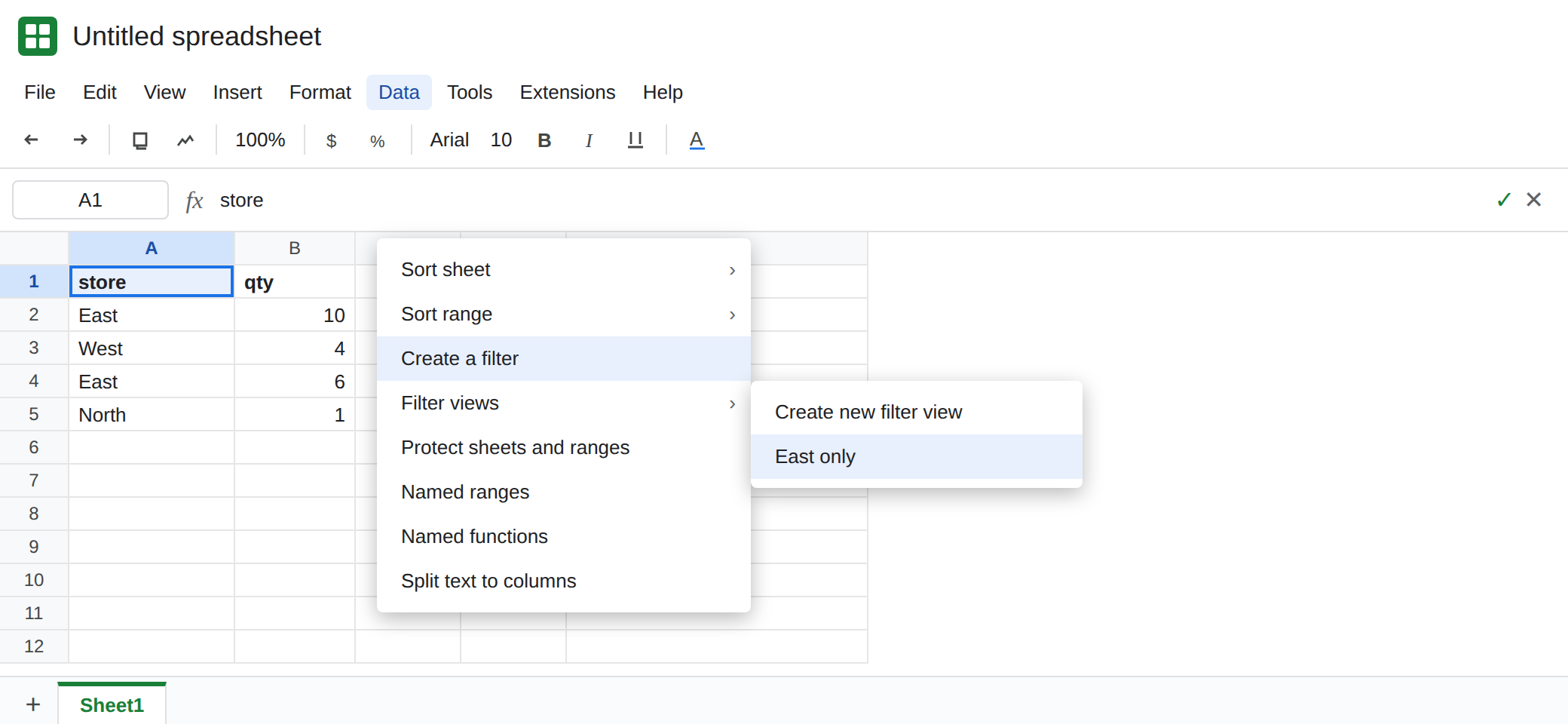
If a teammate sees fewer rows than the grid in front of you, ask whether their URL contains fvid, and whether Data → Remove filter appears on their screen. Matching those two facts explains the missing West row. Adding the West data again will duplicate it.
Do not replace the range with a FILTER formula to “stop the fighting” unless you want a second spill. The source rows should stay put. The view is only a lens.
If the filter icon changes the sheet for a colleague, it is a sheet filter. If a named bar with Close changes only your screen, it is a filter view. If the cell is a FILTER formula and the source rows are still visible, you are on the function page.