

IMPORTHTML and IMPORTXML return #N/A when the table is drawn by JavaScript
Updated
IMPORTHTML and IMPORTXML download the response as text and look for a table, a list, or the nodes your XPath names. They do not run the page’s JavaScript. If the figures appear only after a script builds the page, the download has no table to return. The cell is #N/A. The tooltip is Could not fetch url, or Imported content is empty when the host returned a document with nothing that matched. Clicking a different table index does not start a browser.
A wrong index on a page that does contain tables is IMPORTHTML index. Allow access, Result too large, and Loading… are Allow access, size, loading. A quota cool-down is IMPORT quota. An XPath that misses a real node is IMPORTXML XPath.
Sheet Error is not a Google product and not a scraping product. Keep the Google Sheets UI in English.
Recreate it on a blank sheet
Section titled “Recreate it on a blank sheet”- Open a blank spreadsheet. You need a network. This recreate uses one formula that should spill and one that should not. Do not fill the sheet with imports. That is how you hit IMPORT quota.
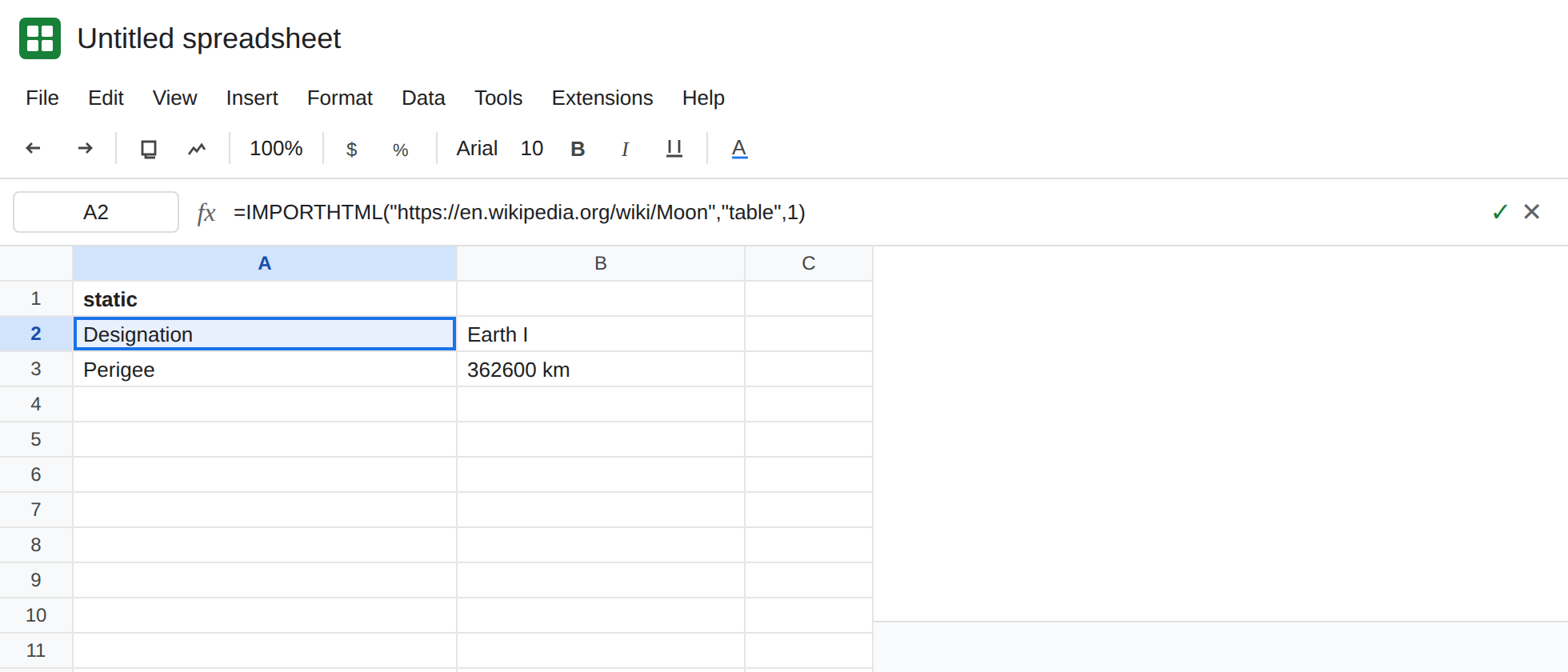
A table that is in the HTML. In A1 type static. In A2 enter:
=IMPORTHTML("https://en.wikipedia.org/wiki/Moon","table",1)
If the banner says some formulas are trying to send and receive data, click Allow access. That banner is not a JavaScript problem. After it, A2 spills a table from the article. Wikipedia edits change which table is first. You need a spill, not a specific caption. Open the article in a browser, right-click, and choose View page source (not Inspect). Search the source for <table>. The control is: the source contains a table, and A2 spilled. Leave A2.
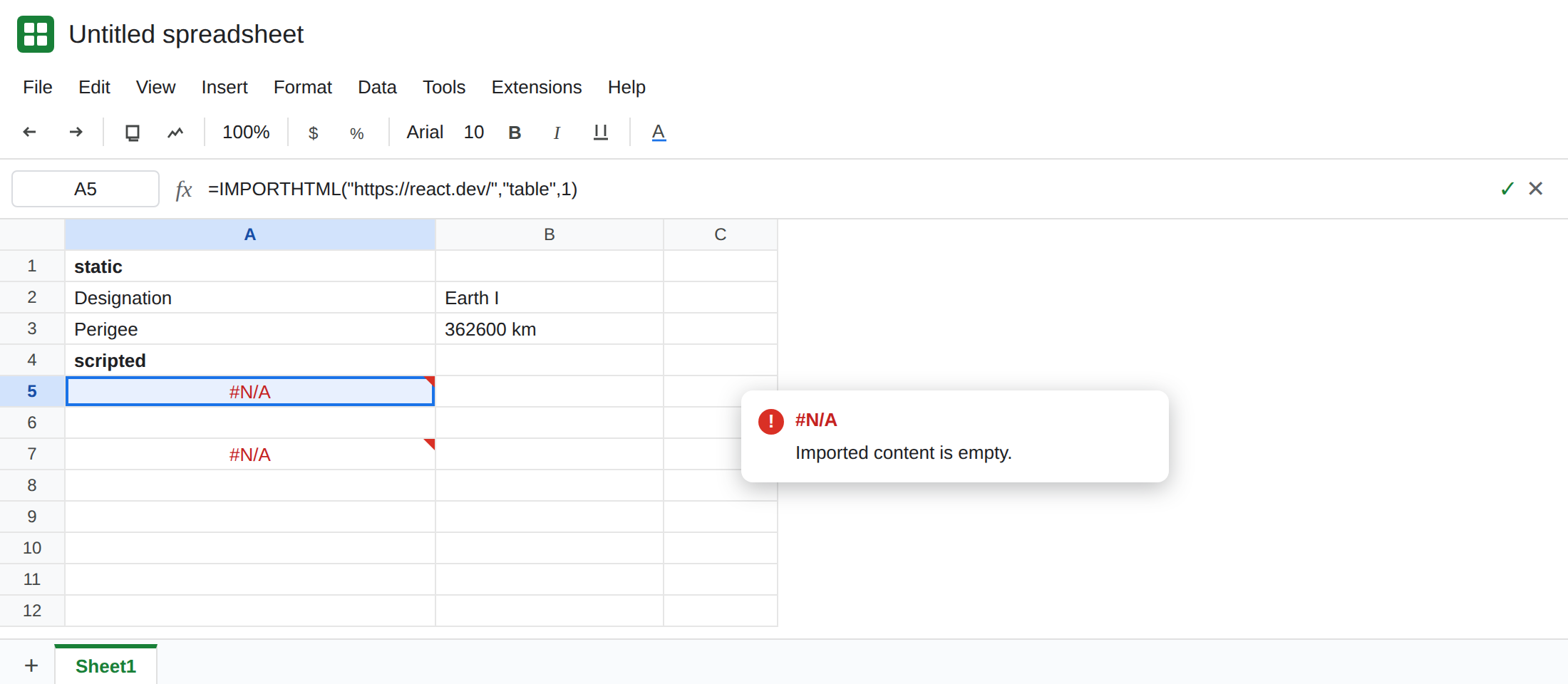
A page whose numbers are not in that source. Pick one public page you can already open, where the figures show up only after scripts run. A dashboard or an app-style page is the usual case. View page source on that URL (the source command, not Inspect). If that source has no <table> and no list containing those figures, the import cannot see them. In A4 type scripted. In A5 enter =IMPORTHTML("PASTE_URL","table",1) and replace PASTE_URL with the address-bar URL you just viewed, still inside the quotes. A5 is #N/A. Hover it. The tooltip is Could not fetch url, or Imported content is empty. Leave A5 broken. Do not add a second copy of A5 against a different host “to be sure.” One scripted URL is the recreate.
Do not point A5 at a private URL, a page that asks you to sign in, or a host you do not want this spreadsheet to contact. Allow access sends the request from the sheet. Sign-in walls fail for the same #N/A family and are not a table index.
Index 2 is not a browser. In A7 enter the same URL with "table",2. If the source has no tables, A7 is #N/A as well. IMPORTHTML index is the page for “index 1 spilled a different table than index 2” on a site like the Moon article. It is not a way to execute JavaScript.
IMPORTXML misses the same download. In C5 enter =IMPORTXML of that same scripted URL with "//table". C5 is #N/A when the downloaded document has no table node. A path cannot select a node the response never included. See IMPORTXML XPath when //h1 works and your path does not.
What is actually wrong
Section titled “What is actually wrong”- The functions see the HTTP response. A script that later inserts a table in your browser has not run. Inspect shows the live document. View page source shows what these functions can see. Use the source.
- Could not fetch url also covers a host that refused the request, a network block, or a URL that is not public. The JavaScript case and the refused case share a tooltip. The split is the source: a table in the source means you are on access, size, quota, or a bad index. No table in the source, while the screen shows one, means this page.
IMPORTRANGEis a Google Sheet, not an HTML page. A#REF!there is not Could not fetch url. See IMPORTRANGE access.- Changing
"table"to"list"only helps when the source contains a list. It does not render an app. - Wrapping A5 in
IFERRORhides a fetch failure and a later typo in the URL the same way. See IFERROR vs IFNA.
Apps Script UrlFetchApp downloads a response too. It does not, by itself, run the page’s scripts. A different URL that the site publishes as HTML or CSV can work. This page does not turn a scripted page into a table.
Leave A5 as #N/A. Leave A2 spilling.
Import a URL whose source contains the table. Keep A2 as the pattern: a public page, "table", index 1, and a <table> you can find in View page source. If the site offers a CSV or an HTML export, point IMPORTDATA or IMPORTHTML at that export URL, not at the app shell. See IMPORTDATA fetch if that file itself fails.
When the source has the table and the cell is still #N/A, stop changing the page type. Click Allow access if the banner is up. If the tooltip is Result too large, narrow the request. If many imports fail together, wait out the quota. Those are the other pages. A new index is the index page only after one index on that host already spilled.
Do not paste the browser’s rendered HTML into the formula and expect IMPORTHTML to parse a blob. The first argument is a URL.
If View page source has the table and A2 spills, the function works. If the screen has the figures, the source does not, and A5 is #N/A, another index will not run the script. Use a URL that already contains the table, or type the values.