

Several IMPORTRANGE formulas fill the spreadsheet and return #REF!
Updated
Each IMPORTRANGE downloads the range you named. Google’s help caps that download at 10 MB of received data per request. Cross that on one formula and the tooltip is Result too large. That single-request failure is IMPORTRANGE too large.
A second limit sits on the file that receives the spills. Google’s spreadsheet limit is 10 million cells. Several imports that are each under 10 MB still write cells into the destination. When those spills, plus the sheets you already have, do not fit, the import that cannot land is #REF!. Rows are not quietly dropped. A chain of workbooks makes the same data occupy cells in more than one file.
Sheet Error is not a Google product. Keep the Google Sheets UI in English.
Recreate it on sheets you own
Section titled “Recreate it on sheets you own”A three-cell demo will not fill 10 million cells. The recreate is a small connected import, then the pattern that multiplies it.
-
Source. One spreadsheet you own. Tab
Sheet1. In A1 typesku, B1qty. A2101, B22. If you have a tall export tab, keep it. Copy the spreadsheet id. -
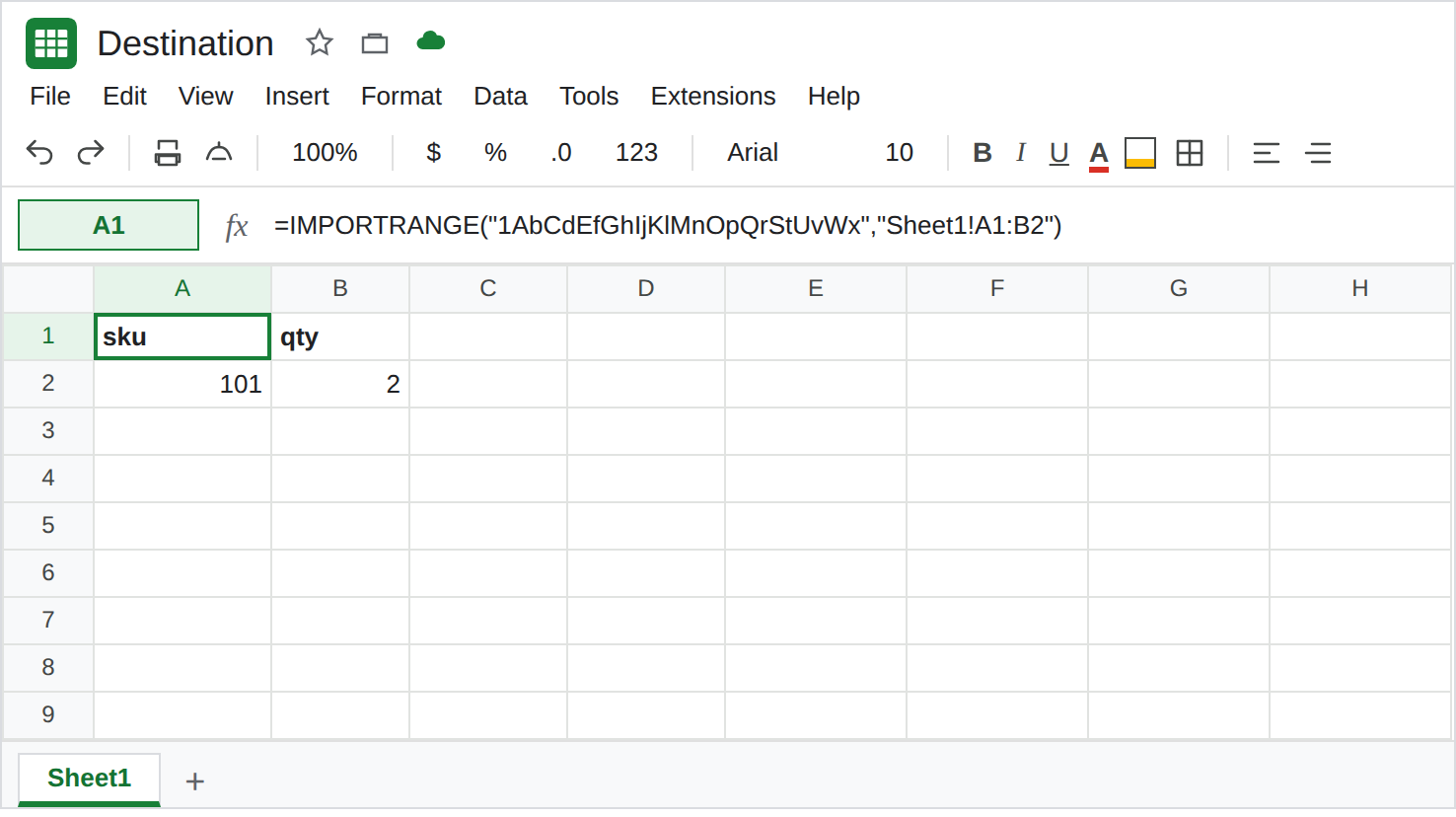
Destination, one small pull. A second spreadsheet. In A1 enter
=IMPORTRANGE("SOURCE_ID","Sheet1!A1:B2"). If A1 is#REF!with You need to connect these sheets, that is IMPORTRANGE access. Click Allow access. Wait untilsku/101spills. That cell is the control. It is nowhere near either cap.
-
One formula, too much payload. In C1 enter
=IMPORTRANGE("SOURCE_ID","Sheet1!A:ZZ")only if the source is actually wide or tall. If C1 becomes#ERROR!and the tooltip is Result too large, stop widening. That tooltip is IMPORTRANGE too large. It is one request, not the workbook cell budget. Leave C1 if it shows that tooltip. If the source is tiny, C1 may spill. A tiny source cannot teach this page the size error. You still have A1. -
Many ranges into one destination. Add imports that each stay small enough to avoid Result too large, on separate blocks that do not overlap:
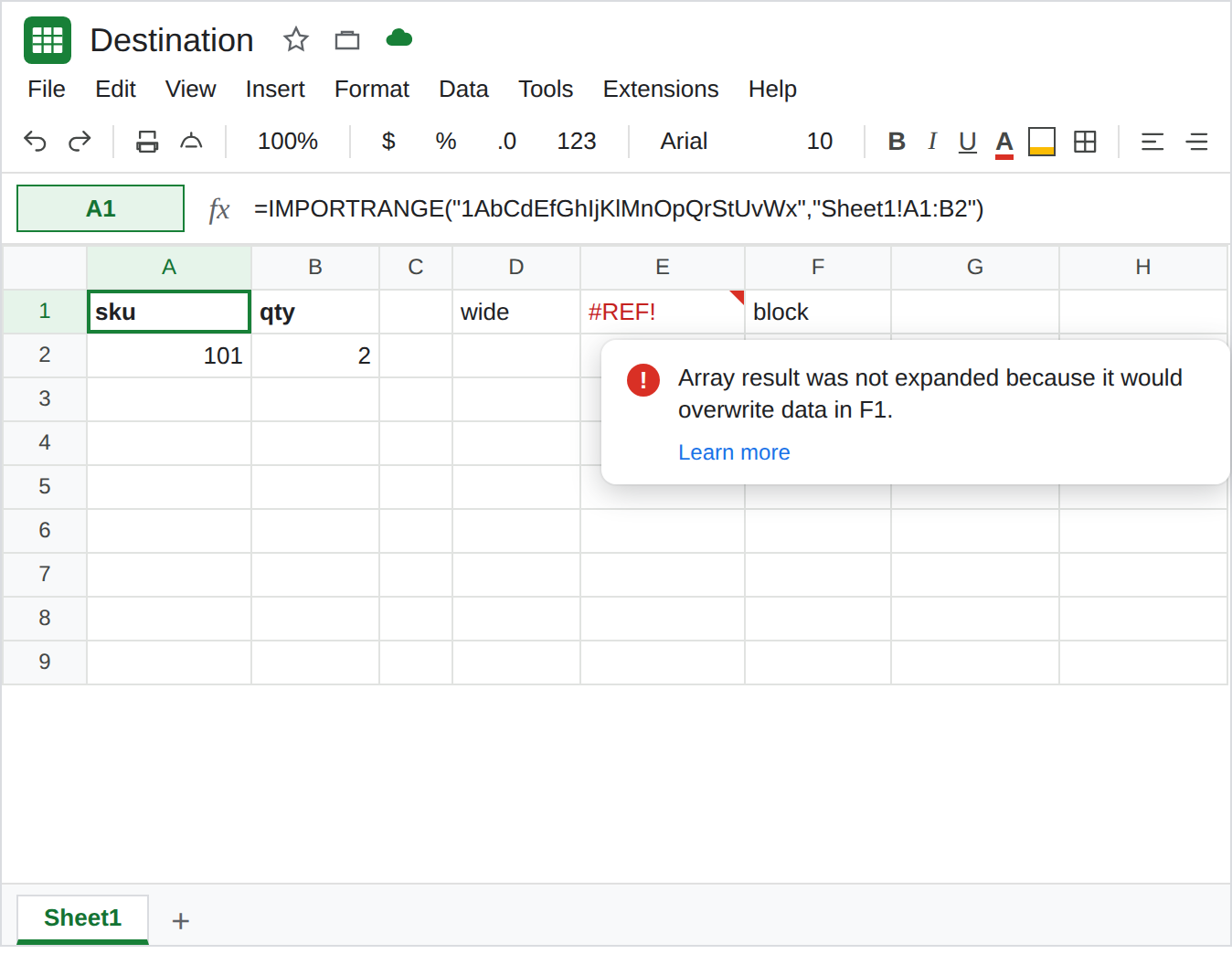
Sheet1!A1:D5000in E1, the next slice in a cell far to the right or on the next tab, and so on, against a source that really has those rows. Each formula writes its own spill. The destination’s used cells are the sum of the spills. When a new spill has no room in the 10 million cell grid, that formula is#REF!. The tooltip names the cells that would be overwritten, or the file refuses the size. Earlier imports can still show their rows. The new one did not trim itself to fit. Leave the#REF!formula in place. Do not paste a 10 million cell sheet into a tutorial file.
Loading… is the request, not the cell count. A cell that stays on Loading… with a note about the number of import requests is IMPORTRANGE loading. Wait until it either spills, shows Result too large, or shows #REF!. Refreshing starts another request.
What is actually wrong
Section titled “What is actually wrong”- 10 MB is per request. Result too large means that one range string asked for too much data. Narrowing
A:ZZtoA1:D500answers that tooltip. It does not shrink spills that already landed from other formulas. - 10 million cells is the spreadsheet. Every spilled import cell counts, including cells you do not look at. A second tab of imports counts. Google publishes that workbook limit. There is not a second, secret “import-only” cell total on the help page beyond the request size and this grid.
#REF!here is the spill that cannot be written. It is the same family as array result was not expanded when the tooltip names a cell in the way, and it is a full-file refusal when the grid itself is exhausted. Read the hover. Allow access will not add cells.- Chains copy the budget. File C imports B, and B imports A, so the same rows occupy space in B and in C. Google’s help says to limit chains and to summarize in the source when the destination only needs a total. A cycle, A importing B while B imports A, is IMPORTRANGE circular chain. That one may never produce output at all.
IFERRORaround the#REF!import stores a blank block and the cells are still full. See IFERROR vs IFNA.
Leave A1 as the small spill. Leave a Result too large cell and a #REF! cell broken if you already produced them, so the two tooltips stay different.
Import the rectangle you will use. Point each formula at closed bounds (Sheet1!A1:D5000), not A:ZZ. If the destination only needs East’s total, compute that total on the source and import one cell.
Split files by job, not by pasting the same dump twice. One destination for the summary, values pasted (Edit → Paste special → Values only) when you need a snapshot that should stop fetching. A snapshot does not follow the source. It also does not keep a live formula for every slice.
Delete imports you no longer read. A formula on a hidden tab still holds its spill. Clearing it gives the cells back. Deleting a formula does not raise the 10 MB cap on the next huge request. That cap is per request. See IMPORTRANGE too large.
If the tooltip is Result too large, shrink that one range. If the tooltip is #REF! and other imports already fill the file, remove a spill before you add one. If the cell says Loading…, wait, and read the message before you add another IMPORTRANGE.