

setFormula with commas is a Formula parse error on a semicolon locale
Updated
Range.setFormula writes a formula string into a cell. The spreadsheet then parses that string the way it parses a formula you typed. On a locale that uses a comma as the decimal mark, arguments are separated with semicolons. =SUM(A2,B2) with commas is #ERROR!. The tooltip is Formula parse error. The function name SUM is English and is not the problem. The commas are. Always use English function names does not rewrite the string the script just stored.
Typing those commas in the formula bar is locale semicolons. A pasted VLOOKUP with commas is locale parse error. The decimal mark inside a number is decimal comma locale. Keep the Google Sheets UI in English. Sheet Error is an independent formula-error library, not a Google product.
Recreate it on a blank sheet
Section titled “Recreate it on a blank sheet”- Open a blank spreadsheet. File → Settings → Locale: Germany. Turn on Always use English function names. Keep the menus in English if you can. Locale and menu language are different. In A2 type
2. In B2 type3.
A formula you type with semicolons works. In C5 enter =SUM(A2;B2) with a semicolon. C5 shows 5. That cell is the control. Do not use =SUM(1,2) as the test. On this locale the comma is the decimal mark, and that pair can become one number instead of a parse error. See locale semicolons.
The script writes commas. Extensions → Apps Script. Replace the sample with this. Save. Run writeSum. Authorize if this is your file and you want the write.
function writeSum() { SpreadsheetApp.getActiveSheet().getRange('C2').setFormula('=SUM(A2,B2)');}Return to the sheet. Read the formula bar on C2, not just the value. The bug looks like this: C2 shows #ERROR!, the tooltip is Formula parse error, and the bar still shows =SUM(A2,B2) with commas. A2 and B2 are numbers. C5, with a semicolon, still shows 5. The checkbox for English function names is on. The name in C2 is already SUM. Leave C2 broken. If C2 instead shows 5 and the bar shows a semicolon, this file rewrote the string. You are not looking at the broken case. The rest of the page is the file that kept the commas.
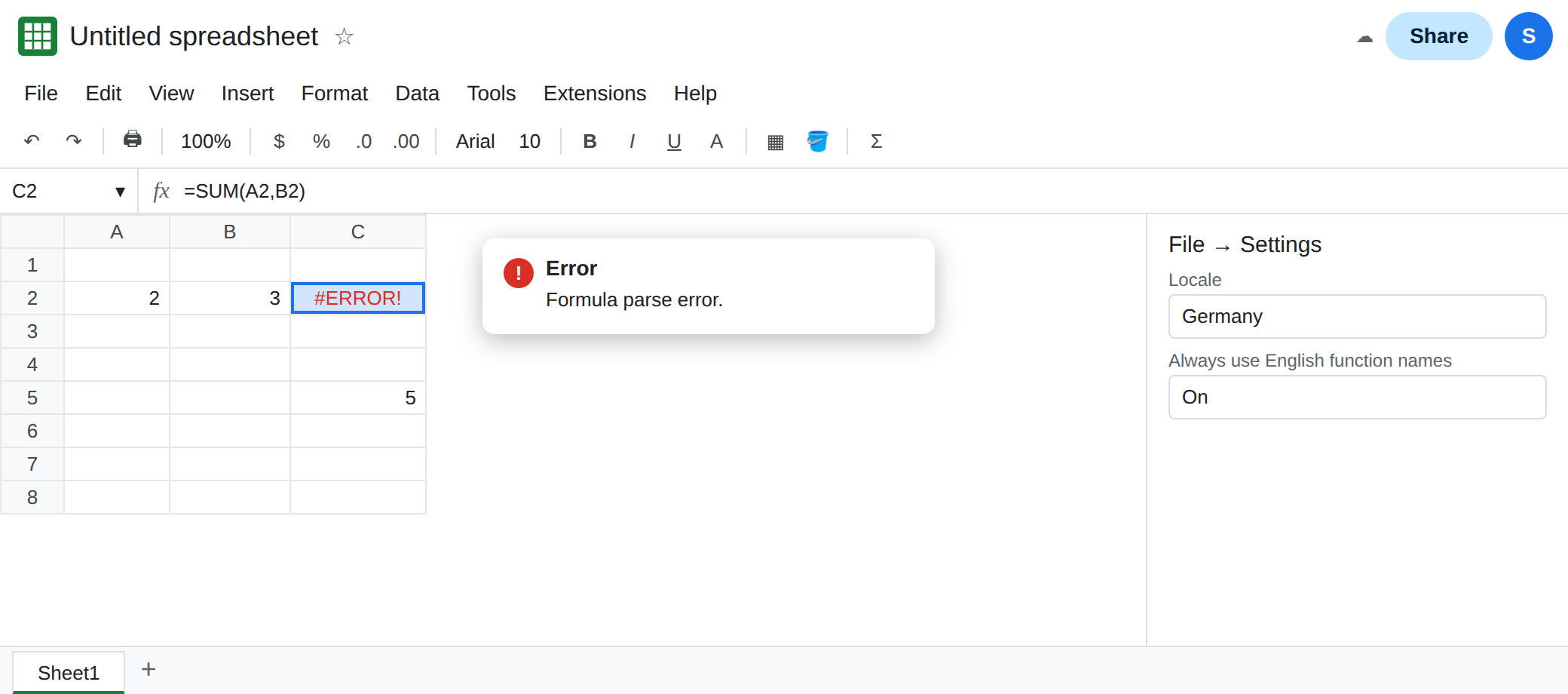
Changing the checkbox does not repair C2. Toggle Always use English function names. C2 stays #ERROR!. The script does not re-run. The commas stay in the cell until something writes a new formula.
setValue of a formula-looking string is not the repair. setValue('=SUM(A2;B2)') can store text or a formula depending on the call. This page’s failure is setFormula with the wrong separator. Do not debug C2 by switching to setValue until the separator in setFormula matches the locale.
A United States locale accepts the comma string. If you switch this file’s locale to United States, existing formulas are not all rewritten for you. Set the locale before you judge a new setFormula. The Germany recreate is the one that makes C2 a parse error.
What is actually wrong
Section titled “What is actually wrong”- The formula string is literal.
setFormuladoes not look up a tutorial’s locale and translate commas into semicolons. Germany needs;betweenA2andB2. The cell parser rejects the comma version with the same tooltip you get when you paste a US formula by hand. - English function names and argument separators are different settings.
SUMstaysSUM. The separator stays the locale’s separator. See locale semicolons. getSpreadsheetLocale()returns a code such asde_DE. It does not return the separator character. You still choose;or,from that code, or you write the formula the way C5 was typed.- Array literals have another separator again. On this locale, columns inside
{ }use a backslash. Semicolons inside{ }stack rows. See array literal locale. Fixing C2’s commas does not fix a{1,2}the script wrote beside it. - A formula that parses can still be the wrong calculation. C2’s bug stops at the parse. You do not have a
#VALUE!yet. See wrong type only after the formula bar parses.
This is not #NAME?. Unknown function would mean the name is missing. SUM is known. See unknown function.
Leave C2 as the comma formula so the parse error stays. Write the repaired formula to C4.
Write the separator this locale uses. Change the script to set C4, save, and run it.
function writeSum() { SpreadsheetApp.getActiveSheet().getRange('C4').setFormula('=SUM(A2;B2)');}C4 shows 5. The formula bar shows a semicolon. C2 is still #ERROR!.
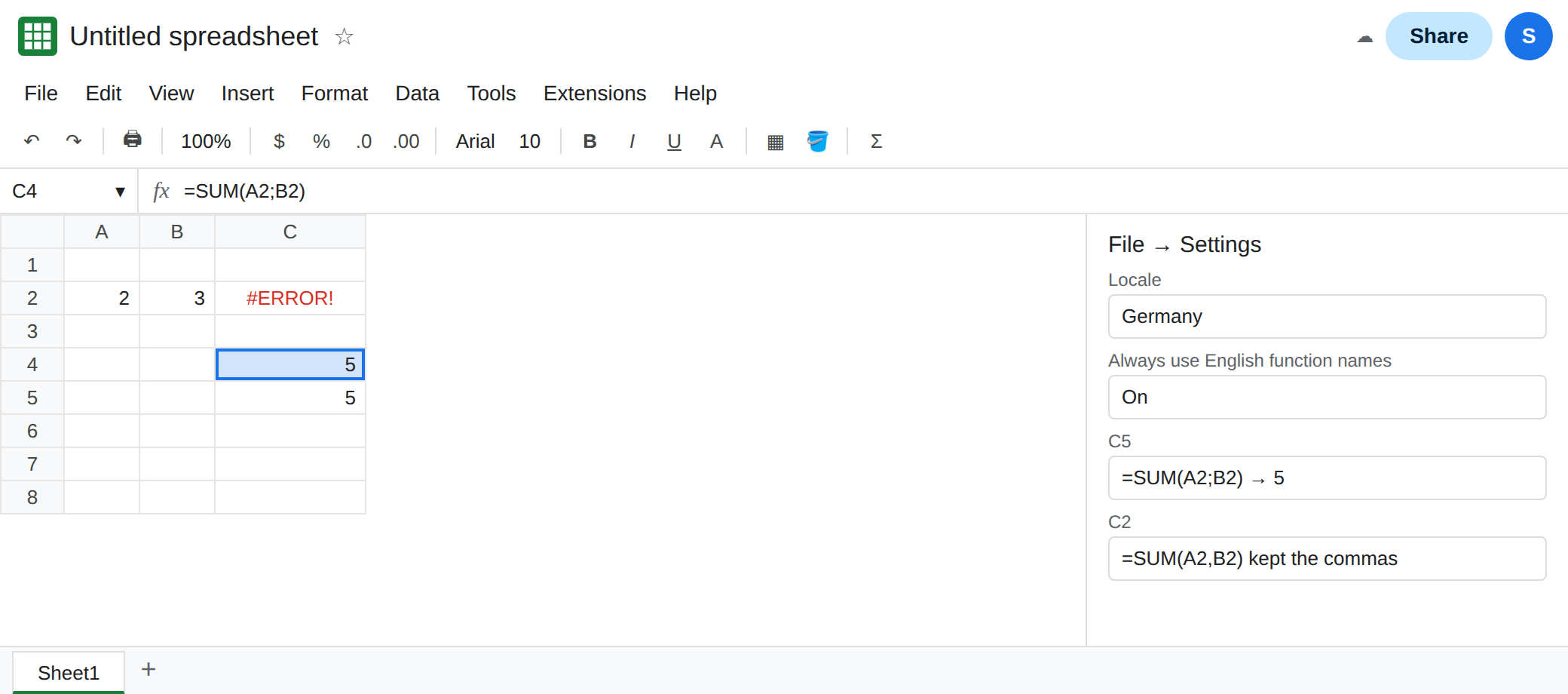
On a United States locale, the comma string is the one that parses. Do not ship a semicolon to every file. Read SpreadsheetApp.getActive().getSpreadsheetLocale() and write the separator that locale uses, or keep the spreadsheet on one locale and test setFormula there. Switching the locale after the write does not translate C2.
Do not wrap C2 in IFERROR inside another cell and call the script fixed. The stored formula is still illegal. See IFERROR vs IFNA.
If the formula bar shows commas and the tooltip is Formula parse error, the locale wanted semicolons. If the formula bar already shows semicolons and the tooltip remains, you are on the parse-error page for a different character. The script wrote exactly the string you passed.