

A long CSV id becomes 1.23E+15 and the lost digits do not come back
Updated
A numeric id with more digits than binary floating point can keep exactly is rounded on the way in. The cell then displays scientific notation, often like 1.23E+15, or a nearby integer that looks almost right. The low digits are already gone. Widening the column, adding decimal places, or wrapping TEXT only prints the rounded value. An apostrophe typed after the import does not recover the source file. The id has to arrive as text, before the conversion.
Sheet Error is an independent formula-error library, not a Google product. Keep the Google Sheets UI in English. A short id that stayed exact but is text in one column and a number in the other is CSV text vs number. A leading apostrophe that is a real character, so VALUE is #VALUE!, is CSV leading apostrophe. This page is precision, not a lookup type split.
Recreate it on a blank sheet
Section titled “Recreate it on a blank sheet”- Open a blank spreadsheet. You can lose the digits without a file. The integer
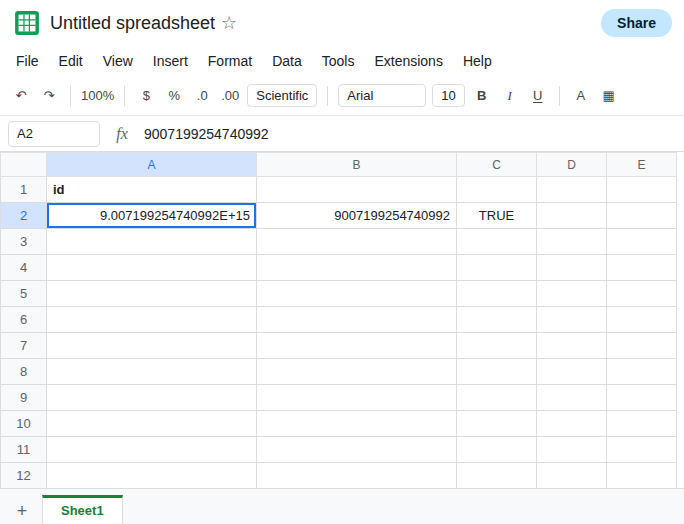
9007199254740993is one past the largest integer every nearby integer can still be stored exactly (2^53is9007199254740992). In A1 typeid. In A2 type9007199254740993and press Enter. Do not type an apostrophe.
Read the stored digits. Format A2 as Format → Number → Number and show no scientific notation if the cell switched to E+. In B2 enter =TEXT(A2,"0"). B2 shows 9007199254740992, not ...993. In C2 enter =A2=9007199254740992. C2 is TRUE. The key you typed is not the key that was stored. Leave A2 as that number. Zooming the column will not change B2.
Text keeps the source. In A4 type an apostrophe, then 9007199254740993. In B4 enter =LEN(A4). B4 is 16. In C4 enter =A4=TEXT(A2,"0"). C4 is FALSE. The text id and the numeric id are not the same key. =VLOOKUP(A4,A2:A2,1,FALSE) is #N/A. That miss is the type-and-value split after the rounding. See CSV text vs number for ids that were exact and only differed by type.
The import path. File → Import → Upload. If Convert text to numbers, dates, and formulas is on, a CSV field of those 16 digits lands like A2. The original 993 ending is not in the workbook anymore. Unchecking that box on a second import, into a column formatted as Format → Number → Plain text before the paste, lands like A4. You need the file again. The first import’s A2 cannot be unconverted.
A value that displays as 1.23E+05 and whose TEXT(...,"0") matches the source id is only narrow-column formatting. Widen it or change the number format. This page is the case where TEXT does not match the file.
What is actually wrong
Section titled “What is actually wrong”- Sheet numbers are IEEE floating point. Integers past
2^53are not all representable. The import stores the nearest value it can, then may format it withE+. The display is a symptom. B2 is the stored id. TEXT,TO_TEXT, and a plain-text format run after storage. They format the rounded number. They do not read the CSV again.- Leading zeros are a different loss.
00101becomes101when converted, and the digits that remain can still be exact. See CSV text vs number. A 16-digit id can lose both a leading zero and the low digits. Fixing one does not fix the other. VALUEof the text id produces the same rounded number as A2. Converting “back to a number” reintroduces the loss. Keep identifiers as text if you do not do arithmetic on them.- Scientific notation on a short exact integer is cosmetic. Check
TEXTagainst the source before you reimport the whole file.
Leave A2 and B2 as the rounded number so you can see the loss.
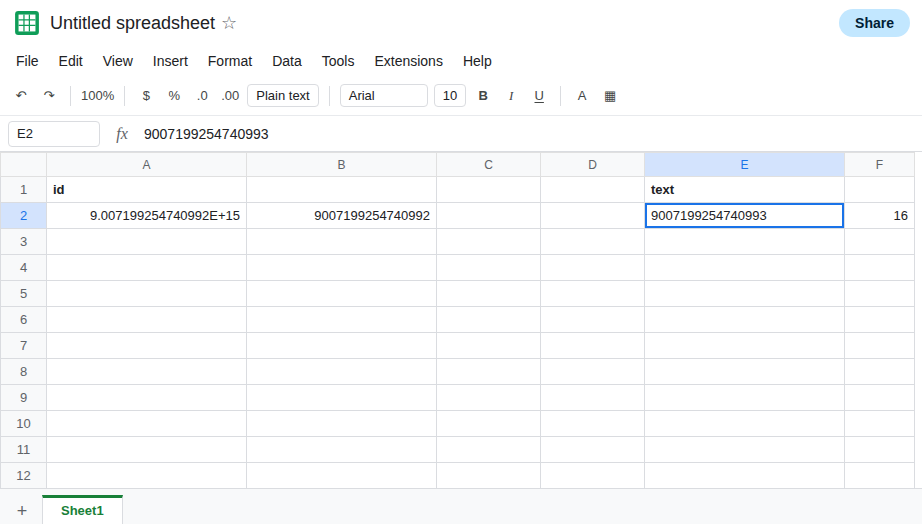
Bring the id in as text, from the file, not from A2. Format column E as Format → Number → Plain text. Paste the original id into E2, or import the CSV with conversion off into that column. E2’s formula bar shows 9007199254740993. In F2 enter =LEN(E2). F2 is 16. In F3 enter =E2=A4 if A4 is the apostrophe text. F3 is TRUE. Lookups against E2 match the text key.
On the next CSV, set the id column to Plain text first, or turn off Convert text to numbers, dates, and formulas in the import dialog. A prefix apostrophe in the export is the other page if that character is stored and LEN counts it. See CSV leading apostrophe.
Do not wrap B2 in IFERROR. Nothing threw. The id is quietly wrong. See IFERROR hides cause.
If TEXT of the imported cell differs from the CSV field, the digits were rounded and only a new text import restores them. If TEXT matches the file and you only dislike E+, change the number format. If LEN of a text id is one higher than the digits and the first character is an apostrophe, strip that character before you compare.