

A named filter view is gone after the filtered column is deleted
Updated
A filter view has a name in Data → Filter views. Closing the dark bar hides the view and leaves the name in that menu. Collaborators with access to the file can open the same name. The name is part of the spreadsheet, tied to the sheet and to the columns it filters. Delete the column the view filters, or replace the sheet, and the name can disappear from the menu, or the name can remain while the criteria now sit on a different column. A teammate who says the view vanished after you changed the headers is describing that menu, not a row that was deleted from the data.
Closing a view versus a sheet filter that hides rows for everyone is filter view vs filter. The FILTER function is FILTER no match. A sheet filter that hides a spill is filter hides spill. Keep the Google Sheets UI in English. Sheet Error is an independent formula-error library, not a Google product.
Recreate it on a blank sheet
Section titled “Recreate it on a blank sheet”- Open a blank spreadsheet. In A1 type
store, B1qty. A2East, B210. A3West, B34. A4East, B46. A5North, B51.
Save a named view, then close it. Select A1:B5. Data → Filter views → Create new filter view. In the name box, replace the default with East only. Open the filter icon on store and keep East only. You see two East rows. Click the close control on the view bar. All four stores come back. Data → Filter views. East only is still in the list. Open it and close it once more. The name survives a close. That menu entry is the control. A sheet filter from Data → Create a filter does not add a name there. Remove any sheet filter before you continue so the next step is only the view. See filter view vs filter.
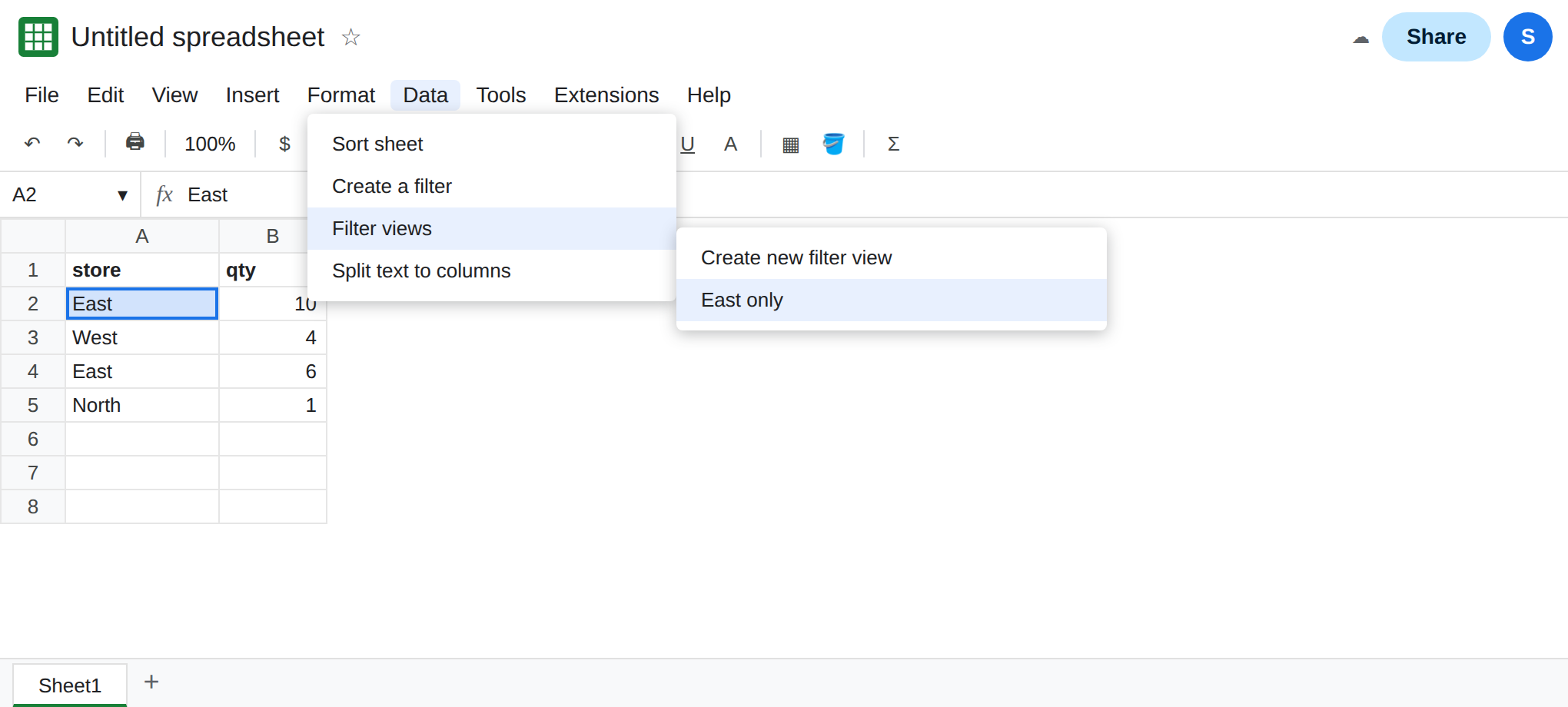
Delete the column the view uses. Close the view if it is open. Right-click column A and delete the column. qty slides left. Open Data → Filter views. Look for East only. Either the name is gone, or the name is still there and opening it no longer filters a store column, because that column no longer exists. Both outcomes are the view losing the field it was built on. The four qty numbers are still on the sheet. The rows were not the thing that vanished. Leave column A deleted so the menu stays in that state.
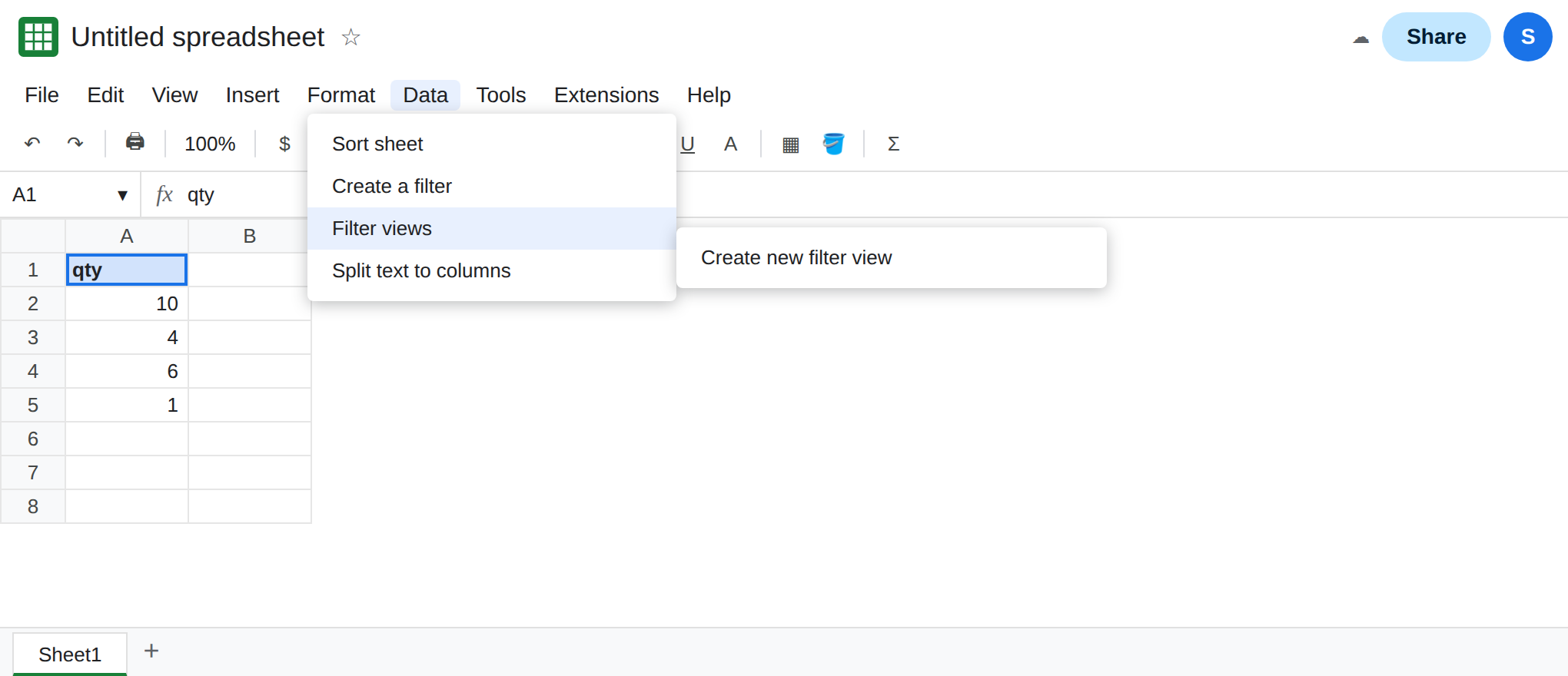
A temporary view never had a shared name. If the menu offers Create temporary filter view, create one, filter a column, and do not save it as a named view. Close it. Data → Filter views does not gain a durable name from that session. A collaborator who only made a temporary view did not lose a saved name when you edited headers. They never wrote one. A saved name is the East only entry you saw before the delete.
Changing a header word is not deleting a column. If you still have a copy of the file, rename store to shop without deleting the column. Open the view. The criteria often remain on that column, now titled shop. The name East only is still in the menu. A rename is not this page. A deleted column, an inserted column that shifts which field is filtered, or a sheet you replaced with File → Import, is this page.
What is actually wrong
Section titled “What is actually wrong”- The named view is a saved object. Close is not delete. Delete, in the view menu, removes the name on purpose. Deleting the filtered column removes the field the object pointed at, and the menu entry can go with it.
- Everyone who can open the file sees the same saved names. The view is not a private lens stored on one account. If the owner cannot see
East only, it is not “the collaborator’s private view.” It is absent from the file. A temporary view is the private session, and it has nothing for the owner to open later. - Inserting a column to the left of
storecan leave the name in the menu while the criteria operate on the wrong field. The view did not vanish. It moved. Read the filter icons when the view is open before you recreate it from scratch. - File → Import that replaces the sheet replaces the structure the views were attached to. The names from before the import are not a promise.
- Sort order saved inside the view is part of the view. This page is the missing name. Do not rebuild the data to chase a sort. See filter view vs filter for sort-versus-hide.
The FILTER function in a cell does not appear in Data → Filter views. A missing spill is FILTER no match.
Leave the deleted-column sheet as the broken menu. Rebuild the view on a range that still has a store column, on this sheet with the column restored or on a new tab.
Create the view again on the columns that exist now. Put store back in column A with the four rows, or add a new sheet with that layout. Data → Filter views → Create new filter view. Name it East only. Filter store to East. Close the bar. Confirm the name is in the menu. Send the URL while the view is open if the link should include fvid=. The plain URL does not apply the view. That link behavior is filter view vs filter.
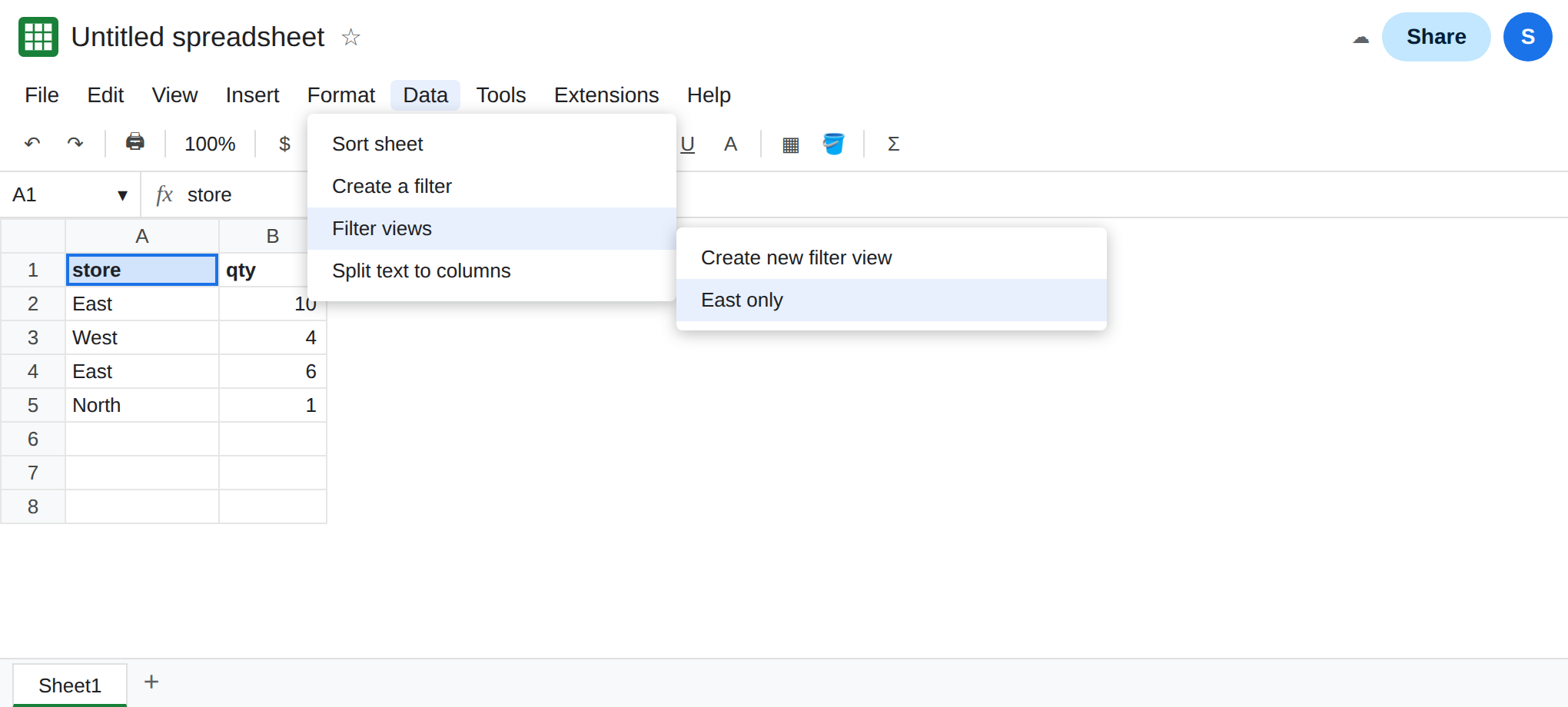
Do not delete a column a saved view filters unless you mean to drop the view. Insert the new field to the right, or edit the view’s criteria after an insert, and reopen East only to see which column is filtered.
If the name is in the menu, it did not vanish. Open it and read the icons. If the name is absent, it was never saved, it was deleted from that menu, or the column or sheet it stood on was removed. Closing the bar is not one of those.