

AI() or Gemini() on a huge range does not analyze every row
Updated
=AI() and =Gemini() are the same Sheets function under two names, on accounts where the feature exists. The optional second argument is a range. That range is the context. The function does not read the rest of the spreadsheet, and it does not read other files in Drive. A formula pointed at A:Z is not a promise that every row was analyzed. Google’s help also says that when you select many cells that contain the AI function, only the first 350 selected cells are generated.
Sheet Error is not a Google product. This page will not show a generated paragraph as a successful control. If your cell is #NAME? or says the AI function is not available, you are on the availability page, not a range-size page. See AI() or Gemini().
Recreate it on a blank sheet
Section titled “Recreate it on a blank sheet”- Open a blank spreadsheet in the account you actually use. File → Settings → Locale can stay United States. Keep the Google Sheets UI in English. In A1 type
sku. A2N12. A3N13. A4N14. In B1 typenote. B2late. B3ok. B4late.
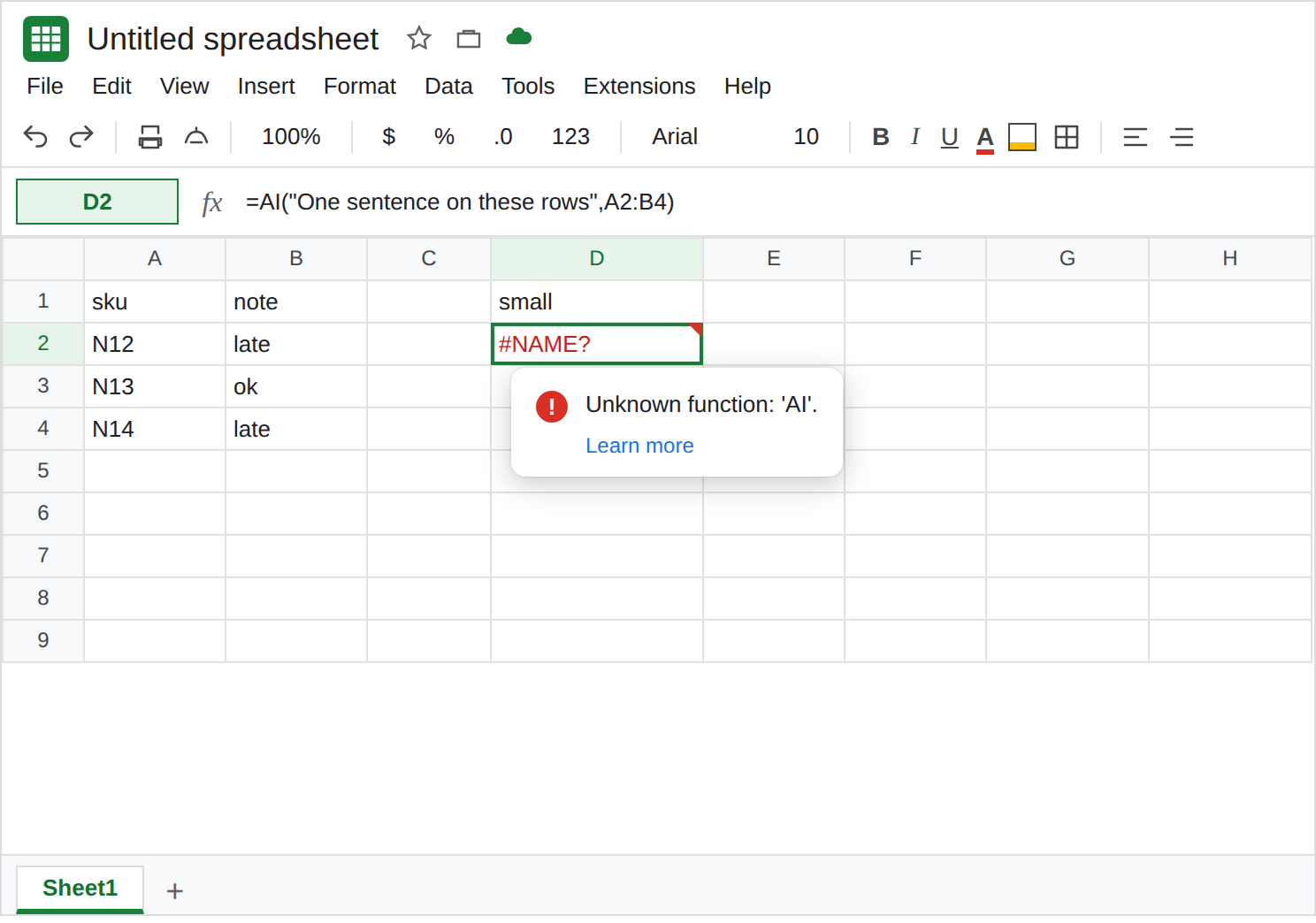
Stop if the name is missing. In D1 type small. In D2 enter =AI("One sentence on these rows",A2:B4). If your build only accepts the other name, enter =Gemini("One sentence on these rows",A2:B4) in D3 and leave D2. If the cell is #NAME? (Unknown function: ‘AI’ or Unknown function: ‘GEMINI’) or the message is AI function not available, stop. Do not widen the range. Plan, admin, language, region, an experiment, or a Box / Dropbox / Egnyte host is the gate. That recreate is AI() or Gemini(). The side panel is a different surface. See Gemini side panel.
When the name exists, the small range is only a shape. Google’s help says you select the cell and click Generate and Insert. Output is text. It does not recalculate like SUM when B2 changes. Refresh and Insert is a separate click. If D2 returns a sentence, that sentence is for your plan and region. Do not paste it into this tutorial or a sheet you share as “the working summary.” The control you keep is the formula bar: the second argument is A2:B4, three notes, not the whole tab.
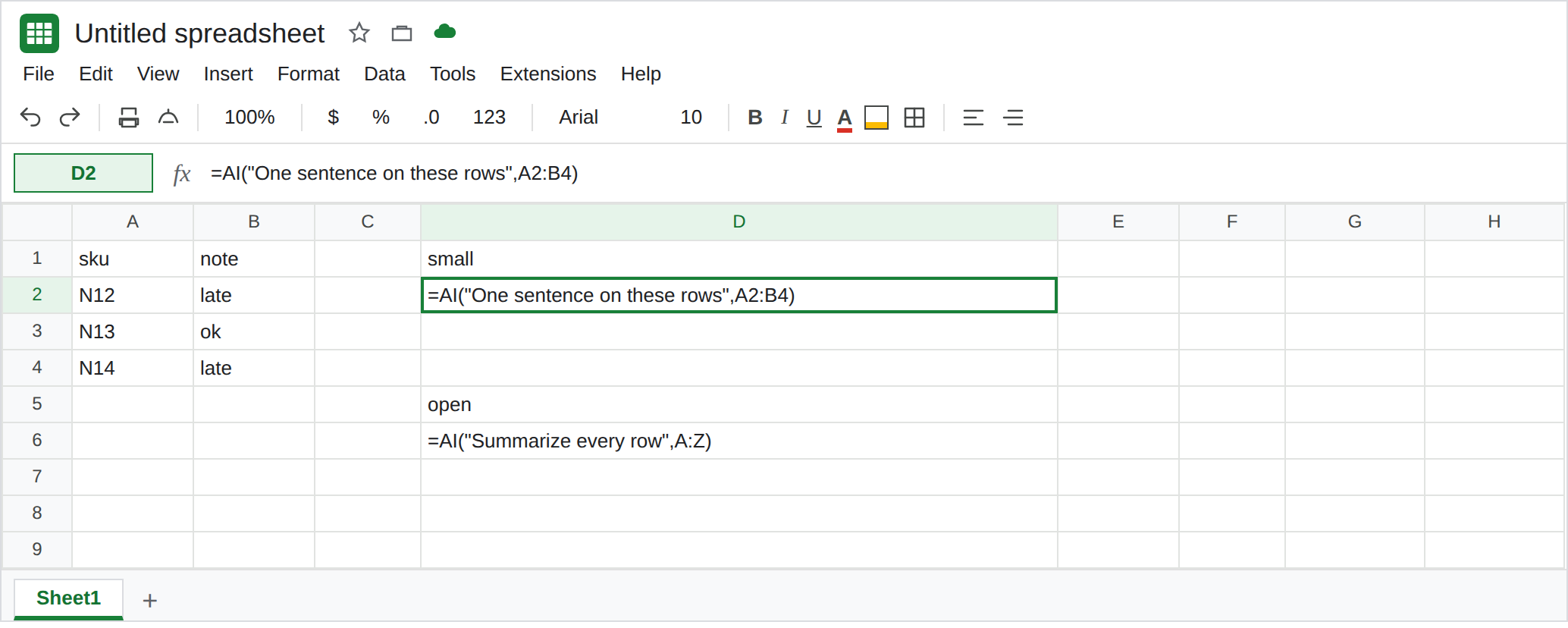
The open range. In D5 type open. In D6 enter =AI("Summarize every row",A:Z). A:Z is every row and twenty-six columns. Google’s help does not publish a cell count for that one argument. What it does publish: the function only sees the range you pass, responses are text, and a selection of AI cells generates only the first 350. Leave D6 as whatever your account does. An error on generate, a cell that never finishes, or text that does not mention N14 are all in scope. A short sentence is not evidence that row 5000 was read. Do not copy any sentence D6 returns into a write-up.
Many cells, one click. If you fill =AI("Classify",A2) down hundreds of rows and select them all, Google’s help says only the first 350 selected cells with AI functions are generated. The rest wait. That cutoff is about the selection, not about a smarter prompt. Leave the ungenerated cells ungenerated.
Nesting is refused even on a small range. =IF(AI("sentiment",A2),"x",0) is the example Google gives of an embedded call, and embedded AI functions are not supported. A #VALUE! there is the wrapper. See the availability page. Do not use it to “test” D6.
What is actually wrong
Section titled “What is actually wrong”- Context is the range argument.
A2:B4is three notes.A:Zis the grid. Nothing on the other tabs is included unless you pass it. Google’s help states the function does not have access to the entire spreadsheet. - Generation is a click, then a limit. Generate and Insert writes text and attributes the edit to you. A long-term limit means you temporarily cannot click Generate. Google’s help says you can wait 24 hours. Sheet Error cannot see your remaining requests and will not quote a balance.
- 350 is the published selection cap. The first 350 selected AI cells generate. Further cells in that selection do not, until you select them later. Filling a column of ten thousand
AIcalls and clicking once does not analyze ten thousand rows. - A returned paragraph can be incomplete. The model can omit rows, invent a theme, or stop. Google’s own help says suggestions can be inaccurate. A fluent sentence is not an audit of column A.
- Availability is still the first gate.
#NAME?and AI function not available are AI() or Gemini(). RewritingA:ZintoA2:B4does not create the function on an account that does not have it.
Leave D2 broken if the function is not available. Leave D6 as the open-range attempt. Do not paste a generated paragraph under either cell.
Pass the rows you mean. When the function is allowed on your account, point it at a closed block such as A2:B4, generate that cell, and read the result against those three notes yourself. For a long list, generate a selection, wait until it finishes, then select the next block. Stay inside the 350-cell selection Google documents. Do not start the next block by widening one formula to A:Z.
Do not hide a refusal. =IFERROR(AI("Summarize every row",A:Z),"") turns “not available” or a failed generate into a blank status. See IFERROR vs IFNA.
Need a total without this feature? =COUNTIF(B2:B4,"late") is 2 on this sheet. That number does not depend on plan, region, or a generate click.
If D2 is #NAME? or AI function not available, the range size was never tested. If the name exists and D6 is a huge range, a short answer is not proof every row was read. Generate a bounded block, then the next block. Neither outcome is a promise for the next reader.