

Editors still cannot type in Except certain cells when another protection overlaps
Updated
Data → Protect sheets and ranges can lock a whole sheet and list cells that stay editable. Those cells are Except certain cells. An editor who is allowed to edit the file should be able to type there. They still see You are trying to edit a protected cell or object when a second rule protects the same cells and they are not on that rule’s allow list. The exception is not a master unlock. Overlapping protections all have to allow the edit. One of them is still Only you.
The hard-block dialog, and how it differs from a warning, is protected cell. A warning that still saves the edit is protect warning only. A Commenter cannot edit any cell. That is Commenter role. Keep the Google Sheets UI in English. Sheet Error is an independent formula-error library, not a Google product.
Recreate it on a blank sheet
Section titled “Recreate it on a blank sheet”- Open a blank spreadsheet you own. You need a second Google account shared as Editor for the blocked step. In A1 type
input. In A2 type5. In B1 typedouble. In B2 enter=A2*2. B2 shows10.
Protect the sheet, except the input. Data → Protect sheets and ranges. Sheet. Choose the sheet you are on. Tick Except certain cells and set that box to A2. Set permissions. Restrict who can edit this range → Only you. Done. The sidebar shows a sheet protection.
The exception works when it is the only rule. Open the file as the other Editor. Click A2 and type 6. It is accepted. B2 becomes 12. Click B2 and type. The dialog is You are trying to edit a protected cell or object. Please contact the spreadsheet owner to remove protection if you need to edit. B2 stays =A2*2. There is no Edit anyway. That is the sheet rule doing what you asked. Leave B2 blocked. Change A2 back to 5 if you want the arithmetic simple. This step is the control.
Add a range rule on the exception. Back on the owner account, Data → Protect sheets and ranges. Add a Range A2. Set permissions → Restrict who can edit → Only you. Done. The sidebar now lists the sheet and the range. Open the file as the Editor again. Type in A2. The same protected-cell dialog appears. A2 does not change. The sheet exception still lists A2. The range rule does not list the Editor. Leave A2 blocked for that account.
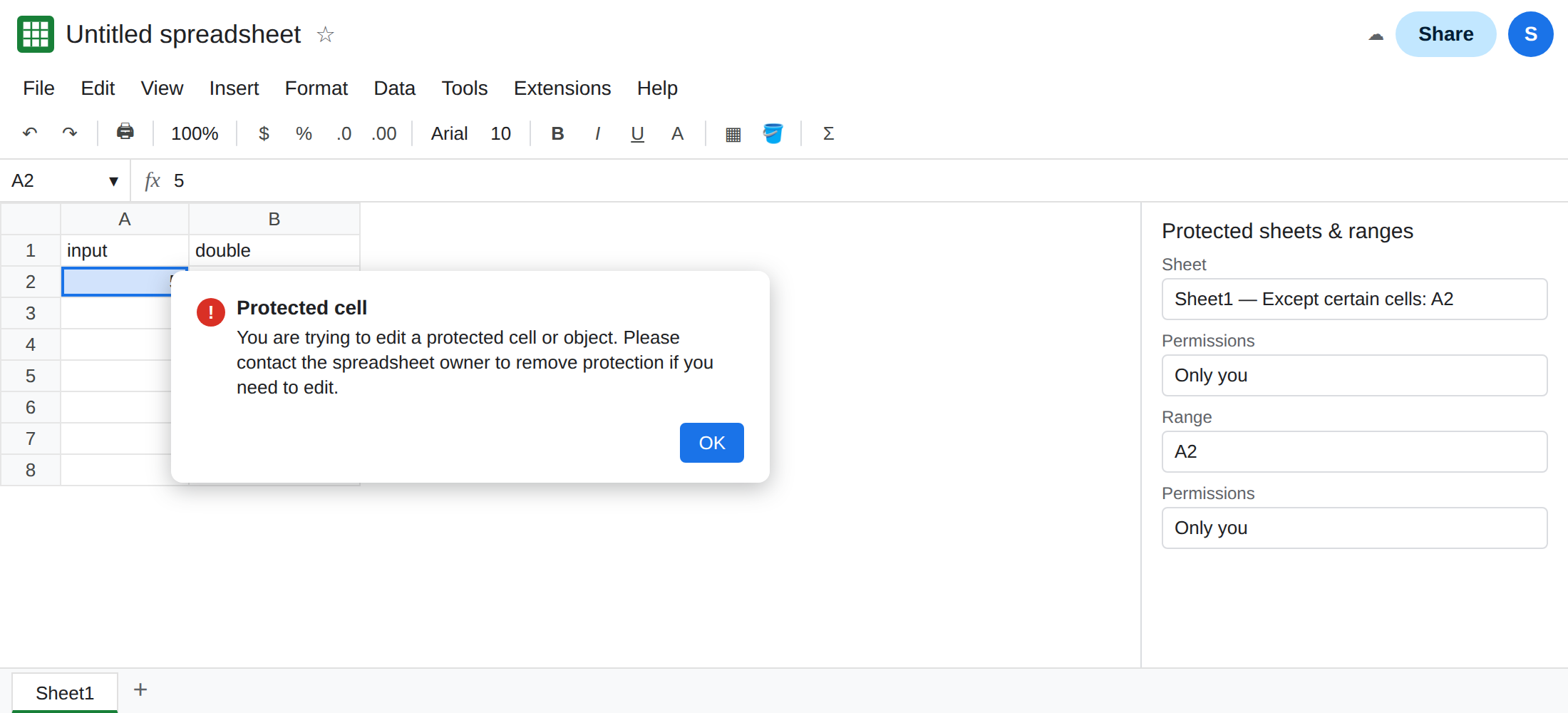
The owner can still type. On the owner account, A2 accepts an edit. Only you includes the owner. The Editor’s screen is the one that shows the bug. Do not judge the exception from the owner account alone.
A warning on the range is a different dialog. If the range rule is Show a warning, the Editor gets Edit anyway, not the hard block. That is protect warning only. This recreate is two restrict rules.
What is actually wrong
Section titled “What is actually wrong”- Sheet protection with an exception removes those cells from that rule. It does not delete other rules. A range rule on A2 is a second allow list. The Editor has to pass both. They pass the sheet rule and fail the range rule.
- The dialog does not name which rule fired. “Except certain cells” can look broken when the sidebar contains two entries. Read the list. The range entry on A2 is the one blocking the exception.
- Only you means the owner, plus anyone you add on that rule. File-level Editor does not override it. The same sentence is on protected cell.
- Exception ranges that do not cover the cell you clicked are a simpler miss. If the exception says
A3and you type in A2, the sheet rule alone blocks A2. Overlap is the case where the exception does list A2 and the type still fails. - Hiding the tab is not an exception. A hidden sheet can be unhidden. Protection is the sidebar list.
Apps Script that writes A2 runs as a user. If that user is not allowed by every overlapping rule, the write fails with the protected-cell sentence. See trigger re-auth only when the trigger itself is missing after a copy.
Leave the Editor blocked until you have seen the dialog with both rules in the sidebar.
Delete the range rule, or add the Editor to it. On the owner account, open Protect sheets and ranges. Remove the range protection on A2, and keep the sheet protection with Except certain cells set to A2. Reload as the Editor. A2 accepts a type. B2 still shows the hard block.
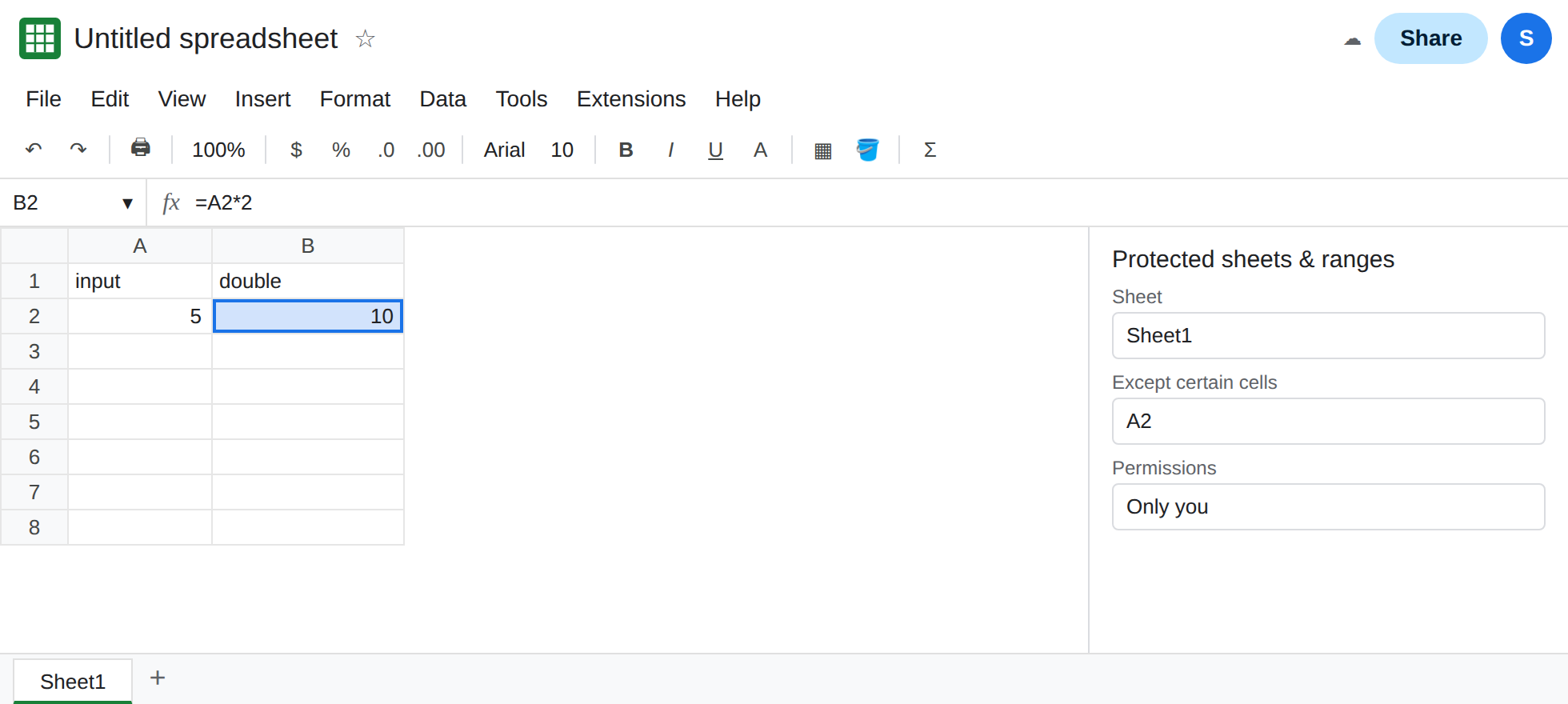
Or keep both rules and put the same people on both allow lists. If the range rule has to stay, add the Editor under Restrict who can edit on that range as well as on the sheet. An exception plus a stricter range is how the type stays blocked. Match the lists on purpose.
Do not share the file as Editor and then add Only you on every input cell you thought you had excepted. Check the sidebar count. One sheet rule is enough for “lock formulas, leave inputs open.”
If the Editor can type in a cell that is outside the exception, the sheet rule is not the one you think. If they cannot type in a cell that is inside the exception, another rule covers that cell. The dialog text will not tell you which. The sidebar will.