

A case-sensitive sort puts Zebra before apple
Updated
People expect apple and Apple to share one place in the alphabet, with Zebra down with the Zs. A comparison that uses character codes does not work that way. CODE("A") is 65. CODE("Z") is 90. CODE("a") is 97. Every word that starts with A–Z sorts before every word that starts with a–z. The ascending spill is Apple, Zebra, apple, banana. Zebra is not “after apple.” It is before it, because 90 is less than 97.
Plain SORT in Google Sheets, in a United States locale, does not use that order. It treats case as the same letter, so the two apple spellings stay together and Zebra stays with the Zs. The uppercase-first list shows up when the sort key is CODE, or when QUERY … order by compares the text with case intact. Excel’s SORT function is also case-insensitive. Excel’s Data → Sort → Options → Case sensitive checkbox is a third rule: for the same letter it orders lowercase before uppercase (apple then Apple) and it still does not put Zebra before apple.
QUERY equality that misses Apple when you wrote 'a' is STARTS WITH case. Sort keys that are shorter than the range are SORT key length. Keep the Google Sheets UI in English. Sheet Error is an independent formula-error library, not a Google product.
Recreate it on a blank sheet
Section titled “Recreate it on a blank sheet”- Open a blank spreadsheet. Confirm File → Settings shows United States, or any locale you can compare against the codes below. In A1 type
name. A2apple. A3Apple. A4banana. A5Zebra. Four words.AppleandZebrastart with capitals.appleandbananado not.
Plain SORT keeps case in one alphabet. In C1 type sort. Leave C2:C5 empty. In C2 enter =SORT(A2:A5). The two apple spellings are adjacent. banana sits with the Bs. Zebra sits with the Zs, after banana. Which of apple or Apple comes first follows the original order when the letters tie. Neither result is #N/A. C2 is the control: this is not “uppercase before lowercase.”
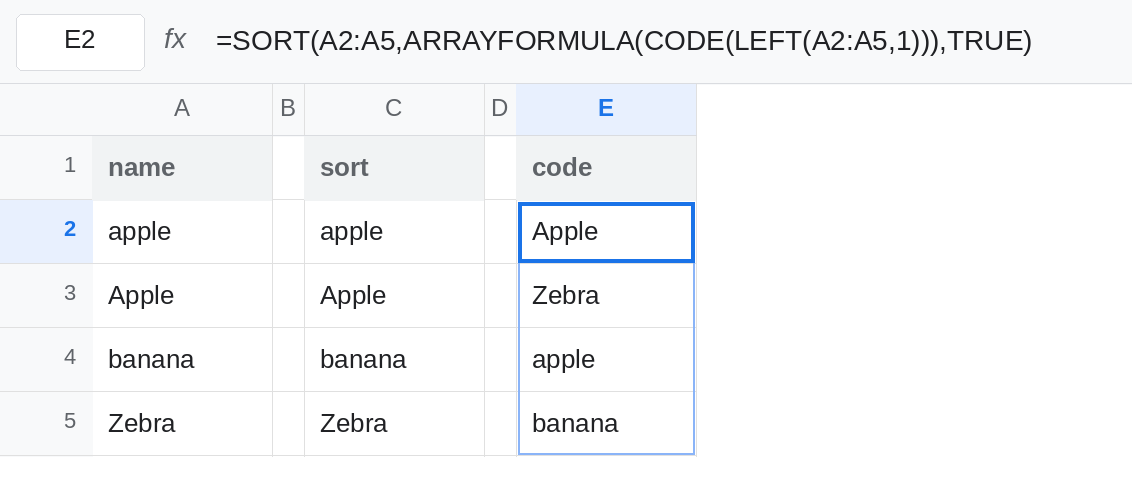
The code-point order. In E1 type code. In E2 enter =SORT(A2:A5,ARRAYFORMULA(CODE(LEFT(A2:A5,1))),TRUE). The spill is Apple, Zebra, apple, banana. First letters are codes 65, 90, 97, 98. Zebra is second. apple is third. Leave E2 as that spill.
QUERY order by is case-sensitive. In G1 type query. In G2 enter =QUERY(A2:A5,"select A order by A",0). The third argument 0 means the range has no header row. QUERY string comparison keeps case. For these ASCII words the spill matches E2: Apple, Zebra, apple, banana. Apple and apple are not one key. That is the same case rule as STARTS WITH case, applied to order instead of a filter. Leave G2 next to C2 so the two orders stay visible.
A helper column is the same sort, written out. In I2 enter =CODE(LEFT(A2,1)) and fill I2:I5. I2 is 97, I3 is 65, I4 is 98, I5 is 90. Data → Sort range on A2:I5, sorting by column I ascending, rearranges the source into the E2 order. Undo that sort if you still want A2:A5 in the original order for the formulas. The menu is not a different alphabet. It used the codes you placed in column I.
Leave E2 as Apple, Zebra, apple, banana. Leave C2 as the case-insensitive grouping.
What is actually wrong
Section titled “What is actually wrong”- “Uppercase before lowercase” for ASCII means the block A–Z, then the block a–z. It does not mean
Appleimmediately followed byappleand thenBanana.Zebralanding aboveappleis the same rule. E2 and G2. - Plain
SORTin Sheets is not that rule. If C2 already matches E2, the spreadsheet locale is not the United States case-insensitive collation this page used as the control. TrustCODEof the first letter either way:65before97is the case-sensitive order, whatever the locale names it. QUERYorder bycompares text with case. Sorting withSORTand sorting withQUERYare not interchangeable on mixed-case names. G2 versus C2.- Excel Case sensitive in the Sort dialog orders
abeforeAinside one letter. It will not reproduce E2. The ExcelSORTfunction ignores that checkbox and behaves like C2. - The first character decides this demonstration.
Appleversusapricotis an ordinary alphabetic difference after the case ofAis fixed.CODEof the whole string is not what E2 computes.LEFT(...,1)is the whole key.
This is not SORT key length. A key that is shorter than the range is #N/A or a spilled error. E2 is four names and no triangle.
This is not UNIQUE case. UNIQUE keeps Apple and apple as two rows because they differ. SORT decides the order of those two rows. Both can matter, and they are different functions.
Leave E2 and G2 in place so the uppercase-first spill stays visible. Leave C2 as the order most name lists want.
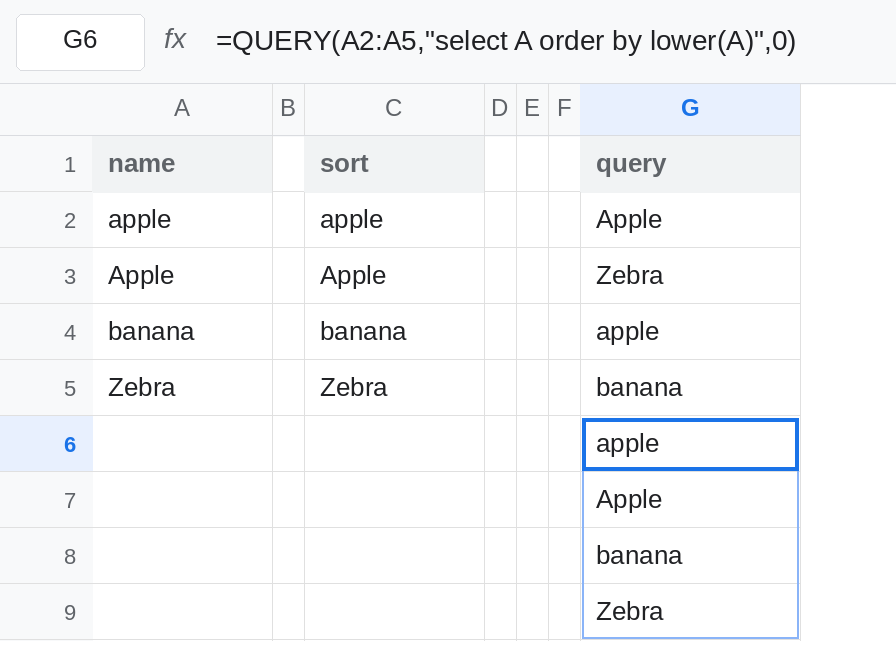
One alphabet, case ignored. Keep C2: =SORT(A2:A5). To force that order even inside QUERY, order by a lowered copy: =QUERY(A2:A5,"select A order by lower(A)",0). lower(A) makes Apple and apple tie, and Zebra sorts with z, after banana. The displayed column is still the original spelling, because select A did not apply lower to the output.
Uppercase first, on purpose. Keep E2 when a system downstream really does order by character code. Label the spill code order so nobody “fixes” Zebra back under banana and breaks the match against that system.
Excel’s checkbox is not E2. If a coworker turned on Case sensitive and apple moved before Apple while Zebra stayed last, that is the dialog option. Clear it to match C2. Do not look for a hundreds-digit switch. SORT has no case argument in Sheets.
If Zebra is above apple, the key is case-sensitive: CODE, QUERY order by on the raw text, or a helper you sorted as values. If the two apple spellings are adjacent and Zebra is last, you are on plain SORT. Pick the one the consumer of the list actually compares against.