

Show a warning keeps the value; Reject the input does not
Updated
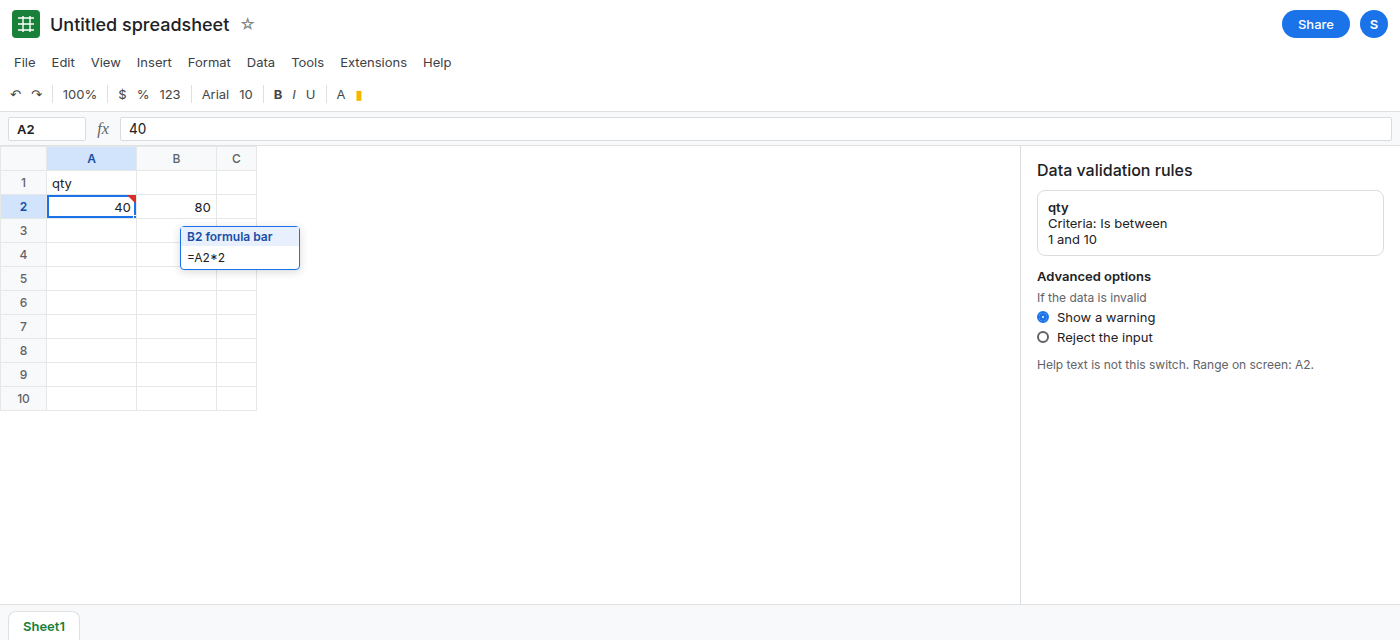
Data → Data validation has two responses to a bad entry, under Advanced options, If the data is invalid. Show a warning stores what you typed and marks the cell with a triangle. Reject the input opens a dialog and does not store the value. People set the warning, watch a bad qty land in the column, and think the rule failed. The rule worked. It was set to allow the value. Help text is a third field. It changes the sentence. It does not choose between warning and reject.
A custom formula that rejects a good number because $ is missing is validation formula. A dropdown whose list moved is dropdown range. A protect-range warning that still saves the edit is protect warning only. Keep the Google Sheets UI in English. Sheet Error is an independent formula-error library, not a Google product.
Recreate it on a blank sheet
Section titled “Recreate it on a blank sheet”- Open a blank spreadsheet. In A1 type
qty. Leave A2:A4 empty. The legal qtys are whole numbers from1to10.
Warning, which allows. Select A2. Data → Data validation. Add rule. Criteria: Is between 1 and 10 (the number criteria; pick the between operator). Open Advanced options. If the data is invalid: Show a warning. You can turn on help text and type Use 1 to 10. Done. Click A2 and type 40. Press Enter. 40 stays in A2. A triangle appears on the cell. Hover it and you see a warning that the value does not meet the rule. The help text may be in that note. The 40 is stored. =A2*2 in B2 is 80. Leave A2 as 40.
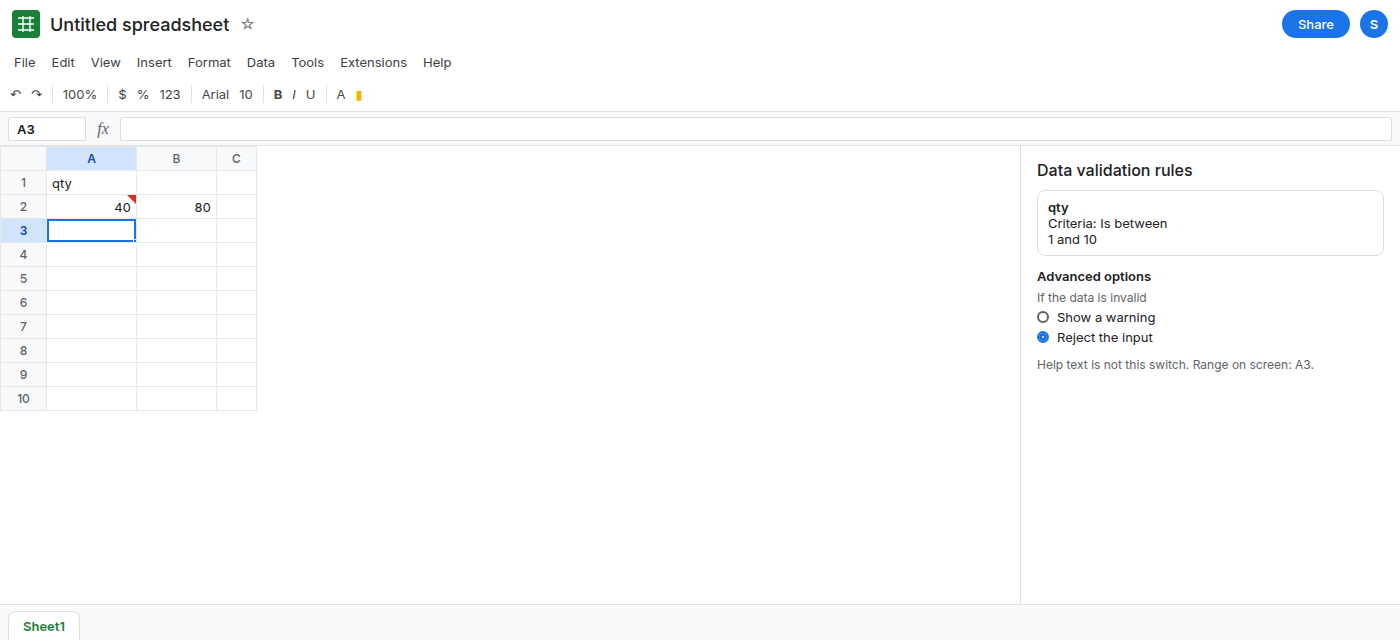
Reject, which blocks. Select A3. Data → Data validation → Add rule. The same between 1 and 10. Advanced options: Reject the input. Done. Click A3 and type 40. A dialog says the data you entered violates the data validation rules set on this cell. Dismiss it. A3 is empty. 40 did not stay. There is no triangle, because there is no stored violation. Leave A3 empty.
A legal value on both. Type 4 in A4 with the reject rule copied onto A4, or type 4 in A3 after the dialog. 4 is accepted. No triangle. Reject does not block numbers inside the range. If 4 is rejected, the criteria are not between 1 and 10. Read the sidebar before you blame the reject option.
Help text is not a third mode. On the A3 rule, turn help text on and type Use 1 to 10. Type 40 again. The dialog can show your sentence. A3 still does not keep 40. The sentence is not Show a warning.
What is actually wrong
Section titled “What is actually wrong”- Show a warning is a successful save plus a mark. Downstream
SUM,QUERY, and charts see40. The triangle is not a filter. See QUERY and filters only if you also hid rows. The warning does not hide them. - Reject the input never writes the cell. A collaborator who says the sheet “lost” their qty was on this setting. The dialog is the product working. There is no Edit anyway button, unlike protect warning only.
- The two switches are per rule. A2 can warn while A3 rejects. Copying the cell copies the rule that was on it. Check the sidebar list if a paste changed the behavior.
- Conditional formatting can paint
40red and still leave it stored. Paint is CF rule order. It is not reject.
This is not a protected range. Protection is about who may edit. Validation is about what they may store. See protected cell.
Leave A2 as 40 with the triangle so the warning stays visible. Leave the reject rule on A3.
Use reject when a bad qty must not exist. Select the input column. Data → Data validation. Advanced options → Reject the input. Type 40. The dialog appears and the cell keeps its previous value (empty, on A3). Type 6. It stays.
Use warning when you want the value kept and flagged. That is A2. Do not switch it to reject and expect the stored 40 to vanish. Reject blocks the next edit. It does not scan the column and delete old violations. Delete 40 yourself, or write a formula that excludes triangles. The triangle is not something COUNTIF removes.
Clean up values that warning already allowed. Filter or =FILTER(A2:A4,(A2:A4>=1)*(A2:A4<=10)) spills the legal numbers. 40 drops off that spill. The source cell still holds 40 until you clear it. See FILTER no match if the spill is #N/A because nothing was legal.
Do not turn on reject and also wrap every input in IFERROR. The dialog is the signal. Hiding it in a formula does not change the rule.
If the bad number stays and a triangle shows, the rule is Show a warning. If a dialog appears and the number does not stay, the rule is Reject the input. Help text only changes the words.