

Fix INDIRECT #REF! in Google Sheets (bad address text or deleted sheet)
Updated
INDIRECT evaluates text as a reference. The first argument is a string, not a live pointer. If that string is not a valid A1 or R1C1 address, or it names a sheet that is not on this file, the cell is #REF!. The formula bar still shows INDIRECT and the string you typed. Sheets did not rewrite the formula. It tried to open an address that does not exist.
This page is INDIRECT #REF!. It is not after you delete (#REF! inside the formula text) and not VLOOKUP bad index (a column index past the range). Do not use INDIRECT just to freeze a range; that is the last section.
Recreate it on a blank sheet
Section titled “Recreate it on a blank sheet”- Open a blank spreadsheet. Leave the bottom tab named
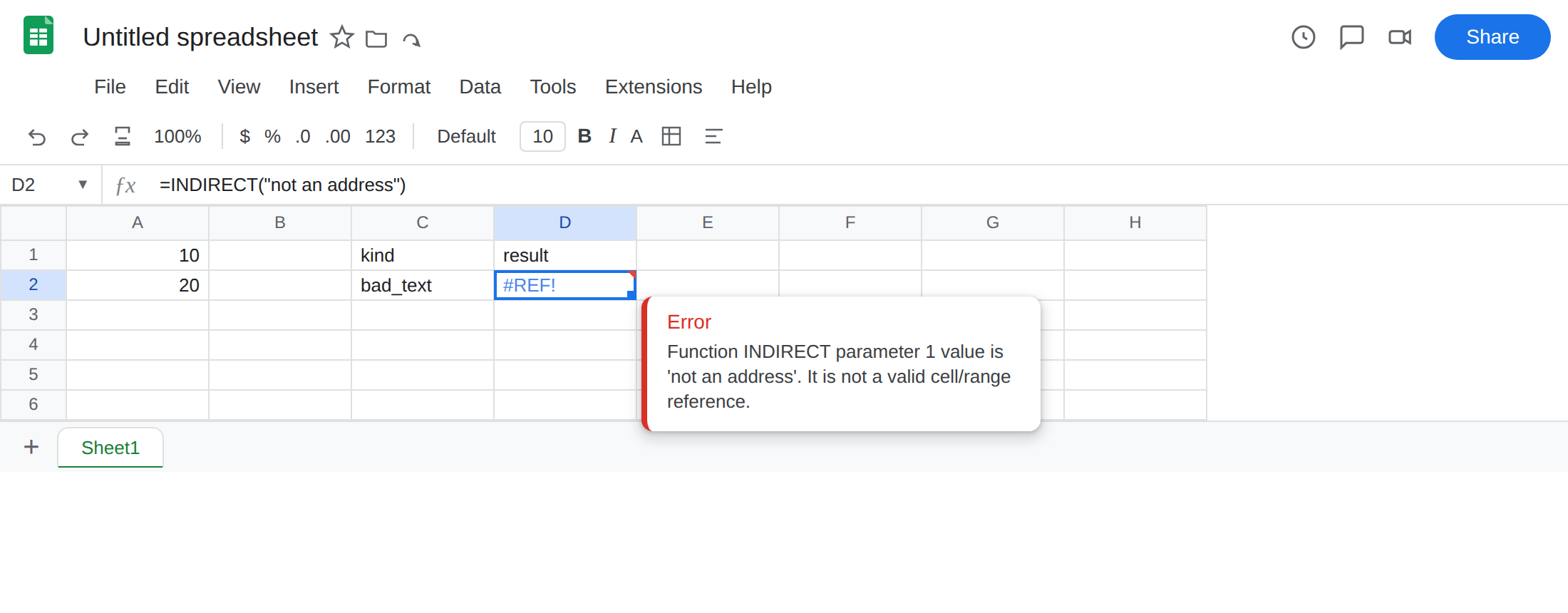
Sheet1. In A1 type10. In A2 type20. In C1 typekind, D1result. - Text that is not an address. In C2 type
bad_text. In D2 enter=INDIRECT("not an address"). The cell shows#REF!."not an address"is a string. It is not A1. It is not R1C1. Leave D2 broken.
- A sheet name that does not exist. In C3 type
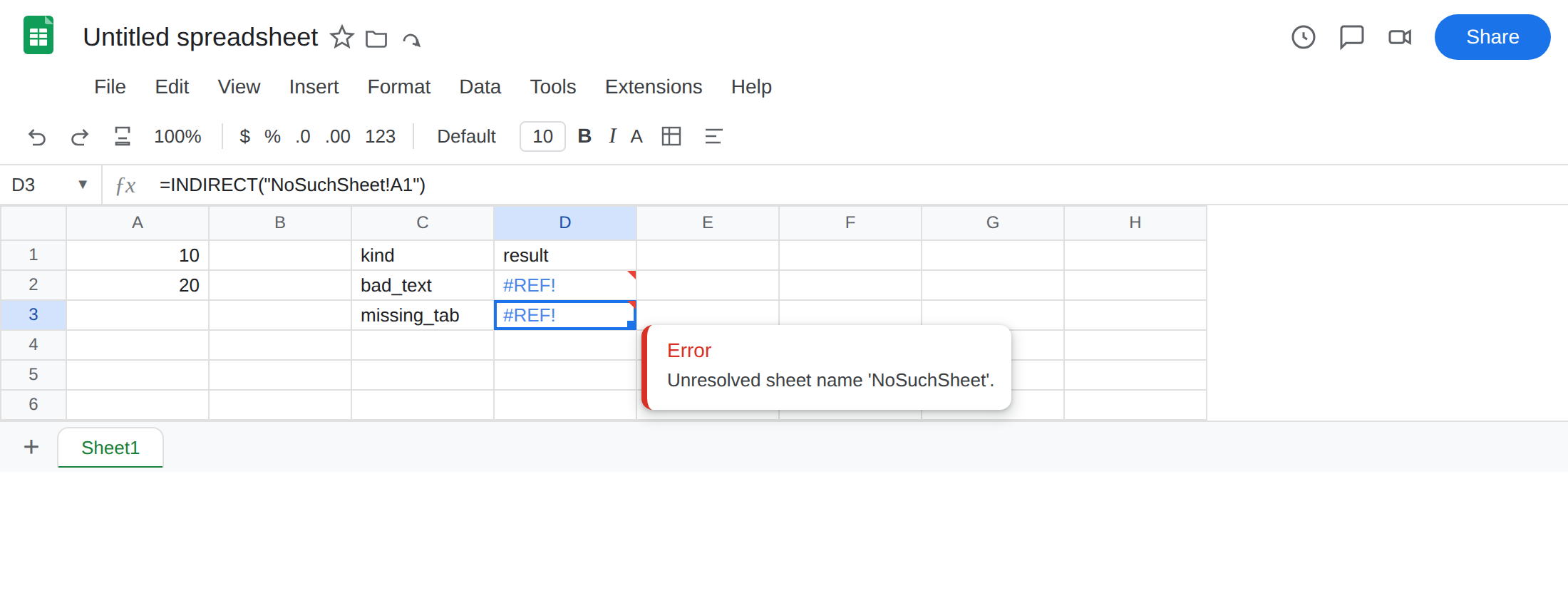
missing_tab. In D3 enter=INDIRECT("NoSuchSheet!A1"). There is no tab namedNoSuchSheet. The cell shows#REF!. Leave D3 broken.
- A control that works. In C4 type
ok. In D4 enter=INDIRECT("A1"). The cell shows10. Same function, a real A1 string, a cell that exists.
Build the address from a cell. In F1 type addr. In F2 type A2. In G2 enter =INDIRECT(F2). The cell shows 20. Change F2 to A1 and G2 becomes 10. That is the intended use: the string lives in a cell.
Leave D2 and D3 as the broken formulas. Leave D4 as the working control.
What is actually wrong
Section titled “What is actually wrong”INDIRECTdoes not look at A1 unless the string saysA1(or a cell holds that string)."not an address"cannot be opened.#REF!is the result.NoSuchSheet!A1is well-formed A1 syntax. The sheet is missing. Renaming or deleting a tab is the same: the text still says the old name.INDIRECTdoes not update when you rename a tab. A normal formula=Sheet1!A1becomes=NewName!A1after a rename.=INDIRECT("Sheet1!A1")does not.- Sheet names with spaces need quotes inside the string:
=INDIRECT("'My Tab'!A1").=INDIRECT("My Tab!A1")is#REF!even ifMy Tabexists. - The second argument is A1 vs R1C1. Default
TRUEis A1.=INDIRECT("A1",FALSE)is#REF!becauseA1is not R1C1.=INDIRECT("R1C1",FALSE)is the grid’s A1 (row 1, column 1). Mixed notation is this error, not a parse error.
This is not a deleted-cell #REF!. After you delete a cell a formula pointed at, Sheets puts #REF! inside the formula bar (=A1+#REF!). See after you delete. D2 still reads =INDIRECT("not an address"). Nothing was deleted. The string never named a real cell.
This is not VLOOKUP asking for a column the range does not have (=VLOOKUP(D2,A2:B2,3,FALSE)). See VLOOKUP bad index. HLOOKUP does the same with a row index. See HLOOKUP #N/A / #REF!.
This is not a SORT or UNIQUE spill. See SORT / UNIQUE spill. INDIRECT("A1") returns one cell. This is not a circular formula. See circular dependency. D4 is 10, not a loop.
Leave D2 and D3 broken so #REF! stays on the sheet.
Make the string a real address. In I2 enter =INDIRECT("A1"). The cell shows 10, same as D4. If the address is supposed to come from a cell, type a legal A1 or Sheet1!A1 there, as in F2.
Point at a sheet that exists. In I3 enter =INDIRECT("Sheet1!A1"). The cell shows 10. If you meant a second tab, create that tab (or restore it from File → Version history) and spell the name exactly, including quotes for spaces. Do not invent NoSuchSheet and wrap the error.
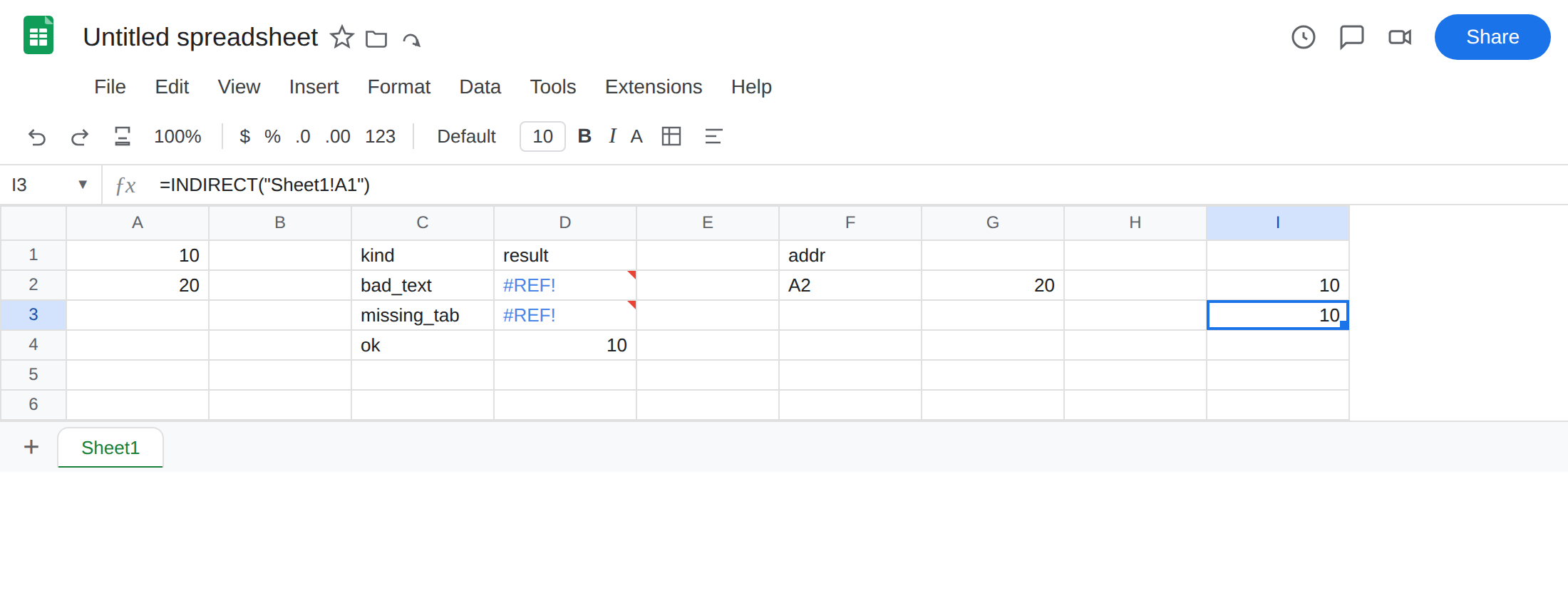
If you deleted the tab on purpose. Rewrite the string to a tab that remains. Undo first if the delete was a mistake. Unlike after you delete, the formula text never contained #REF!. Only the value did.
Do not wrap D2 or D3 in IFERROR. The address is wrong. IFNA will not catch #REF!. See IFERROR vs IFNA.
Do not use INDIRECT just to lock a range
Section titled “Do not use INDIRECT just to lock a range”People put =SUM(INDIRECT("A1:A10")) so inserting a row will not expand the range. That is a volatile recalc on every edit, and a typo or a renamed tab is #REF! with no rewrite in the formula bar to warn you. It does not “protect” the range from a delete. If A1:A10 is gone, the string still says A1:A10 and the value is still #REF!.
To pin a block, use Data → Named ranges and refer to the name, or write a normal A1 range you are willing to maintain. If the problem you actually hit was a cell or row that disappeared, go to after you delete. If the problem was a VLOOKUP column index past the range, go to VLOOKUP bad index. Neither of those bugs is fixed by wrapping the range in INDIRECT.
Use INDIRECT when the address must be built from text (a tab name in a dropdown, a cell that holds A2). When the address is known and should track renames, type the reference.