

INDEX/MATCH with search type 1 returns the wrong row on unsorted keys
Updated
INDEX(prices, MATCH(key, keys, 1)) uses approximate match. Type 1 means “largest key that is less than or equal to the lookup,” and the key column has to be sorted ascending. Omit the third argument and MATCH still uses 1. On an unsorted price list the formula can return #N/A, or it can return a price from a nearby row with no triangle. The key you wanted is on the sheet. Type 0 finds it. Type 1 is not that search.
The position-only recreate, and why this page does not publish a fake index, is MATCH approx unsorted. A sorted quantity break where type 1 is intentional is VLOOKUP TRUE bands. Keep the Google Sheets UI in English. Sheet Error is an independent formula-error library, not a Google product.
Recreate it on a blank sheet
Section titled “Recreate it on a blank sheet”- Open a blank spreadsheet. In A1 type
qty, B1price. A240, B28. A310, B33. A430, B46. A520, B55. The quantities are not sorted. The price for30is6, in row 4 of the sheet, position3of A2:A5.
Exact. In D1 type key. D2 30. In F1 type exact. In F2 enter =INDEX(B2:B5,MATCH(D2,A2:A5,0)). The cell shows 6. MATCH type 0 returns 3. INDEX returns the price in that position. F2 is the control.
Approximate on the same unsorted keys. In F4 type approx. In F5 enter =INDEX(B2:B5,MATCH(D2,A2:A5,1)). Compare F5 to F2. F5 is either #N/A or a price that is not 6. Both are wrong for an exact qty that F2 already found. If F5 shows 8, 3, or 5, that number is a neighbor’s price, and there is no error triangle. Sheets does not promise which neighbor. Do not treat a confident number as the band price. Leave F5 as whatever it shows when it is not 6.
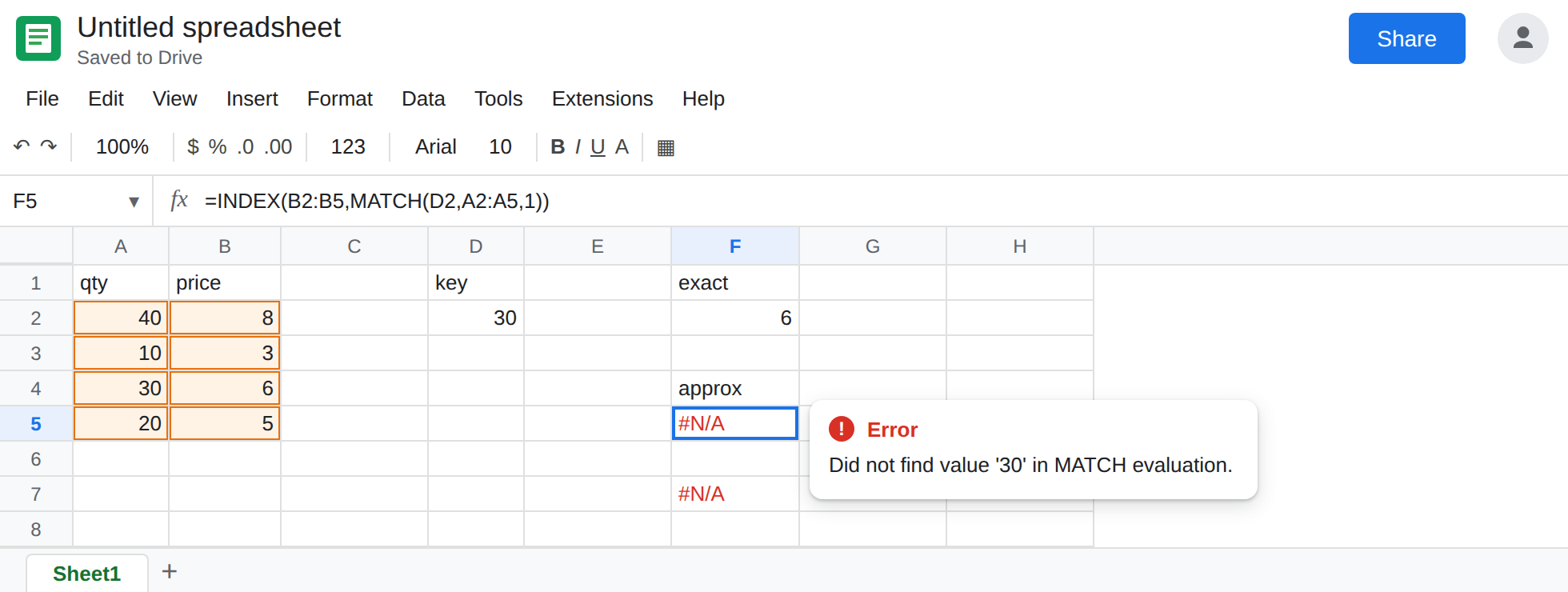
The default is type 1. In F7 enter =INDEX(B2:B5,MATCH(D2,A2:A5)). No third argument. F7 matches F5, not F2. Leave F7 beside F5.
A sorted band, so type 1 has a place. In H1 type min_qty, I1 price. H2 0, I2 3. H3 10, I3 5. H4 30, I4 6. H5 40, I5 8. This list ascends. In K2 enter =INDEX(I2:I5,MATCH(25,H2:H5,1)). The cell shows 5. Break 10 is the largest minimum that is still <= 25. That is approximate match used on purpose. It is not a shortcut you can point at A2:A5. The longer band example is VLOOKUP TRUE bands.
Leave F5 and F7 as the unsorted approximate results. Leave F2 as 6. Leave K2 as 5.
What is actually wrong
Section titled “What is actually wrong”MATCH’s third argument defaults to1. A formula copied from a price-break sheet onto a transaction list silently stops being exact. F7 is that copy.- Type
1does not mean “closest row” and it does not mean “exact, else nearest.” It means a sorted ascending search. A2:A5 goes 40, then 10, then 30. The contract is already false. The result is#N/Aor some other price. MATCH approx unsorted records the same split on positions: do not invent a stable wrong index for every unsorted list. - A wrong price with no triangle is the dangerous case. A dashboard will sum F5.
#N/Aat least looks unfinished. Check F5 against F2 before you ship a number. INDEXis not the bug. It returned the rowMATCHasked for. ChangingINDEXtoVLOOKUPwithTRUErepeats the approximate search. See VLOOKUP wrong row.- Type
-1wants descending order. It is the same class of miss on A2:A5. This page uses type1because that is the default people omit.
This is not an exact miss of a qty that is not on the list. =MATCH(999,A2:A5,0) is #N/A because 999 is absent. D2 is 30, and F2 found it. See MATCH #N/A.
Two-way header lookups that #N/A on a typo are two-way lookup. F2’s headers are fine.
Leave F5 and F7 unsorted and approximate.
Exact keys use type 0. Keep F2. In F9 enter =INDEX(B2:B5,MATCH(D2,A2:A5,0)) if you want the repair in a fresh cell. It shows 6. XLOOKUP without a wildcard mode is exact by default: =XLOOKUP(D2,A2:A5,B2:B5) in F11 is also 6.
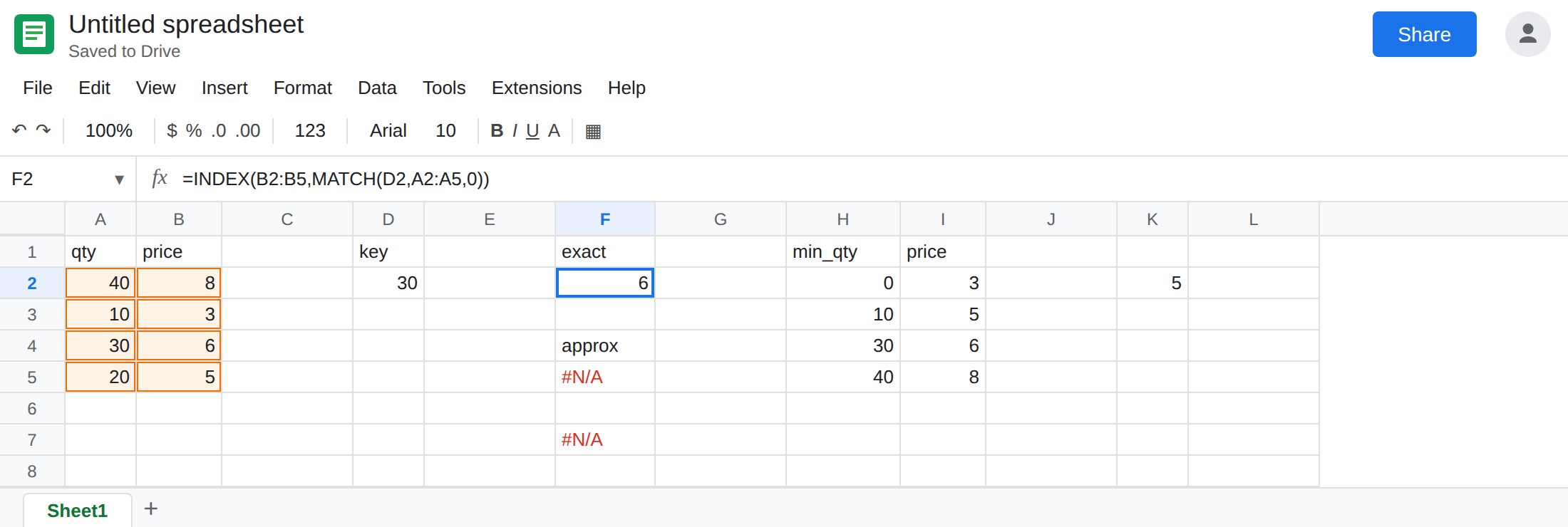
Approximate only on a sorted break column. Keep K2 as the pattern. Sort H2:H5 ascending and leave them sorted. Do not point K2’s MATCH at A2:A5 to “save a sort.”
Do not wrap F5 in IFNA until you have decided that a missing band should be blank. IFNA does nothing when F5 is a wrong price. It only hides the #N/A case, which is the one that was at least visible. See IFERROR vs IFNA.
If INDEX/MATCH returns a price and type 0 on the same key returns a different price, the third argument is 1 or it was omitted. Pass 0 for an exact list. If the key column is a sorted table of breaks, type 1 belongs on that column, on the VLOOKUP TRUE page, not on the unsorted one.