

Fix FILTER + REGEXMATCH in Google Sheets (dot, class, and unescaped parentheses)
Updated
FILTER keeps rows where REGEXMATCH is TRUE. The second argument is a regular expression (RE2), not a plain sku. . means any character, so the pattern N12.4 matches N12.4 and N12X4. The spill looks successful and contains the wrong row. There is no #N/A. A pattern with a bare ( is invalid: REGEXMATCH errors, and FILTER errors with it. That is not “zero rows for sku 999.”
This page is the pattern inside FILTER. It is not FILTER no match. It is not FILTER contains (SEARCH returning #VALUE! on Widget; REGEXMATCH("Pro") is the plain fix there). It is not REGEX no match (REGEXEXTRACT #N/A when the pattern simply misses). Keep the Google Sheets UI in English.
Recreate it on a blank sheet
Section titled “Recreate it on a blank sheet”- Open a blank spreadsheet. In A1 type
sku, B1bay. A2N12.4, B2dot. A3N12X4, B3ex. A4N12.40, B4longer. A5(N12), B5paren. Four skus. A2 isN12.4(the dot is a real period). A3 usesXin that same position. A4 isN12.40, which begins with the same five characters as A2. A5 is parentheses aroundN12.
Dot matches X. In D1 type dot. Leave D2:E4 empty. In D2 enter =FILTER(A2:B5,REGEXMATCH(A2:A5,"N12.4")). The spill includes N12.4 / dot and N12X4 / ex. It also includes N12.40 / longer, because the pattern is not anchored: N12.4 occurs at the start of N12.40. No error triangle. You asked for a literal dot and received every row the regex could justify. Leave D2 as that wide spill.
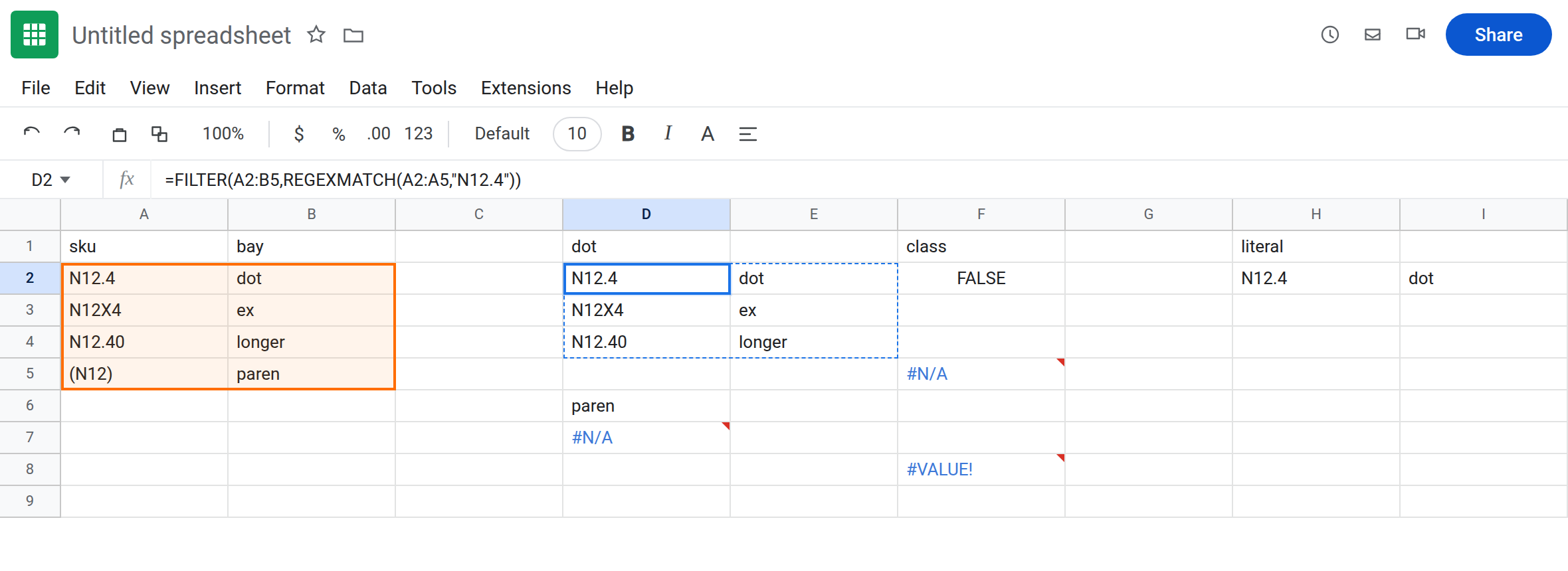
Unescaped parenthesis. In D6 type paren. In D7 enter =FILTER(A2:B5,REGEXMATCH(A2:A5,"N12(")). The cell errors (#N/A or #VALUE!). The tooltip says the pattern is not a valid regular expression (( opens a group and is never closed). FILTER did not get a column of TRUE/FALSE. Leave D7 broken.
A character class that misses case. In F1 type class. In F2 type n12.4 in a helper if you need a lowercase sku — or test the class on its own. In F2 enter =REGEXMATCH("n12","[A-Z]"). The cell shows FALSE. [A-Z] is uppercase only. It does not mean “any letter.” REGEXMATCH("N12","[A-Z]") is TRUE, and it is TRUE because some character is uppercase, not because the whole sku is an uppercase code. Leave F2 as FALSE so the class is visible without a filter yet.
Zero-row contrast. In F5 enter =FILTER(A2:B5,A2:A5=999). #N/A, No matches are found in FILTER evaluation. The condition is the right height. Nothing equals 999. That is FILTER no match. D2 is not that. D2 returned rows.
SEARCH contrast. In F8 enter =FILTER(A2:B5,SEARCH("N12.4",A2:A5)). SEARCH treats the dot as a dot. N12X4 does not contain those characters, so SEARCH is #VALUE! on that row and the FILTER errors. That shape is FILTER contains. Do not “fix” D2 by switching to raw SEARCH. D2’s bug is a regex that matched too much.
Leave D2 as the wide spill. Leave D7 broken. Leave F5 as the real empty filter.
What is actually wrong
Section titled “What is actually wrong”- In RE2,
.is any character except newline.N12.4means N, 1, 2, anything, 4.N12X4qualifies. A literal dot is\.. REGEXMATCHsucceeds if the pattern matches anywhere in the cell.N12.4matches insideN12.40. End the pattern with$and start it with^when the sku must be the whole cell:^N12\.4$.()[]{}*+?\|^$are syntax. A bare(is an invalid pattern. D7. The tooltip names the regular expression. It does not say the sku is missing.[A-Z]is a class of uppercase letters.[A-z]is not “all letters”: the code points betweenZandaare in that range too. Use[A-Za-z]when you mean letters. A class still matches one character, anywhere, unless you anchor it.FILTERdrops only rows where the condition is FALSE. Extra TRUE rows are a bad pattern, not a brokenFILTER. Invalid patterns never become FALSE; they become errors, so the wholeFILTERerrors.
This is not REGEXEXTRACT #N/A because SKU- was absent. See REGEX no match. D2 matched. D7 did not fail to find a sku. It failed to compile.
This is not QUERY matches, which is also a full-string regex with different quoting. See QUERY contains / matches.
Leave D2 and D7 broken.
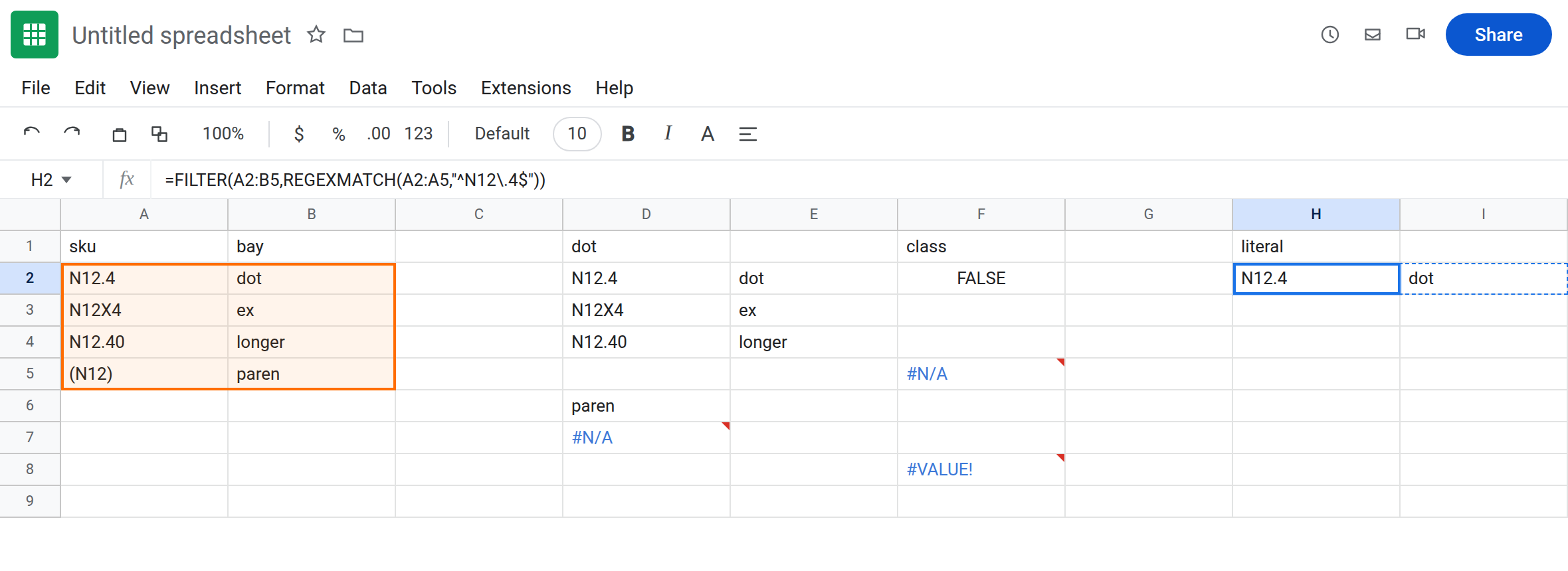
Escape the dot and anchor the sku. In H1 type literal. Leave H2:I3 empty. In H2 enter =FILTER(A2:B5,REGEXMATCH(A2:A5,"^N12\.4$")). The spill is N12.4 / dot only. N12X4 fails the literal dot. N12.40 fails $.
A parenthesis that is data. =FILTER(A2:B5,REGEXMATCH(A2:A5,"^\(N12\)$")) keeps (N12). The backslash makes ( and ) literal. D7 without the backslash stays invalid.
A pattern that comes from a cell. If D10 contains N12.4 and you concatenate it into REGEXMATCH, escape metacharacters before you wrap it. One practical pass:
=REGEXREPLACE(D10,"([.^$*+?()\[\]{}|\\])","\\$1")
Then =FILTER(A2:B5,REGEXMATCH(A2:A5,"^"&that&"$")). Do not concatenate the raw cell into the pattern and expect a dot to stay a dot.
Case. (?i) at the start of the pattern makes the rest case-insensitive: "(?i)^n12\.4$". [A-Z] will not do that job.
Do not wrap D2 in IFNA. There is no #N/A on the wide spill. Wrapping D7 hides an invalid pattern and looks like “no rows.” See IFERROR vs IFNA.
If FILTER plus REGEXMATCH returns a neighbor sku that only differs by the character you thought was literal, escape that character and anchor ^ and $. If the tooltip says the pattern is not a valid regular expression, a ( or [ is unfinished. If the tooltip is No matches are found, the pattern compiled and nothing matched — that empty case is FILTER no match.