

Fix IMAGE errors in Google Sheets (failed to load / invalid url)
Updated
IMAGE draws a picture from an http or https URL into a cell. If that URL is not a reachable image, the cell does not show a picture. A 404 and a Drive file you cannot fetch look similar from the grid: failed to load, or #N/A, with no bitmap. The formula is usually fine. The address is not.
This page is IMAGE with a bad or unreachable URL. It is not IMPORTXML / IMPORTHTML (XPath, table index, Result too large). It is not a SORT / UNIQUE spill #REF!. The working URL below is the public PNG from Google’s own IMAGE help example. Replace it with a URL you are allowed to use. Do not hotlink random photos.
Recreate it on a blank sheet
Section titled “Recreate it on a blank sheet”- Open a blank spreadsheet. In A1 type
kind, B1url, C1image. - A URL that cannot load. In A2 type
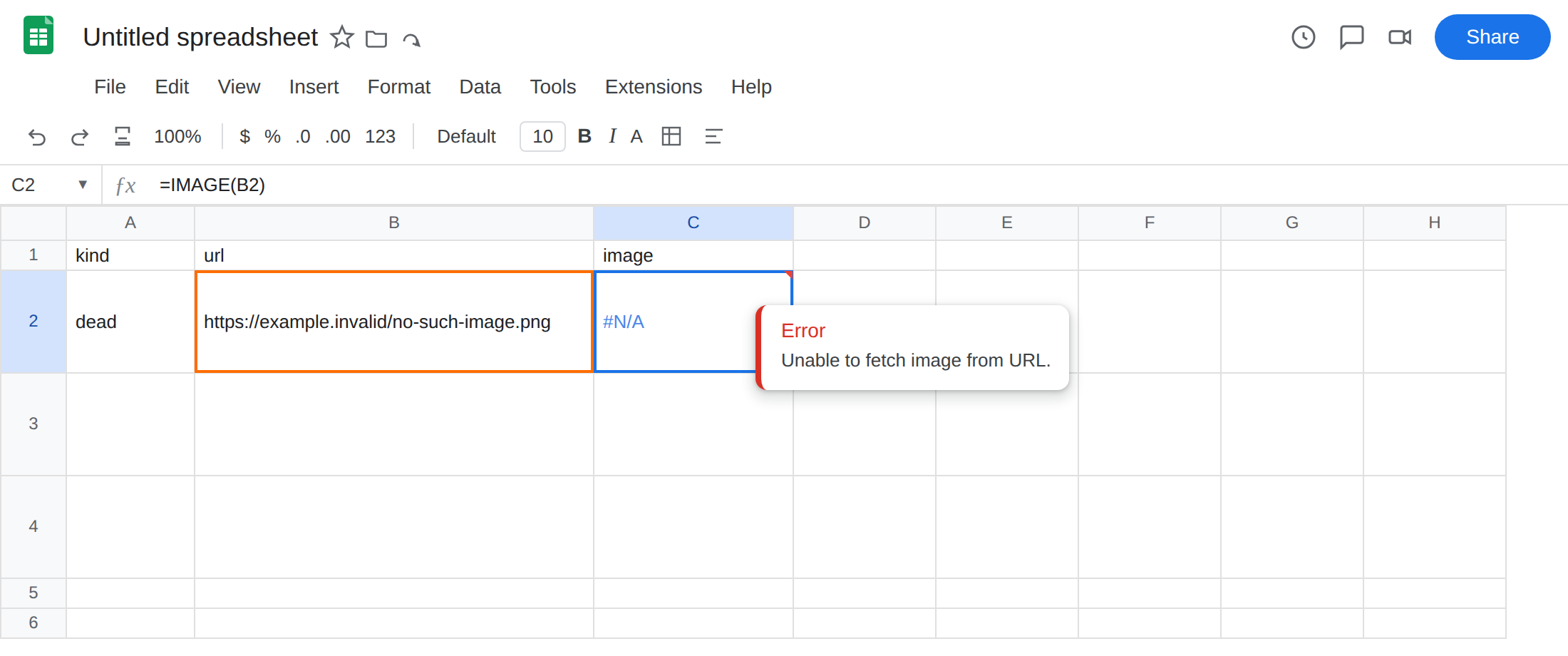
dead. In B2 typehttps://example.invalid/no-such-image.png. That host does not exist. In C2 enter=IMAGE(B2). The cell does not show a picture. You get a failed load or#N/A. Leave C2 broken.
- A working public PNG. In A3 type
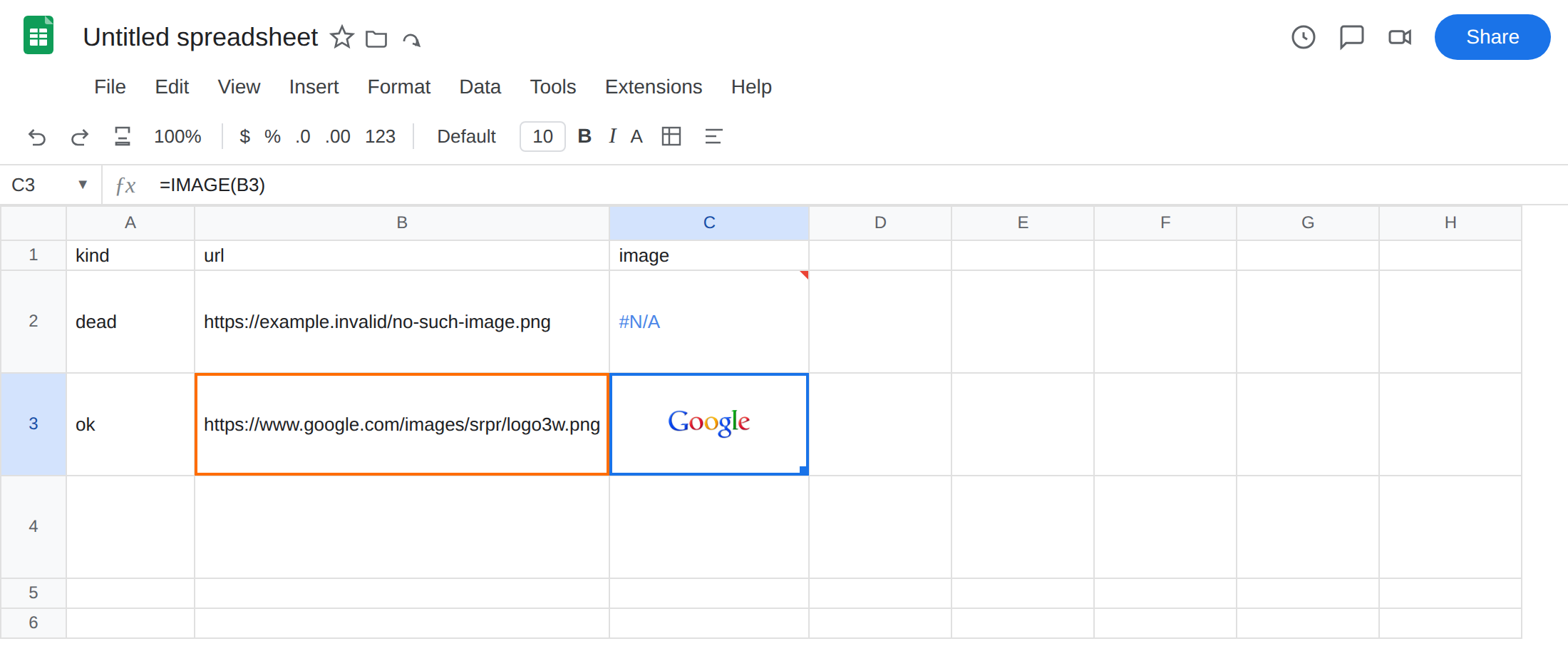
ok. In B3 typehttps://www.google.com/images/srpr/logo3w.png. In C3 enter=IMAGE(B3). After Allow access (the same first-use banner asIMPORTXML), C3 shows that logo. If the banner is still up, click Allow access once, then wait. C3 is the control: the function works when the URL returns image bytes.
- Missing protocol. In A4 type
no_https. In B4 typewww.google.com/images/srpr/logo3w.pngwith nohttps://. In C4 enter=IMAGE(B4). The cell fails.IMAGEneeds a fullhttporhttpsURL. Leave C4 broken.
Leave C2 and C4 as the broken formulas. Leave C3 as the working control.
What is actually wrong
Section titled “What is actually wrong”IMAGEfetches the URL and paints the bytes in the cell.example.invaliddoes not resolve. A 404 on a real host is the same outcome: the URL string is fine, the file is not there.- A Drive permission miss looks like that 404. Google’s docs also say
IMAGEdoes not use URLs hosted atdrive.google.com. A share link, a private file, and a 404 all fail the same way from this cell: no picture. - The URL must include the protocol. B4 is the same file as B3 without
https://. B3 works. B4 does not. - The URL must be the image file, not a viewer page or a homepage.
=IMAGE("https://www.google.com/")fails because that URL returns HTML, not PNG/JPEG/GIF bytes. SVG is not supported. The sample in B3 is PNG. - The optional mode (
1fit,2stretch,3original size,4custom size) does not fix a dead URL. C2 fails in every mode.NOW()orRAND()inside the URL is a different refusal, not a 404.
This is not #N/A from a lookup. See what #N/A means. This is not a Formula parse error. See locale parse error.
Leave C2 and C4 broken so the failures stay on the sheet.
Confirm the function works. C3 already did, after Allow access. If C3 shows the PNG and C2 does not, IMAGE is not dead. The URL in B2 is.
Use a reachable http(s) image URL. Paste the URL into a browser. You should see the image file itself, not a web page around it. In G2 enter =IMAGE("https://www.google.com/images/srpr/logo3w.png"). The cell should match C3. Replace that sample with a URL you own or are allowed to use. Do not copy a copyrighted photo from a random site.
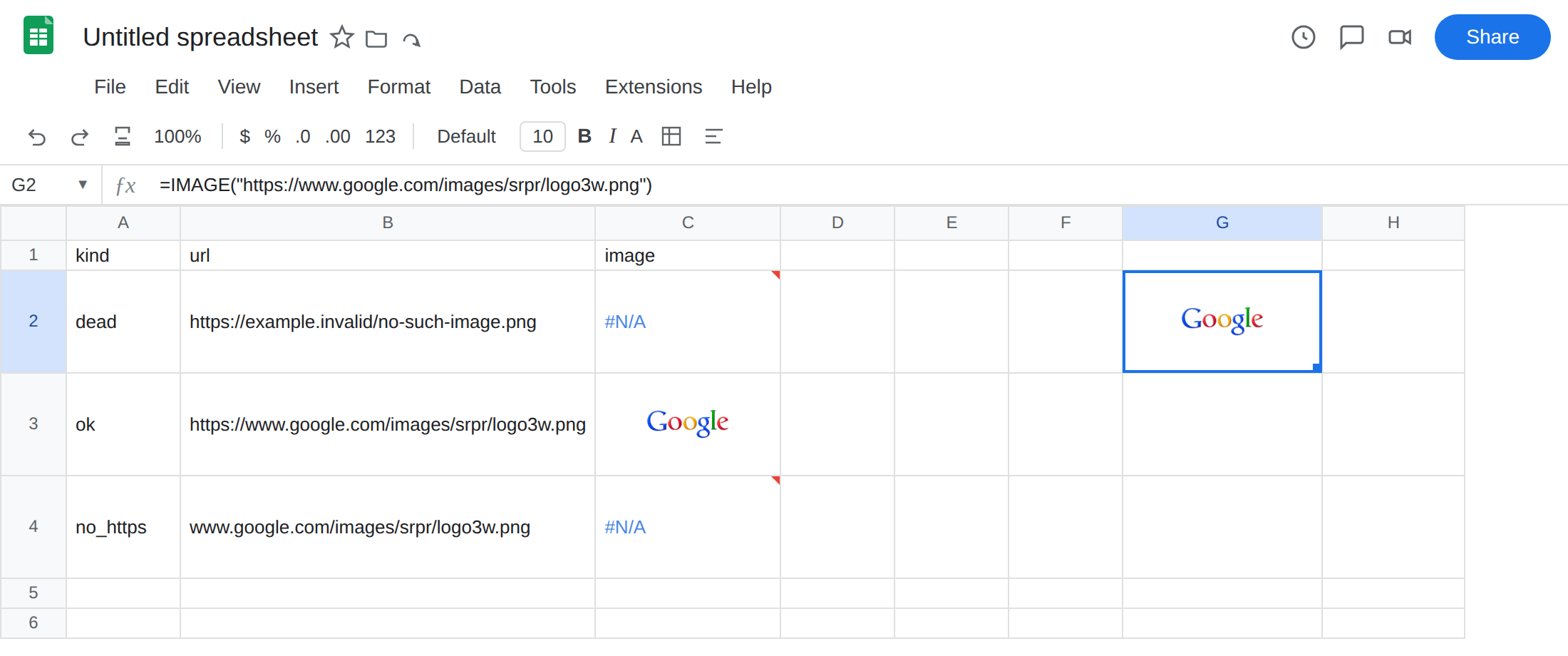
Put https:// back. In G4 enter =IMAGE("https://"&B4). The cell should match C3. Or type the protocol into B4.
Do not use a Drive share link in IMAGE. Host a PNG/JPEG/GIF at a public https URL, or use Insert → Image over the cell / in the cell, which stores the file in the spreadsheet instead of fetching a URL. Insert is a different feature. It is not this function.
Allow access is the first-use banner for external URLs (IMAGE, IMPORTXML, IMPORTHTML, IMPORTDATA, IMPORTFEED). Editors click once. If C3 never loads and the banner is still visible, click it. That banner is not the in-cell IMPORTRANGE prompt. See IMPORTRANGE access only if the tooltip is You need to connect these sheets.
Do not wrap a failed IMAGE in IFERROR. You still have no picture. Fix the URL.
This is not IMPORTXML
Section titled “This is not IMPORTXML”IMAGE and IMPORTXML share the Allow access banner. That is the only overlap that matters on a first-use sheet. After the click they are different functions.
IMPORTXML / IMPORTHTML parse HTML or XML. Failures are Allow access, Result too large, Loading…, or Imported content is empty. The cell is text or a spill, not a bitmap. If you wanted a heading or a table off a page, you are on IMPORTXML / IMPORTHTML. Changing IMAGE to IMPORTXML will not draw a PNG. Changing IMPORTXML to IMAGE will not read an XPath.
This is not a #REF! spill. IMAGE returns one cell. If the cell is #REF! and the formula is SORT, UNIQUE, FILTER, or QUERY, the array is blocked. See SORT / UNIQUE spill. If #REF! is inside the formula text (=#REF!), a reference was deleted. See after you delete. C2 still reads =IMAGE(B2). A misspelling (IMAG) is #NAME?. See unknown function.