

TO_PERCENT shows 2000% when the cell already displays a percent
Updated
TO_PERCENT(value) applies percent format with the rule 1 = 100%. It does not look at the format the source cell already wears, and it does not mean “the number I see, with a % sign.” A fraction 0.2 displays as 20%. A whole number 20 displays as 2000%. If the cell was formatted as percent after someone typed 20, the grid already shows 2000%, and TO_PERCENT shows 2000% again. If the formula also multiplies by 100, a real 20% (stored 0.2) becomes 2000% on the way through.
Google’s help describes TO_PERCENT as the same idea as Format → Number → Percent. Text is returned unchanged. Keep the Google Sheets UI in English. Sheet Error is an independent formula-error library, not a Google product.
Recreate it on a blank sheet
Section titled “Recreate it on a blank sheet”- Open a blank spreadsheet. In A1 type
kind, B1stored.
A fraction, the control. In A2 type fraction. In B2 type 0.2. Do not format B2 as percent yet. In C1 type to_pct. In C2 enter =TO_PERCENT(B2). C2 displays 20%. In D2 enter =C2*1 and format D2 as Format → Number → Number. D2 is 0.2. The function did not store 20. It stored the same fraction and painted a percent. That row is the control.
Format the fraction as percent, then call TO_PERCENT. Select B2. Format → Number → Percent. B2 now displays 20%. The formula bar still carries 0.2 (it may show the percent paint; D2’s 0.2 is the stored value). C2 still displays 20%. Calling TO_PERCENT on a cell that already displays 20% because the value is 0.2 does not become 2000%. Leave this row. It is how you tell a real fraction from the next row.
The whole number that already looks “percent-like.” In A4 type whole. In B4 type 20. Select B4. Format → Number → Percent. B4 displays 2000%. You typed 20 and the format multiplied the display by 100. In C4 enter =TO_PERCENT(B4). C4 displays 2000%. In D4 enter =C4*1 formatted as a plain number. D4 is 20. TO_PERCENT did not divide by 100. It applied “1 = 100%” to the stored 20. Leave C4 as 2000%.
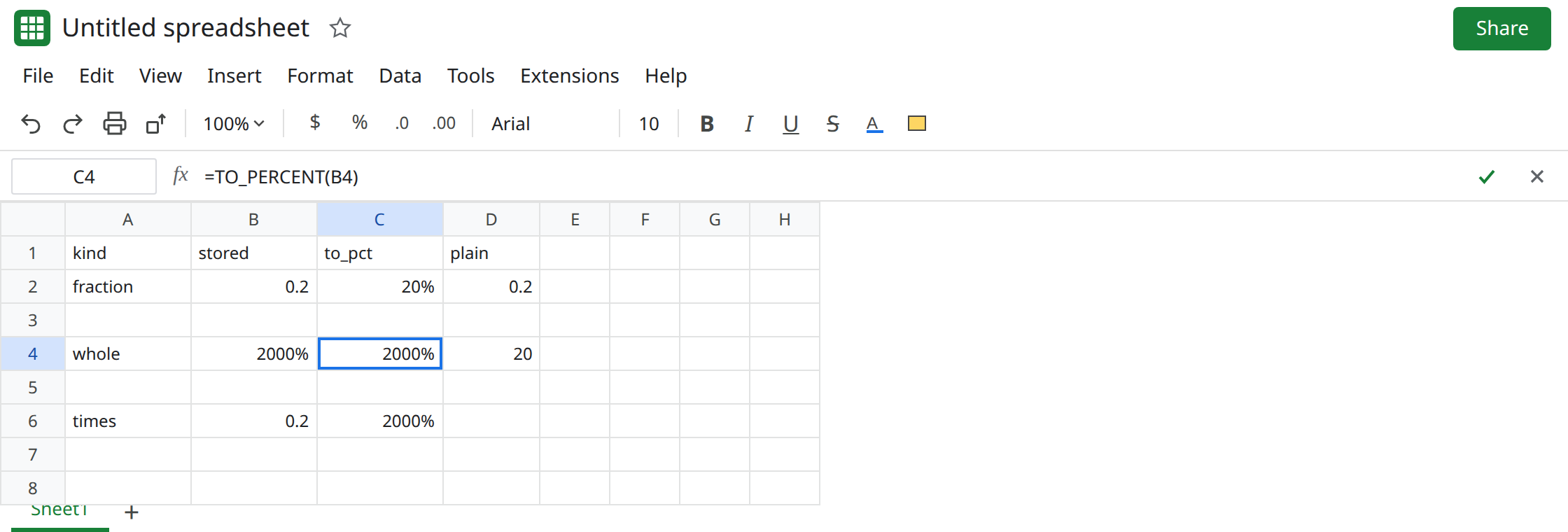
Multiply, then TO_PERCENT. In A6 type times. In B6 type 0.2. In C6 enter =TO_PERCENT(B6*100). C6 displays 2000%. B6 was already the fraction for 20%. The extra *100 stored 20, and percent format displayed two thousand percent. This is the formula people write when they think TO_PERCENT wants a 0–100 score. Leave C6.
Text is not scaled. In B8 type an apostrophe, then 20%. In C8 enter =TO_PERCENT(B8). C8 stays the text 20%. No new scale. ISTEXT(B8) is TRUE. A text percent that must become a number is VALUE() locale or TO_PURE_NUMBER, not this display.
What is actually wrong
Section titled “What is actually wrong”- Percent format never changes the rule “the stored number
1displays as100%.”TO_PERCENTuses that rule. It does not inspect whether the source cell is already formatted as percent and then skip a multiply. There is no second multiply inside the function. The second scale is either the format on a whole number20, or an explicit*100in the formula. - Typing
20%into a cell stores0.2. Typing20and then choosing Format → Number → Percent stores20and displays2000%. The menu click is not the same as the percent key. C4 is the menu-after-a-whole-number case. - C2 and C4 can both “already be percents” on screen and still be different numbers. The plain-number neighbor (
D2versusD4) is the check.20%on screen with a neighbor of0.2is a fraction.2000%with a neighbor of20is a whole number wearing a percent format. TO_PURE_NUMBERon C4 returns20, not0.2. It strips the paint and keeps the stored value. See TO_PURE_NUMBER. It will not interpret2000%as “you meant 20%.”
This is not TEXT of a percent, which returns text such as 20% or 0.20 depending on the pattern. See TO_TEXT vs TEXT. C4 is still a number. ISNUMBER(C4) is TRUE.
Leave C4 and C6 displaying 2000%.
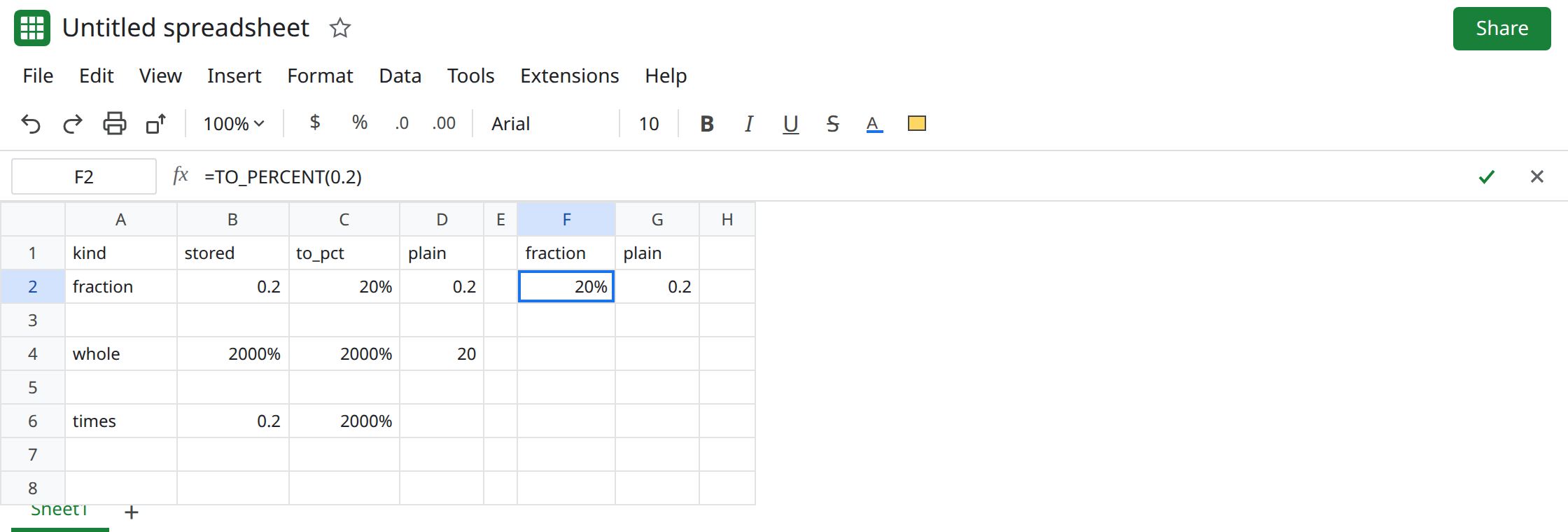
Pass the fraction, and do not multiply by 100. In F2 enter =TO_PERCENT(0.2). F2 displays 20%. For a ratio, =TO_PERCENT(A2/A3) when those cells are counts, not when they are already percent-formatted wholes. Check a plain-number copy of the result. It should be 0.2 for a displayed 20%, not 20.
If the cell already stores the right fraction, format it with Format → Number → Percent and skip TO_PERCENT. B2 after the percent format is that case. TO_PERCENT will not change 0.2 into something else, and you do not need both.
If you typed 20 meaning twenty percent, divide once: =TO_PERCENT(B4/100) displays 20% and stores 0.2. Do not also format that result by hand in a way that you then multiply again. One scale.
Do not wrap C4 in IFERROR. There is no error. The risk is a rate that is a hundred times too large. See IFERROR hides cause.
If TO_PERCENT displays 2000%, the stored number is 20, not 0.2. Remove the extra *100, or divide a whole-number percent by 100 once. If a plain-number copy of the cell is 0.2 and the display is 20%, the function matches the format and there is nothing to undo.