

INDIRECT quotes sheet names that contain spaces or apostrophes
Updated
INDIRECT reads a text address and returns that cell. A sheet name with a space or an apostrophe has to be quoted inside the string, the same way you quote it in a formula bar. The space form is "'My Tab'!A1". The apostrophe form doubles the mark: "'O''Brien'!A1". Without those quotes the cell is #REF! even though the tab exists and A1 has a value.
A string that is not an address at all, and a tab that does not exist, are INDIRECT #REF!. This page assumes the tab is real and the quoting is wrong.
Recreate it on a blank sheet
Section titled “Recreate it on a blank sheet”- Open a blank spreadsheet. Keep the Google Sheets UI in English. You need two extra tabs.
Space in the name. Rename a tab, or add one, so a sheet is named My Tab with a space. On that sheet, in A1 type 10.
On Sheet1, in A1 type space. In B1 enter =INDIRECT("My Tab!A1"). The cell shows #REF!. The tab exists. A1 is 10. The string never quoted the name, so Sheets does not treat My Tab as one sheet. Leave B1 broken.
In B2 enter =INDIRECT("'My Tab'!A1"). There is a single quote after the opening double quote, then My Tab, then a single quote, then !A1. The cell shows 10.
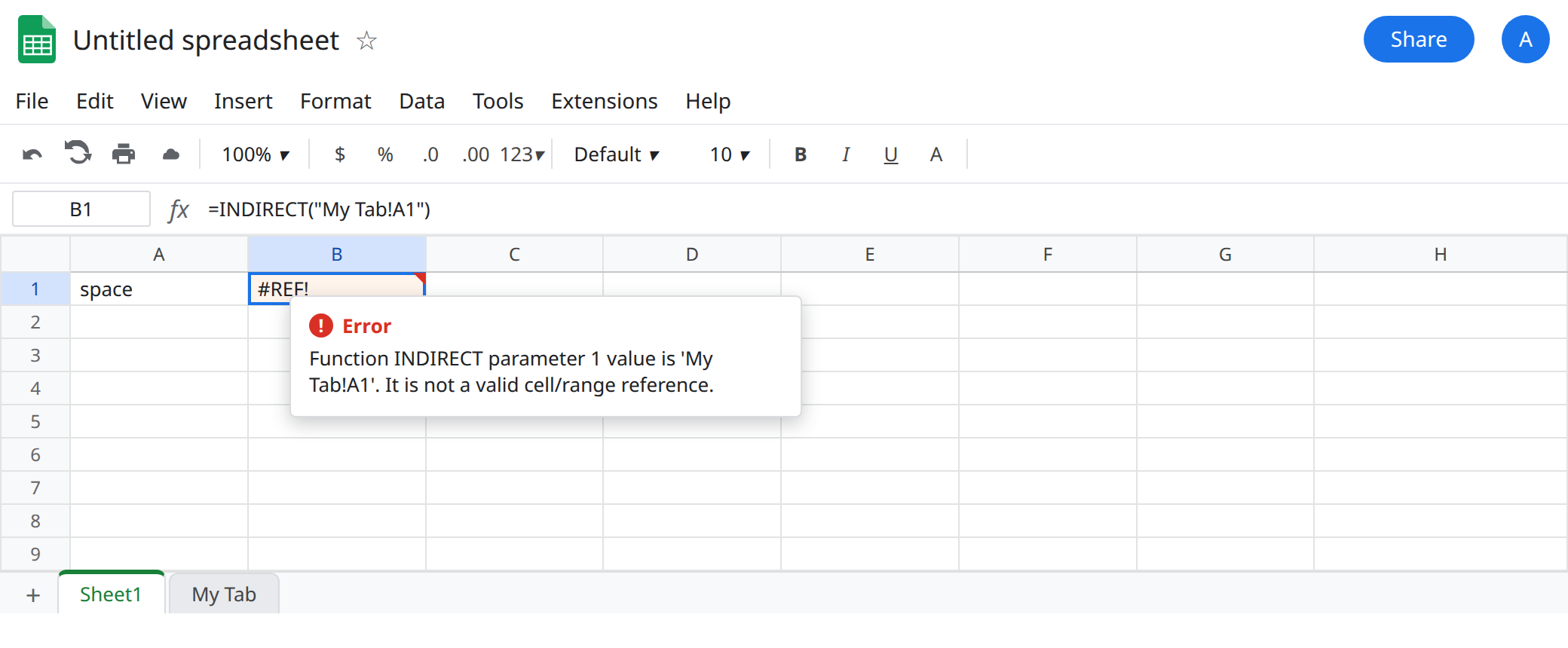
Apostrophe in the name. Add a sheet named O'Brien (O, apostrophe, Brien). On that sheet, in A1 type 4.
On Sheet1, in A4 type apos. In B4 enter =INDIRECT("O'Brien!A1"). #REF!. In B5 enter =INDIRECT("'O'Brien'!A1"). Still #REF!. The single quote you added to wrap the name ends at the apostrophe in O'Brien. The rest, Brien'!A1, is not an address. In B6 enter =INDIRECT("'O''Brien'!A1"). Two apostrophes between O and Brien. The cell shows 4.
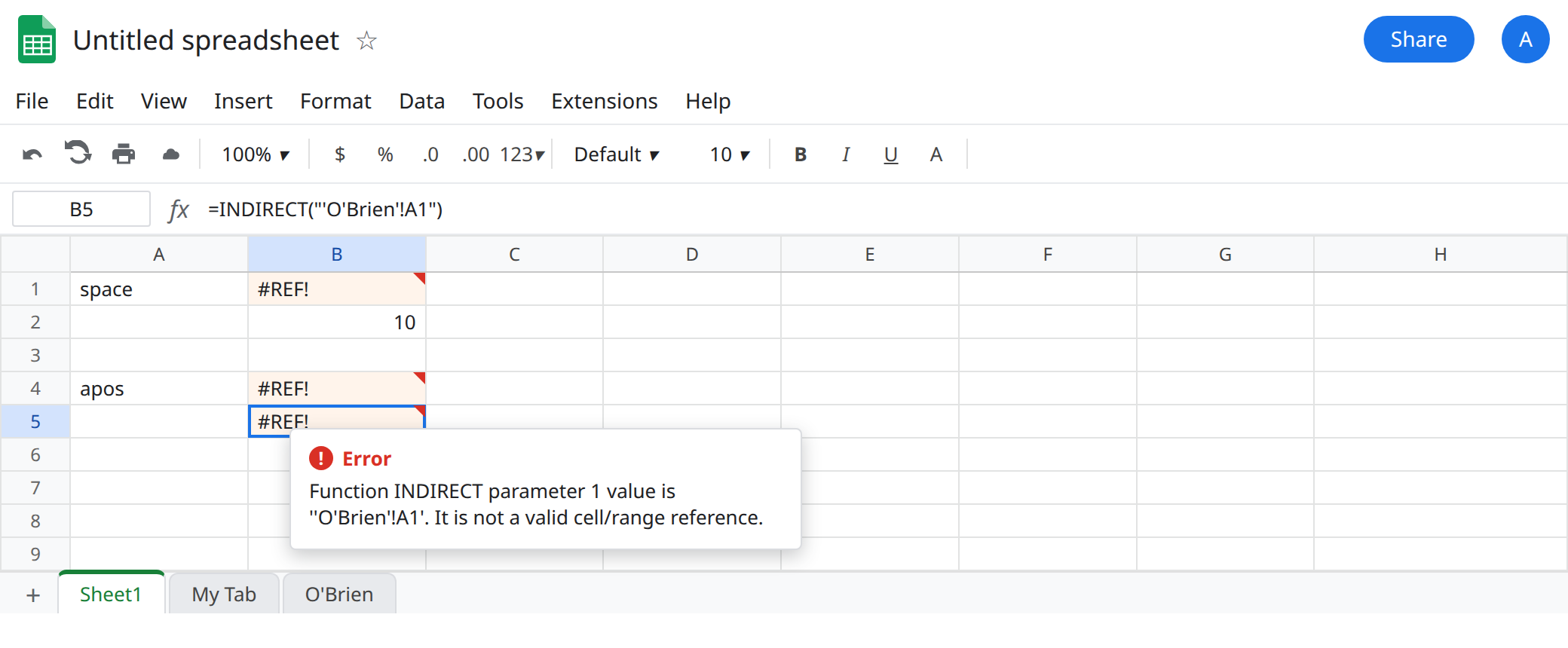
Name in a cell. In D1 type tab. D2 O'Brien. In D4 enter =INDIRECT(D2&"!A1"). #REF!. In D5 enter =INDIRECT("'"&D2&"'!A1"). #REF! as well, for the same reason as B5: D2 already contains an apostrophe. Leave D4 and D5 broken. Leave B1, B4, and B5 broken.
A deleted-cell #REF! rewrites the formula bar (=#REF!). B1’s formula bar still shows the INDIRECT text. See after you delete. You did not delete A1.
What is actually wrong
Section titled “What is actually wrong”- Sheet names are quoted with single quotes when they contain spaces, apostrophes, or other characters that would break an address.
INDIRECTdoes not add those quotes for you. It parses the string you built. - The space case is one pair of single quotes:
'My Tab'!A1. B1 is missing them. B2 has them. The whole thing is still one Sheets string, wrapped in double quotes. - An apostrophe inside the name is escaped by doubling it inside those quotes. The characters are quote,
O, apostrophe, apostrophe,Brien, quote,!A1. B5 has only one apostrophe inO'Brien, so it closes the sheet name too early. B6 doubles it. - Building the string from D2 pastes the raw apostrophe. Wrapping D2 in quotes (D5) is the space fix. It is not the apostrophe fix. You have to double apostrophes in the cell’s text before you wrap it.
INDIRECTupdates when the text changes. It does not follow a renamed tab the way a normal'My Tab'!A1reference does. If you rename the tab, the string is stale and the error looks like a missing sheet. That missing-tab tooltip, Unresolved sheet name, is the other page. Confirm the tab’s exact characters, including the apostrophe, before you rewrite the quotes.
A range follows the same quoting. =INDIRECT("'My Tab'!A1:A3") is legal when you want more than one cell, and it spills. =INDIRECT("My Tab!A1:A3") is still #REF!. The quotes wrap the sheet name only. They do not wrap !A1:A3. A tab whose name has a trailing space is a different string from My Tab. Copy the name from the tab, do not retype it, then run it through SUBSTITUTE if it contains an apostrophe.
This is not R1C1 versus A1. A wrong notation flag is a separate argument to INDIRECT. B1 fails in A1 notation, which is the default. The second argument FALSE would ask for R1C1 and make 'My Tab'!A1 fail even after you quote it. Leave that argument off until the A1 string already works in B2 and B6.
Leave B1, B4, B5, D4, and D5 broken.
Space. Keep B2: =INDIRECT("'My Tab'!A1").
Apostrophe, fixed name. Keep B6: =INDIRECT("'O''Brien'!A1").
Apostrophe, name in a cell. In D7 enter =INDIRECT("'"&SUBSTITUTE(D2,"'","''")&"'!A1"). SUBSTITUTE doubles every apostrophe in D2, then the formula wraps the result in sheet quotes and adds !A1. The cell shows 4. If D2 is My Tab and that tab’s A1 is 10, the same formula returns 10, because SUBSTITUTE finds no apostrophe and the wrap still quotes the space.
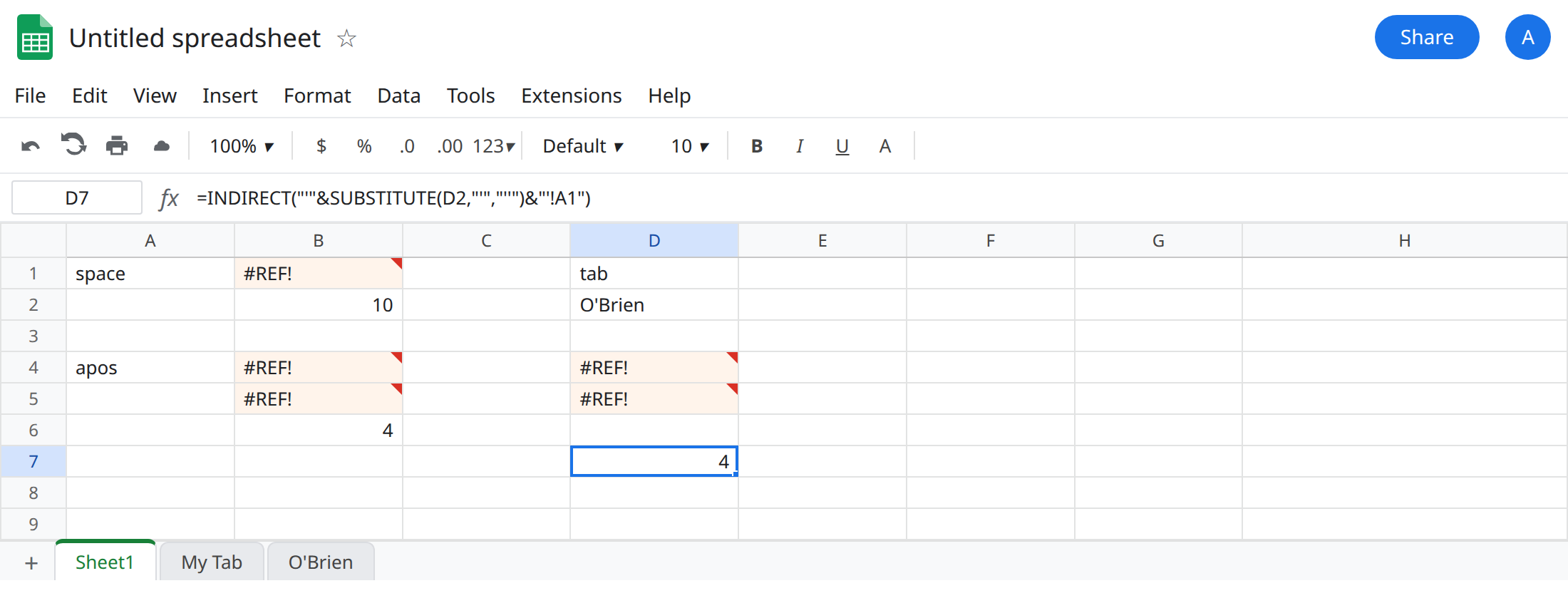
Do not wrap B1 in IFERROR. A blank is not 10. See IFERROR vs IFNA. Do not rename O'Brien to OBrien to avoid learning the quotes unless you also change every string that still contains the apostrophe.
If INDIRECT is #REF! and the tab is sitting in the tab bar with a space or an apostrophe, the string is missing quotes or missing a doubled apostrophe. The “not an address” and missing-tab cases stay on INDIRECT #REF!.