

VALUE of 12% or $1,200 text is #VALUE! when this locale does not own that symbol
Updated
VALUE(text) parses a string into a number using this file’s locale. A percent sign and a currency mark are part of that parse, not decoration you can ignore. On a United States sheet, VALUE of the text 12% is 0.12, and VALUE of the text $1,200 is 1200. The same dollar string on a locale that uses comma as the decimal mark is #VALUE!. A space before the percent sign fails on either locale. The cell still shows the characters you typed. The number never arrives.
Plain 1.234,56 versus 1,234.56, with no percent and no currency mark, is VALUE() locale. A currency format on a real number, versus a dollar sign stored as text, is TO_PURE_NUMBER. Keep the Google Sheets UI in English. Sheet Error is an independent formula-error library, not a Google product. File → Settings → Locale → United States to start.
Recreate it on a blank sheet
Section titled “Recreate it on a blank sheet”- Open a blank spreadsheet. File → Settings. Display language English. Locale → United States. Save. United States uses
.as the decimal mark,,as the thousands separator,$as the currency symbol, and%as the percent sign.
In A1 type kind, B1 text, C1 value.
Percent text this locale accepts. In A2 type pct. In B2 type an apostrophe then 12% so the cell is text. ISTEXT(B2) is TRUE. In C2 enter =VALUE(B2). C2 is 0.12. Format C2 as percent and the display is 12%. The formula bar of C2 is still the number 0.12, not 12. That row is the control. People who wanted the digits 12 have a number a hundred times smaller, and it is not an error triangle.
A space breaks the parse. In A3 type space. In B3 type an apostrophe then 12 % (digits, space, percent sign). In C3 enter =VALUE(B3). C3 is #VALUE!. The tooltip says the text cannot be parsed to a number. The only difference from B2 is the space. Leave C3 broken.
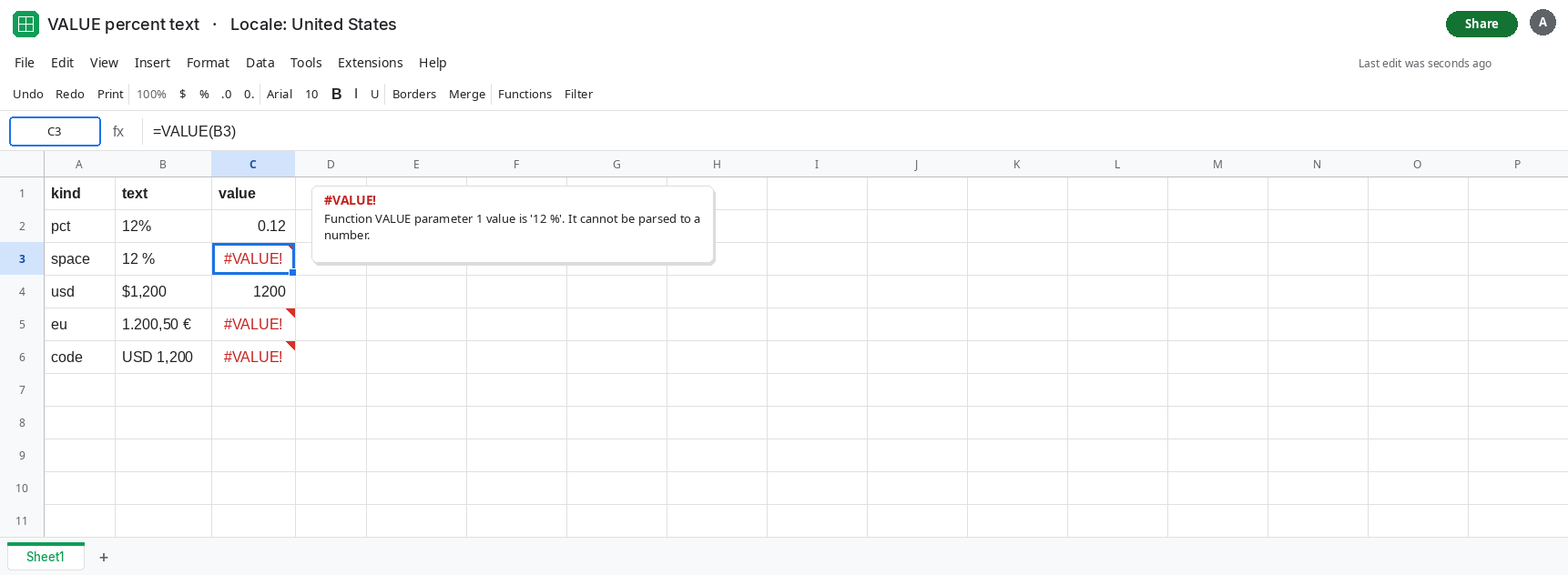
Dollar text this locale accepts. In A4 type usd. In B4 type an apostrophe then $1,200. In C4 enter =VALUE(B4). C4 is 1200. ISNUMBER(C4) is TRUE. That is the currency control on United States.
A currency shape this locale does not own. In A5 type eu. In B5 type an apostrophe then 1.200,50 €. In C5 enter =VALUE(B5). C5 is #VALUE!. The euro mark, the dot thousands, and the comma decimal are not a United States number. Leave C5 broken.
Letters in front of the digits. In A6 type code. In B6 type an apostrophe then USD 1,200. In C6 enter =VALUE(B6). C6 is #VALUE!. USD is not the $ symbol this locale parses. Leave C6 broken.
Switch the locale. File → Settings → Locale → Germany. Keep the display language in English. Germany uses , as the decimal mark. C4, which parsed $1,200 a moment ago, is #VALUE!. The dollar sign and the comma-as-thousands shape are not a German number. C5 may become a number if the string matches the German currency shape, or it may stay #VALUE! if the space or the euro placement does not match. C3 stays #VALUE! because of the space. Set Locale back to United States so C4 is 1200 again and C5 is the broken euro string. Do not change Display language.
TO_PURE_NUMBER on B5 returns the text unchanged. It does not parse a currency string. See TO_PURE_NUMBER.
Leave C3, C5, and C6 as #VALUE! on the United States locale. Leave C2 as 0.12 and C4 as 1200.
What is actually wrong
Section titled “What is actually wrong”VALUEasks the locale whether the whole string is a number.%means “divide by 100” when the parse succeeds.$and the thousands separator have to be the ones in File → Settings → Locale. A symbol from another locale is not a number here.- A space, a currency code (
USD), or a trailing word makes the string fail even when the digits are obvious to you. C3 and C6. - The successful percent is
0.12. Adding12later, or formatting the text cell as percent, does not multiply the parsed result back up. The text cell never became a number untilVALUEran. - Changing Display language does not change this parser. Locale does. The same rule as VALUE() locale, applied to symbols rather than to
1.234,56. - A cell that is already numeric and merely formatted as percent or currency does not need
VALUE.ISNUMBERon that cell is TRUE.VALUEis for text. See CSV text vs number if a csv import stored the symbol as text.
This is not 10 + pcs. See wrong type. This is not a date string. See DATEVALUE locale.
Leave C3, C5, and C6 broken so the failed strings stay visible. Leave C2 as 0.12.
Parse a string written in this locale, or strip the foreign shape first. On United States, $1,200 and 12% are C4 and C2. For the euro string, do not hand 1.200,50 € to VALUE on a US sheet.
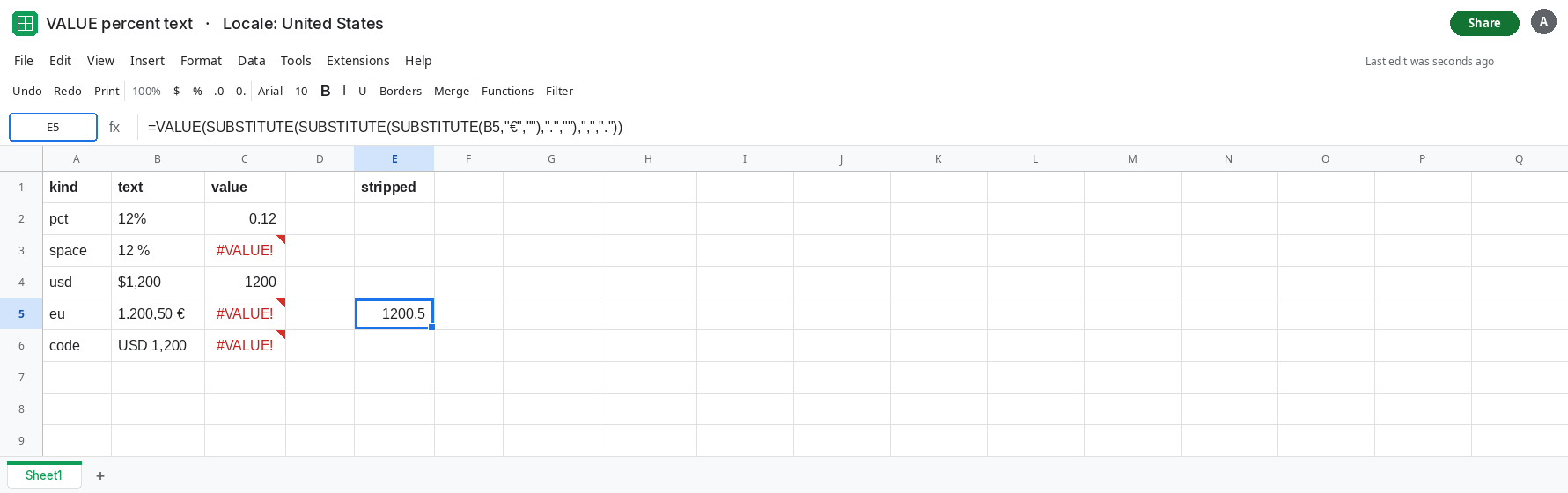
Strip a known foreign currency shape, then VALUE. In E5 enter =VALUE(SUBSTITUTE(SUBSTITUTE(SUBSTITUTE(B5,"€",""),".",""),",",".")). The euro sign is removed, dots (thousands) are removed, and the comma becomes a decimal point. E5 is 1200.5 on United States. Use this only when you know the source is dot-thousands and comma-decimal. The same substitutions scramble a real US string like B4.
A percent you wanted as 12, not 0.12. =VALUE(SUBSTITUTE(B2,"%","")) is 12 on this US sheet, because the percent sign is gone before the parser can treat it as a percent. Do that only when the source meant “twelve”, not “twelve percent”. If the source meant twelve percent, keep C2 and format the result as percent.
Or set the locale to the file that produced the text. Germany will accept a German currency string and reject $1,200. One spreadsheet has one locale. Do not flip it back and forth under a shared report. See locale parse error if the failure is the formula’s argument separator, not the string in B5.
If C2 is 0.12 and you expected 12, the percent sign was parsed. If the tooltip names VALUE and the string contains a space, a currency code, or the other locale’s separators, the parse never started. If ISNUMBER is already TRUE, you do not need VALUE.