

QUERY WHERE strings: quotes, apostrophes, and a formula that will not parse
Updated
QUERY text literals use single quotes inside a formula string that itself uses double quotes: "where B = 'Dublin'". An apostrophe in the value, as in O'Brien, ends that literal early. The cell is #VALUE! and the tooltip starts Unable to parse query string for Function QUERY parameter 2. A double quote typed in the middle of the formula is a different failure: #ERROR! Formula parse error. Sheets never hands the text to QUERY.
The unquoted word Widget is the short version of this bug. It already lives on QUERY unable to parse. This page starts after the word is quoted, and the quote is still wrong. Dates are QUERY date literal.
Recreate it on a blank sheet
Section titled “Recreate it on a blank sheet”- Open a blank spreadsheet. Keep the Google Sheets UI in English. File → Settings → Locale United States, so argument separators stay commas. In A1 type
name, B1city. A2Ada, B2Dublin. A3Pat, B3O'Brien. B3 is the letters O, apostrophe, B, r, i, e, n.
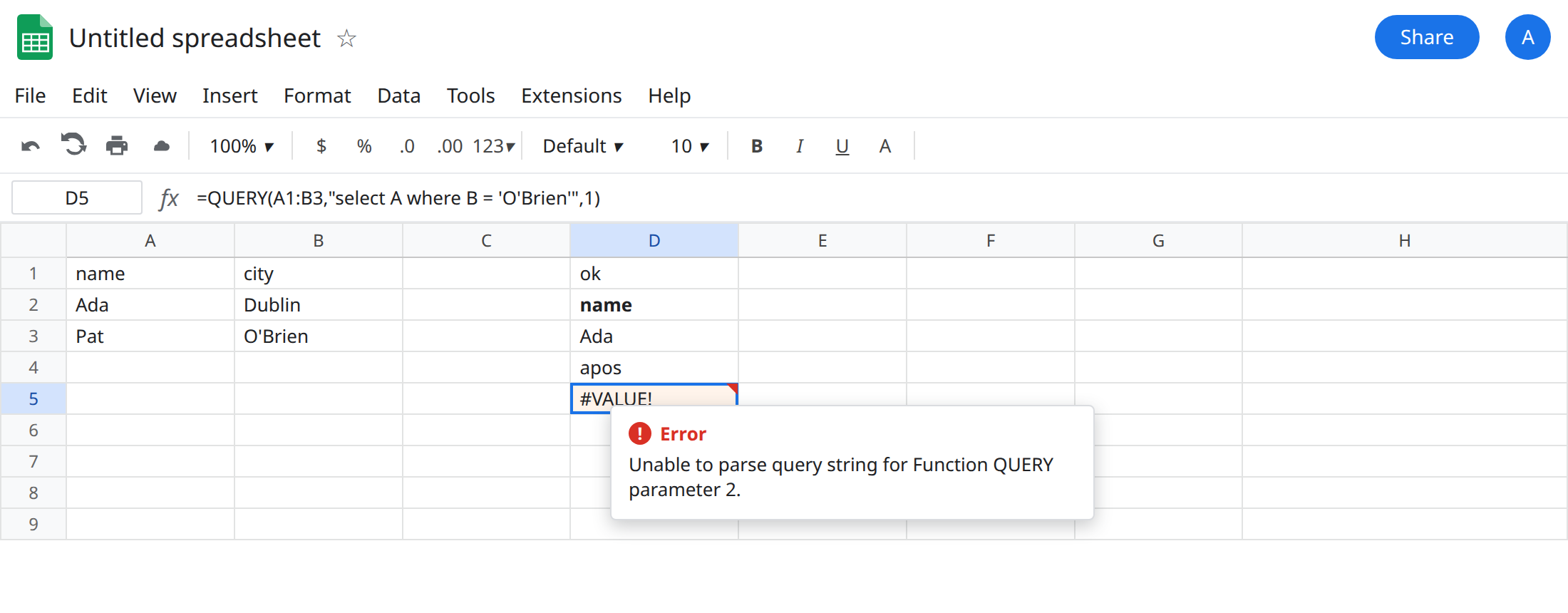
A quoted city that works. In D1 type ok. In D2 enter =QUERY(A1:B3,"select A where B = 'Dublin'",1). The spill is the header name and the row Ada. The single quotes around Dublin are inside the double-quoted query. Leave D2.
Apostrophe in the value. In D4 type apos. In D5 enter =QUERY(A1:B3,"select A where B = 'O'Brien'",1). The cell shows #VALUE!. The tooltip starts Unable to parse query string for Function QUERY parameter 2. The query engine saw a string O and then the leftover Brien' which is not query language. Leave D5 broken.
Built from a cell. In F1 type city. F2 O'Brien. In F4 enter =QUERY(A1:B3,"select A where B = '"&F2&"'",1). Same #VALUE!. Concatenation does not escape the apostrophe that arrives from F2. The query text becomes where B = 'O'Brien', which is D5 again. Leave F4 broken.
Double quotes break the formula, not the query. In H1 type dq. In H2 enter =QUERY(A1:B3,"select A where B = "Dublin"",1). The cell shows #ERROR!. The tooltip is Formula parse error. The formula string started at the first double quote and ended at the double quote before Dublin. Dublin"" is leftover text the formula parser will not accept. This tooltip does not say Unable to parse query string. Leave H2 broken.
What is actually wrong
Section titled “What is actually wrong”- Inside the query language, a string is single-quoted.
'Dublin'is text.Dublinwithout quotes is a name, and that case is QUERY unable to parse. D2 is the legal shape. - A single quote inside the value is escaped by doubling it, in the query language:
'O''Brien'. Two apostrophes, not a backslash, not a double quote. D5 has one apostrophe, so the literal ends atO. - The Sheets formula and the query language use different quote characters on purpose. The formula argument is one double-quoted string. You do not wrap
Dublinin double quotes inside it. H2 tries to, and the formula bar never produces a query.#ERROR!Formula parse error is the same family as a locale comma only in the sense that the formula did not parse. H2’s locale can be United States. The broken token is the quote, not the separator. Curly quotes from a doc are curly quote parse error. - Concatenation pastes the cell’s characters raw. F2’s apostrophe is one character. The formula in F4 adds a single quote before and after it. You get three apostrophes in the wrong places, not the doubled escape.
1at the end is the header row count. It is not why D5 failed. D2 uses the same1and spillsAda.
This is not a date literal and not Col1 versus A. Those are the other two causes on the parse-string page. This is not “no rows.” A legal query that matches nothing is #N/A, covered with QUERY no rows. D5 never searched.
Leave D5, F4, and H2 broken.
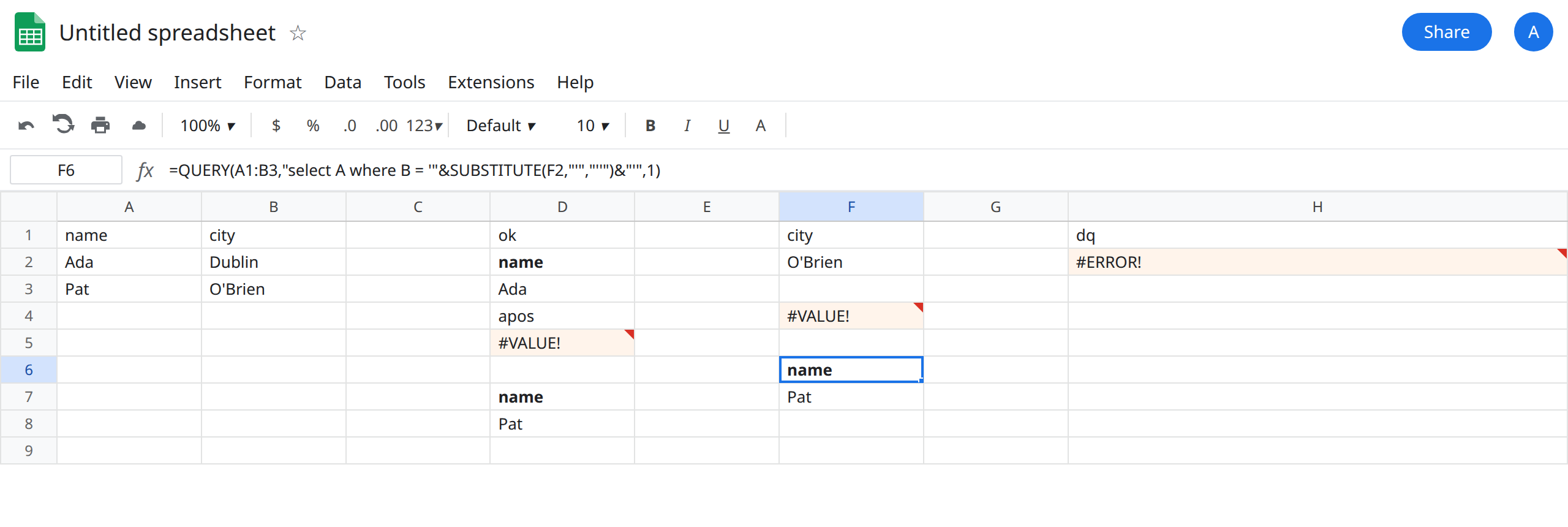
Double the apostrophe in a fixed value. In D7 enter =QUERY(A1:B3,"select A where B = 'O''Brien'",1). Between O and Brien there are two apostrophes. The spill is name / Pat.
Double whatever apostrophes are in the cell. In F6 enter =QUERY(A1:B3,"select A where B = '"&SUBSTITUTE(F2,"'","''")&"'",1). SUBSTITUTE turns each apostrophe in F2 into two apostrophes before the query sees them. The spill is Pat. If F2 is Dublin, the substitute changes nothing and the row is Ada. One formula covers both.
Keep double quotes as the formula’s string markers only. The working D2 formula has one pair of double quotes around the whole query. The city stays in single quotes. Do not paste H2’s pattern back in to “match the formula bar.”
Do not wrap D5 in IFERROR. You would hide a broken query and return a blank report. See IFERROR vs IFNA. Do not change the spreadsheet locale to fix quotes.
If the tooltip is Unable to parse query string, look at the value’s apostrophes and double them. If the tooltip is Formula parse error, the double quotes that wrap the query are unbalanced. Those are two different repairs.