

ARRAY_CONSTRAIN shows a corner of the array and does not say the rest was dropped
Updated
ARRAY_CONSTRAIN(range, num_rows, num_cols) returns the top-left rectangle of an array. It does not error when the source is taller or wider than that rectangle. A FILTER of six skus, constrained to three rows, shows three skus. COUNTA of the full filter is 6. Nothing in the constrained cell says “truncated.” Asking for more rows than the array has returns the whole array, without padding. Asking for zero rows is an error, not a quiet blank.
A SPLIT capped to three columns so a #REF! goes away is SPLIT column limit. A spill that cannot expand because a cell is occupied is SORT / UNIQUE spill. Keep the Google Sheets UI in English. Sheet Error is an independent formula-error library, not a Google product.
Recreate it on a blank sheet
Section titled “Recreate it on a blank sheet”- Open a blank spreadsheet. In A1 type
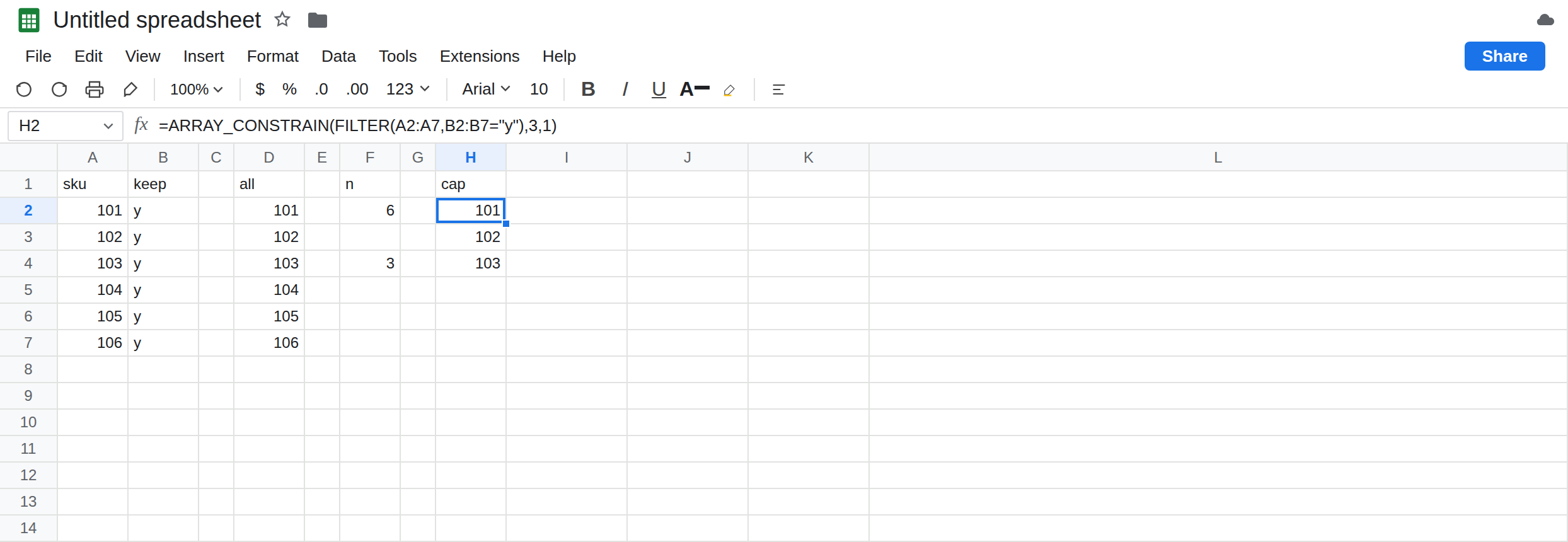
sku. A2101, A3102, A4103, A5104, A6105, A7106. Six codes. In B1 typekeep. B2:B7 typeyon every row.
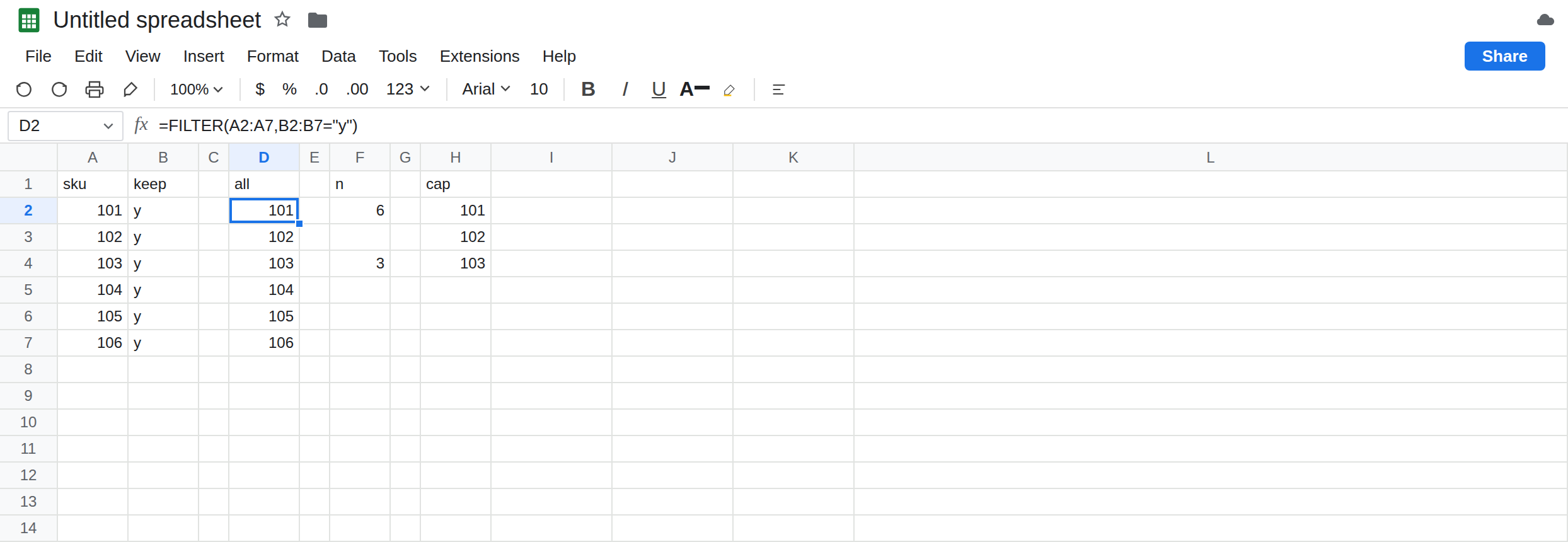
The full filter. In D1 type all. In D2 enter =FILTER(A2:A7,B2:B7="y"). The spill is 101 through 106 in D2:D7. In F1 type n. In F2 enter =COUNTA(D2:D7). F2 is 6. That column is the control.
Three rows, no warning. In H1 type cap. In H2 enter =ARRAY_CONSTRAIN(FILTER(A2:A7,B2:B7="y"),3,1). H2 is 101, H3 is 102, H4 is 103. H5 is empty. No triangle. In F4 enter =COUNTA(H2:H7). F4 is 3. The filter still had six matches. The function kept the first three and discarded 104, 105, and 106. A chart built on H2:H7 plots half the skus and looks complete. Leave H2 as that short spill.
More rows than the array has. In H8 enter =ARRAY_CONSTRAIN(FILTER(A2:A7,B2:B7="y"),20,1). You asked for 20 rows. There are 6. The spill is the same six skus as D2, and it does not fill H8:H27 with blanks or #N/A. ARRAY_CONSTRAIN clips. It does not pad. Leave H8 as six rows so this is not confused with HSTACK / VSTACK pad.
Zero is not “show nothing.” In H16 enter =ARRAY_CONSTRAIN(FILTER(A2:A7,B2:B7="y"),0,1). H16 errors (#NUM!). A zero row count is invalid, not an empty preview. Leave H16 broken. If you wanted “no rows” as a real result, that is a different formula, not 0 passed to this function.
A cap used to dodge #REF!. In J2 type note. In D2 the full filter needs D2:D7, so if you had put note in D4, D2 would be #REF!. The constrained formula in H2 only needs H2:H4. A note in H6 does not block it, and you still do not see 104. Clearing a blocker and constraining the array solve different problems. Leave J2 as a note that is not inside H2’s three-row block.
Leave H2 as three skus. Leave D2 as six. Leave F2 as 6 and F4 as 3.
What is actually wrong
Section titled “What is actually wrong”- The third and fourth arguments are a size, not a filter.
3and1mean “three rows, one column, from the top left.” They do not mean “skus greater than 103” and they do not mean “three matching rows, then stop searching” in a way that reports the leftover. The leftover is dropped. - No error is how this fails in a report. H2 looks like a successful
FILTER. The audit isCOUNTAof the unconstrained spill versusCOUNTAof the constrained one. F2 and F4 are that audit. If they differ, the cap is hiding rows. - Asking for extra rows does not invent
#N/Apadding. If you needed a fixed-height block with blanks underneath,ARRAY_CONSTRAINwill not build it. The spill is only as tall as the data, up to the limit you set. 0errors. Do not pass a row count computed from aCOUNTIFthat can be zero without a guard. The guard belongs around the call, or you accept H16’s#NUM!as the signal that the count was empty.- Constraining a
SPLIT, aQUERY, or aSORThas the same silence. The function does not know which source you truncated. See SPLIT column limit when the source isSPLITand the alternative was#REF!.
This is not FILTER no match. Zero matches is #N/A on FILTER itself. H2 matched six and displayed three.
This is not QUERY LIMIT / OFFSET. limit 3 is inside the query language and still returns a header story of its own. This page is ARRAY_CONSTRAIN around an array that already exists.
Leave H2 as the short spill and leave D2 as the full list.
Show every match. Point the report at D2, or remove the ARRAY_CONSTRAIN wrapper. In K2 enter =FILTER(A2:A7,B2:B7="y"). K2:K7 is 101 through 106. F2 stays 6. If K4 is occupied, K2 is #REF!. Clear it. Do not cap the filter to slide past the note.
Keep a preview, and label it. If three rows is a sample, put first 3 in the header above H2. Anyone who sums H2:H7 is summing a sample. The full count stays in F2 where a reader can see 6.
A computed size. =ARRAY_CONSTRAIN(FILTER(...), MAX(1, F2), 1) still shows every row when F2 is 6, and it avoids 0 when you change the range. It does not drop rows. The drop is a limit smaller than COUNTA of the source.
Do not wrap H2 in IFERROR. There is nothing to catch. See IFERROR vs IFNA. Wrapping H16 hides the zero-size mistake.
If the visible list is shorter than COUNTA of the same FILTER without ARRAY_CONSTRAIN, the constrain is the reason. If the cell is #NUM!, the row or column count is not a positive size. If the cell is #REF!, a neighbor is in the spill you did not constrain; clear it or move the formula. If FILTER itself is #N/A, you have no rows, which is the filter page.
Three rows vs six vs zero
Section titled “Three rows vs six vs zero”ARRAY_CONSTRAIN(..., 3, 1) on six matches shows 101, 102, 103 and no error. COUNTA of that spill is 3. COUNTA of the filter is 6. A limit of 20 still shows six rows and does not pad. A limit of 0 is #NUM!. The full FILTER is the list. The constrain is a window.