

Fix IMPORT failures in Google Sheets when a URL parameter is not ENCODEURL
Updated
ENCODEURL turns a text value into a form that can sit inside a URL. A space becomes %20. An ampersand becomes %26. A hash becomes %23. IMPORTDATA, IMPORTXML, IMPORTHTML, and IMPORTFEED send the address you built. If a parameter value still contains a raw space, &, or #, the fetch fails, or it succeeds against a different query than the one you typed. Encoding the entire URL, including https:// and ?, is the other failure: the scheme itself becomes percent-encoded and nothing can be fetched.
This page is the query string you concatenate. It is not Unable to parse (the QUERY language inside a formula). It is not IMPORTDATA fetch as a dead host or a non-CSV page. It is not IMPORT quota. Keep the Google Sheets UI in English. Sheet Error is not a scraping product. Use a URL you are allowed to request. One formula is enough to see the bug.
Recreate it on a blank sheet
Section titled “Recreate it on a blank sheet”- Open a blank spreadsheet. In A1 type
value. In A2 typeWidget A. That is the parameter: a name with a space. In A3 typeEast&West. That value contains an ampersand. In B1 typebase. In B2 typehttps://example.com/data.csv?name=. No space at the end of B2. The host in this recreate is a placeholder. You do not need it to return a real CSV to see a broken address. The broken address is the lesson.
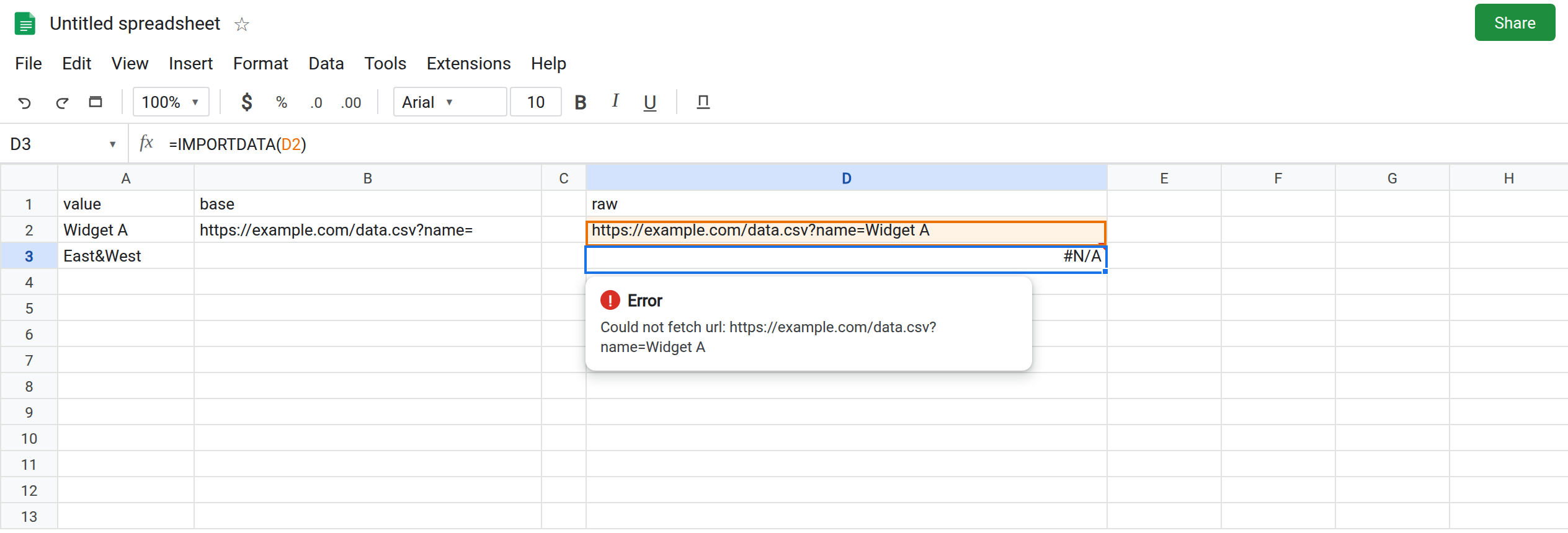
A space left in the query. In D1 type raw. In D2 enter =B2&A2. The cell shows https://example.com/data.csv?name=Widget A. The space is still a space. In D3 enter =IMPORTDATA(D2). The cell shows #N/A. The tooltip is about the URL: it could not fetch that address, or the URL is not valid. Leave D3 broken. The space is why. A public CSV with no space in the path can still be fetched; this constructed address cannot.
An ampersand splits the query. In D5 enter =B2&A3. The cell shows https://example.com/data.csv?name=East&West. A server reads that as parameter name equal to East, plus a second parameter West with an empty value. The formula did not error. The address is a different request. Leave D5 as that string. If you point IMPORTDATA at it, you may get a file, the wrong file, or #N/A. The silent case is the one people ship.
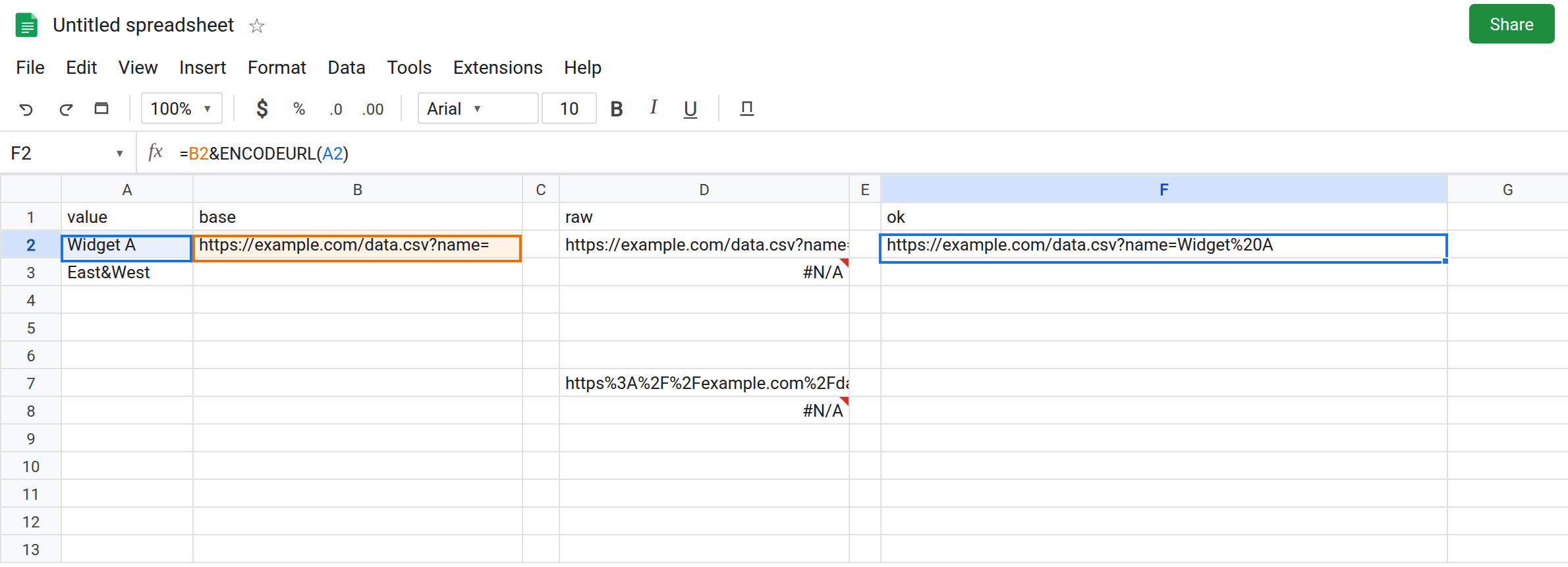
Encoding the whole URL. In D7 enter =ENCODEURL(B2&A2). The cell starts with https%3A%2F%2Fexample.com%2F.... Colons and slashes are encoded. In D8 enter =IMPORTDATA(D7). #N/A again. There is no scheme left for the import to use. Leave D8 broken. ENCODEURL did what it is documented to do. It was applied to the wrong slice of text.
The value only. In F1 type ok. In F2 enter =B2&ENCODEURL(A2). The cell shows https://example.com/data.csv?name=Widget%20A. The scheme, the question mark, and name= stayed literal. Only Widget A was encoded. That string is the control. In F4 enter =B2&ENCODEURL(A3). You get name=East%26West. One parameter, value East&West, once a server decodes it.
QUERY is a different word. In H2 enter =QUERY(A1:A3,"select A where A = Widget A",1). #VALUE!, Unable to parse query string. That page is Unable to parse. ENCODEURL will not fix H2. H2 is not a URL.
Leave D3 and D8 broken. Leave F2 as the encoded value.
What is actually wrong
Section titled “What is actually wrong”- Import functions take one URL string. They do not encode it for you. Concatenation with
&pastes characters through. A space is illegal in that position. D2 is the address D3 tries to fetch. &inside a value is the separator between parameters.East&Westis two parameters.%26is one value. D5 looks almost right in the formula bar because the word is readable. Readable is not encoded.#starts the fragment. Text after#is not sent as a query parameter.ENCODEURLturns#into%23when you apply it to the value. Do not encode the?or the=that you typed as structure.ENCODEURLof the full string encodeshttps://. D7 cannot be fetched. Build the structure yourself, then encode each value.- A value that is already percent-encoded will be encoded again (
%becomes%25). Do not wrap F2 in a secondENCODEURL. - Several imports of the same host can hit the quota even after the URL is correct. That tooltip talks about a large number of requests. See IMPORT quota. D3’s tooltip is the address, not the quota.
This is not the QUERY language. See Unable to parse and QUERY string quotes. A single quote inside a QUERY string is not ENCODEURL.
This is not a dead host. See IMPORTDATA fetch. If F2 still cannot be fetched, the host or the file type is the next page. The space is already gone.
Leave D3 and D8 broken.
Encode each parameter value. Keep F2: =B2&ENCODEURL(A2). Two parameters: =B2&ENCODEURL(A2)&"&bin="&ENCODEURL("A-1"). The & you type between parameters stays a literal ampersand. The & inside a value goes through ENCODEURL.
Then import that cell. =IMPORTDATA(F2) or =IMPORTXML(F2,"//item") uses the encoded address. IMPORTHTML and IMPORTFEED take the same kind of URL. Do not pass D2.
Do not wrap D3 in IFERROR. You would hide a bad address and an empty import with one blank. See IFERROR vs IFNA. Fix the string, then import once.
If an import is #N/A and the formula bar’s URL contains a space, encode the value. If the URL contains %3A%2F%2F, you encoded the scheme. If the URL looks fine and the tooltip says the host could not be fetched, you are on the fetch page, not this one.