

SPLIT does not treat the delimiter as a regular expression
Updated
SPLIT(text, delimiter) cuts on characters. It does not compile delimiter as a regular expression. \s+ does not mean “one or more whitespace characters.” With the default split_by_each TRUE, it means the three separators \, s, and +. A cell north east has no backslash and no plus sign. It does have an s, inside east. SPLIT cuts there. The two spaces stay glued to north. A period in the delimiter is a literal period, not “any character.” A pipe is not OR. If you need a pattern, change the text with REGEXREPLACE, which does take a regular expression, and SPLIT the result on a single literal character.
split_by_each FALSE, which keeps a multi-character delimiter in one piece, is SPLIT each char. A blocked spill and an empty delimiter are SPLIT spill / delimiter. REGEXEXTRACT returning one group is REGEXEXTRACT first. Keep the Google Sheets UI in English. Sheet Error is an independent formula-error library, not a Google product.
Recreate it on a blank sheet
Section titled “Recreate it on a blank sheet”- Open a blank spreadsheet. In A1 type
raw. In A2 typenorth eastwith two spaces between the words. The second word contains the letters. You want the two wordsnorthandeast.
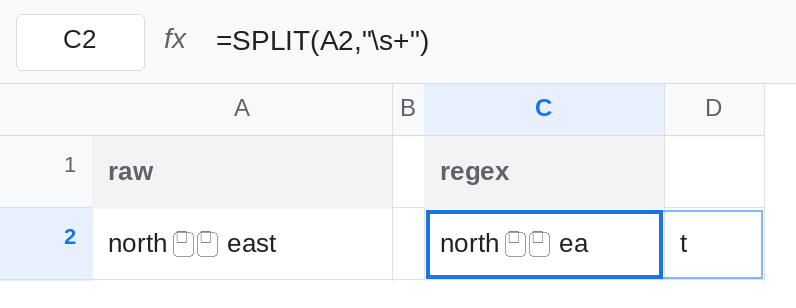
The regex you typed is three separators. In C1 type regex. Leave D2:E2 empty. In C2 enter =SPLIT(A2,"\s+"). You omitted split_by_each, so it is TRUE. The spill is north ea and t. The s in east was a delimiter. The spaces were not. There is no #VALUE! and no #N/A. The words are wrong. Leave C2 as that spill.
A literal space does the job SPLIT can do. In C4 enter =SPLIT(A2," "). Default remove_empty_text TRUE drops the empty piece between the two spaces. The spill is north and east. That row is the control. The delimiter is one character, a space, and it occurs in the text. In C5 enter =SPLIT(A2," ",TRUE,FALSE). The fourth argument FALSE keeps the empty piece. You see north, a blank, and east. The blank is the extra space, not a regex. See SPLIT each char for why split_by_each and empty pieces interact when the delimiter is longer than one character.
A period is not “any character.” In A7 type abc. In C7 enter =SPLIT(A7,"."). There is no period in abc. The spill is the single cell abc. A regular expression . would have matched every character. SPLIT did not. Leave C7 as abc. If the text were a.b.c, =SPLIT(A7,".") would return a, b, c, because those periods are literal characters. That success still is not a regex engine. It is three periods.
A pipe is not OR. In A9 type north,east;west. In C9 enter =SPLIT(A9,",|;"). Default split_by_each TRUE cuts on each of comma, pipe, and semicolon. The pipe character never appears in A9. The comma and the semicolon do. The spill is north, east, west. It looks like OR worked. In C10 enter =SPLIT(A9,",|;",FALSE). The third argument FALSE demands the three-character string comma-pipe-semicolon as one delimiter. That string is not in A9. The spill is the whole cell, unsplit. The earlier “OR” was SPLIT each char happening to include the separators you cared about. Leave C10 unsplit.
Leave C2 as north ea and t. Leave C4 as north and east.
What is actually wrong
Section titled “What is actually wrong”delimiteris literal text. Metacharacters keep their character identity.\sis not whitespace.+is not “one or more.”.is not any character.|is not alternation.()are not groups.- Default
split_by_eachTRUE makes each of those characters its own separator.\s+therefore cuts onswhereversis data.eastloses itss. C2. - A delimiter that does not occur leaves the text in one piece. C7. That is easy to read as “the regex did not match,” and it is actually “that character is not here.”
FALSEforsplit_by_eachdoes not turn the delimiter into a regex either. It only stops splitting the delimiter into separate characters. C10 looks for the literal,|;.REGEXREPLACEandREGEXEXTRACTare the functions that compile patterns.SPLITis the function that cuts on a mark you already know.
This is not REGEXREPLACE \ $. That page is a real regex, where backslash and dollar are special. Using those patterns inside SPLIT is how C2 happened.
Leave C2 as the bad cut. Leave C10 as the literal three-character miss.
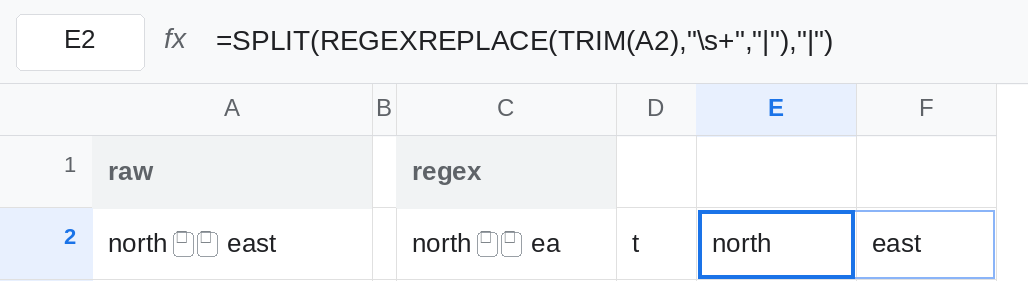
Whitespace, then a literal mark. In E2 enter =SPLIT(REGEXREPLACE(TRIM(A2),"\s+","|"),"|"). TRIM clears the ends. REGEXREPLACE turns every run of whitespace into one pipe. SPLIT cuts on that pipe, which is a character, not a pattern. The spill is north and east. The regex lives in REGEXREPLACE. Change the pipe to a character you know is not in the words if the source can contain pipes.
A single literal space, when you know the gap is one space. C4 is enough for A2 because remove_empty_text already collapsed the double space. It is not enough for a tab. REGEXREPLACE with \s covers spaces and tabs. SPLIT on " " does not see a tab.
OR of two literal separators. =SPLIT(A9,",;") cuts on comma or semicolon because of split_by_each, and you do not need a pipe in the delimiter to say so. Use REGEXREPLACE(A9,",|;","|") only when the alternatives are multi-character strings, then SPLIT on the pipe. SPLIT will not take ",|;" as a pattern. C10 already showed that.
Do not set split_by_each to FALSE and expect \s+ to mean whitespace. FALSE looks for the four characters \s+ in a row, which A2 does not contain, so you get one unsplit cell instead of a cut inside east.
If the pieces lost a letter that appeared in your delimiter string, SPLIT used that letter as a separator. Move the pattern to REGEXREPLACE, and give SPLIT one literal mark.