

REGEXEXTRACT returns capturing groups, and a miss is #N/A
Updated
REGEXEXTRACT(text, regular_expression) returns the match, or the capturing groups if you wrote parentheses. No parentheses: you get the whole match, so SKU-\d+ on SKU-101-A returns SKU-101. One group, SKU-(\d+), returns 101 only. Two or more groups spill across columns, one group per cell. If the pattern does not match, the cell is #N/A. An optional group that matches empty text returns a blank, which is not #N/A. A second group that has nowhere to spill is #REF!.
The plain “pattern did not match” recreate, including (\d+) on SKU- with no digits, is REGEX no match. This page is what the parentheses return when the pattern does match, and the spill that comes with a second group. Patterns are RE2. Keep the Google Sheets UI in English. Sheet Error is an independent formula-error library, not a Google product.
Recreate it on a blank sheet
Section titled “Recreate it on a blank sheet”- Open a blank spreadsheet. In A1 type
raw. In A2 typeSKU-101-A. In A3 typeWidget. In A4 typeSKU-.
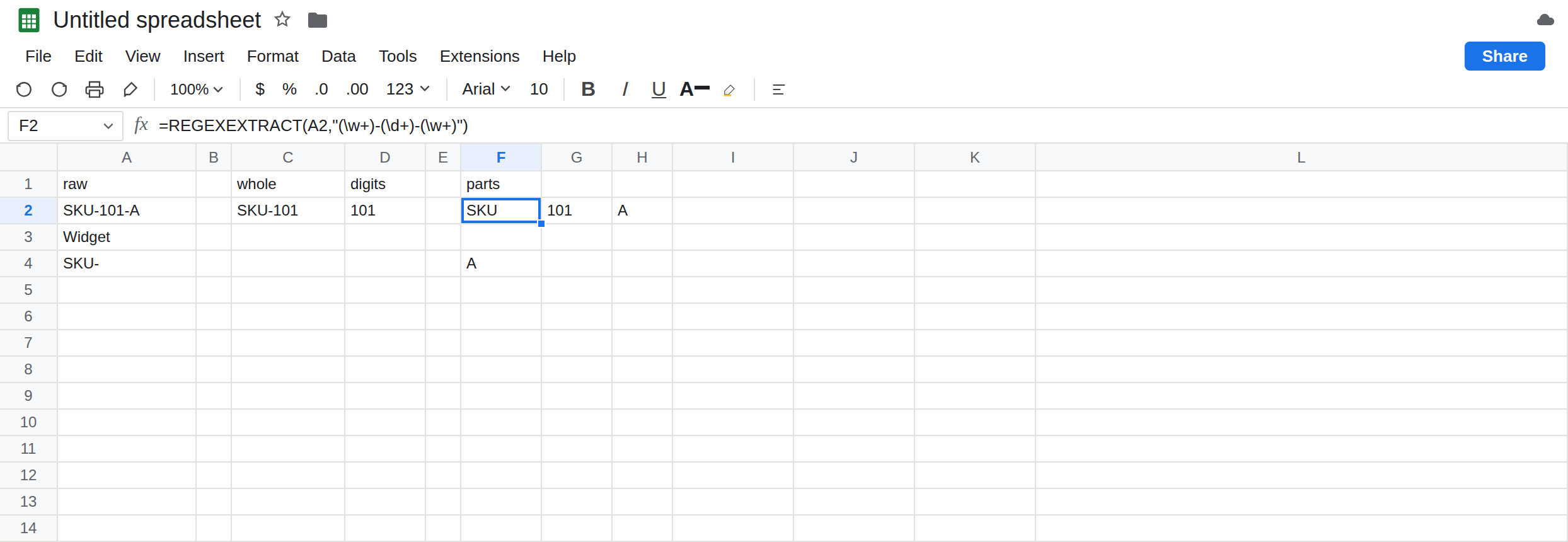
Whole match, no parentheses. In C1 type whole. In C2 enter =REGEXEXTRACT(A2,"SKU-\d+"). C2 is SKU-101. The engine stopped at 101 because \d+ does not include the hyphen and the A. You asked for the whole match of that pattern, and you got it, prefix included. That is the control for “no groups.”
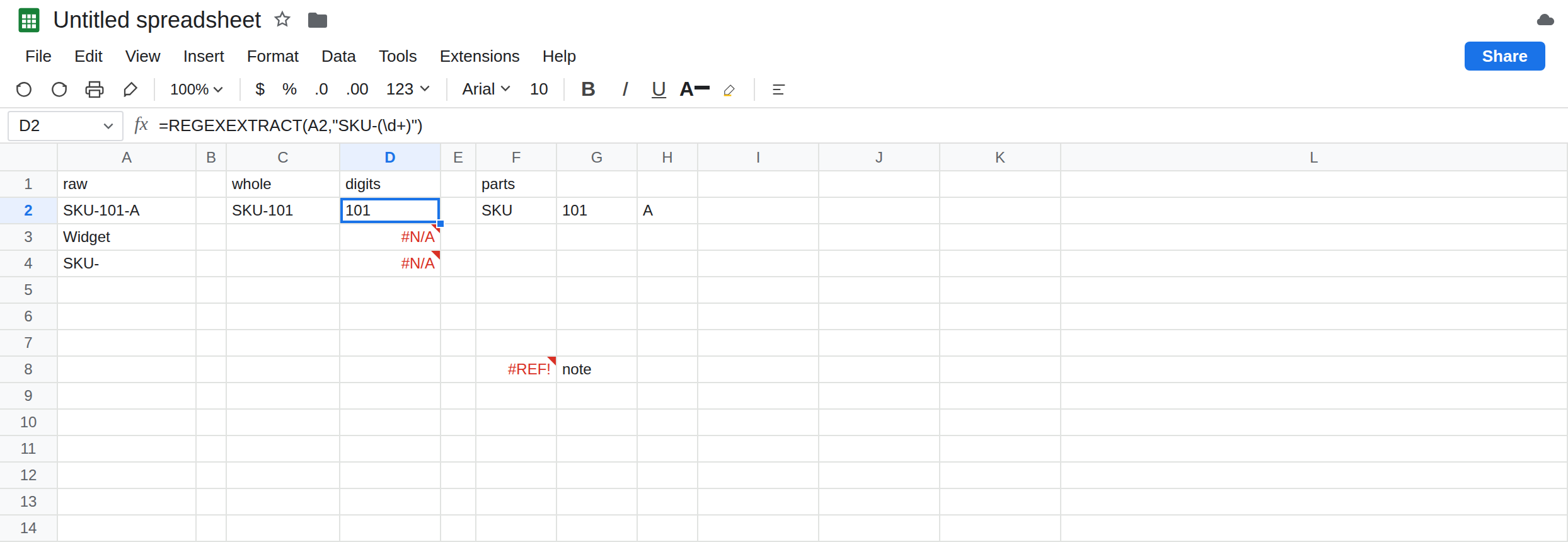
One group. In D1 type digits. In D2 enter =REGEXEXTRACT(A2,"SKU-(\d+)"). D2 is 101. The parentheses are the only reason the SKU- prefix is gone. Same text, same digits, different return. Leave D2 as 101.
Three groups spill. In F1 type parts. Leave G2 and H2 empty. In F2 enter =REGEXEXTRACT(A2,"(\w+)-(\d+)-(\w+)"). F2 is SKU, G2 is 101, H2 is A. Three capturing groups, three cells. A non-capturing group does not take a column: in F4 enter =REGEXEXTRACT(A2,"SKU-(?:\d+)-(\w+)"). F4 is A only. (?:\d+) matched 101 and threw it away. The one pair of capturing parentheses is the letter. Leave F2:H2 as the three-column spill.
No match. In D3 enter =REGEXEXTRACT(A3,"SKU-(\d+)"). D3 is #N/A. Widget has no SKU- and no digits. In D4 enter =REGEXEXTRACT(A4,"SKU-(\d+)"). D4 is #N/A. You can see SKU- in A4. (\d+) still needs at least one digit, so the whole pattern fails. That pair is the REGEX no match case. Leave them broken.
A group that is allowed to be empty. In D6 enter =REGEXEXTRACT(A4,"SKU-(\d*)"). \d* means zero or more digits. The pattern matches SKU- and the group captures nothing. D6 is blank, not #N/A. LEN of that blank is 0. The quantifier changed the result, not the error family. Leave D6 blank next to D4’s #N/A.
The spill blocked. In G8 type note. In F8 enter =REGEXEXTRACT(A2,"(\w+)-(\d+)-(\w+)"). The second group would land on G8. F8 is #REF!. The tooltip names G8. You do not get SKU alone with an error beside it. The whole extract is refused. Leave F8 as #REF! and leave F2 as the clear three-column spill.
Leave D2 as 101, C2 as SKU-101, D3 as #N/A, and F8 as #REF!.
What is actually wrong
Section titled “What is actually wrong”- Parentheses are not just grouping. In
REGEXEXTRACTthey decide the return value. No capturing parentheses: the whole match. One or more: those groups, left to right, as an array. People add parentheses “so the pattern is clearer” and the prefix disappears, or a second column appears. (?:...)groups without capturing. Use it when you need the parentheses for|or a quantifier and you do not want another column. F4 is that.#N/Ameans the pattern did not match. It does not mean “a group was empty.” An empty capture is a successful match of a group that allows empty, and the cell is blank.+versus*on D4 and D6 is the whole difference.- Multiple groups need a clear row. The
#REF!on F8 is a neighbor, the same family as SORT / UNIQUE spill, onREGEXEXTRACT.INDEXaround the extract returns one group without a wide spill if the row is crowded. - RE2 does not treat
\dinside a character class the way every other engine does, and a bad pattern is#REF!rather than#N/A. The patterns on this sheet are valid. D3 is a miss, not a syntax error. See REGEXREPLACE backslash for\and$in a replacement, which is a different argument.
This is not REGEXMATCH. On A3, REGEXMATCH of the same pattern is FALSE, not #N/A. See REGEX no match.
This is not FILTER + REGEXMATCH. A dot in a filter pattern keeps the wrong row. Here the question is what REGEXEXTRACT places in the cell.
Leave D3, D4, and F8 broken.
You wanted the digits only. Keep D2: =REGEXEXTRACT(A2,"SKU-(\d+)"). If C2’s SKU-101 is what a later formula expected, remove the parentheses. The pattern SKU-\d+ is C2.
You wanted all three pieces. Keep F2 on a clear row. If you only need the letter, use F4’s non-capturing pattern, or =INDEX(REGEXEXTRACT(A2,"(\w+)-(\d+)-(\w+)"),1,3) which returns A in one cell and does not need G2 and H2 empty.
A miss is allowed. =IFNA(REGEXEXTRACT(A3,"SKU-(\d+)"),"none") shows none. Use IFNA, not IFERROR, so a #REF! from a bad pattern or a blocked spill does not become none. See IFERROR vs IFNA. Do not wrap D2. It is already 101.
Clear the neighbor if F8 is the formula you meant to keep. Delete note or move the extract. Capping with ARRAY_CONSTRAIN hides groups the way ARRAY_CONSTRAIN hides rows. Do that only when you mean to drop them.
If the cell is the whole token and you wanted a piece, add a capturing group. If you see extra columns, those are extra groups; switch them to (?:...) or INDEX the one you need. If the cell is #N/A, the pattern missed. If it is blank, a group matched empty. If it is #REF!, read the tooltip’s cell or fix the pattern text.
Whole match vs groups vs #N/A
Section titled “Whole match vs groups vs #N/A”SKU-\d+ returns SKU-101. SKU-(\d+) returns 101. Three capturing groups return SKU, 101, and A. (?:\d+) does not get a column. Widget and SKU- with \d+ are #N/A. SKU- with \d* is blank. A filled cell in the group spill is #REF!.