

A dropdown shows a blank or the old items after the source range moves
Updated
A dropdown whose criteria are Dropdown (from a range) stores a range address. The menu shows whatever is in that address now. Insert a row inside the address and the range grows a blank cell. The dropdown lists a blank line and the items that are still inside the address. Cut the items and paste them somewhere else, and the address does not follow the paste. The menu reads the old cells, which are empty, or which still hold whatever you did not move. The words you see in the new column are not the list until you edit the rule.
A custom formula that rejects a typed number is validation formula. Keep the Google Sheets UI in English. Sheet Error is an independent formula-error library, not a Google product.
Recreate it on a blank sheet
Section titled “Recreate it on a blank sheet”- Open a blank spreadsheet. Stay on
Sheet1. In A1 typeitem. A2red. A3green. A4blue.
A dropdown on those three cells. Select C2. Data → Data validation. Add rule. Criteria: Dropdown (from a range). Range: A2:A4. Done. Click C2. The menu lists red, green, and blue. No blank. Choose red so C2 has a value. That menu is the control.
Insert a row inside the list. Right-click the row header for row 3 (green). Insert 1 row above. A blank row opens between red and green. Green and blue move down. Open the data-validation rule and read the range. It has grown, often to A2:A5, because the insert happened inside A2:A4. Open the dropdown on C2. There is a blank choice, then red, green, and blue, or the blank sits where the new row is. The old three words are still there, plus an empty item you did not type. Leave the blank row. Leave C2’s menu showing it.
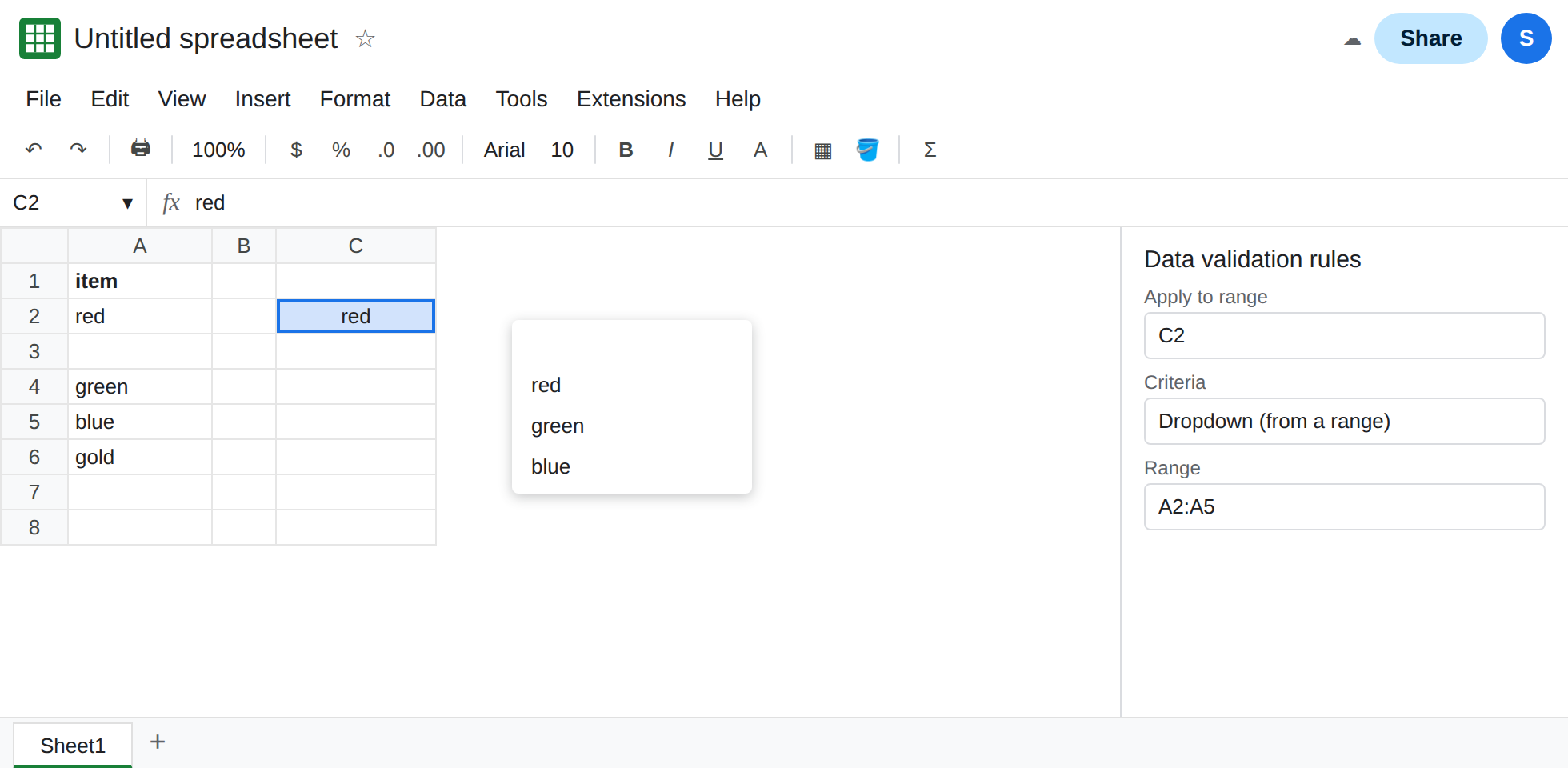
An item below the range never enters the menu. In A6 type gold if the list now ends at row 5, or in the first cell under the range the rule currently shows. Open the dropdown. Gold is missing. The range did not grow downward when you typed. It grew when you inserted inside it. Leave gold outside the range.
Moving the list leaves the address behind. Select the item cells, including the blank if it is still there. Cut them. Paste at E2. Column A is empty. E2 and below show the words. Open C2’s dropdown. The choices are blank, or they are whatever is now in the old range. They are not the E column. Open the rule. The range still points at column A. That is the move. Leave the list in column E and the rule on column A.
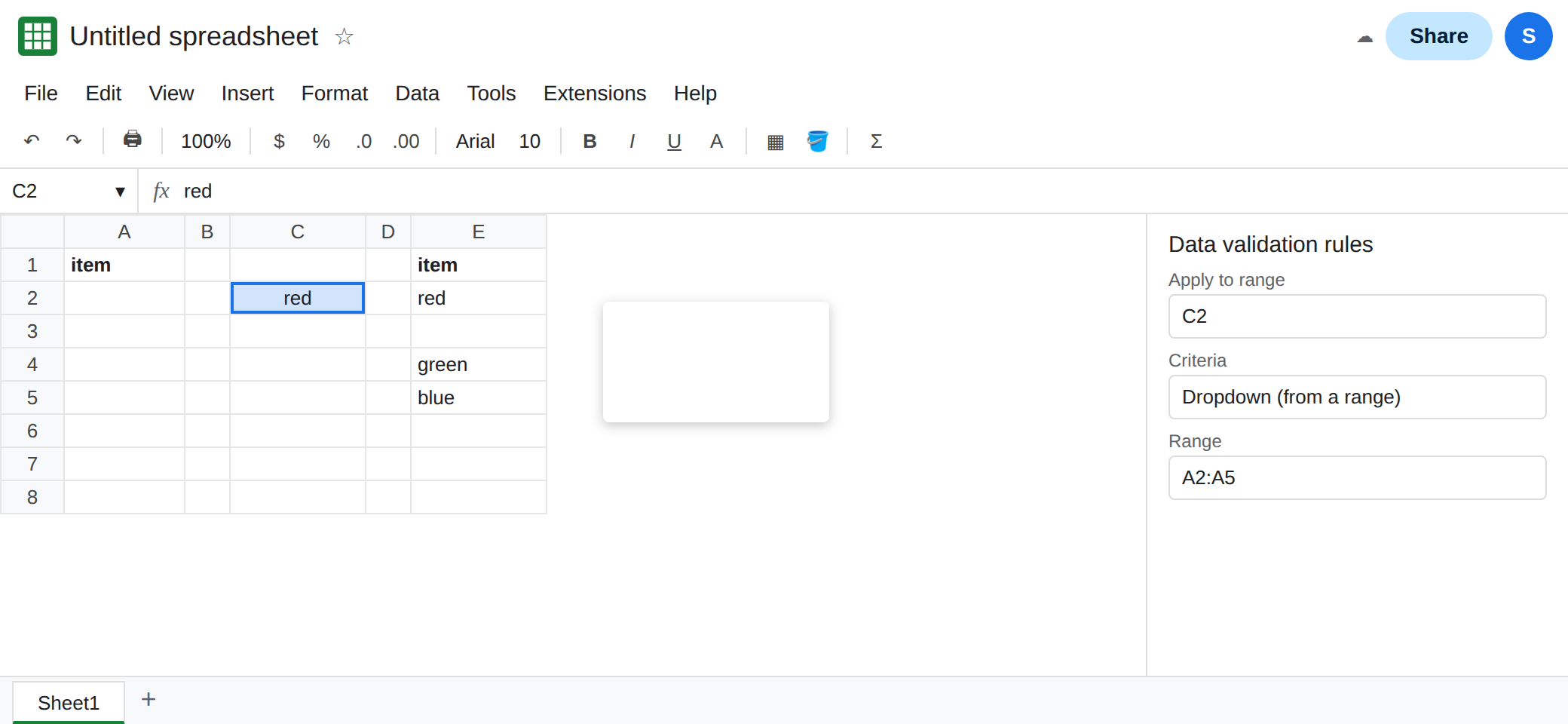
C2 can still display red from the earlier choice. A cell that already contains red does not rewrite itself when the list changes. The menu and the stored value are different. An old value that is no longer in the list is not cleared by the insert.
What is actually wrong
Section titled “What is actually wrong”- The rule stores a range, not a snapshot of the words, and not a promise to follow a cut. Insert inside the range edits that range. A paste to column E does not.
- A blank cell inside the range is a blank item. It is not “the dropdown ignored my list.” Delete the empty row or narrow the range and the blank entry goes away.
- Typing below the range, or inserting a row under the last listed row and outside the address, does not add a choice. People describe that as the menu showing old items. The new word is on the sheet. The address ends above it.
- Inserting a row above the range, entirely outside it, usually shifts the address down with the cells. The menu can stay correct. If it does, you are not looking at an in-range insert. Read the range box. The address is the fact. The menu is the consequence.
- Dropdown (from a list) — the criteria where you type red, green, blue into the rule itself — does not point at column A. Inserting rows will not update it, and it will not go blank when you cut column A. If your rule is that kind, this page’s range edits do nothing. Check the criteria type.
- A named range used as the source follows named-range rules. If the name still points at the old cells, the dropdown does too. See named range.
This is not a sheet filter hiding rows. A filter can hide green on the grid while the dropdown still offers green, or the reverse, depending on what the range contains. See filter view vs filter.
Leave the cut list in column E and a broken dropdown on C2 until you have read the range box.
Point the rule at the cells that hold the items now. Data → Data validation. Edit the C2 rule. Set the range to the block in column E that contains red, green, and blue, with no blank row inside it. The menu shows those words. Gold appears only after the range includes gold’s cell.
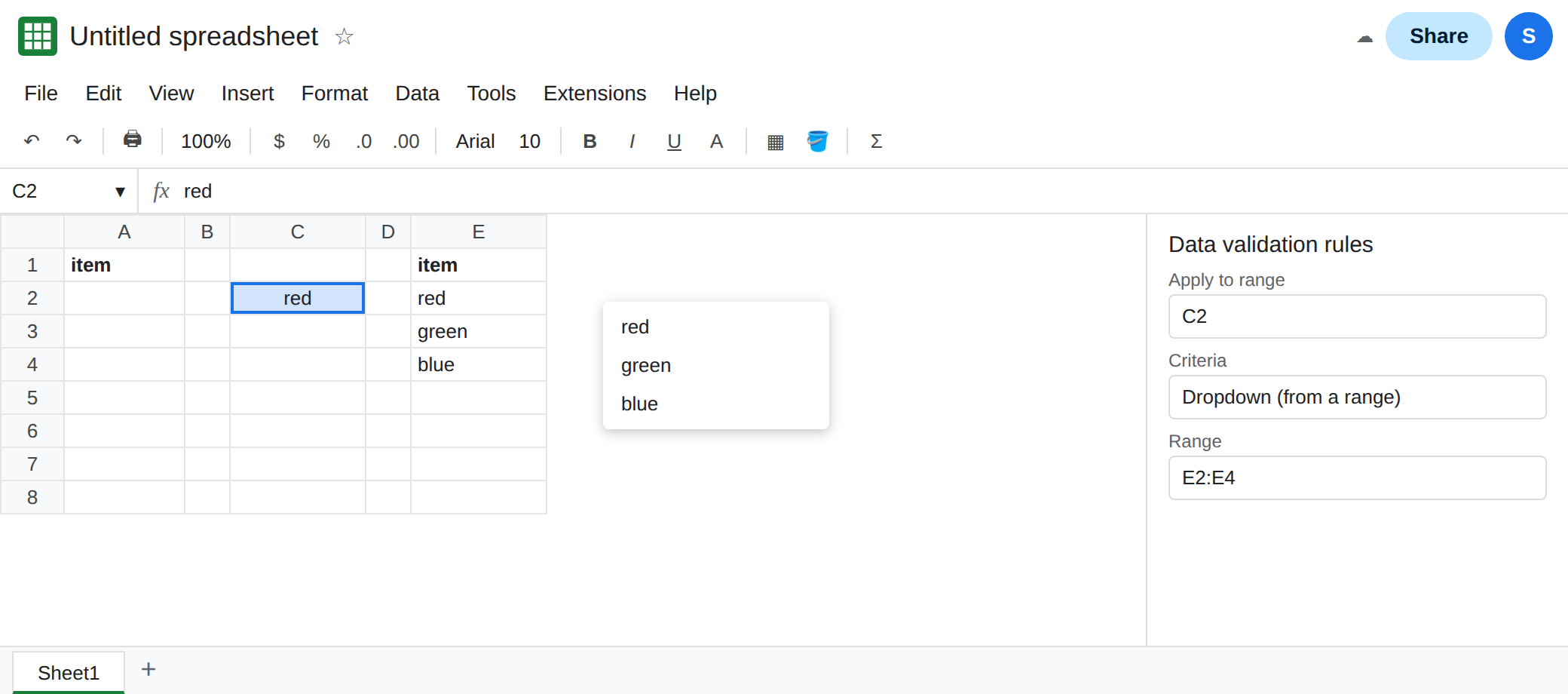
Insert new items inside a range you meant to grow, or extend the address yourself. A list that should accept new rows is easier as a column with a clear end, where you update the range when you add a row, than as a range that silently picks up every blank you insert. Do not include a spare blank “for later.” That spare blank is a choice.
The value already in C2 is not the menu. If C2 says red and red is no longer allowed, decide whether to leave the historical value or to re-pick from the new menu. Validation does not always wipe the cell when the list moves.
If the menu has an empty line, a cell inside the source range is empty. If the menu is empty and the words are visible in another column, the rule is still aimed at the old address.