

A wide SPLIT is #REF! when a later column is filled, and a cap hides the rest
Updated
SPLIT spills one cell per piece, to the right of the formula. Six pieces need six empty cells on that row. A value in the fifth of those cells blocks the whole spill: #REF!, tooltip that the array was not expanded because it would overwrite that cell. Nothing is written beside the formula. ARRAY_CONSTRAIN or INDEX can keep the first few pieces in a shorter block. That shorter block does not error, and it also does not show the pieces you cut off. The row looks finished.
The three-piece case with the very next cell filled, and SPLIT of "", are SPLIT spill / delimiter. A delimiter that shreds into extra columns because split_by_each is TRUE is SPLIT by each character. Shrinking any array and forgetting the tail is ARRAY_CONSTRAIN. Keep the Google Sheets UI in English. Sheet Error is an independent formula-error library, not a Google product.
Recreate it on a blank sheet
Section titled “Recreate it on a blank sheet”- Open a blank spreadsheet. In A1 type
raw. In A2 typea|b|c|d|e|f. Six letters, five pipes, no spaces.
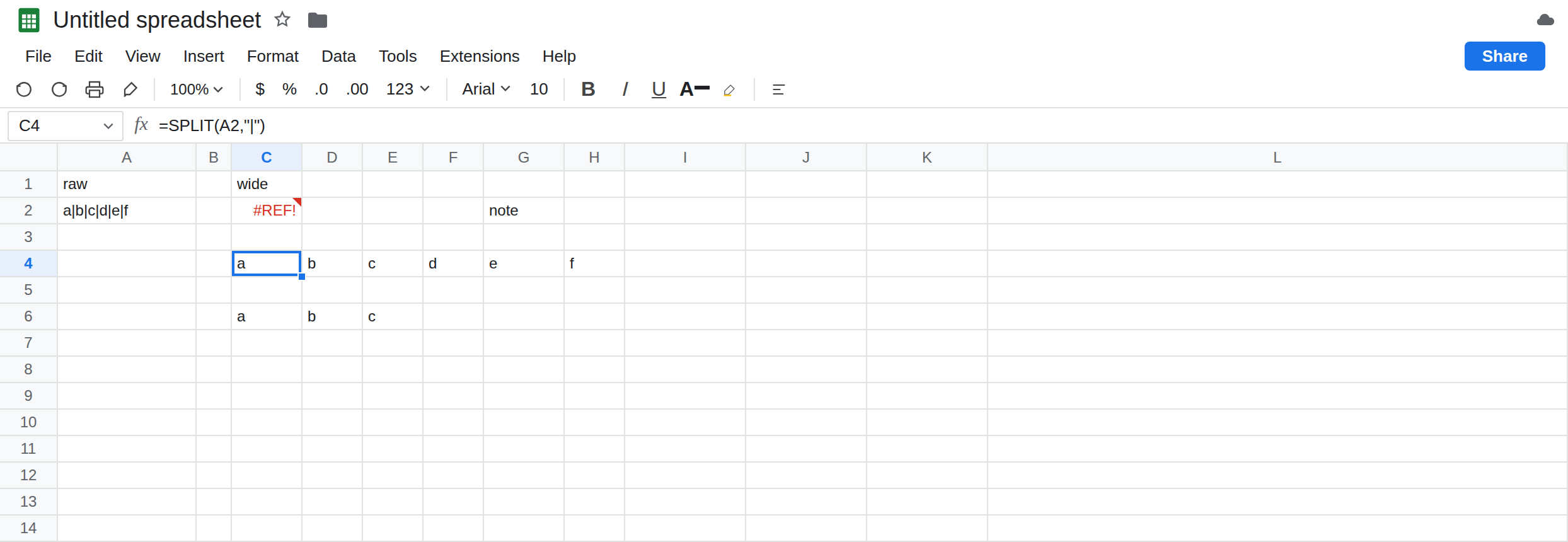
A clear row. In C4 enter =SPLIT(A2,"|"). Leave D4:H4 empty. The spill is a b c d e f across C4:H4. That row is the control. Six pieces, six cells, no triangle.
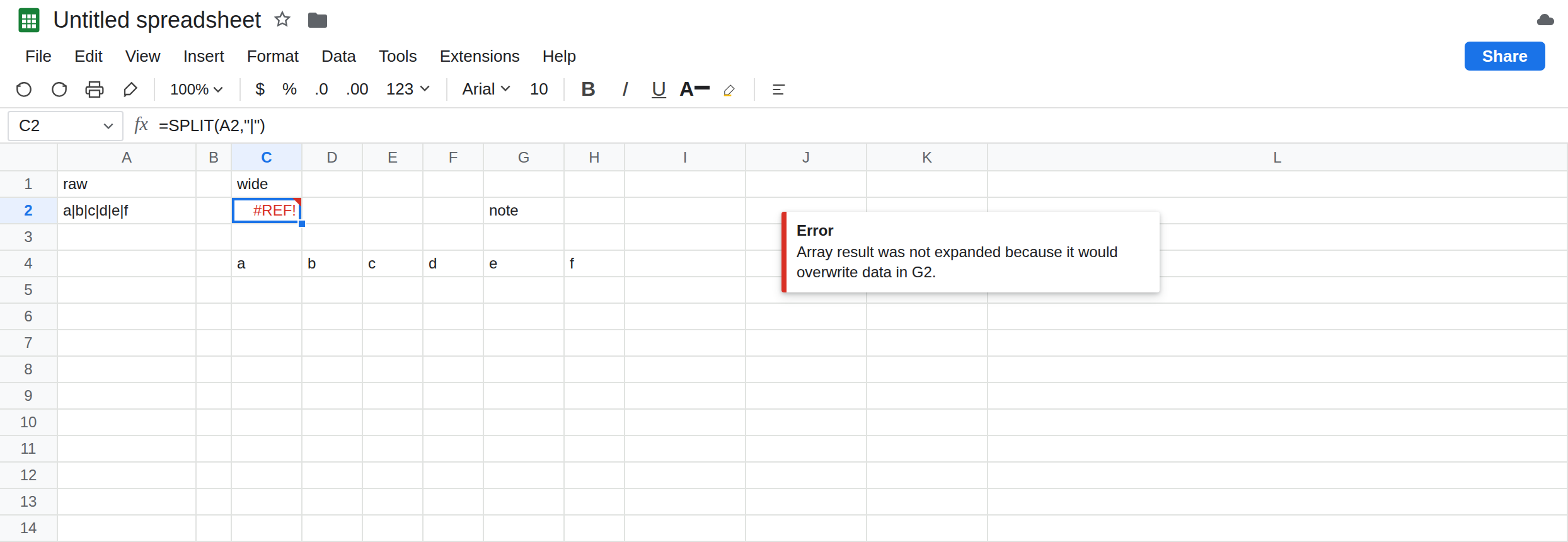
Block a later column, not the neighbor. In C1 type wide. In G2 type note. Leave C2:F2 and H2 empty. G2 is the fifth cell of a spill that would start at C2 (a in C, b in D, c in E, d in F, e in G, f in H). In C2 enter =SPLIT(A2,"|"). C2 is #REF!. The tooltip says the array result was not expanded because it would overwrite data in G2. D2 does not show b. The whole spill is refused. The formula bar still shows SPLIT of A2 and the pipe. There is no #REF! written into the formula text.
Cap the width. In C6 enter =ARRAY_CONSTRAIN(SPLIT(A2,"|"),1,3). The spill is a b c in C6:E6. No triangle, even if you type note in G6, because the result is only three cells and G6 is outside it. d, e, and f are not on this row. Nothing in the cell says they were dropped. Leave C6 as that quiet short row. In C8 enter =INDEX(SPLIT(A2,"|"),1,4). C8 is d alone. INDEX returns one cell, so a neighbor in D8 does not matter. You asked for piece 4, not for a six-column spill.
A cap that is still too wide. In J2 type note. In C10 enter =ARRAY_CONSTRAIN(SPLIT(A2,"|"),1,5). Five columns starting at C10 land on G10. If G10 is empty, you see a through e and still no f. If you had placed the note in G10, C10 would be #REF! the same way C2 is. Constraining only helps when the remaining rectangle fits. Leave C10 as five pieces so the missing f is the point, and keep G2’s note on the #REF! row.
Delete note in G2 for a moment. C2 spills a through f, same as C4. Type note back into G2. C2 is #REF! again. The formula did not change.
Leave C2 as #REF!. Leave C4 as the full spill. Leave C6 as a b c only.
What is actually wrong
Section titled “What is actually wrong”SPLITdoes not have a “maximum columns” argument. The width is the number of pieces after the delimiter rules. Six pipes-separated letters are six columns. The fifth occupied cell rejects all six. Sheets does not spillathroughdand error only one.- The tooltip names the cell that blocked the spill. Here that cell is G2, several columns to the right, which is easy to miss if you only look at D2. A note, a space, a checkbox, or another formula all count as data.
ARRAY_CONSTRAIN(array, rows, cols)returns the top-left rectangle.1and3keepabc. The function does not warn thatSPLIThad produced six pieces. A dashboard headerpiece1piece2piece3looks aligned. Piece 6 is gone.INDEX(SPLIT(...), 1, n)pulls one piece without a wide spill. It is the right tool when you want column 4 only. It is the wrong tool when you wanted every piece and used it to silence a#REF!.CHOOSECOLS(SPLIT(A2,"|"),1,2,3)is another three-column spill. It has the same overwrite rule asSPLITif those three cells are not empty. It does not reserve the rest of the row.
This is not a deleted reference inside the formula. See after you delete. C2 still names A2.
This is not SORT / UNIQUE spill as the general primer, though the tooltip family is the same. The function in the formula bar is SPLIT.
Leave C2 as #REF! and leave C6 as the short spill so both stay visible.
You wanted every piece. Move the formula to a clear row, which C4 already is, or clear G2. Do not cap the array to make the triangle go away. In H4 the last letter is f. If H4 is blank, the import is short a field.
You wanted the first three pieces. Keep C6, and write the header so the sheet says those are the first three, not the whole record. If a later letter is a code you still need, INDEX it on purpose, as C8 does for d, instead of hoping the cap included it.
You wanted one piece and the row is crowded. Use INDEX, not a six-column SPLIT, on that crowded row. C8 does not need F2:H2 to be empty.
Do not wrap C2 in IFERROR. You get a blank and never see a. See IFERROR vs IFNA. IFNA does not catch #REF!.
If SPLIT is #REF!, read the tooltip’s cell address and clear that cell or move the formula. If the row shows three pieces and the source has five pipes, you constrained it. If the piece count is wrong before any neighbor is filled, the delimiter mode is SPLIT by each character or the empty delimiter on SPLIT spill / delimiter.
Full spill vs a cap vs one INDEX
Section titled “Full spill vs a cap vs one INDEX”Six pieces on a clear row fill six cells. The same formula with G2 occupied is #REF! for the entire spill. ARRAY_CONSTRAIN to three columns shows a b c and drops the rest without an error. INDEX of column 4 shows d in one cell. Clear the blocker when the tail matters. Cap the array only when the tail is something you chose to ignore.