

Fix IMPORTRANGE stuck on Loading… in Google Sheets
Updated
IMPORTRANGE shows Loading… while Sheets fetches the other file. A few seconds is normal. A cell that never leaves Loading… is usually a pull that is too wide, too chained, or constantly restarted — not a formula typo. The formula bar still reads IMPORTRANGE and a quoted id.
This page is a stuck or endless IMPORTRANGE load. It is not IMPORTRANGE access (#REF!, You need to connect these sheets). It is not IMPORTRANGE too large (tooltip Result too large after the fetch fails). Keep the Google Sheets UI in English.
Recreate it on two sheets you own
Section titled “Recreate it on two sheets you own”You need two spreadsheets you own. A three-cell demo will not hang forever; the recreate is a working small pull, then a wide range that sits on Loading…, then the two errors people refresh into.
-
Source. Open a spreadsheet. Tab
Sheet1. In A1 typesku, B1name. A2101. B2Widget. If you have a tall dump tab, keep it — you will point at it in step 4. Copy the spreadsheet id (the string between/d/and/edit). -
Destination, small pull. Open a second blank spreadsheet. In A1 enter
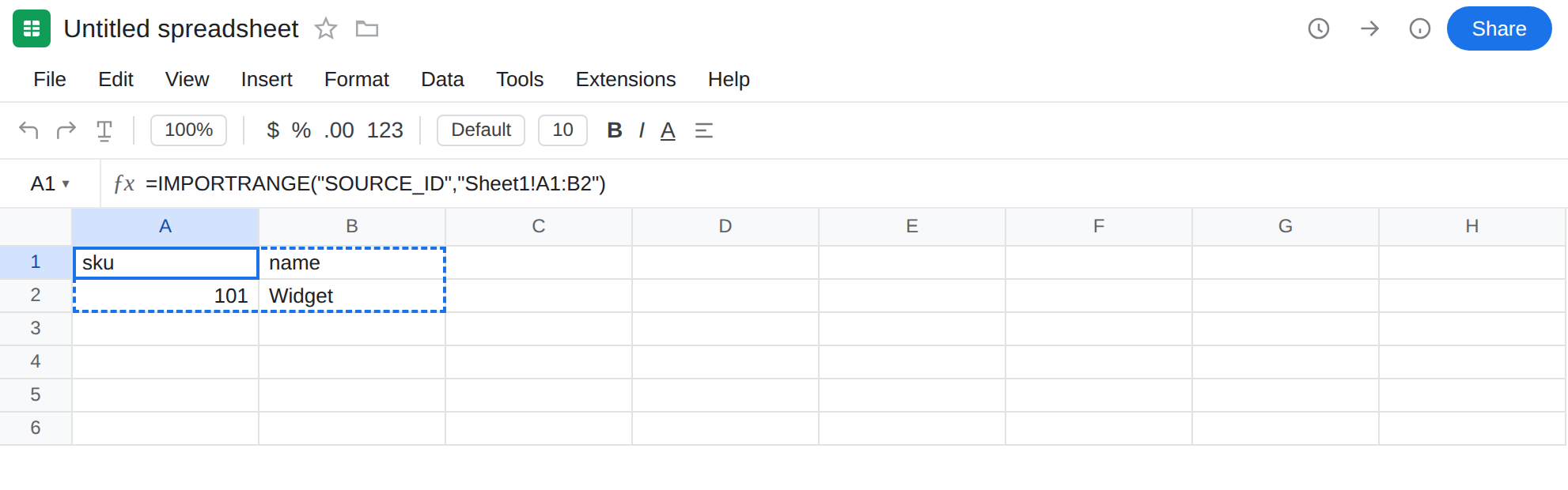
=IMPORTRANGE("SOURCE_ID","Sheet1!A1:B2"), pasting your id. If A1 is#REF!with You need to connect these sheets, that is IMPORTRANGE access. Click Allow access. Wait until A1:B2 spillssku/name/101/Widget. That control proves the pair is connected. Loading… on this small range should last seconds, not minutes.
-
Connect
#REF!is not Loading… In A4 enter=IMPORTRANGE("SOURCE_ID_OF_A_FILE_YOU_NEVER_ALLOWED","Sheet1!A1:B2")using some other id you have not granted (or a broken id).#REF!plus You need to connect these sheets (or an invalid-id tooltip). The cell is not the word Loading…. Do not F5 this cell hoping it will turn into Widget. Leave A4 as the connect contrast. -
Widen until it sits on Loading… Change a new cell, not the working A1. In C1 enter
=IMPORTRANGE("SOURCE_ID","Sheet1!A:ZZ")(same id as step 2, already allowed). The cell shows Loading…. On a fat or tall source this can last a long time. It may later become Result too large (#ERROR!) — that finish line is IMPORTRANGE too large, not this page. While the cell still says Loading…, you are here. Leave C1 on the wide string.
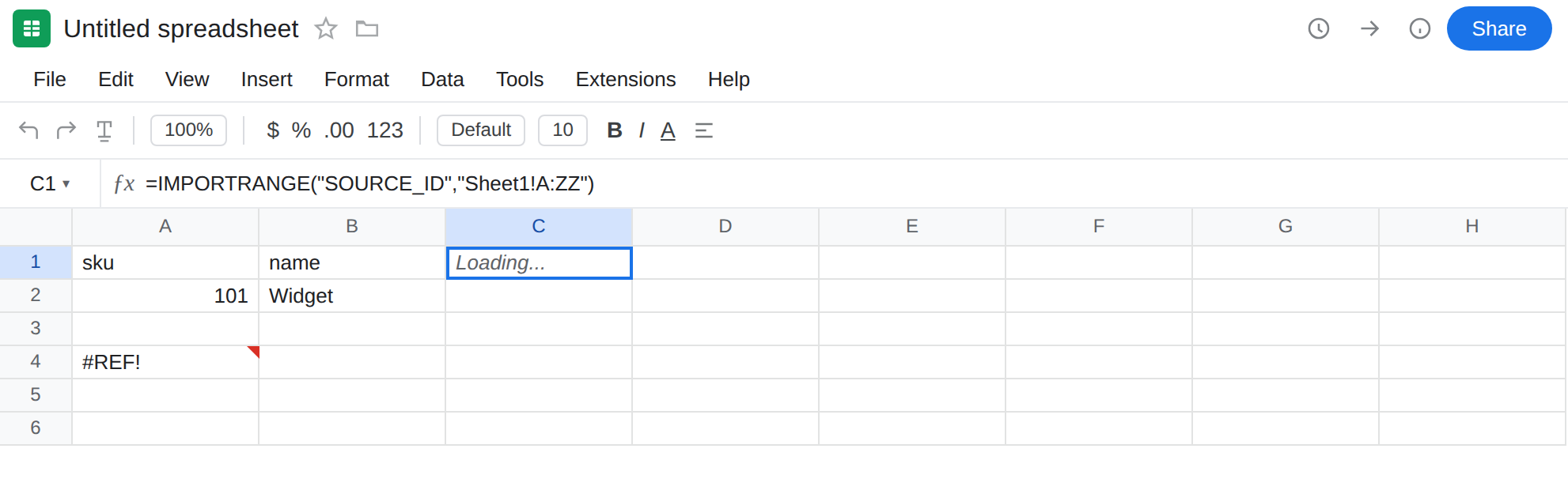
If your source is tiny, A:ZZ may finish quickly. You still have the control (A1) and the connect contrast (A4). Leave A1 as the small import. Leave C1 wide while it is Loading… (if it later becomes Result too large, that finish is the other primer).
What is actually wrong
Section titled “What is actually wrong”- Loading… means the request is in flight (or queued). Sheets has not written the spill yet. It is not
#N/A, not#REF!, not Result too large until a later tooltip says so. - Open ranges (
Sheet1!A:ZZ,Sheet1!A1:Z) and chained imports (file C pulls B pulls A) make each refresh heavy. ManyIMPORTRANGEformulas across files you own share quota. The function is waiting, not misspelled. - Recalculate, reload, delete-and-retype, and copy-paste of the same wide formula start another request. They do not cancel the old one in a way that helps. The cell looks “active” and never settles.
- You need to connect these sheets is permission. The cell is
#REF!. Click Allow access once. See IMPORTRANGE access. Refreshing does not grant access. - Result too large is a finished failure after the payload exceeds the cap (~10 MB). See IMPORTRANGE too large. Loading… is before that tooltip. Do not treat a size error as “still loading.”
This is not IMPORTXML / IMPORTHTML Loading…. Those count against a different external-fetch family. See IMPORTXML / IMPORTHTML. This formula is IMPORTRANGE.
This is not a QUERY parse or empty output. Wrap QUERY only after a narrow import actually spills. See QUERY parse string.
Leave A1 as the small working pull. Leave A4 as connect #REF!. Leave C1 wide if you still need Loading… on the sheet.
Narrow the range and wait once. In E1 enter =IMPORTRANGE("SOURCE_ID","Sheet1!A1:B2") (same as A1). Closed bounds. Used rectangle only. Let it finish. Do not touch F5. In E3 enter =E1 to reuse the result locally — do not put a second IMPORTRANGE to the same rectangle “to be safe.”
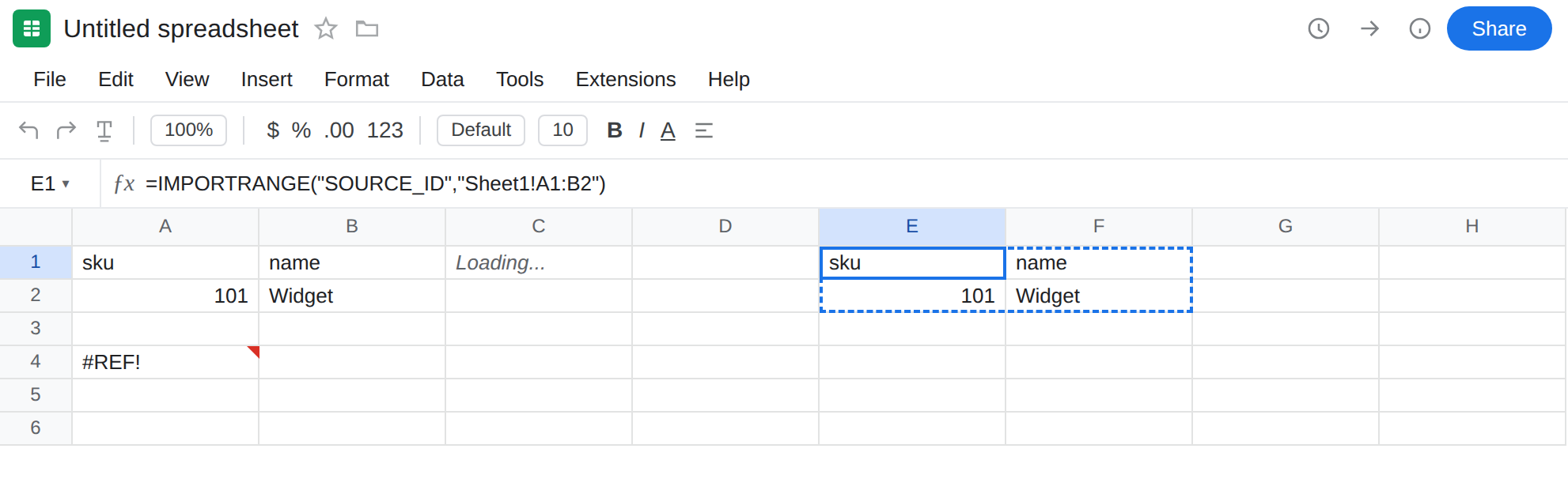
One import, then QUERY / local formulas. If you need a filter, import a bounded block, then QUERY that spill with Col1, Col2. See Col1 vs A. QUERY(IMPORTRANGE(...),"select *") on A:ZZ does not shrink the download.
If it never leaves Loading… Confirm A1 (small range, same source) already spilled — permission is fine. Confirm the tab name in C1 matches the source tab exactly. Cut duplicate IMPORTRANGE formulas on this file and on other files you created. Wait for in-flight fetches; do not delete and re-enter C1 every thirty seconds.
If the tooltip becomes Result too large, stop widening. That is the size primer. If it becomes You need to connect these sheets, you are on a new source pair — click Allow access, do not refresh.
Do not wrap Loading… in IFERROR. There is no result to hide yet, and you will not see Allow access or Result too large. See IFERROR vs IFNA.
If IMPORTRANGE says Loading…, read the range string. If it is A:ZZ, shrink it. If A1 already spilled from the same id, permission is not the bug. Wait. Do not refresh forever.
Do not keep refreshing forever
Section titled “Do not keep refreshing forever”Each reload, Recalculate, or delete-and-paste of the same IMPORTRANGE starts another request. A stuck wide pull gets worse when you stack retries.
Let one narrow formula finish. Reuse those cells (=E1, QUERY of the spill). Remove duplicates. Chained workbooks should pull a summary computed on the source, not the raw dump through two hops.
Refreshing will not click Allow access, raise the 10 MB cap, or fix a wrong tab name. Shrink the range. Leave the cell alone until Loading… is gone or a real tooltip replaces it.