

A protected range set to Show a warning still saves the edit
Updated
Data → Protect sheets and ranges has two permissions that people treat as one lock. Show a warning when editing this range stops you with a dialog. The dialog lets you cancel or choose Edit anyway. Edit anyway writes the cell. The formula you meant to freeze is gone. Restrict who can edit this range is the lock. Someone who is not on the allow list gets You are trying to edit a protected cell or object, and there is no button that completes the edit.
The hard block, including Only you and a second account, is protected cell. An exception range that still will not take a type is protect except ranges. Commenter access is Commenter role. Keep the Google Sheets UI in English. Sheet Error is an independent formula-error library, not a Google product.
Recreate it on a blank sheet
Section titled “Recreate it on a blank sheet”- Open a blank spreadsheet you own. A second account is not required to see the warning. The owner sees it too. In A1 type
sku. A2101. In B1 typedouble. In B2 enter=A2*2. B2 shows202.
Turn on the warning. Select B2. Data → Protect sheets and ranges. Range B2. Set permissions. Choose Show a warning when editing this range. Done. The sidebar lists the range. It does not say Only you.
Edit anyway writes. Double-click B2. The dialog says you are trying to edit part of this sheet that shouldn’t be changed accidentally. It offers cancel and Edit anyway. Click Edit anyway. Change the formula to =A2*3. Press Enter. B2 shows 303. The warning did not revert the cell. Leave B2 as =A2*3 so the successful edit stays visible. Put =A2*2 back only after you have seen 303.
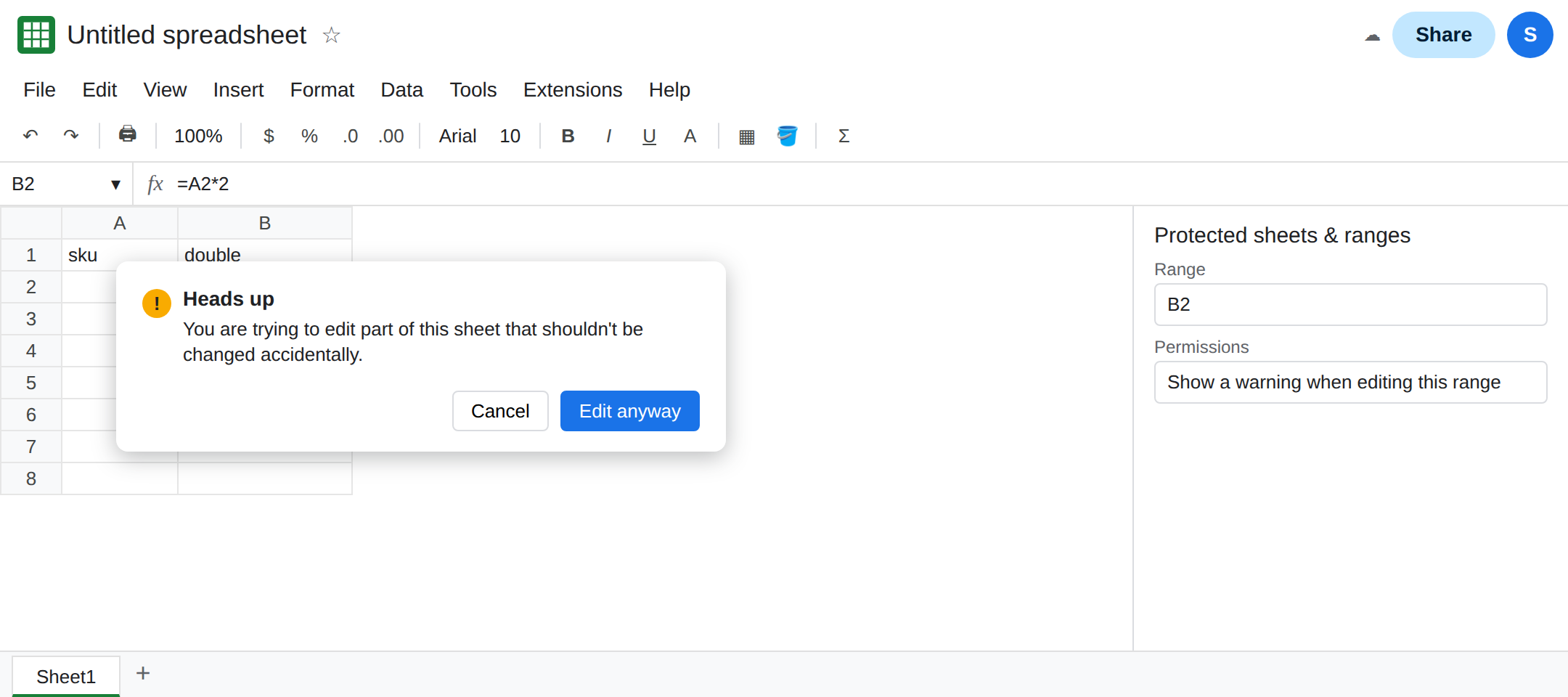
Cancel does not write. Double-click B2 again. Cancel. The formula stays whatever it was after the previous step. Cancel is the only choice on this dialog that keeps the cell. There is no third choice that blocks the account.
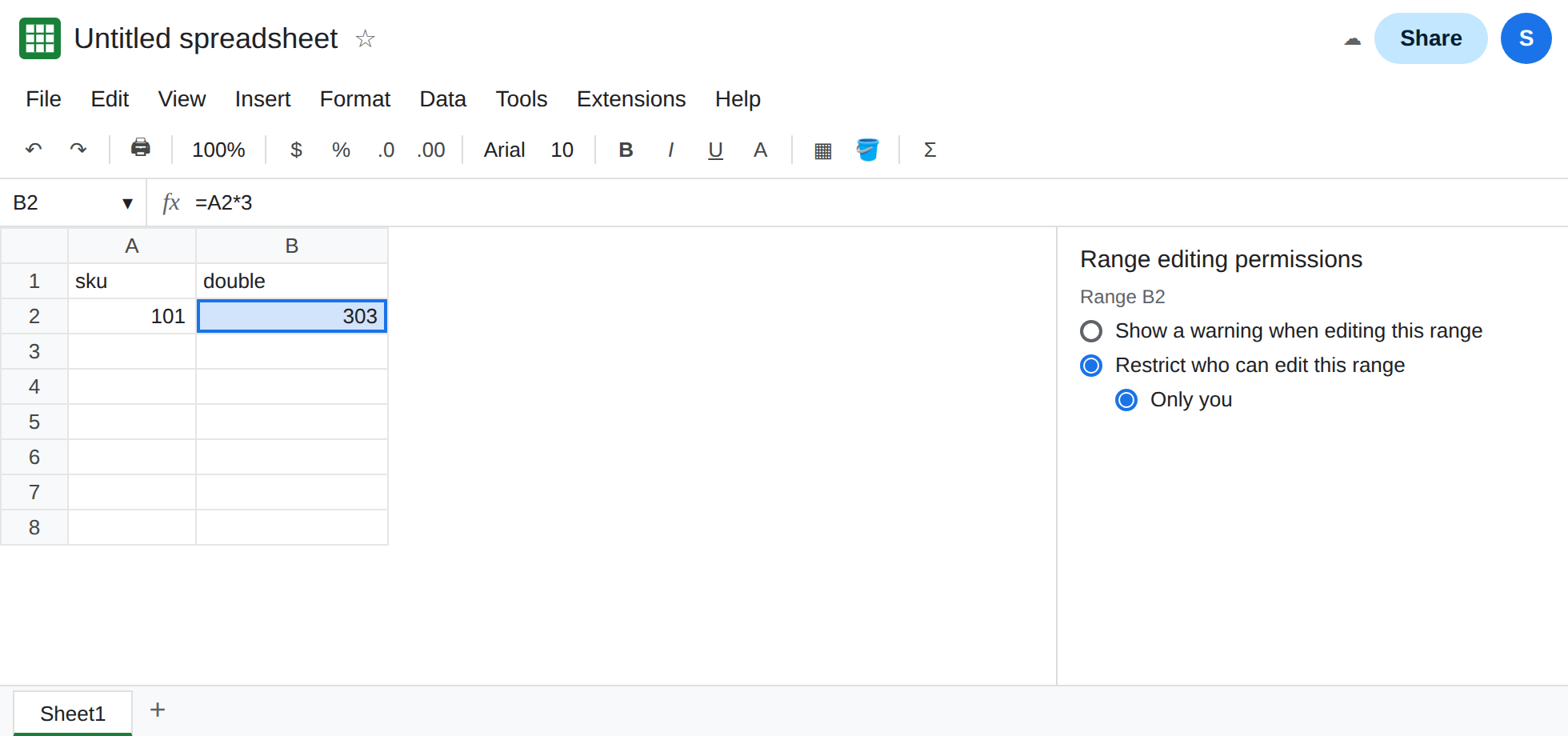
The hard block is a different control. Change the same rule: Change permissions → Restrict who can edit this range → Only you. As the owner, you can still edit B2, because Only you includes you. The warning dialog is gone for you. To see the hard block you need an Editor who is not on the allow list. Their dialog has no Edit anyway. That recreate is protected cell. Set the rule back to Show a warning before you leave this page if you want the soft dialog on your own account again.
A sheet-wide protection set to warning behaves the same way on every cell. Except certain cells, on a restrict rule, is protect except ranges. A warning does not have an exception list that blocks people. It has a prompt.
What is actually wrong
Section titled “What is actually wrong”- Show a warning is a prompt. The permissions screen describes it as a way to avoid accidental edits. Accidental means you can still choose the edit.
303in B2 is the prompt working as designed. - Restrict who can edit stores an allow list. People off the list do not get Edit anyway. People on the list, including the owner, edit with no dialog. If you never see a dialog on your own account, you are either the owner of a restrict rule or the range is not protected.
- The sidebar line for a warning does not say Only you. If you need the lock, the permission radio button is the thing to read, not the fact that a protection exists.
- The formula keeps calculating either way. Protection, warning or restrict, does not freeze
=A2*2into the number202. It only decides who may change the formula. After Edit anyway, the formula is whatever you typed. - Data validation that rejects a value is a different dialog. It talks about validation rules, not about a protected cell. See validation formula.
Leave one range on Show a warning and leave the edited formula in place, so Edit anyway has an obvious result. Use a second cell for the lock if this file has a formula that must not change.
Switch the rule to Restrict who can edit. Data → Protect sheets and ranges. Open the B2 rule. Change permissions. Select Restrict who can edit this range. Leave Only you, or add the people who may edit. Done. An Editor who is not listed cannot finish a type in that cell. Your own test of the lock has to be that other account. On your account, confirm the sidebar no longer says the rule is a warning.
Use the warning when a prompt is what you want. It is the right control for a note that says “this formula is easy to overwrite,” as long as overwrite is allowed. Do not describe it to a teammate as a lock.
Do not change the share role to Commenter to get a lock on one cell. Commenter cannot edit the rest of the file either. See Commenter role.
If the dialog has Edit anyway and the cell changed after you clicked it, the range is a warning. If the dialog has no Edit anyway, the range is a restrict rule and you are not on the allow list.