

A protected range blocks the edit: You are trying to edit a protected cell
Updated
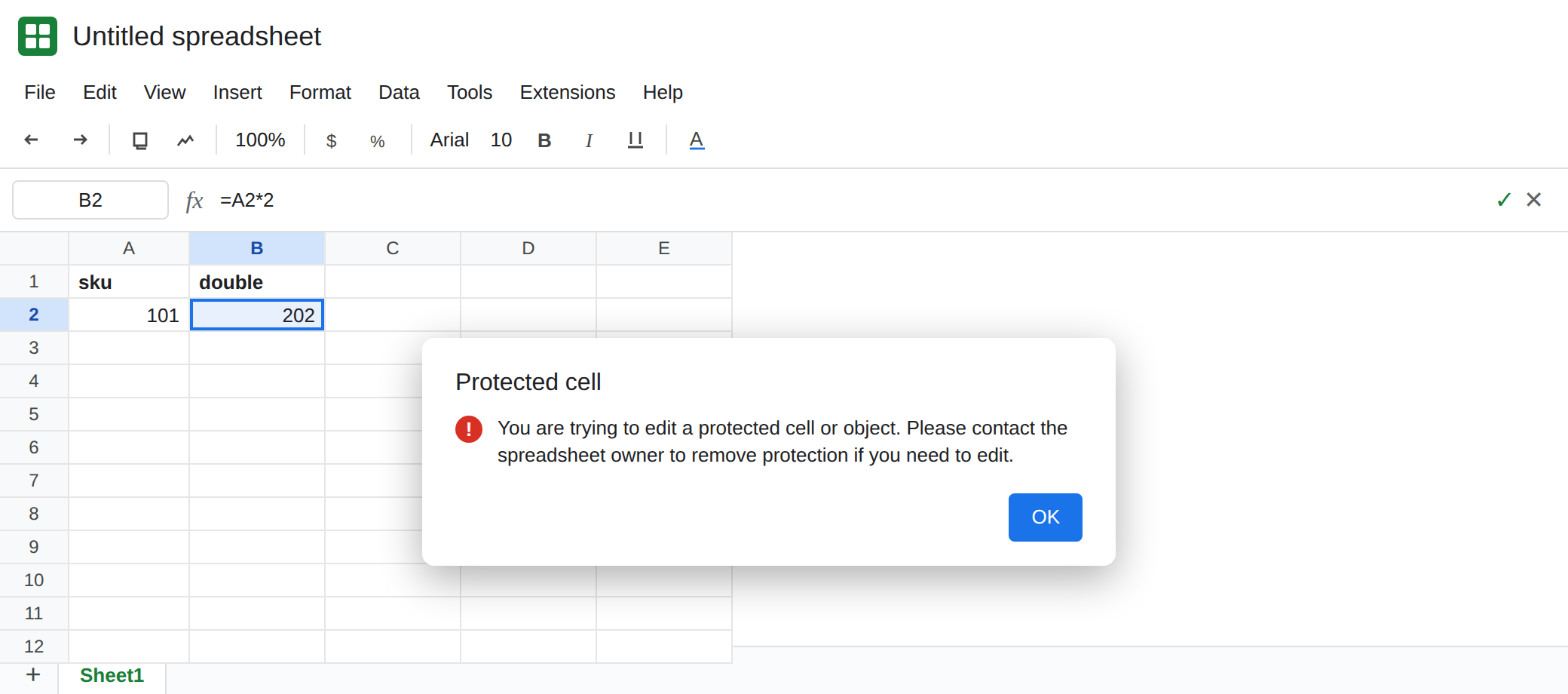
Data → Protect sheets and ranges can stop an editor from changing a cell. Double-click the cell, or try to type over the formula, and Sheets refuses. The dialog is: You are trying to edit a protected cell or object. Please contact the spreadsheet owner to remove protection if you need to edit. The formula is still in the cell. You are not allowed to replace it.
A warning-only rule is a different dialog. It says you are editing a part of the sheet that should not be changed accidentally, and it offers Edit anyway. That click succeeds. This page is the hard block, and how to tell it from the warning.
Sheet Error is not a Google product. Keep the Google Sheets UI in English.
Recreate it on a blank sheet
Section titled “Recreate it on a blank sheet”- Open a blank spreadsheet you own. In A1 type
sku. A2101. In B1 typedouble. In B2 enter=A2*2. B2 shows202. You can still edit B2. Nothing is protected yet.
Warning only, so you can see the soft dialog alone. Select B2. Data → Protect sheets and ranges. Range B2. Click Set permissions. Choose Show a warning when editing this range. Done. Double-click B2. The dialog lets you cancel or edit anyway. Cancel. That was not the hard block. Remove this protection (the sidebar lists it; delete that rule) before the next step so only one rule is in force.
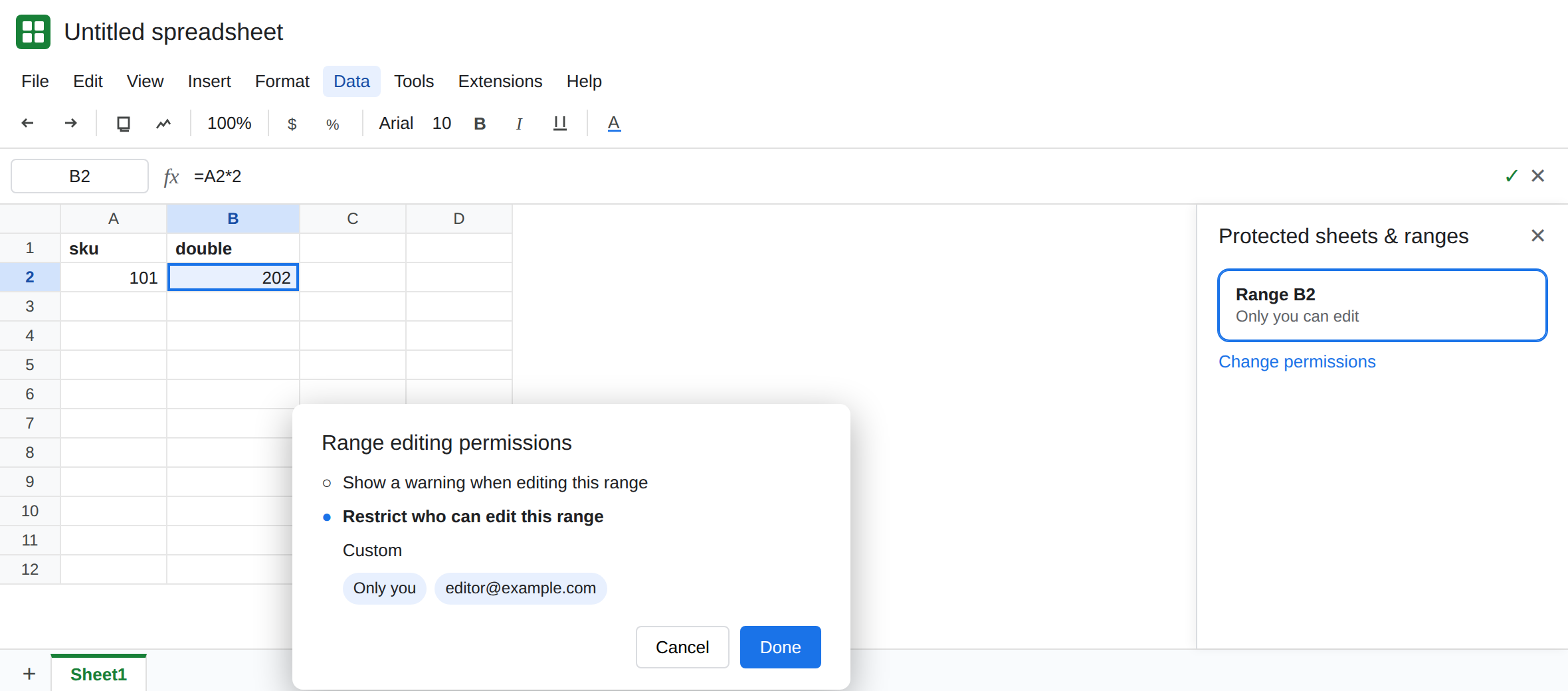
A hard block needs a second Google account. Share the file with that account as Editor. Select B2 again. Data → Protect sheets and ranges → range B2 → Set permissions → Restrict who can edit this range → Only you. Done. Open the same URL signed in as the other account. Double-click B2, or select it and type. The dialog is You are trying to edit a protected cell or object. Please contact the spreadsheet owner to remove protection if you need to edit. B2 stays =A2*2. There is no Edit anyway button. Leave the cell unchanged.
The owner still edits. Back on the owner account, change A2 to 104. B2 becomes 208 if the formula is intact. The owner is on the allow list, so the owner does not see the block. Protection is per person, not a freeze of the formula’s result.
Commenter is not this dialog. Share a copy of the link as Commenter and the formula bar is read-only for that account on every cell, protected or not. There is no Protect sheets rule to find. This page starts after the account is an Editor and one range still refuses.
A whole sheet. Protecting the sheet, with an exception range for the input cells, is the same dialog when the blocked account types in a cell that is not on the exception list. The sidebar entry says the sheet, not B2. The sentence on the dialog does not change.
What is actually wrong
Section titled “What is actually wrong”- Restrict who can edit stores an allow list. Only you means the owner (and anyone you add). Another Editor of the file is still blocked on that range. File-level Editor does not override the range.
- The warning option does not have an allow list. It interrupts, then Edit anyway writes. If your dialog has that button, you are not on the hard block.
- The formula keeps calculating for everyone who can view the cell. Protection stops edits. It does not stop
=A2*2from updating when A2 changes, including when someone who is allowed edits A2. - Apps Script that writes into the protected range runs as a user. If that user is not allowed, the script fails with the same protected-cell sentence. Re-authorizing the script does not add them to the range. See trigger re-auth only for a trigger that died after a copy. The sentence here is protection, not a missing trigger.
- Hiding the sheet is not protection. A hidden tab can be unhidden from the tab menu. A protected range stays protected when the tab is visible.
Leave the second account blocked until you mean to open the range, so you can see the dialog disappear.
Add the person, or remove the rule. On the owner account, Data → Protect sheets and ranges, open the B2 rule, Change permissions. Either add the other Google account under Restrict who can edit, or delete the protection. Reload as that account. B2 accepts an edit. The formula is still =A2*2 until someone changes it.
Protect inputs and leave formulas open only if that is the policy. A common setup is the opposite of this recreate: protect the formula column, and leave column A unprotected so editors can type skus. Do not protect A2 and then wonder why the input column is blocked.
Do not switch the account to Commenter to “stop accidents.” Commenter cannot edit any cell. That is a share role, not a range rule. Use the warning option when you want a prompt without a lock. Use Restrict who can edit when the formula must stay.
If the dialog names a protected cell or object and there is no Edit anyway, open Protect sheets and ranges as the owner and change that rule. If the button says Edit anyway, the range is a warning. If the whole file is read-only, check Share. The account is not an Editor.