

Gemini in the Sheets side panel: quota, region, plan, or admin
Updated
The Gemini side panel in Google Sheets is a product surface, not a cell formula. Help me organize and Ask Gemini appear for accounts Google includes, on desktop, when an admin has not turned the feature off. If the sparkle icon is missing, or the panel shows a banner about a limit, a region, or access, that is a gate on this account. Rewriting the prompt does not open it. A generated table in someone else’s screenshot is not a control you can paste here.
=AI() and =Gemini() in a cell are a different entry point, with their own “not available” and #NAME? messages. That page is AI() or Gemini(). Read this one when the failure is the panel, not a formula name.
Sheet Error is not a Google product. This page will not show a generated table as a successful run. Nothing here grants a license.
Recreate it on a blank sheet
Section titled “Recreate it on a blank sheet”- Open a blank spreadsheet in the account you actually use. Use the desktop browser, with the Google Sheets UI in English. File → Settings → Locale can stay United States. Do not start on the phone app. Google’s help for Help me organize says that feature is currently available on desktop.
Look for the real entry points, and stop at the first no. On a blank sheet, Google may show a Help me organize prompt. The same prompt is also on the toolbar and under the Insert menu when the account has it. The side panel is Ask Gemini (the sparkle), when that icon is on the screen. You are checking whether the control exists. You are not required to submit a prompt.
The control is absent. If there is no Help me organize prompt, no Insert entry, and no Ask Gemini icon, stop. Do not type =AI("make a table") and treat #NAME? as the side-panel result. A missing icon is availability: plan, admin, language, region, or a rollout that has not reached this account. Leave the sheet blank. That blank sheet is the recreate.
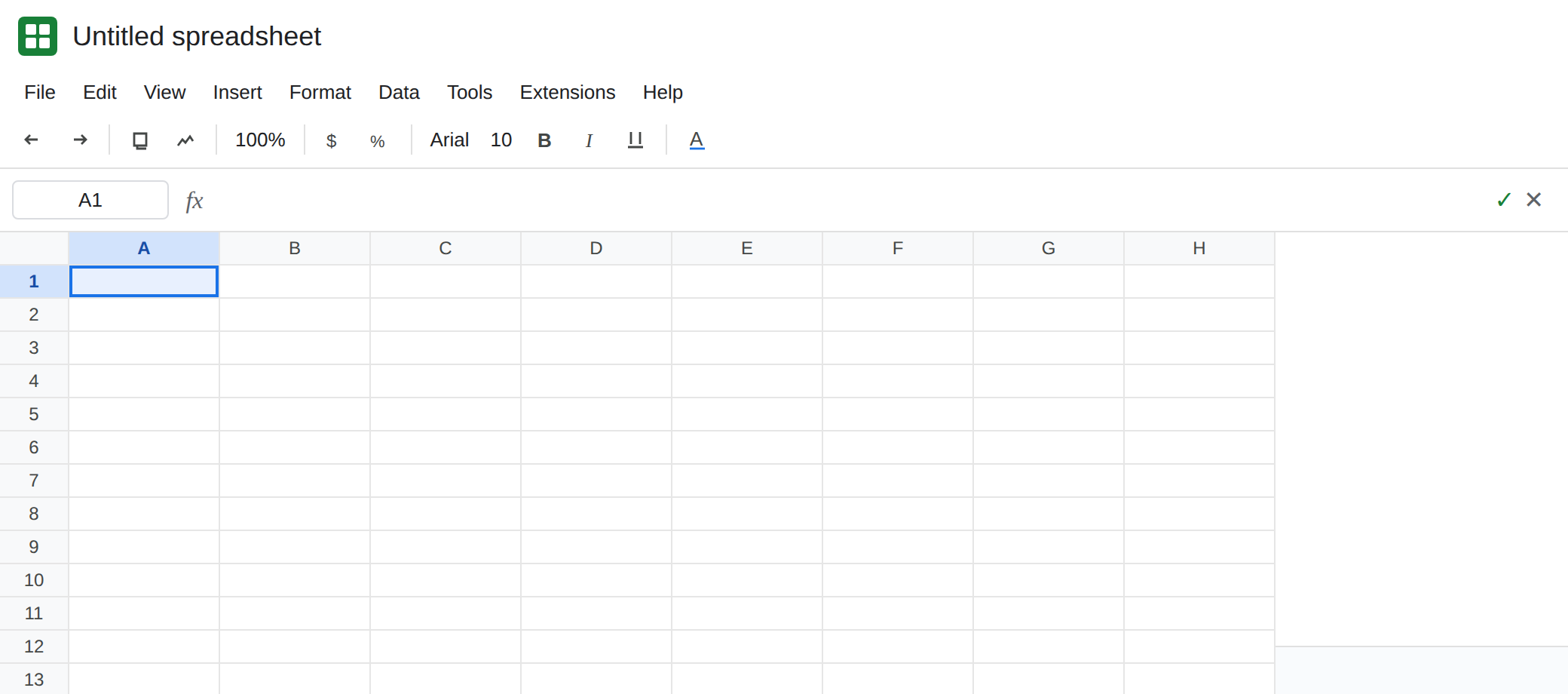
The panel opens and then refuses. If the icon is there, open it. Type a short request such as task tracker with owner and due date only if you are willing to spend a request on this account. Three kinds of refusal are in scope. The banner text is whatever your panel shows. This page will not invent one canonical sentence.
- A limit: you have used the requests this account currently has. The prompt was understood. More wording will not raise the cap.
- Not offered here: region, language, or a plan that does not include the feature. Google’s own help says Help me organize requires an eligible Google Workspace or Google One AI Premium subscription, and also mentions the Workspace Labs program. An admin on a work or school account can turn Gemini off for the domain.
- A feature boundary, not a quota: Google’s help says Help me organize cannot edit or refer to existing content in the spreadsheet. Asking it to rewrite the table you already have is outside what that prompt does. That refusal can appear on an account that is otherwise allowed.
If the panel does return a suggested table, that result is for your plan and region only. Do not paste it into this tutorial, a support reply, or a sheet you share as “the working prompt.”
A cell formula is the other door. In A1 enter =AI("task tracker") only as a contrast. #NAME? or AI function not available is AI() or Gemini(). Delete A1 if it distracts. The side panel can be missing while you are still testing the formula, and the reverse is also true. They are not one switch.
What is actually wrong
Section titled “What is actually wrong”- Two surfaces. The side panel and Help me organize are UI.
AI/Geminiare formulas. Fixing a#NAME?tooltip does not draw the sparkle icon. A quota banner in the panel does not mean the formula parser failed. - Availability is not universal. Eligible Workspace or Google AI plans, an admin switch, desktop, and language are all real gates. Google has also limited related Sheets AI features by region. This page will not rank those gates or tell you which one you failed. Read the screen you have: missing icon, or the banner text.
- Quota is account state. When the panel says you reached a limit, the next prompt in the same session does not reset it. Sheet Error cannot see your remaining requests and will not quote a number.
- Help me organize builds a new table from the prompt. It is not a command to repair a
#REF!in B2. Pointing it at a broken formula is the wrong tool. Use the formula pages for formula errors. - Opening the file from a third-party host can block the formula feature. The panel has its own rules. Do not assume a Box or Dropbox session matches a normal Drive file. The formula page covers the host limit for
=AI().
Nothing on this page grants access. If a colleague’s sheet shows the sparkle and yours does not, you do not have the same feature.
Leave the blank sheet blank if the icon is missing. Do not drop a fake table underneath the prompt to “finish” the recreate.
Confirm the gate before you edit the prompt. Check only what you can see: desktop browser, English UI, whether Help me organize or Ask Gemini exists, the banner text if the panel opened, and whether a Workspace admin has Gemini turned on for your account. Google’s help states the subscription requirement. If your account is outside that, stop. Changing the sentence to be more polite will not create the icon.
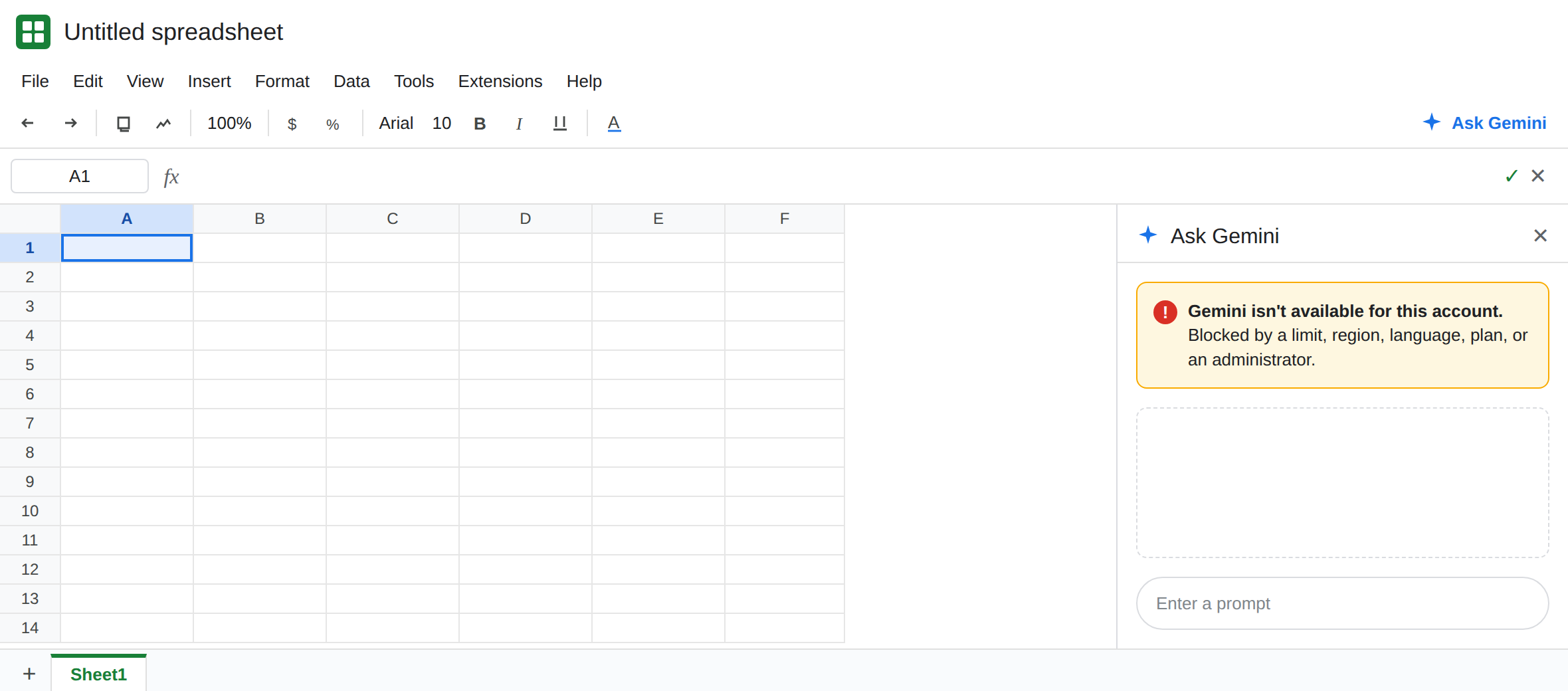
When the banner is a limit, wait until the account has requests again, or use a plan that includes more. Do not paste the same prompt into =AI() hoping the formula has a separate unlimited pool. See AI() or Gemini().
When you need a table without this feature, type the headers yourself. A missing side panel will not start working because you renamed the tab or reloaded once.
If the sparkle is absent, this account does not currently expose the panel. If the panel is present and the banner cites a limit, region, or admin, the prompt was not the bug. Neither outcome is a promise for the next reader.