

Fix IMPORTHTML “Resource at url contents exceeded maximum size” in Google Sheets
Updated
IMPORTHTML downloads the page, then picks one table or list. The tooltip Resource at url contents exceeded maximum size means that download was refused. The HTML (or the response body) is over the import cap. Sheets never counted tables. Changing "table", 1 to "table", 2 asks for a different table inside the same download, so it cannot clear this error. Result too large is the other sentence: the file arrived, and the table you asked for is too big to place.
This page is that resource-size tooltip on IMPORTHTML. It is not Allow access, Result too large, or Loading…. It is not IMPORTRANGE too large (a spreadsheet range, about 10 MB, different function). Keep the Google Sheets UI in English.
Recreate it on a blank sheet
Section titled “Recreate it on a blank sheet”- Open a blank spreadsheet. Imports need permission once per file.
A small page that can succeed. In A1 type small. In A2 enter:
=IMPORTHTML("https://en.wikipedia.org/wiki/Moon","table",1)
The first time this spreadsheet imports, a banner asks you to allow external data. Click Allow access. That banner is not the size error. See IMPORTXML / IMPORTHTML if A2 stays on the banner or on Loading…. After the click, A2 should spill a small table from the Moon article, or a short import error that is not the resource-size sentence. That row is the control: IMPORTHTML runs when the URL’s contents fit.
The same URL, a different table index, is still the same download. In A4 enter =IMPORTHTML("https://en.wikipedia.org/wiki/Moon","table",2). You are not fetching a smaller file. You are pointing at another table inside the page A2 already requested. If A2 fit, A4 either spills or fails for a different reason (no such table, or Result too large). It will not teach the resource cap by itself. Leave A4 only as that contrast.
A heavier page. In C1 type heavy. In C2 enter:
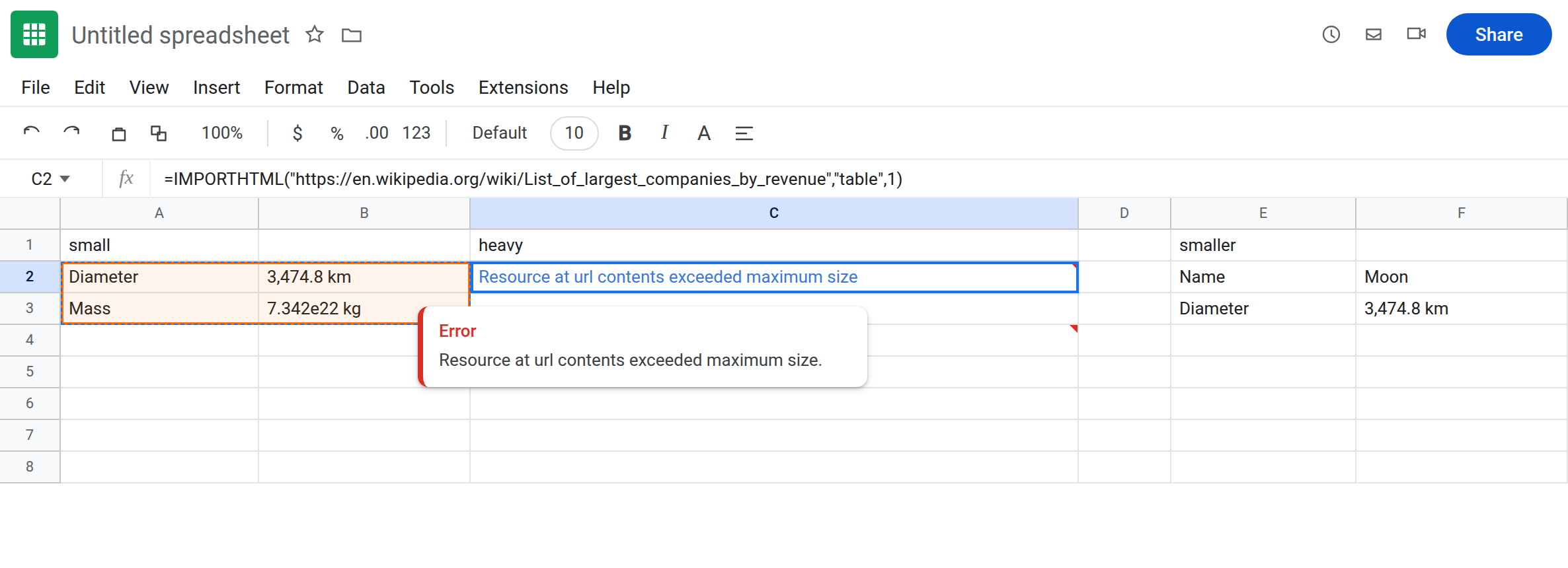
=IMPORTHTML("https://en.wikipedia.org/wiki/List_of_largest_companies_by_revenue","table",1)
Read the tooltip on C2. This page’s error is exactly Resource at url contents exceeded maximum size. Leave C2 broken when that is the sentence. Wikipedia’s HTML changes size; if C2 instead says Result too large, the download succeeded and the chosen table is the problem. That outcome is IMPORTXML / IMPORTHTML. In C4 enter the same URL with "table", 2. You still downloaded the same body. The index did not shrink the file. If your own sheet already shows the resource sentence on some other URL, use that URL in C2 and keep A2 as the small control.
IMPORTXML and IMPORTDATA can show the same resource sentence. They download a body, then parse. This recreate stays on IMPORTHTML. A dead host (“Could not fetch url”) is IMPORTDATA or the fetch section of the other import page, not a size cap.
What is actually wrong
Section titled “What is actually wrong”- The cap is on the resource: the contents at the URL, before a table is chosen. A sports page or a long generated HTML file crosses it. A Wikipedia article used as a control often does not. The tooltip names the URL contents, not “table 1.”
- Table index and the
"table"/"list"switch happen after a successful download. They cannot shrink the body. Two formulas that share a URL share the failure. Adding a secondIMPORTHTMLto the same URL spends another request and still downloads the same oversized file. - Result too large means the parsed table or list does not fit in the sheet. Narrowing to a smaller table index, or a tighter page that only contains that table, is the fix for that tooltip. It is the wrong fix when the tooltip is the resource sentence, because there is no parsed table yet.
- Allow access is a banner on the first import in the file. A2’s banner is that. C2’s resource error appears only after imports are allowed to run. Clicking Allow access again does not raise the cap.
IMPORTRANGEof another spreadsheet uses a different limit and the words Result too large on that function. See IMPORTRANGE too large. Pasting an HTML URL intoIMPORTRANGEwill not apply this tooltip.
This is not Loading… that never finishes. See IMPORTXML / IMPORTHTML. If the tooltip is the resource sentence, the request already ended in a no.
This is not a Formula parse error. The function name is IMPORTHTML. Quotes around the URL are straight quotes. See curly quotes only when the tooltip is Formula parse error.
Leave C2 broken when it shows the resource sentence. Leave A2 as the small import that fits.
Point at a smaller URL. The site you want has to offer a lighter page: one season instead of the career file, a paginated table (page=2 as its own URL), or an export that is only the rows you need. Put that URL in E2:
=IMPORTHTML("SMALLER_URL","table",1)
Replace SMALLER_URL with the lighter address. If E2 spills, the function was fine. C2’s host was the oversized body.
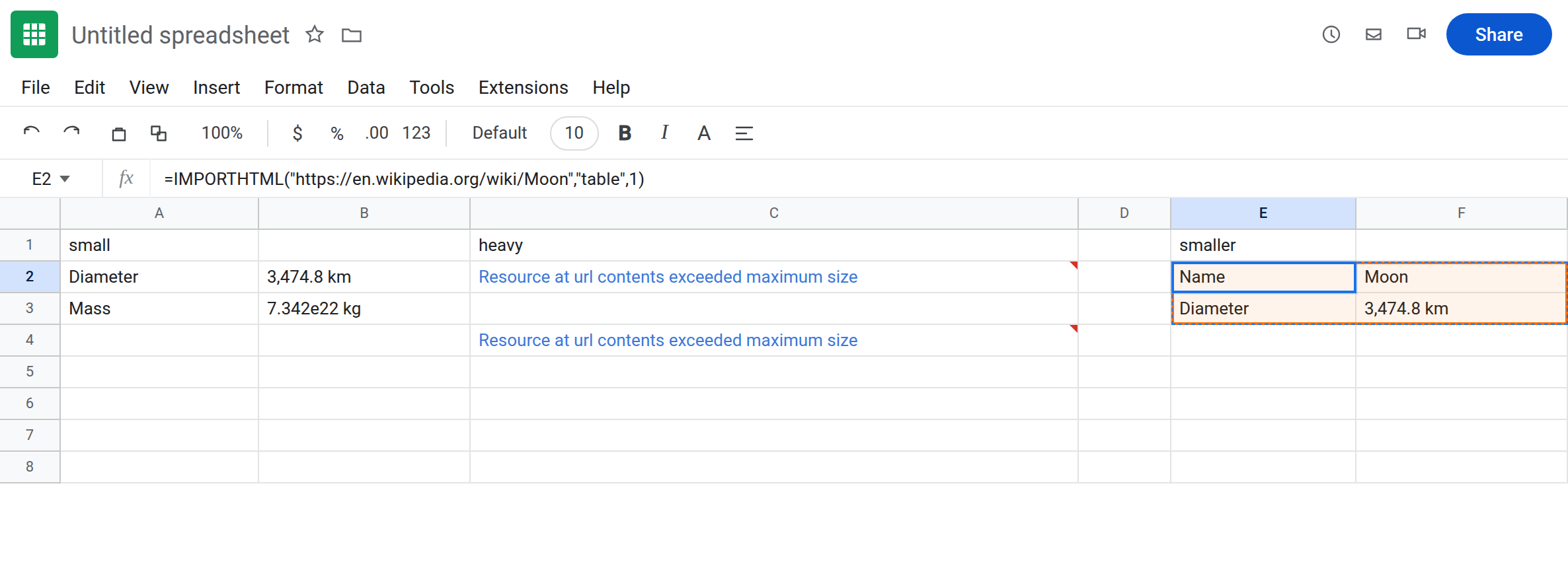
Do not cycle the index on C2. "table", 1 and "table", 4 download the same resource. "list" does too. Change the URL.
If the tooltip changes to Result too large, you are past this page. The file fits; the table does not. Narrow the table on that other tutorial, or pick a URL that publishes a smaller table to begin with.
Do not wrap C2 in IFERROR. You would hide a cap and also hide a later bad URL. See IFERROR vs IFNA. This library does not switch the job to an Apps Script fetch. The formula fix is a resource the import is allowed to download.
If the tooltip is Resource at url contents exceeded maximum size, the body at that URL is over the cap. Use a smaller URL. If the tooltip is Result too large, the download finished. If the cell is still the Allow access banner, you have not reached either size error yet.