

A protected range description is a sidebar label, not the lock dialog
Updated
Data → Protect sheets and ranges has a description field. That text is the label of the rule in the sidebar, so you can tell “rates” from “ids” when several ranges are locked. It is not the message an editor sees when they try to type. The hard lock says you are trying to edit a protected cell or object. The warning lock says the range should not be changed accidentally and offers Edit anyway. Neither dialog is filled from the description. Wording the description carefully does not change those sentences.
The hard block is protected cell. The warning that still saves is protect warning only. An exception range that still will not take a type is protect except ranges. Keep the Google Sheets UI in English. Sheet Error is an independent formula-error library, not a Google product.
Recreate it on a blank sheet
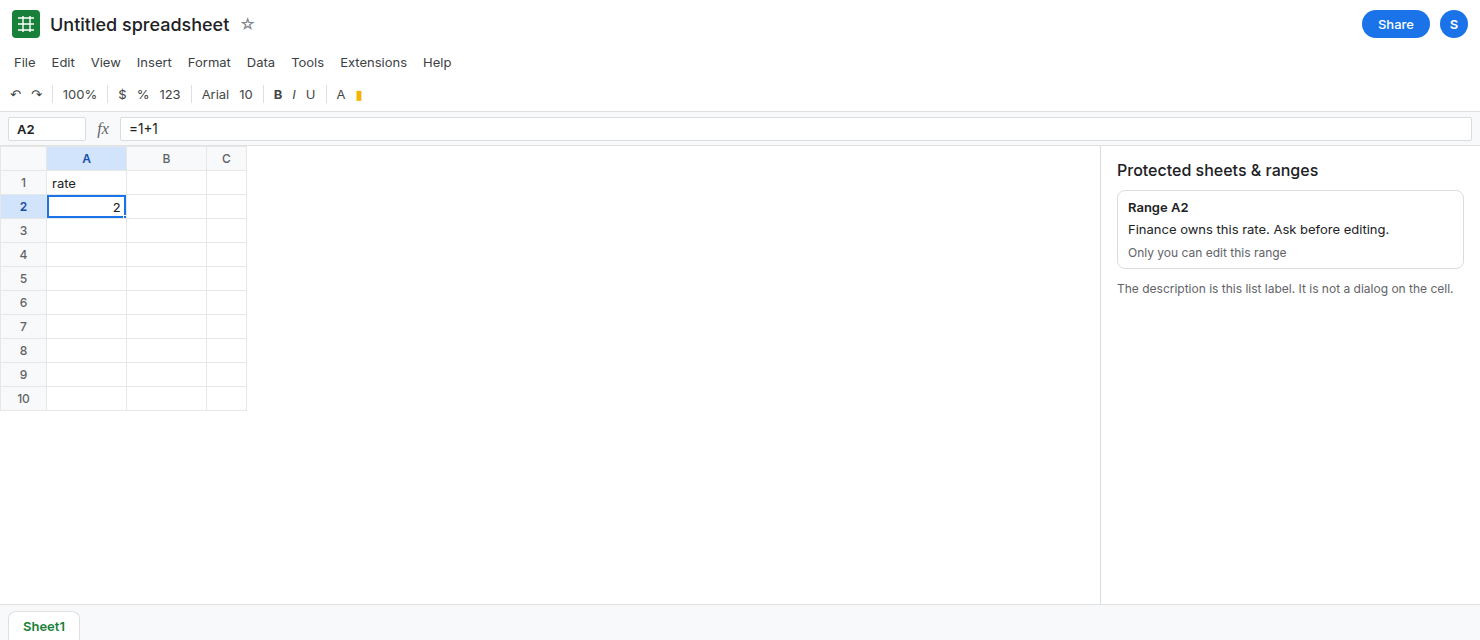
Section titled “Recreate it on a blank sheet”- Open a blank spreadsheet you own. In A1 type
rate. In A2 enter=1+1. A2 shows2.
Lock it and write a description. Select A2. Data → Protect sheets and ranges. Range A2. In the description box type Finance owns this rate. Ask before editing. Set permissions → Restrict who can edit this range → Only you. Done. The sidebar lists the range. The description is visible there, to you, because you can open the sidebar.
What an editor sees. You are the owner, so Only you includes you. You can still edit A2. The description is not a dialog on your own keystrokes. To see the lock text you need a second account that is an Editor and is not on the allow list. Share the file with that account as Editor. On that account, double-click A2. The dialog is the standard protected-cell message. It does not quote Finance owns this rate. Leave the description in the sidebar. Leave the second account blocked. If you cannot use a second account, stop after reading the sidebar: the description’s home is that list. This page will not pretend your own edit produced the other person’s dialog.
Warning mode uses a different stock sentence. Change permissions to Show a warning when editing this range. Double-click A2 on the owner account. The dialog is the accidental-edit warning, with Edit anyway. Your description is still not the body of that dialog. Cancel. Set the rule back to Only you if you want the hard lock. The warning’s Edit anyway path is protect warning only. Do not click Edit anyway and then blame the description for the new formula.
A comment is a different object. Right-click A2 → Comment (or Insert → Comment) and type the same sentence. Editors who can open comments can read that thread. A comment is not the protect description, and it does not lock the cell. A note (Insert → Note) sits on the cell for people who hover, and it also does not lock anything.
What is actually wrong
Section titled “What is actually wrong”- The description labels the rule for people who can open Data → Protect sheets and ranges. An editor who is blocked may not use that sidebar the way the owner does. The click they get is the stock dialog. Google’s help does not say the description is copied into that dialog. Treating the field as a custom error message is the miss.
- Permissions choose the dialog family: restrict who can edit, or show a warning. The description does not choose. A long description with Only you still hard-blocks. A long description with Show a warning still allows Edit anyway.
- The owner is on the Only you list. Testing the dialog on the owner account will not show a block. That is protected cell, not a sign the description failed to “activate.”
- Sheet protection and range protection can stack. An exception that still will not edit is protect except ranges. The description on either rule is still a label.
This is not data validation help text. Help text belongs to reject versus warning. It is not this sidebar field.
Leave the description as the sidebar label. Leave Only you in place if the cell must stay locked.
Tell editors in a place they can read. Put the sentence in a Comment or a Note on A2, or in a cell next to the range (B1 = Finance owns column A). Those objects are visible without opening the protect sidebar. They do not replace the lock. The lock is still the permission you set.
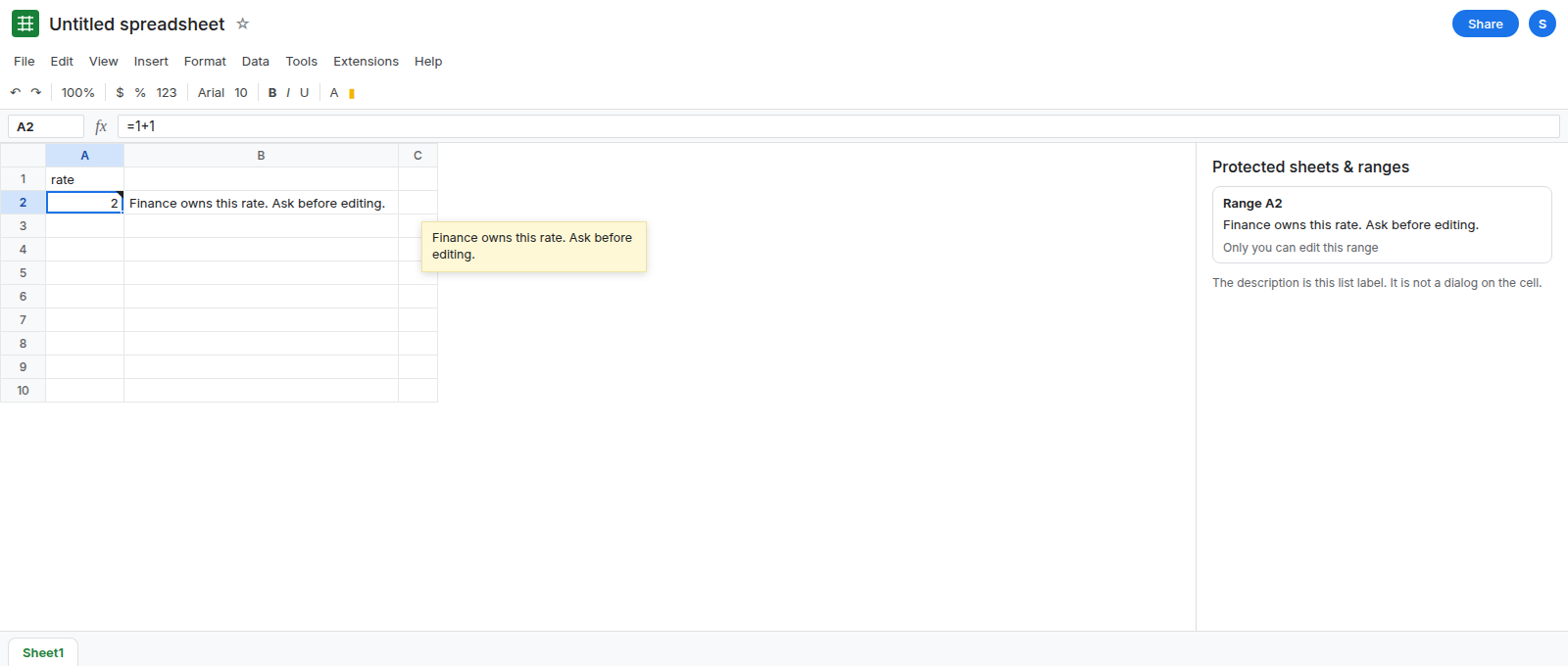
Keep the description short and specific so the owner’s list is usable: rate formula. Repeat the policy in the note, not only in the sidebar. Changing the description and asking the editor to click again will show the same stock dialog.
Do not remove the protection because the dialog felt generic. The generic dialog is the product. The description was never going to replace it.
If editors say they never saw your sentence, it lives in the sidebar. Put it in a note or a comment. If they can still edit after OK, the permission is Show a warning. If they see the protected-cell dialog and cannot edit, the lock is already doing its job, without your description in the text.