

Fix IMPORTRANGE #REF! in Google Sheets (You need to connect these sheets)
Updated
IMPORTRANGE often lands as #REF! the first time you pull from a new spreadsheet. The formula is not broken. Sheets is waiting for you to connect the two files. After you click Allow access, a different #REF! can still appear if the tab name or range string is wrong. Read the tooltip before you click anything a second time.
Recreate it on a blank sheet
Section titled “Recreate it on a blank sheet”- Open a new spreadsheet. This is the source. In A1 type
sku, B1name. In A2 type101. B2Widget. Leave the bottom tab namedSheet1. Copy the spreadsheet id from the URL: it is the long string between/d/and/editindocs.google.com/spreadsheets/d/<id>/edit. - Open a second blank spreadsheet. This is the target. In A1 enter
=IMPORTRANGE("SOURCE_ID","Sheet1!A1:B2"), pasting the id you copied. A1 shows#REF!and a prompt: You need to connect these sheets.
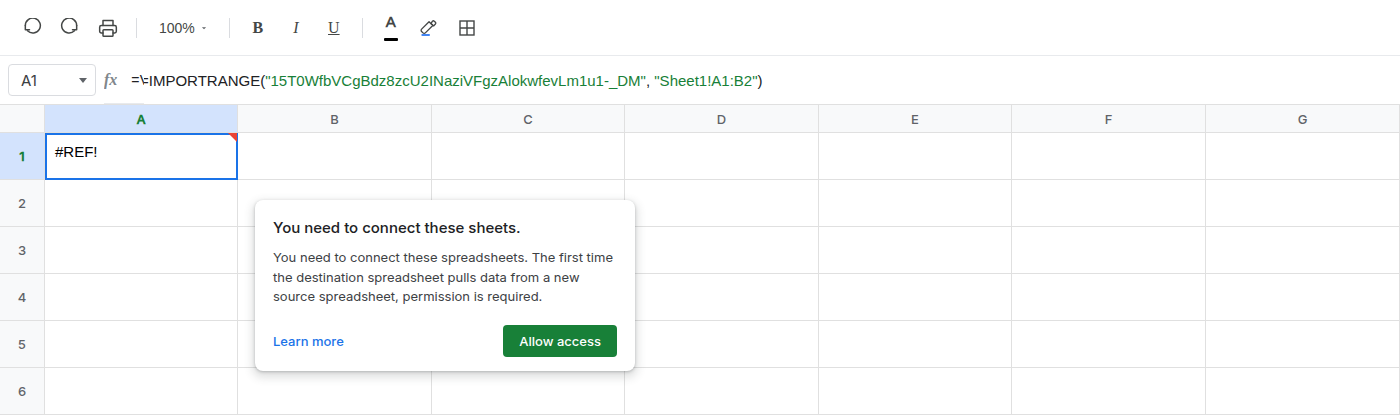
Leave A1 until you have read the tooltip. If it is You need to connect these sheets, the range string has not been tested yet. Permission comes first.
Second recreate — wrong tab after you are connected. Click Allow access on A1 and wait until A1:B2 spills. Then in A4 enter =IMPORTRANGE("SOURCE_ID","Sheet2!A1:B2") with a tab name that does not exist on the source. A4 shows #REF!. There is no Allow access prompt this time. The pair is already connected. The tooltip is a missing range / cannot find sheet, not the connect banner. That is a different #REF!. Leave A4 broken so you can compare it with a working pull.
You click Allow access once for this pair of files. Later IMPORTRANGE formulas in the same destination against the same source do not ask again. A4 proves that: same source id, no second prompt, still #REF!.
What is actually wrong
Section titled “What is actually wrong”The destination spreadsheet has never pulled from this source. Sheets blocks the import until you grant access on that in-sheet prompt. The range string can be valid and you still get #REF!. Sheet1!A1:B2 is on the source tab. This first #REF! is not a missing range and not a deleted cell.
The formula bar still shows IMPORTRANGE and a quoted id. That is the tell versus after you delete. After a delete, #REF! is inside the formula text. Here the references are strings. Nothing was deleted on this spreadsheet.
A4 is the other tell. Once permission exists, Sheets evaluates the range string. A wrong tab, a renamed tab, or Sheet1!A1:B2 when the data moved to Sheet1!A1:B20 and you truncated it, is an ordinary range miss. Fix the string. Do not click Allow access again.
This is not Result too large. That failure happens with permission, usually as #ERROR!, when the pull exceeds the size cap. See IMPORTRANGE too large. Do not treat a size error as a connect prompt.
This is not a SORT or UNIQUE spill overwrite. See SORT / UNIQUE spill. This is not a circular formula. See circular dependency. This is not QUERY select A on an import array (#N/A). See Col1 vs A. Get the import connected and small enough first.
Do not wrap A1 in IFERROR while the prompt is showing. IFERROR hides the Allow access #REF! the same way it hides a dead range, and then you never click the banner. See IFERROR vs IFNA.
Click Allow access on the in-sheet prompt. Leave the formula as it is.
After the click, the same formula spills four cells: A1 sku, B1 name, A2 101, B2 Widget.
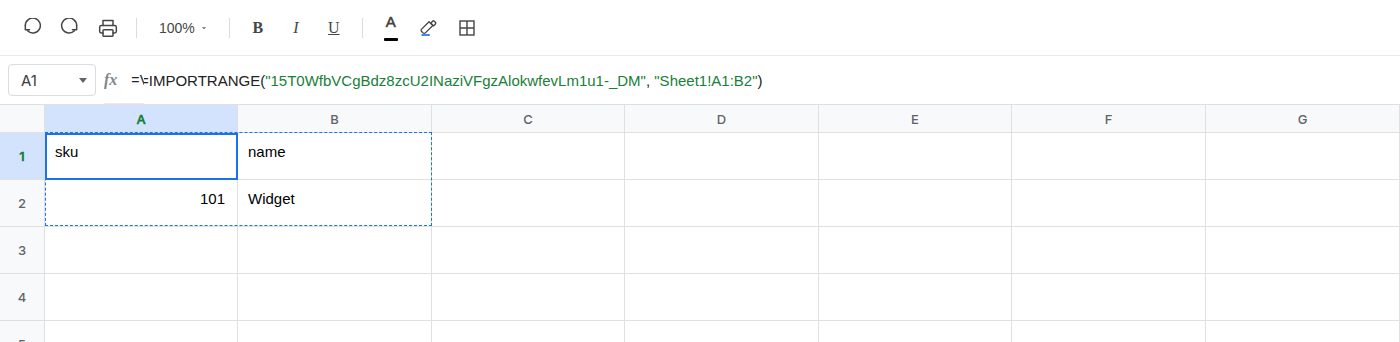
If #REF! is still there, read the tooltip.
If it is still You need to connect these sheets, you are signed into an account that cannot open the source, or the id in quotes is not the source id (a copy-paste of the whole URL, a trailing /edit, extra spaces). Paste only the id. Open the source URL while signed in as the same user.
If the tooltip is a missing sheet or range, match the tab name exactly — including spaces — and keep the Sheet1!A1:B2 shape. A4 on this recreate is that case. Change Sheet2 to Sheet1.
If the tooltip is Result too large, stop widening the range. That is the other primer.