

UNIQUE exactly_once keeps both East values when one has a trailing space
Updated
UNIQUE(range, by_col, exactly_once) with the third argument TRUE keeps a row only when that exact row occurs once. East and East with a trailing space are not the same row. Each can appear one time and both survive. On screen they look like a duplicate that the flag forgot to drop. LEN shows 4 and 5. Default UNIQUE, without exactly_once, also keeps both, because distinct rows are still distinct. TRIM first makes them one value. Then exactly_once drops East, because it now occurs twice, and a value that really occurred once stays.
What exactly_once counts when the text is already clean is UNIQUE exactly once. Case and accents, which are a different kind of “looks the same,” are UNIQUE case. A non-breaking space that TRIM does not remove is CLEAN vs NBSP. Keep the Google Sheets UI in English. Sheet Error is an independent formula-error library, not a Google product.
Recreate it on a blank sheet
Section titled “Recreate it on a blank sheet”- Open a blank spreadsheet. In A1 type
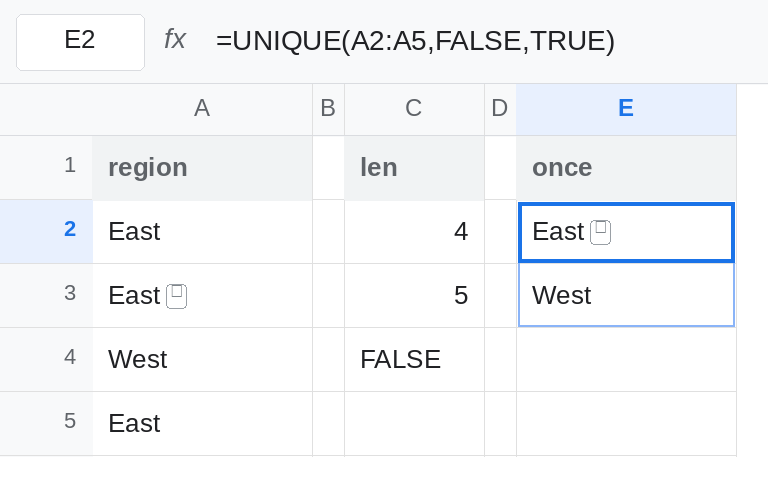
region. A2East. In A3 typeEastand then one trailing space. A4West. A5East. The cleanEastis in A2 and A5, two times. The spacedEastis in A3, one time.Westis one time.
Prove the space. In C1 type len. In C2 enter =LEN(A2). C2 is 4. In C3 enter =LEN(A3). C3 is 5. In C4 enter =A2=A3. C4 is FALSE. In C5 enter =TRIM(A2)=TRIM(A3). C5 is TRUE. The cells are not equal until TRIM. Leave C3 as 5.
exactly_once does not see a duplicate. In E1 type once. Leave E2:E5 empty. In E2 enter =UNIQUE(A2:A5,FALSE,TRUE). The spill is the spaced East and West. The clean East occurred twice, so it is gone. The spaced East occurred once, so it stays. The list still shows a word that looks like East. It is the five-character one. West stays because it really occurred once. Leave E2 as that spill.
Default UNIQUE keeps the clean East too. In E6 enter =UNIQUE(A2:A5). The spill is clean East, spaced East, and West. Three rows. The flag in E2 is why the clean East disappeared. The space is why a lookalike remained. Both formulas are working.
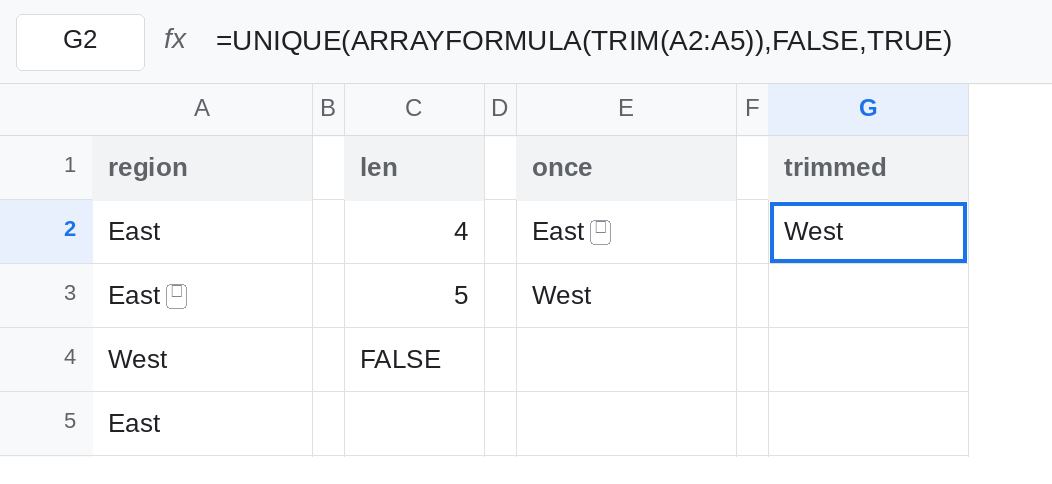
TRIM, then the flag. In G1 type trimmed. In G2 enter =UNIQUE(ARRAYFORMULA(TRIM(A2:A5)),FALSE,TRUE). TRIM turns A3 into East. The clean value now occurs three times (A2, A3, and A5). exactly_once drops it. The spill is West only. That is the orphan list people expected when they looked at E2 and still saw East. Leave G2 as West.
A leading space is the same bug. In A7 type a space and then West. =UNIQUE(A2:A7,FALSE,TRUE) can keep that West as well as A4’s West, because the strings differ. LEN again. TRIM removes the leading space too. An interior double space is also TRIM’s job: it collapses to one space.
Leave E2 showing the spaced East. Leave G2 as West.
What is actually wrong
Section titled “What is actually wrong”exactly_oncecompares the row Sheets stores, not the row you think you see. A trailing space is a character. C4 is FALSE. The spaced region occurs once, so E2 keeps it.- The clean duplicate is the row the flag removes. Seeing
Eastin the result does not mean the flag failed. CheckLENof the cell that spilled.5means you are looking at A3’s value. - Default
UNIQUEwill not collapse the space either. E6 has three rows. Turning on the third argument only removes values whose exact text already repeated. TRIMchanges the identity beforeUNIQUEcounts. AfterTRIM, threeEastrows are one value with frequency three, andWestis the only singleton. G2.TRIMdoes not removeCHAR(160). If C5 is still FALSE after you thought you trimmed, the character is not a normal space. See CLEAN vs NBSP and CHAR(160) blanks.
This is not UNIQUE by_col. E2’s second argument is FALSE. The third argument plus the space is the whole story.
Leave E2 as the untrimmed orphan list. Leave G2 as the trimmed one.
Orphans, after the text is normalized. Use G2 when the question is “which region never repeated, ignoring surrounding spaces?” =UNIQUE(ARRAYFORMULA(TRIM(A2:A5)),FALSE,TRUE). Label it orphans so it is not used as the master list. The master list of regions is the next formula.
One row per visible region. =UNIQUE(ARRAYFORMULA(TRIM(A2:A5))) spills East and West. No third argument. The repeated East remains once. The spaced copy is not a second region.
Fix the source if later formulas should not all grow TRIM. In A3 enter =TRIM(A3) only after you have copied the value somewhere, or type East over the spaced cell. A formula =TRIM(A3) placed in A3 is a circular reference. Trim into a helper column, then paste values back if the column must be plain text.
Do not drop exactly_once and expect the space to vanish. E6 still has two East rows. Do not add exactly_once and expect lookalike text to collapse. E2 still has one of them.
If a value you can see twice survived exactly_once, compare with = and with LEN. FALSE and a longer LEN means the duplicate is not exact yet. TRIM first, then decide whether you wanted orphans or a distinct list.