

ROUND(1.005, 2) and a scaled 1.005*100 do not land on the same penny
Updated
1.005 cannot be stored exactly in the binary floating-point format Sheets and Excel use. The stored value sits a hair under the decimal 1.005. You can see the hair: 1.005*100 - 100.5 is not 0. ROUND(1.005, 2) on a typed literal is 1.01 in current Sheets and Excel, because ROUND works from about fifteen significant decimal digits and that literal still reads as a halfway 5. The snap people hit is the other formula, ROUND(1.005*100, 0)/100, which rounds the raw product. That product is under 100.5, so the integer step can be 100 and the result 1. Same pennies, two answers.
FIXED returning text is FIXED is text. Keep the Google Sheets UI in English. Sheet Error is an independent formula-error library, not a Google product. Locale United States. Format → Number → Number, and increase decimal places when a cell looks like a clean zero.
Recreate it on a blank sheet
Section titled “Recreate it on a blank sheet”- Open a blank spreadsheet. In A1 type
literal. In A2 type1.005and press Enter. Do not type an apostrophe.ISNUMBER(A2)is TRUE. The formula bar shows1.005.
The residue. In B1 type times100. In B2 enter =A2*100. In C1 type minus. In C2 enter =B2-100.5. Format C2 as a number with many decimal places, or as scientific. C2 is not 0. It is a tiny negative residue, on the order of 1e-14. The product was not a clean 100.5. Leave C2 showing that residue. If C2 displays 0.00 at two decimals, add decimal places until the residue appears. Two decimals will hide it on purpose.
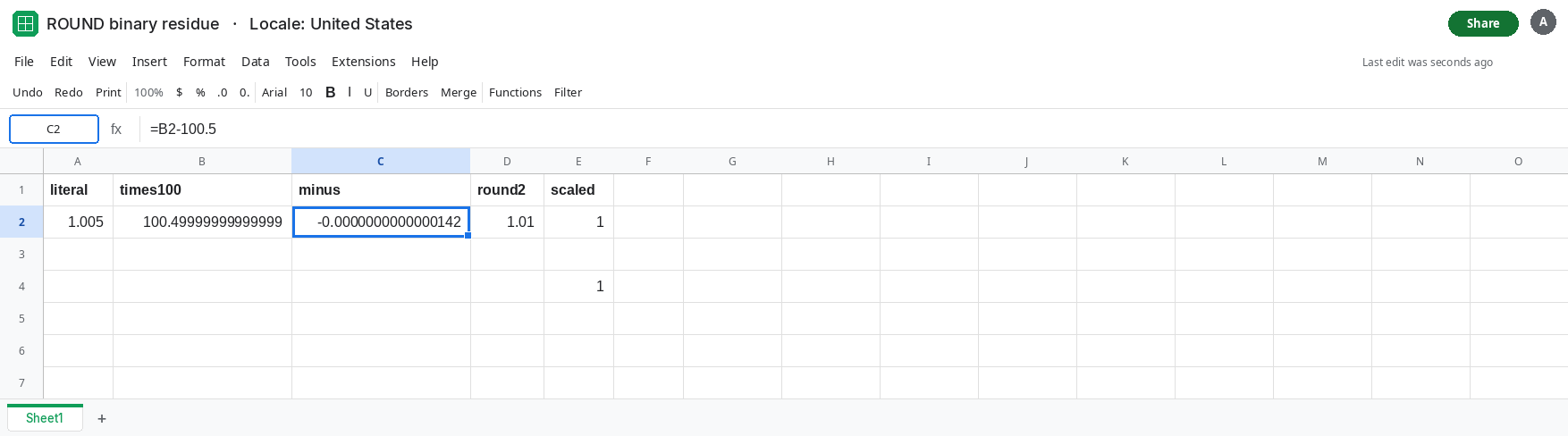
ROUND of the literal. In D1 type round2. In D2 enter =ROUND(A2,2). D2 is 1.01. That is the control. ROUND saw the decimal people typed and applied the halfway rule away from zero at two places. D2 being 1.01 does not mean C2 is 0. Leave both.
ROUND of the scaled product. In E1 type scaled. In E2 enter =ROUND(B2,0)/100. B2 is the raw product, a hair under 100.5. Rounding that product to 0 places follows the hair. The integer is 100, and E2 is 1. D2 is 1.01. Leave E2 as 1 when that is what you get.
If your copy of E2 shows 1.01, this file’s ROUND rewrote the product to fifteen significant digits before the cut and hid the snap. C2 is still not 0. The product is not a clean 100.5 either way. The integer path below does not ask it to be.
A naive scale in the same cell. In E4 enter =ROUND(1.005*100,0)/100. That is E2 written without the helper. Read E4 against D2. They are the two formulas people mix up when they “round to cents” by multiplying by 100 first.
Leave C2 nonzero. Leave D2 as 1.01. Leave E2 as the scaled result.
What is actually wrong
Section titled “What is actually wrong”- Binary floating point stores a sum of powers of two.
1.005is not one of those sums. The closest value is slightly smaller. Multiplying by100keeps a residue under100.5, which C2 shows. ROUND(value, places)on a typed literal uses spreadsheet decimal rounding. Halfway cases of the displayed decimal go away from zero. That is why D2 is1.01even though the stored double is under1.005. Trusting D2 as proof the subtraction is zero is how the residue stays in the model.ROUND(value*100, 0)/100rounds a different number: the product. Once the product is strictly under100.5, it is no longer a halfway case. It rounds toward100. Dividing by100yields1, which displays as1or1.00.- Formatting A2 to two decimals shows
1.01or1.00depending on the format, and does not change the stored value.ROUNDreturns a new value. A format does not. Later math still sees the residue if you never rounded. - Integers are exact inside the range Sheets uses for whole cents. A column that stores
100for one dollar never passes through0.1ten times. The residue starts when the amount is born as a decimal fraction.
This is not #NUM!. See out of domain. The formulas return numbers. They disagree.
Leave C2, D2, and E2 in place. C2 is the residue. D2 is the literal round. E2 is the scaled snap.
Store the amount as an integer count of the smallest unit, then round that integer. If 1.005 means one dollar and five mills, the integer is 1005 (thousandths of a dollar). In G1 type mills. In G2 type 1005 as a whole number. In G4 enter =ROUND(G2,-1)/1000. ROUND to -1 rounds to the nearest ten mills, which is one cent. 1005 is a halfway step; spreadsheet ROUND goes away from zero, so G4 is 1.01. G2 never contained the binary fraction 1.005. In G5 enter =G2-1005. G5 is 0. That subtraction is exact.
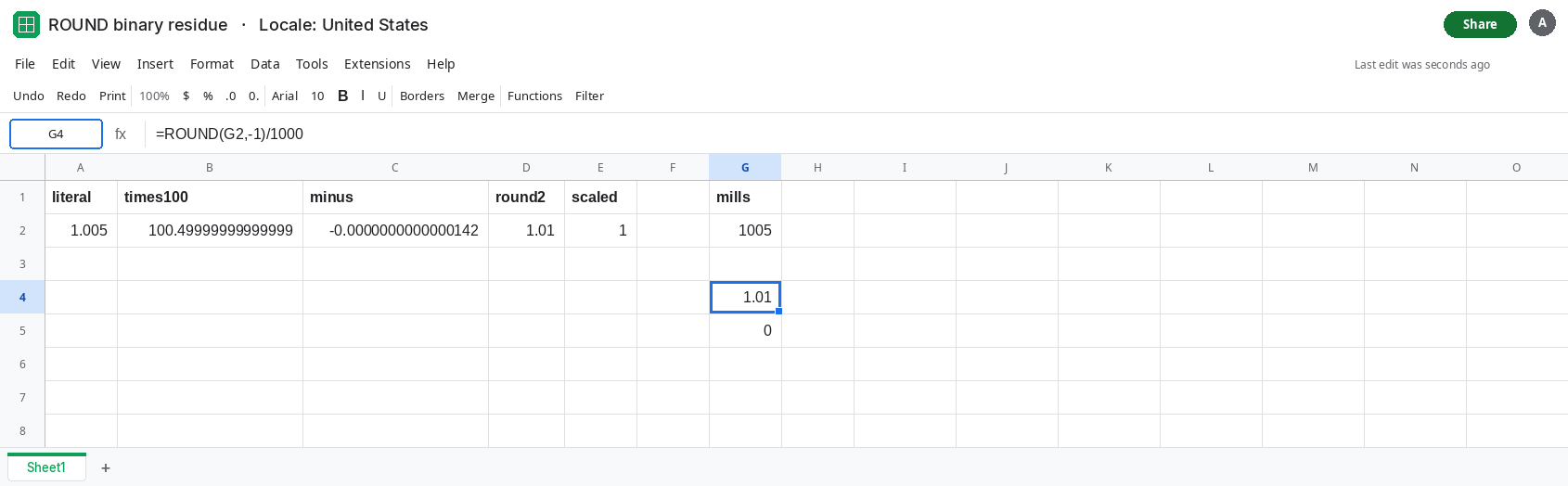
Recover a typed decimal onto an integer scale before you divide. In I2 enter =ROUND(ROUND(A2*1000,0)/10,0)/100. The inner ROUND to 0 places pulls A2*1000 onto the integer 1005, because the residue is far smaller than half a unit at that scale. Dividing that integer by 10 lands on a clean halfway hundredth, and the outer round yields 1.01. Use this when the input is already a short decimal someone typed, not a long sum of binary fractions. A running total of 0.1 added many times can sit farther from the decimal you expect. Round to cents at each step, or add integer cents.
Compare rounded values, not the raw subtraction. =ROUND(A2,2)=1.01 is TRUE for the typed literal. =C2=0 is FALSE. A dashboard that tests =B2=100.5 will flicker. Test ABS(C2)<1E-9 only as a tolerance, and prefer the integer column so the tolerance is unnecessary.
If D2 is 1.01 and C2 is not 0, the literal round and the stored value disagree, and that is this page. If E2 is 1, the scale-then-round followed the residue. If both the subtraction and the scaled round show a clean penny, the input was already an integer number of cents.