

Locale semicolons stay even when function names are English
Updated
On a spreadsheet whose locale uses a comma as the decimal mark, formulas separate arguments with semicolons. =IF(A2>1; "yes"; "no") is legal. =IF(A2>1, "yes", "no") is #ERROR! with tooltip Formula parse error. The function name can be English IF the whole time. The checkbox Always use English function names does not turn semicolons back into commas, and it does not rewrite formulas already on the sheet.
The VLOOKUP-shaped version of the pasted comma is locale parse error. Separators inside { } are array literal locale (a backslash between columns, a semicolon between rows). This page is the checkbox: English names, semicolon arguments, still a parse error. The decimal mark inside a number or a TEXT pattern is decimal comma locale.
Recreate it on a blank sheet
Section titled “Recreate it on a blank sheet”- Open a blank spreadsheet. File → Settings → Locale: choose a comma-decimal locale. Germany is the one this page uses. Turn on Always use English function names in that settings dialog. Keep the Google Sheets menus in English if you can. The locale and the menu language are different settings.
In A1 type n. In A2 type 2 so the cell is the number two (on this locale it may display as 2). You are not testing a decimal yet.
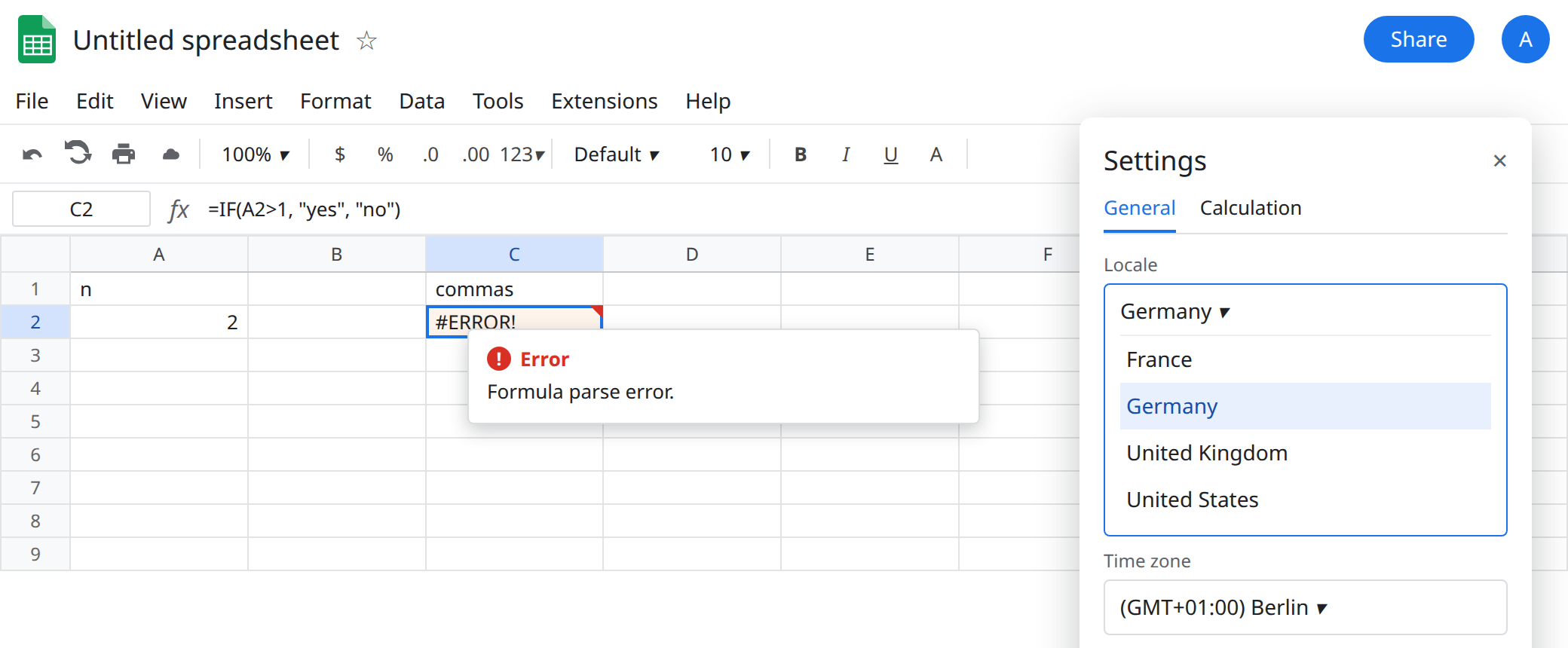
Pasted English commas. In C1 type commas. In C2 enter =IF(A2>1, "yes", "no") with commas between the arguments. The cell shows #ERROR!. The tooltip is Formula parse error. The name in the formula is IF, not a translated name. The checkbox did what it claims: the function name is English. The commas are still wrong for Germany. Leave C2 broken.
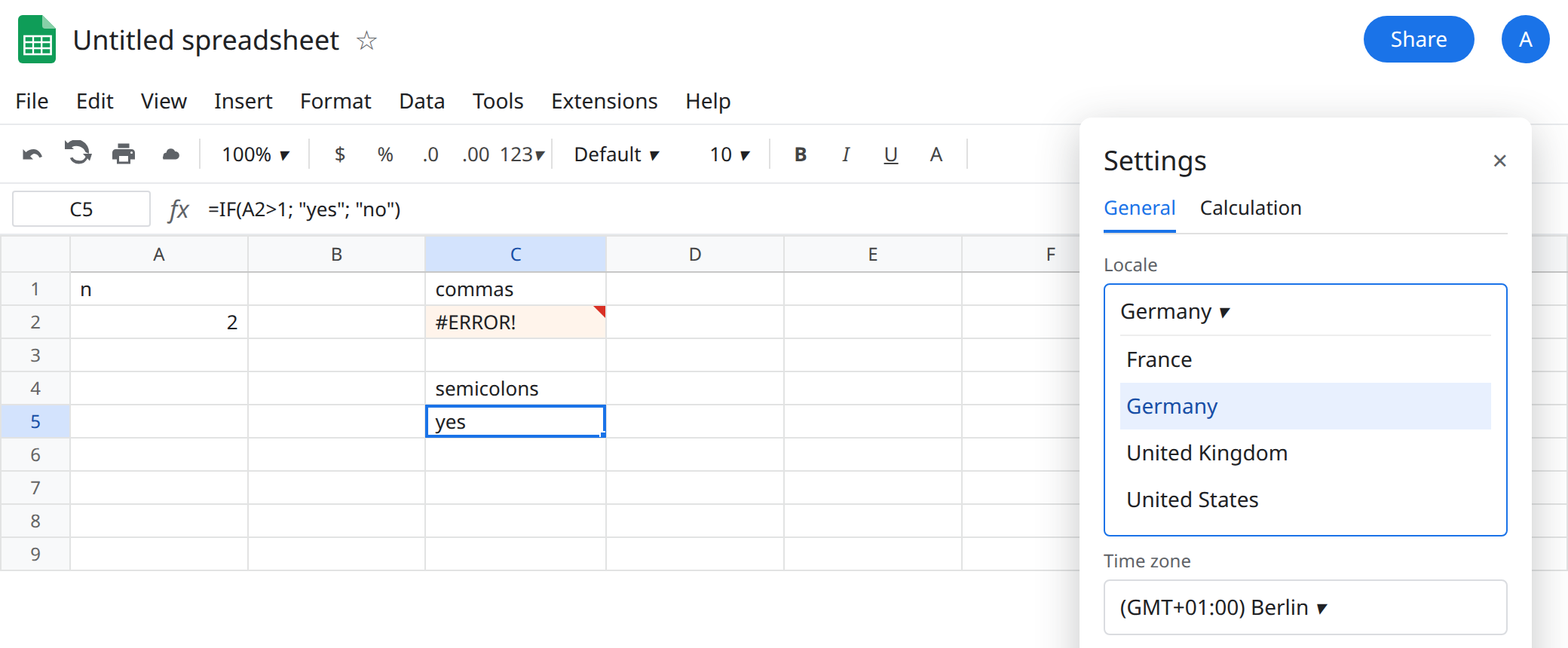
Semicolons, English name. In C4 type semicolons. In C5 enter =IF(A2>1; "yes"; "no"). The cell shows yes. Same function name as C2. The only edit is the separator.
The checkbox does not rewrite C2. Toggle Always use English function names off, then on again. C2 stays #ERROR!. Existing formulas keep the separators they were saved with. Changing locale later does not sweep the sheet and replace commas. You edit the formula, or you change the locale before you paste.
Do not use SUM of two literals as the test. =SUM(1,2) on this locale is a bad demo. The comma is the decimal mark, so that text can become a single number instead of a two-argument call, and you may see no parse error. Locale parse error makes the same warning. IF with three arguments cannot be reread as one decimal. That is why C2 is the recreate.
Braces are not this separator. In E1 type braces. In E2 enter ={1;2}. On this locale a semicolon inside {} stacks rows. It is not “the argument separator, so it must mean columns.” Two columns use a backslash. See array literal locale. Do not “fix” C2 by also replacing semicolons inside an array you meant to keep as rows.
What is actually wrong
Section titled “What is actually wrong”- Argument separators follow the spreadsheet locale. Germany, France, Brazil, and other comma-decimal locales use
;between arguments. United States and United Kingdom use,. The file’s locale matters, not the locale of the blog you copied, and not your Google account language by itself. - Always use English function names swaps names such as a translated
IFback toIF. It does not swap;for,. C2 is the proof: EnglishIF, German separators, parse error. If the checkbox is off and the name itself is unknown, you can also see#NAME?. That is unknown function. Turn the checkbox on only when you want English names. You still type semicolons. - Formula parse error is
#ERROR!, not#NAME?and not#VALUE!. The formula never ran.IFERRORcannot wrap a formula the parser rejected in that same cell. You would be editing a formula that does not parse. - Curly quotes copied from a document are also Formula parse error, on every locale. See curly quote parse error. C2 uses straight commas. Replacing them with semicolons works. Replacing them with curly commas does not.
QUERYstrings have their own quotes. A locale semicolon does not repair a date literal. See QUERY date literal.
Leave C2 broken.
Type semicolons on this locale. Keep C5: =IF(A2>1; "yes"; "no"). A pasted VLOOKUP from a United States page gets the same treatment: commas between arguments become semicolons. The walk-through of that four-argument paste is locale parse error.
Or change the locale, then paste. File → Settings → Locale → United States, if this file is allowed to be a United States file. Argument separators become commas, and the decimal mark becomes a period. That also changes how existing numbers and TEXT patterns behave. See decimal comma locale. Do not flip the locale to repair one IF and leave a column of comma-decimals behind.
Array literals. After C5 works, fix { } with the backslash rule on the array page. A semicolon inside braces is a row break on this locale.
If the name is English and the tooltip is still Formula parse error, the commas between arguments are the United States separators on a semicolon locale. The checkbox is not the remaining switch.