

LARGE and SMALL return #NUM! when n is out of range
Updated
LARGE(range, n) returns the nth largest number in the range. SMALL returns the nth smallest. n starts at 1. 0 is #NUM!. A negative is #NUM!. An n bigger than the count of numbers in the range is #NUM!. Text and blanks are not numbers, so they shrink that count. The functions do not return a blank when you ask for a rank that is not there.
This page is that rank. It is not out of domain as a primer (SQRT of a negative, LN(0)). It is not SORTN n / ties (n of 0 on SORTN is #VALUE!, and a large n is not an error). Keep the Google Sheets UI in English.
Recreate it on a blank sheet
Section titled “Recreate it on a blank sheet”- Open a blank spreadsheet. In A1 type
qty. A210. A34. A410. A5pcs. A6 leave blank. Four rows under the header, and only three of them are numbers.pcsis text on purpose.
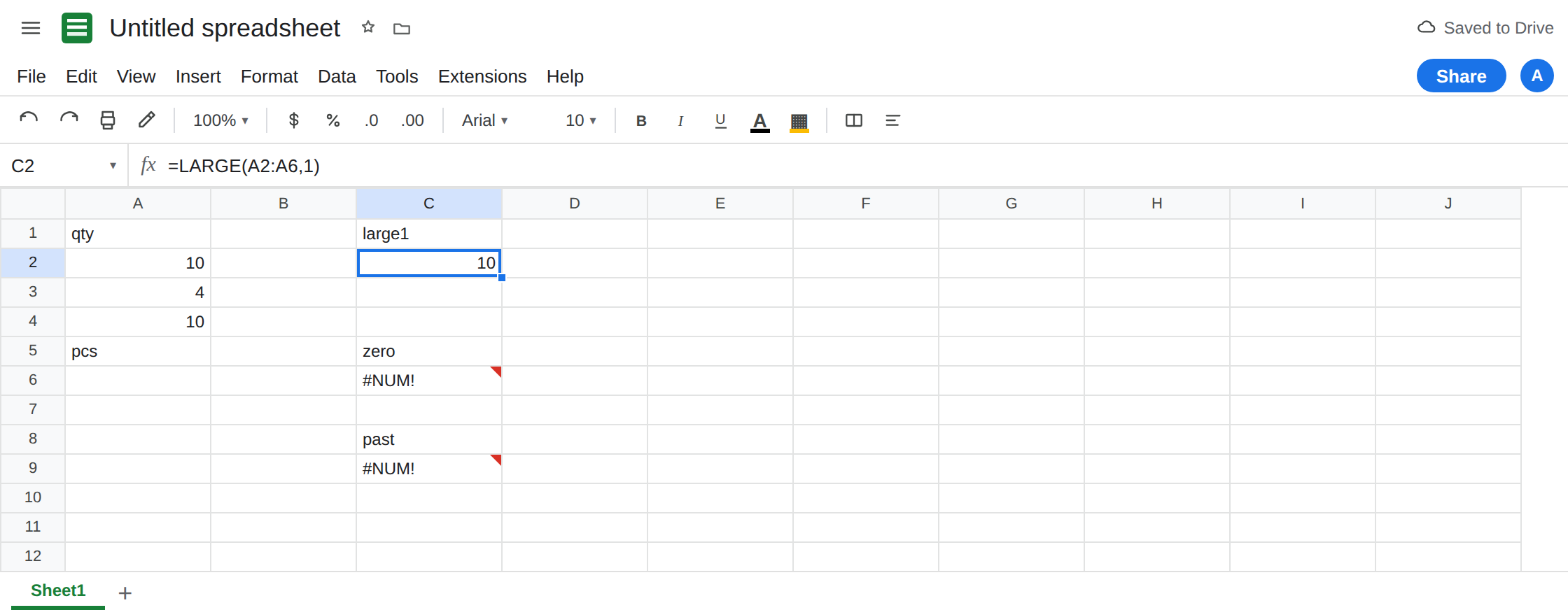
The largest. In C1 type large1. In C2 enter =LARGE(A2:A6,1). C2 is 10. Ties do not change rank 1: both 10s are the largest, and LARGE returns the value, not the row. In C3 enter =SMALL(A2:A6,1). C3 is 4. Those two cells are the control.
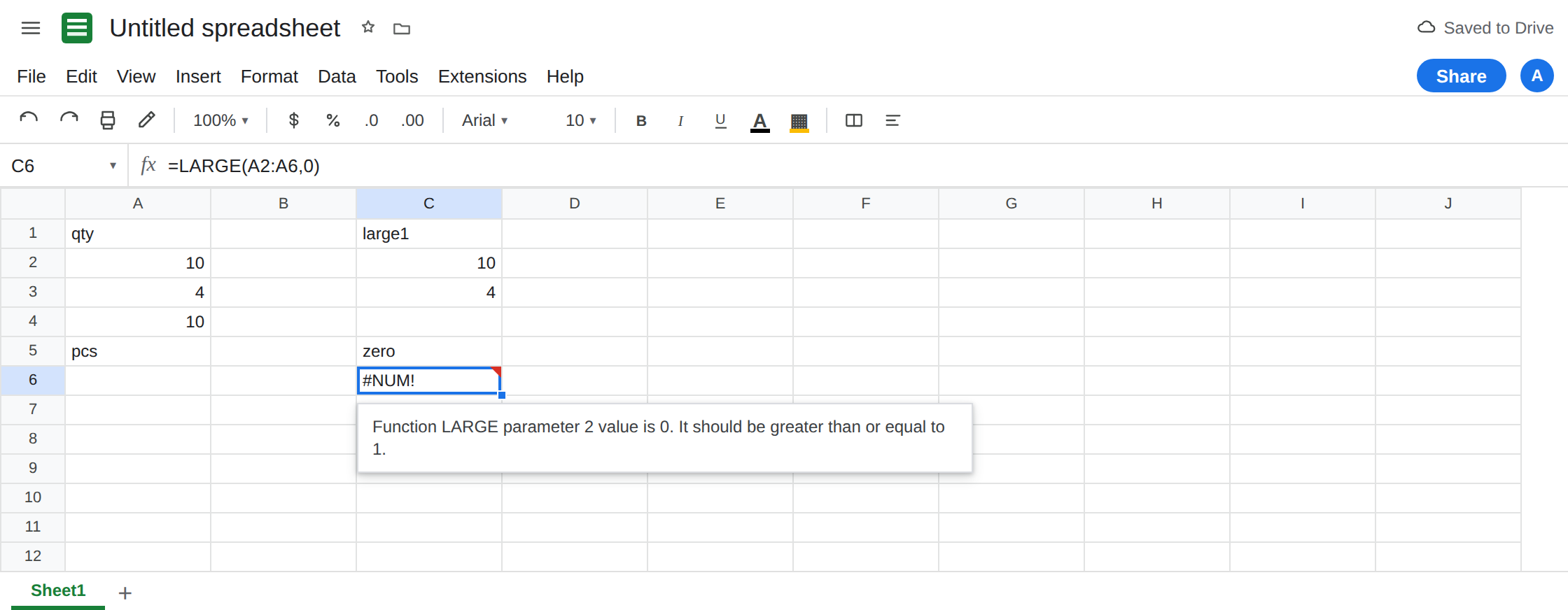
n of 0. In C5 type zero. In C6 enter =LARGE(A2:A6,0). The cell shows #NUM!. The tooltip is Function LARGE parameter 2 value is 0. It should be greater than or equal to 1. Leave C6 broken. SMALL with 0 is the same #NUM!.
n past the numbers. In C8 type past. In C9 enter =LARGE(A2:A6,4). You can see four data cells plus a blank, and you asked for the 4th largest. A5 is pcs. A6 is blank. Only three numbers exist. C9 is #NUM!. The tooltip says parameter 2 is 4 and it should be less than or equal to the number of numeric values. Leave C9 broken. In C10 enter =SMALL(A2:A6,3). C10 is 10 (the largest is the 3rd smallest when there are three numbers). In C11 enter =SMALL(A2:A6,4). C11 is #NUM! again.
A column of text. In E1 type words. E2 pcs. E3 box. In E5 enter =LARGE(E2:E3,1). #NUM!. There is no largest number in a text column. Leave E5 broken.
SORTN contrast. In G2 enter =SORTN(A2:A4,0). That is #VALUE! on SORTN, not this #NUM!. See SORTN n / ties. In G4 enter =SORTN(A2:A4,9). A large n on SORTN returns the rows you have. It does not match C9.
Leave C6, C9, C11, and E5 broken. Leave C2 as 10.
What is actually wrong
Section titled “What is actually wrong”nis a rank among numbers, 1-based. Rank 1 is the max forLARGEand the min forSMALL. Rank 0 is not “everything” and not “the header.”- Non-numbers do not hold a rank.
pcsand the blank are skipped, so A2:A6 has three ranks, not five. Counting rows withCOUNTAorROWSand passing that count toLARGEis how C9 happens.COUNT(A2:A6)is3. That is the highest legaln. LARGEreturns a value, not a position. The two 10s both qualify for rank 1. You do not get#NUM!for a tie. You also do not get the row number. UseMATCHorFILTERif you need the row. See MATCH #N/A for exact match, not for this rank.- A decimal
nis truncated toward 0 before the rank check.1.9behaves as1and returns the max.0.9behaves as0and is#NUM!. Do not pass a division that can land under 1. MAX(A2:A6)is10and ignores text the same way.MAXof a text column is0in Sheets, not#NUM!. That difference is why a wrappedMAXcan hide a column of labels whileLARGEtells you there was nothing to rank.
This is not INDEX past the range (#REF!). See INDEX past range. You asked for a rank, not a coordinate.
Leave C6, C9, and E5 broken.
Ask for a rank that exists. Keep C2: =LARGE(A2:A6,1). For the smallest, keep C3. For the second largest, =LARGE(A2:A6,2) is 10 on this sheet (the other 10). =LARGE(A2:A6,3) is 4. There is no fourth.
Cap n with COUNT. In C13 enter =IF(COUNT(A2:A6)<4,"",LARGE(A2:A6,4)). C13 is blank because there are only three numbers. When a fourth number appears, C13 returns it. Use COUNT, not COUNTA, so pcs does not inflate the rank. Do not use IFERROR around C9. A later typo in the range would vanish too. See IFERROR vs IFNA. IFNA does not catch #NUM!.
Text column. E5 will not become a number. Point LARGE at the qty column, or coerce with VALUE only when the text is numeric. VALUE("pcs") is #VALUE!. See wrong type.
If LARGE or SMALL is #NUM!, check n first: it must be at least 1 and at most COUNT of the range. 0 and a rank past the numbers are the same error. MAX and MIN are the rank-1 shortcuts when you do not need nth.