

Apps Script custom functions stay cached until an input changes
Updated
A custom function is JavaScript in Extensions → Apps Script, called from a cell. Sheets caches the return value. It runs the function again when the arguments change, when you edit that formula, or when the spreadsheet opens. It does not run again just because some other cell changed, and it does not run on a timer. A function with no arguments has nothing that can change, so the timestamp it returned stays put. NOW() in the next cell moves. There is no volatile flag in Apps Script that turns the custom function into NOW().
#NAME?, Loading…, and the time limit are Apps Script custom function. Keep the Google Sheets UI in English. Sheet Error is an independent formula-error library, not a Google product.
Recreate it on a blank sheet
Section titled “Recreate it on a blank sheet”- Open a blank spreadsheet. Extensions → Apps Script. Replace the sample with this. Save the project.
function STAMP() {  return new Date();}
function MIRROR(v) {  return v;}
A native volatile cell. In A1 type now. In A2 enter =NOW(). Note the time. Type x in C2. A2’s time updates. NOW() recalculates when the sheet does. That cell is the control for “volatile.”
The custom function does not. In A4 type stamp. In A5 enter =STAMP(). After a brief Loading…, A5 shows a datetime. Type y in C3. Edit C2 again. A2 moves. A5 stays on the first datetime. You did not edit A5, and A5 has no argument to watch. Leave A5 stale on purpose.
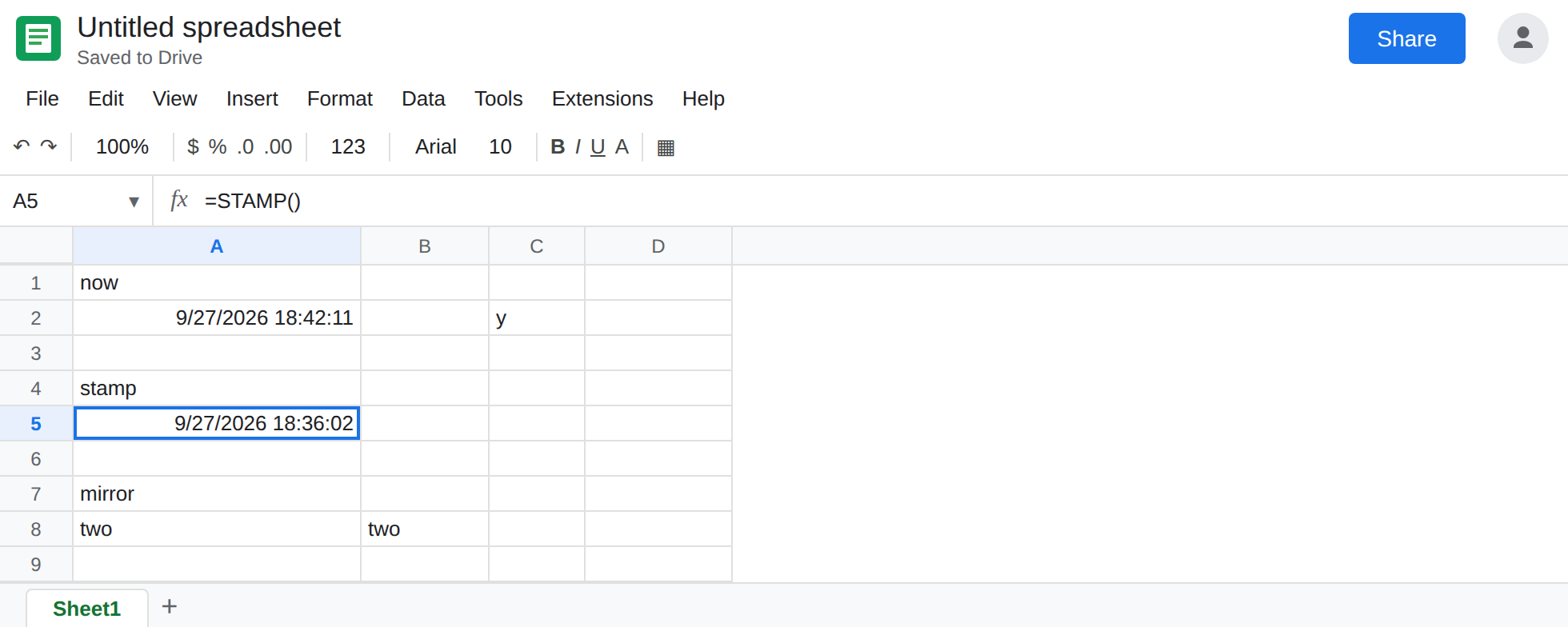
An argument creates a dependency. In A7 type mirror. In A8 enter =MIRROR(B8). In B8 type one. A8 shows one. Change B8 to two. A8 updates to two. The cache key is the argument. Leave A8 as two.
Reading the grid from inside the script is not an argument. Add this, save, and in A10 enter =READB().
function READB() { return SpreadsheetApp.getActiveSheet().getRange('B8').getValue();}A10 may show two, the value at the moment it ran. Change B8 to three. A8 (the mirror) becomes three. A10 stays two until you edit A10 or reload in a way that drops the cache. The script reads B8, but Sheets did not record B8 as an input of A10. If the cell errors with a permission message instead of a value, the custom function is not allowed to do that read on this account. Delete READB and keep MIRROR. The permission failure is immediate. It is not a stale value. Leave A10 only if it demonstrates the stale read.
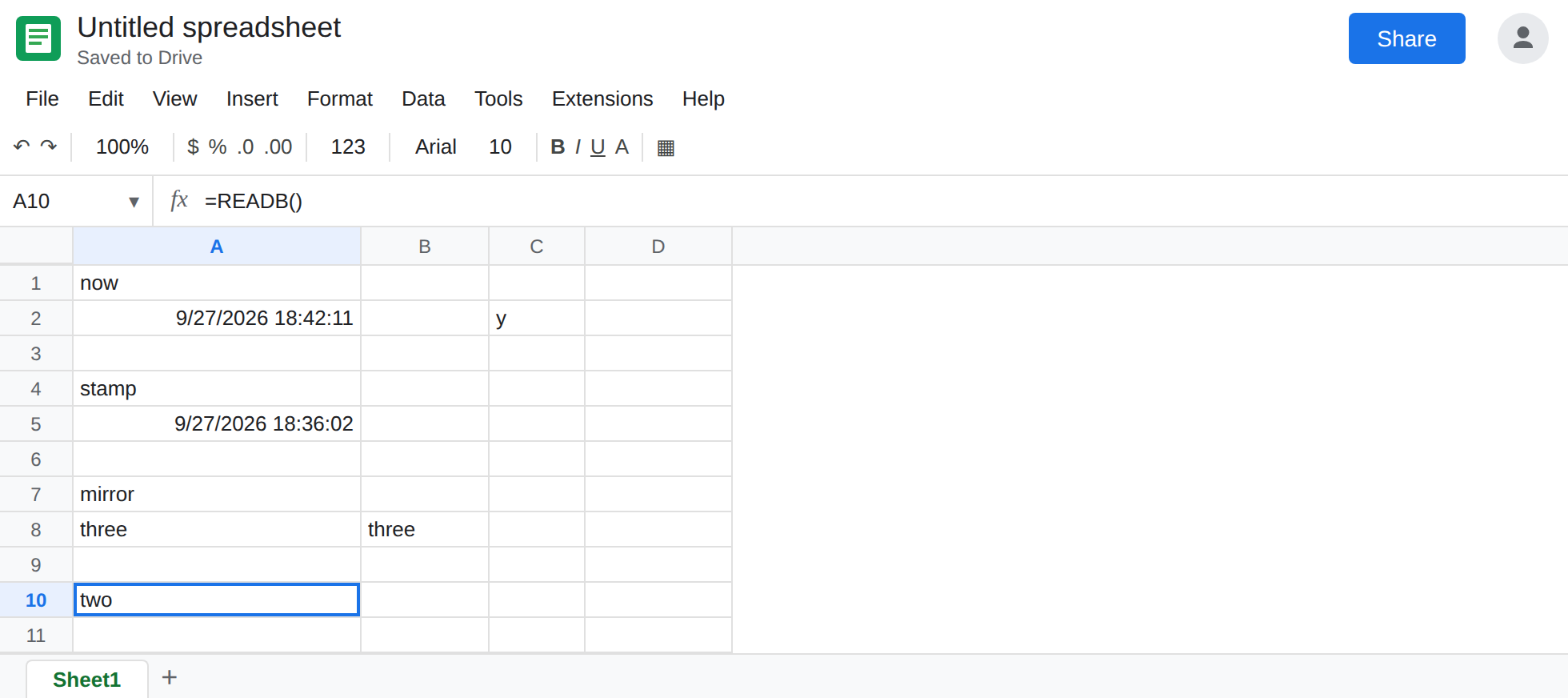
Leave A5 stale. Leave A8 tracking B8.
What is actually wrong
Section titled “What is actually wrong”- Custom functions are cached by the arguments they were given.
STAMP()has an empty argument list. Nothing in C2 is an input, so nothing in C2 invalidates A5. Editing A5, or closing and reopening the file, runs it again. A stream of edits elsewhere will not. NOW(),RAND(), andTODAY()are volatile built-ins. PuttingNOW()inside the script does not register a spreadsheet dependency.return new Date()runs when the function runs, then the cell keeps that JavaScript date. A5 is that freeze.- Passing
NOW()in does create a dependency:=MIRROR(NOW())updates because the argument is volatile. It also recalculates on every edit, which is how sheets get slow. Use it only when you truly want a fresh call every time. Prefer passing the range the function actually uses, the way A8 passes B8. SpreadsheetAppreads are invisible to the cache. Change the cell you peeked at and the formula does not know. Pass the range in. Custom functions also cannot call services that need authorization (a URL fetch is the usual surprise). That throws as soon as the function runs. It does not sit still with an old number. A5 sitting still means the cache, not a denied service.- Data → Named functions are not this script. They recalculate like other formulas. A stale clock from Apps Script will not be fixed in that sidebar. See Named functions and Apps Script custom function.
This is not the calculation-step limit. A limit failure errors. It does not keep yesterday’s time. See calculation limit.
Leave A5 as the function that does not move.
Pass every cell you need as an argument. Keep A8: =MIRROR(B8) changes when B8 changes. If the script must add two cells, the function takes two parameters and the formula passes both. Do not getRange them inside the function and hope the cell updates.
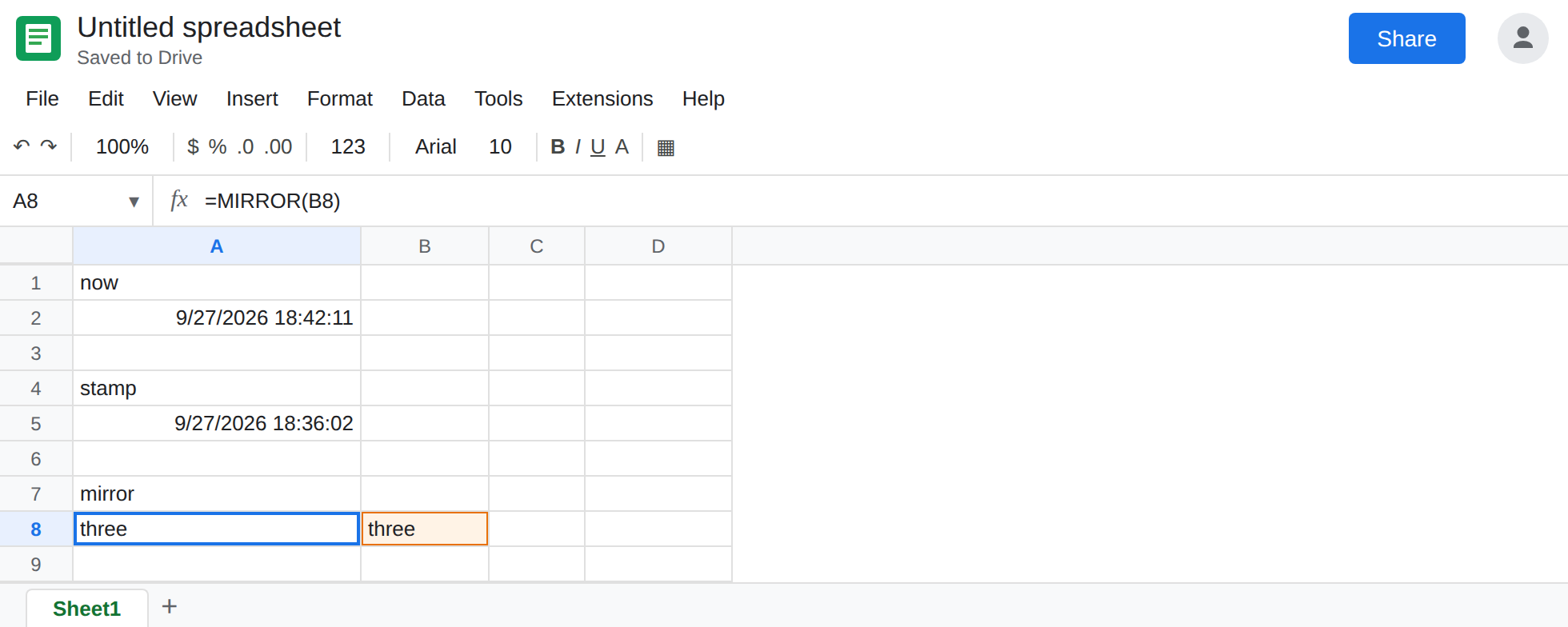
A value that must move on every edit is a built-in. Use A2’s =NOW() for a timestamp that tracks edits. Use STAMP() only when you want the time the formula last ran. There is nothing to turn on in Apps Script to make STAMP volatile.
Force one refresh by editing the formula cell (add a space and remove it) or by changing a real argument. Reloading the spreadsheet recalculates custom functions when the file opens. It is not a timer during the day.
Do not wrap A5 in IFERROR. The value is old, not an error. You would hide a clock that looks plausible. See IFERROR vs IFNA.
If a custom function updates only when you edit its cell, it has no argument that changed. Pass the inputs in. If the cell is #NAME? or it stays on Loading… and then hits the time limit, you are on the custom-function page. If it throws as soon as it calls a service, remove that call and pass values in from the sheet.