

A simple onEdit cannot call UrlFetchApp, and the sheet stays quiet
Updated
Google Sheets runs a function named onEdit as a simple trigger. You do not add it under Triggers. It fires on an edit, and it is allowed to do only the work simple triggers are allowed to do. Writing a value into a cell on the same spreadsheet is allowed. UrlFetchApp.fetch is not. The edit still happens. The fetch does not. The cell you hoped would show a status code stays blank. The failure is in Extensions → Apps Script → Executions, not in a red triangle on the grid. An installable On edit trigger is a row you add under Triggers, on a function that is not named onEdit. That run can call UrlFetchApp after you authorize the project.
A trigger that disappeared after File → Make a copy is trigger re-auth. The same permission sentence inside a custom function is custom function UrlFetch. #NAME? on a cell formula is Apps Script custom function. Keep the Google Sheets UI in English. Sheet Error is an independent formula-error library, not a Google product.
Recreate it on a blank sheet
Section titled “Recreate it on a blank sheet”- Open a blank spreadsheet. The first tab must be named
Sheet1, or change the script below to your tab’s name. Extensions → Apps Script. Replace the sample with this. Save.
function onEdit(e) { e.range.offset(0, 1).setValue('edited');}The simple trigger can write. Click A2 and type hi. Press Enter. B2 becomes edited. You did not click Run. The name onEdit was enough. Leave B2 as edited. That write is the control.
The same name cannot fetch. Replace the function with this. Save.
function onEdit(e) { var code = UrlFetchApp.fetch('https://example.com/').getResponseCode(); e.range.offset(0, 1).setValue(code);}Click A3 and type go. Press Enter. A3 keeps go. B3 stays empty. It does not show 200. No dialog asks you to authorize. Simple triggers are not allowed to show that dialog. Open the script editor → Executions. The onEdit run failed. The log says you do not have permission to call UrlFetchApp.fetch. Leave B3 empty.
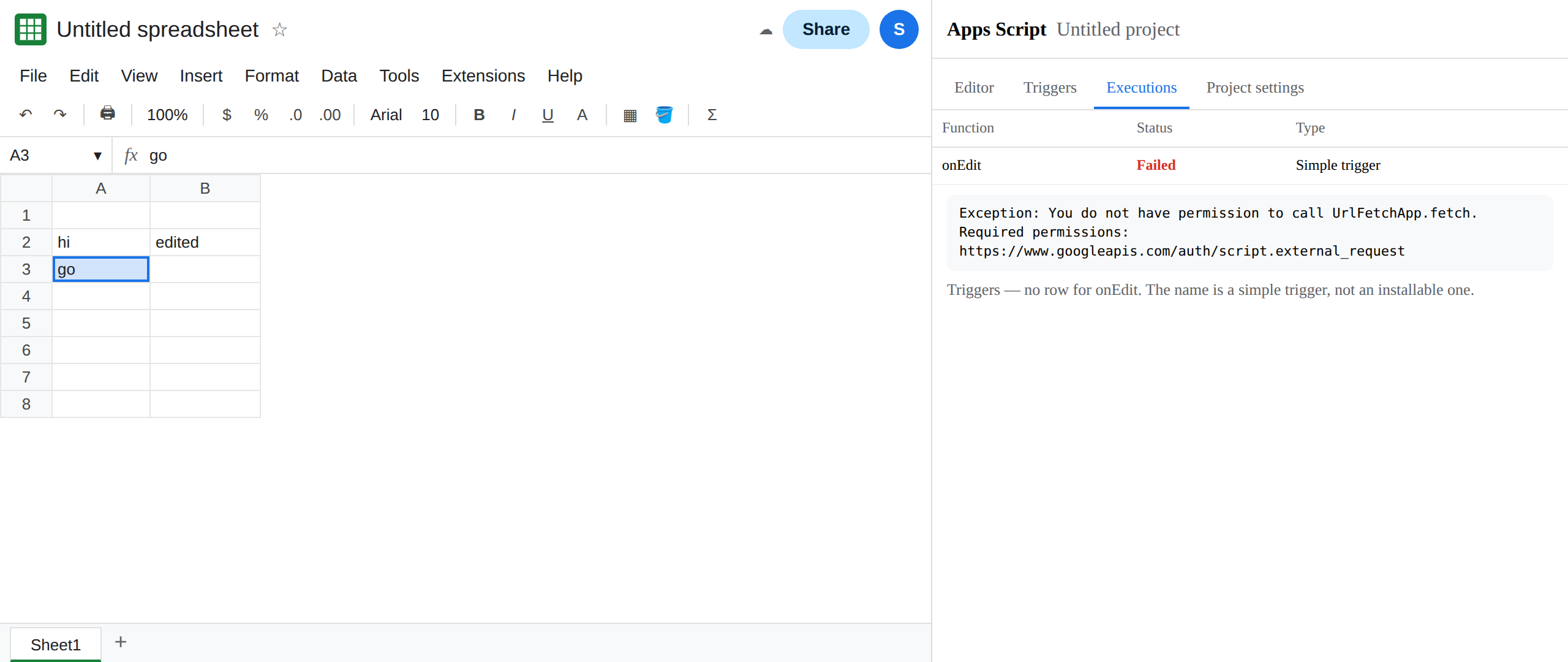
Do not add an installable trigger on the name onEdit. A function with that exact name always runs as a simple trigger too. You would get the failure above and a second run. Rename the fetch.
An installable trigger uses another name. Replace the script with this. Save.
function onEditFetch(e) { var code = UrlFetchApp.fetch('https://example.com/').getResponseCode(); e.range.offset(0, 1).setValue(code);}Open Triggers → Add trigger. Function: onEditFetch. Event source: From spreadsheet. Event type: On edit. Save. Authorize when Google asks. Allow it if this is your file and you want the request. Return to the sheet. Type ok in A4. B4 becomes 200 when example.com answers 200. If B4 stays empty, open Executions on onEditFetch and read the line. A permission error there means the trigger is still the simple one, or authorization was dismissed. Leave B4 as the code when the installable run works.
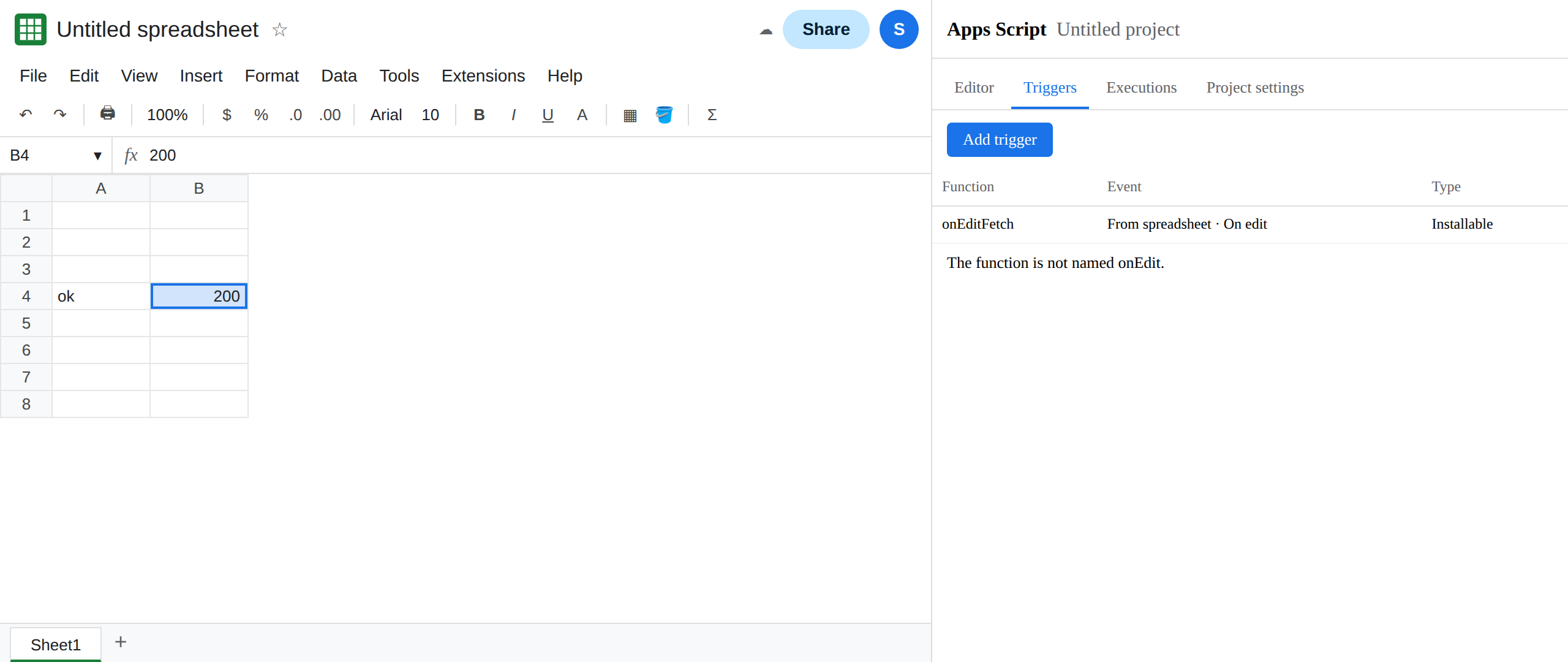
Delete the simple onEdit function if it is still in the file, so a later edit does not also write edited from the first version.
What is actually wrong
Section titled “What is actually wrong”- The name
onEditis the simple trigger. It is not a row on the Triggers page. An empty trigger list does not mean “nothing will run.” Typing in A2 proved that. - Simple triggers cannot call services that need authorization.
UrlFetchApp,GmailApp, andDriveAppare in that set. The run stops.setValueafter the fetch never happens, so B3 stays blank. The grid has no#ERROR!because no cell formula called this function. - Installable triggers run as the account that created them, with the authorization that account granted.
onEditFetchis a normal name. The Triggers row is what makes it fire on edit. After File → Make a copy, that row is gone. See trigger re-auth. - A custom function in a cell cannot call
UrlFetchAppeither, and it shows the permission sentence on the cell. See custom function UrlFetch. Do not put=onEditFetch()in A5. That is the wrong shape. e.rangeis the cell you edited.offset(0, 1)is the neighbor. If you edit column B, the write goes to column C. A blank B3 after an edit in A3 means the write did not run, not that offset missed A3.
Data → Named functions are not triggers. See named functions.
Leave the failing simple onEdit out of the project once you have seen the execution log. Keep onEditFetch as the installable trigger.
Use a simple onEdit only for work it is allowed to do. The first script, which writes edited, is that work. No Triggers row. No authorization dialog.
Use an installable trigger for UrlFetchApp. Keep the function name onEditFetch. Keep the On edit row. Authorize. Type in A4 and read B4. If Executions says authorization is required, accept the dialog on this copy of the file. See trigger re-auth.
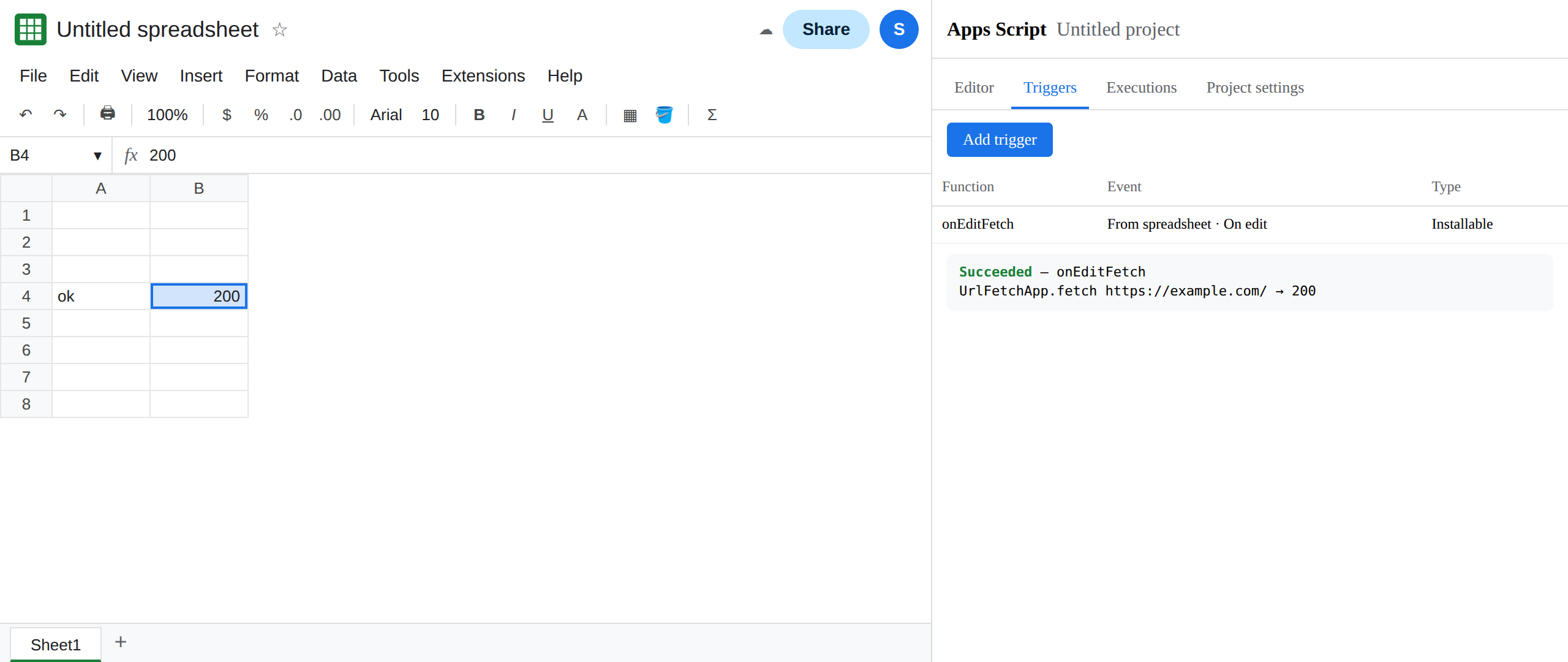
Do not wrap a cell in IFERROR to hide this. The neighbor cell is blank, not a formula error. The log is the error.
If B2 updates and B3 does not, and the function that failed is named onEdit, the limit is the simple trigger. Rename it, add it under Triggers, and authorize. If the Triggers list is empty after a copy, you are on the re-auth page.