

Utilities.formatDate uses the script time zone, not the spreadsheet time zone
Updated
NOW() on the sheet uses File → Settings → Time zone. Utilities.formatDate uses the time zone you pass in. Scripts often pass Session.getScriptTimeZone(), which is the project time zone under Apps Script → Project settings. Those two zones are stored separately. After a copy, or after you change one and not the other, a custom function can return a string such as 2024-06-01 02:00 while the cell next to it shows 2024-06-01 11:00 for the same moment. The string will not move when you reformat it. It is text. The shift is already baked in.
NOW() and TODAY() themselves are NOW / TODAY timezone. A custom function that ignores sheet edits is custom function cache. Keep the Google Sheets UI in English. Sheet Error is an independent formula-error library, not a Google product.
Recreate it on a blank sheet
Section titled “Recreate it on a blank sheet”- Open a blank spreadsheet. File → Settings. Read Time zone. Write the name down. Do not change Locale. Locale is argument separators, not this clock.
What the sheet calls now. In A1 type sheet. In A2 enter =TEXT(NOW(),"yyyy-mm-dd hh:mm"). A2 is text in the spreadsheet time zone. Leave it as a formula.
What the script calls now. Extensions → Apps Script. Project settings (the gear). Read Time zone. If it matches the spreadsheet, change the script time zone to a zone many hours away. Save. Replace the sample with this function. Save the project.
function SCRIPT_NOW() { return Utilities.formatDate(new Date(), Session.getScriptTimeZone(), 'yyyy-MM-dd HH:mm');}In A4 type script. In A5 enter =SCRIPT_NOW(). After Loading…, A5 shows a date-time string. Compare it to A2. The clock times differ by the gap between the two zones. The calendar date can differ too, when the zones are on opposite sides of midnight. Leave A5 as that string. Type x in C2. A2’s formula recalculates. A5 may stay on the old string until you edit A5, because custom functions cache. The lesson is the zone, not the cache. When you need A5 to run again, edit A5. See custom function cache.
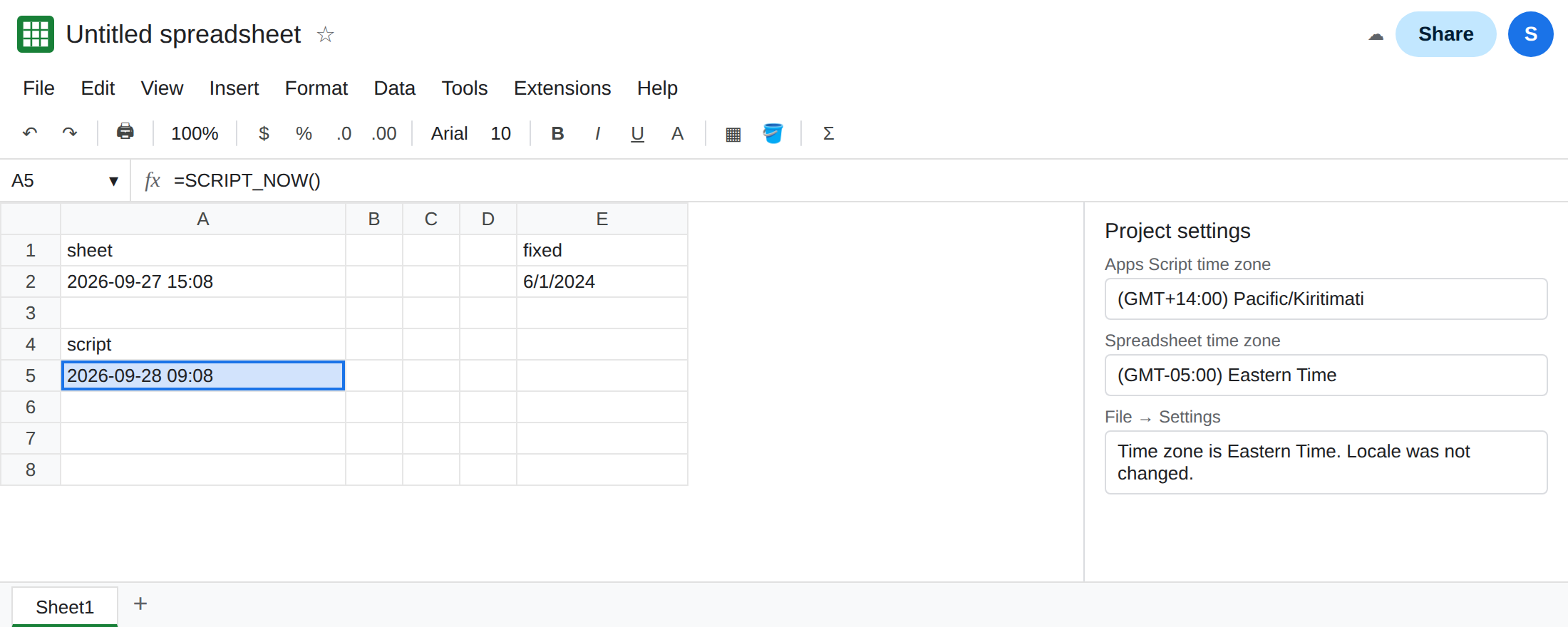
formatDate did not look at the spreadsheet. The second argument was Session.getScriptTimeZone(). Changing File → Settings → Time zone updates A2. It does not update the string a previous run already returned, and a new run still uses the script zone until the second argument changes. Put the spreadsheet zone back to the one you wrote down when this file has real dates. You can leave the script zone wrong until the fix, if this file is only the recreate.
A stored date serial is not either clock. In E1 type fixed. In E2 enter =DATE(2024,6,1). E2 stays 1 June 2024. Do not debug E2 as a time-zone bug. See NOW / TODAY timezone.
What is actually wrong
Section titled “What is actually wrong”- Two settings, two clocks. The spreadsheet time zone drives
NOW(),TODAY(), and the way a Date value is displayed. The script time zone drivesSession.getScriptTimeZone()and the default zone in the Apps Script project. Matching them is a manual step. Making a copy can leave the script zone on the template’s zone. Utilities.formatDatereturns a string in the zone you pass. A5 is not a serial that the sheet can redisplay in another zone.TEXTof A5 will not apply the spreadsheet zone. The hour was chosen when the string was built.new Date()in JavaScript is an instant. The zone only affects how that instant is printed. Two prints of one instant can be two civil times. That is this page. A fetch error is not.- Returning a Date object from a custom function lets Sheets display it with the spreadsheet time zone. Returning a formatted string does not. A5 is a string because
formatDatemade one. If you needed the instant, return the Date and format it on the sheet withTEXT. SpreadsheetApp.getActive().getSpreadsheetTimeZone()reads the File → Settings zone. It is the zone A2 uses. It is not automatically the zoneformatDateuses unless you pass it.
An installable trigger that writes new Date() into a cell writes a Date. Display follows the spreadsheet. A trigger that writes a formatDate string writes text. See trigger re-auth if the trigger never runs.
Leave A5 as the script-zone string so the gap stays visible. Use a new function for the aligned clock.
Pass the spreadsheet time zone into formatDate. Add this, save, and in A7 enter =SHEET_NOW().
function SHEET_NOW() { var tz = SpreadsheetApp.getActive().getSpreadsheetTimeZone(); return Utilities.formatDate(new Date(), tz, 'yyyy-MM-dd HH:mm');}A7’s text matches the zone of A2, within the minute you ran it. Edit A7 if the custom-function cache is holding an older run. Align the project time zone with the spreadsheet too: Apps Script → Project settings → Time zone. Then Session.getScriptTimeZone() and getSpreadsheetTimeZone() name the same zone, and the next person who calls formatDate with the script zone does not reopen the gap.
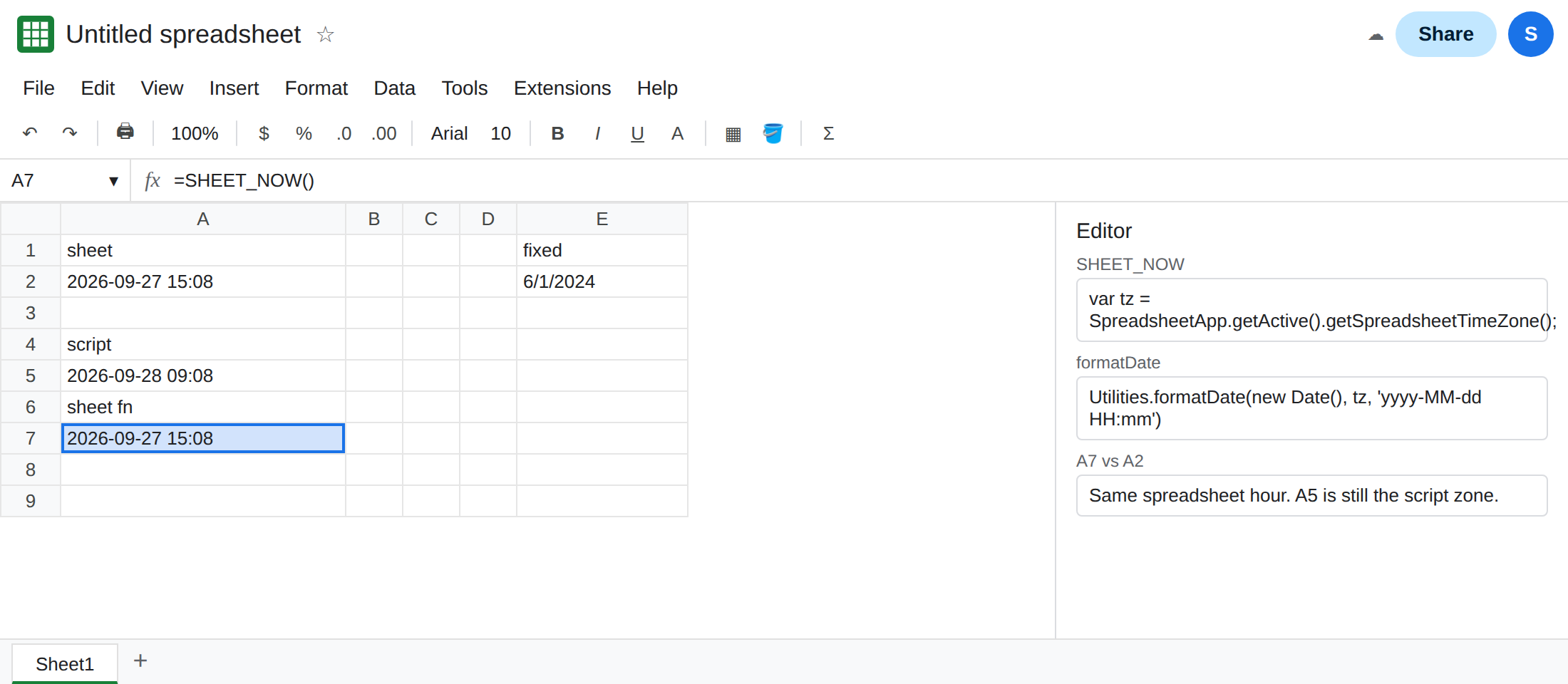
Prefer a sheet formula when you do not need a script. A2 is already the spreadsheet clock. A custom function is the wrong tool for “what time is it on this file.”
Do not wrap A5 in IFERROR. The string is a successful return. It is the wrong zone, not a thrown error. See IFERROR vs IFNA.
If A2 and the formatted script string disagree by hours, compare File → Settings → Time zone with the script project’s time zone. If they match and the string is still old, edit the custom function’s cell. You are on the cache page.