

Fix IMPORTDATA errors in Google Sheets (could not fetch url)
Updated
IMPORTDATA downloads a CSV or TSV from a public http/https URL and spills it into the grid. If Sheets cannot fetch that URL, the cell is an error — often #N/A with Could not fetch url. The formula is usually fine. The address is not a reachable delimited file.
This page is IMPORTDATA. It is not IMPORTRANGE access (two Google spreadsheets, Allow access on a #REF!). It is not IMPORTXML / IMPORTHTML (XPath, table index, Result too large). It is not IMAGE failed to load.
Recreate it on a blank sheet
Section titled “Recreate it on a blank sheet”- Open a blank spreadsheet. In A1 type
kind, B1url, C1import. - A URL that cannot be fetched. In A2 type
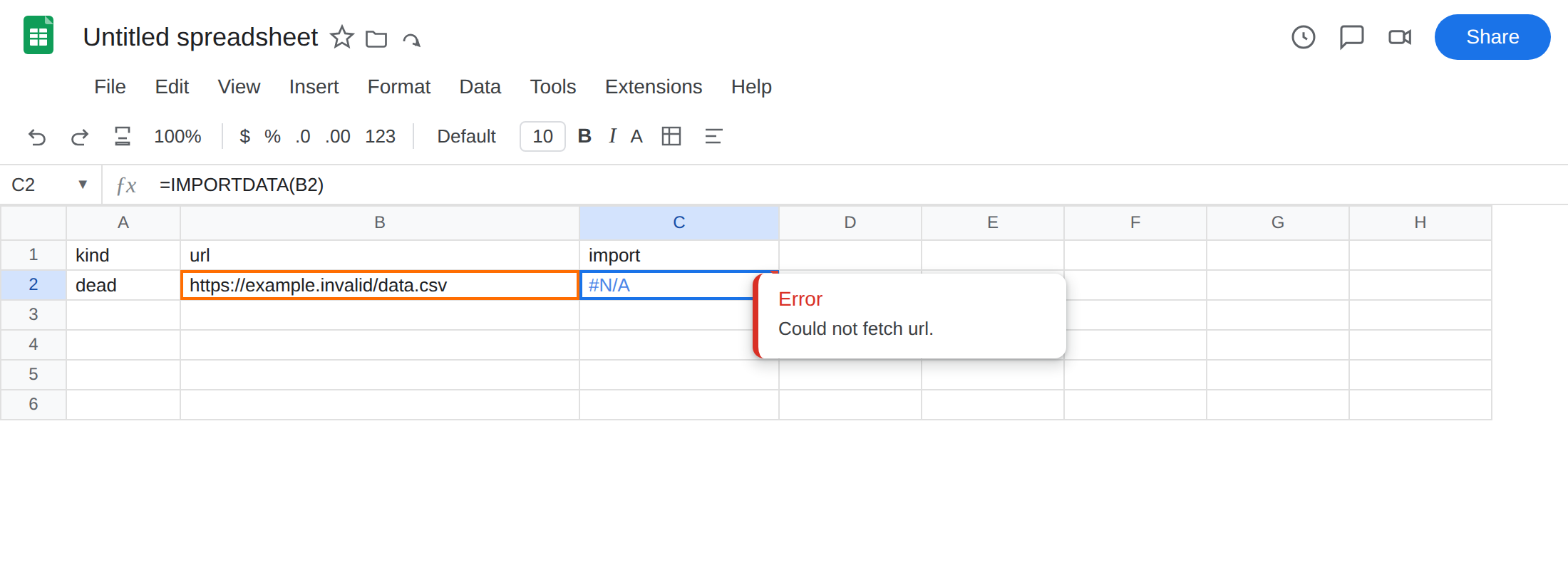
dead. In B2 typehttps://example.invalid/data.csv. That host does not exist. In C2 enter=IMPORTDATA(B2). The cell does not spill a table. You get Could not fetch url (or a sibling fetch error), usually as#N/A. Leave C2 broken.
- Not a CSV. In A3 type
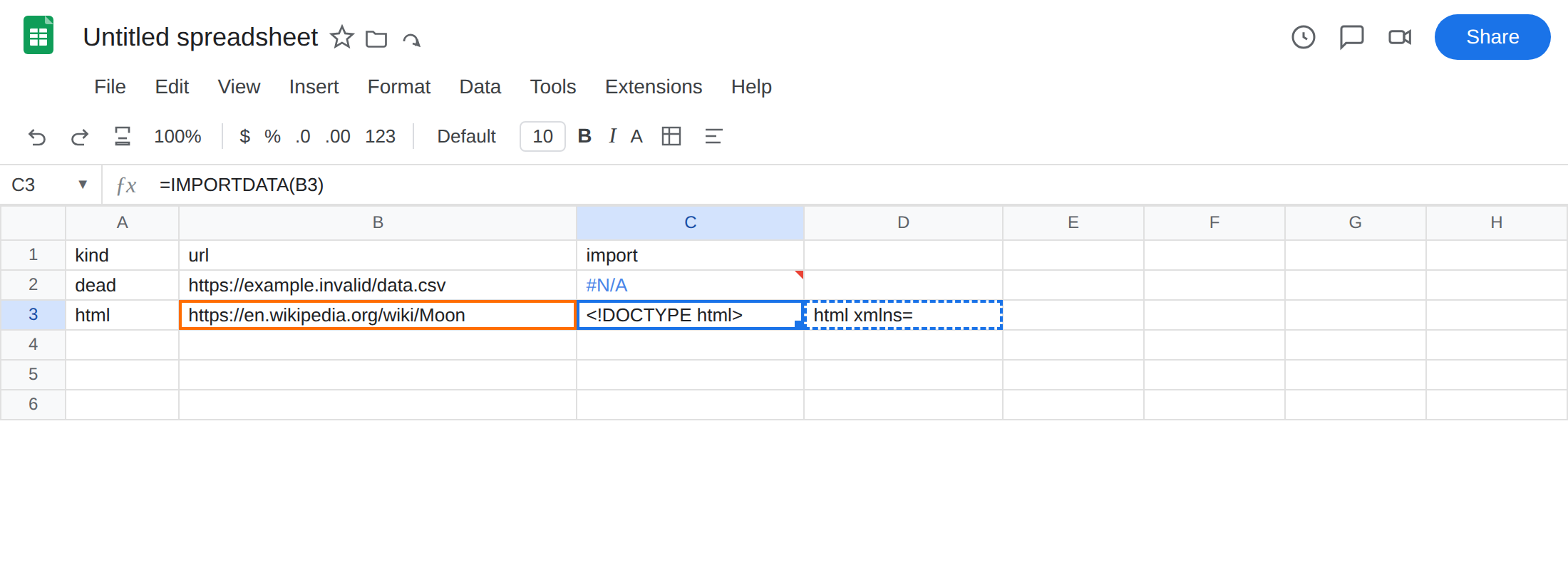
html. In B3 typehttps://en.wikipedia.org/wiki/Moon. In C3 enter=IMPORTDATA(B3). After Allow access (the same first-use banner asIMPORTXML/IMAGE), Sheets may fetch the HTML and try to split it on commas. You do not get a clean two-column table. You may get a messy spill, Imported content is empty, or another import error. Leave C3 as that failed-as-CSV result. This is stillIMPORTDATA, notIMPORTXML.
- A working CSV control. In A4 type
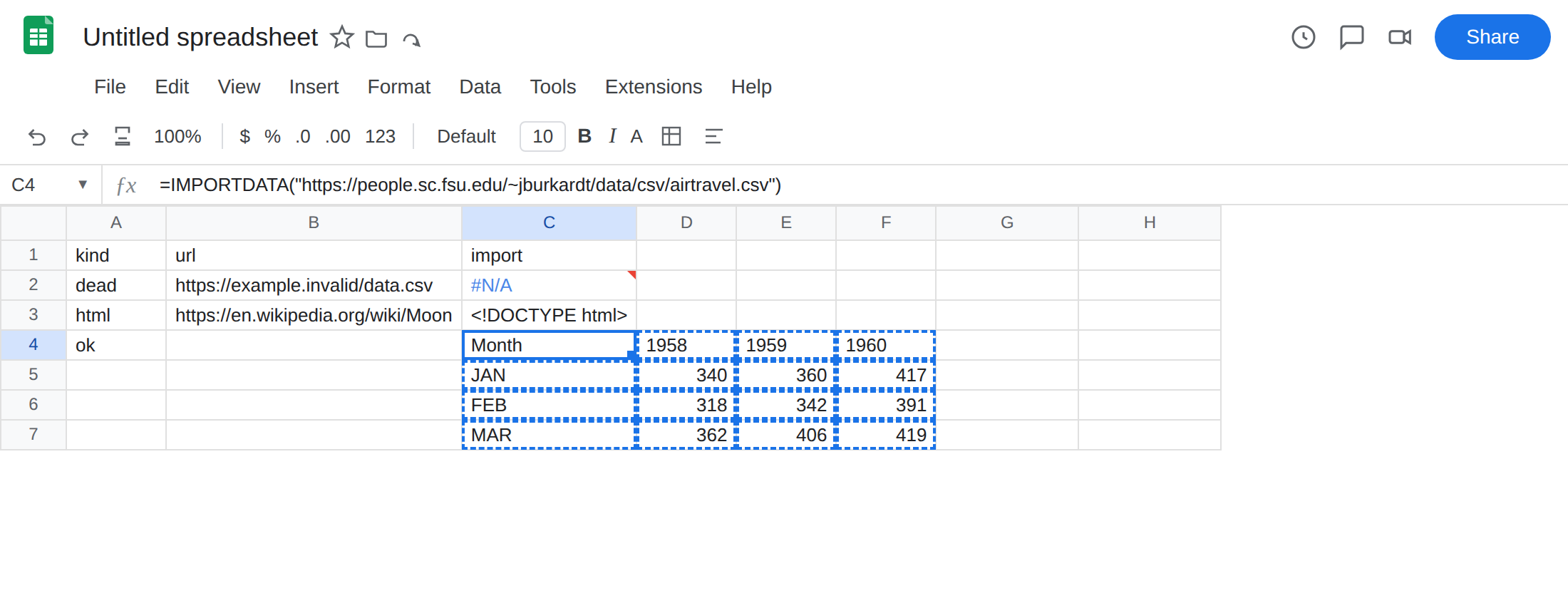
ok. In C4 enter:
=IMPORTDATA("https://people.sc.fsu.edu/~jburkardt/data/csv/airtravel.csv")
Wait through Allow access if the banner is still up. C4 should spill a small CSV (month and passenger columns). If that campus URL is blocked on your network, use any public CSV you are allowed to fetch — a file you host, with a header row and comma separators. C4 is the control: the function works when the URL returns delimited text. Replace the sample if you do not have rights to that file.
Leave C2 as the fetch miss. Leave C3 as the non-CSV. Leave C4 as the working spill if it loaded.
What is actually wrong
Section titled “What is actually wrong”IMPORTDATAGETs the URL and parses comma or tab separated values.example.invaliddoes not resolve. A 404 on a real host is the same family: Could not fetch url. The string in B2 looks like a CSV path. The file is not there.- HTML is not CSV. Wikipedia returns a web page.
IMPORTDATAwill not run your XPath. It will not pick “table 1.” It will split on commas inside markup, or fail. That mess is not a reason to switch toIMPORTRANGE. - The URL must include
http://orhttps://. A Drive share link is the wrong product:IMPORTDATAis notIMPORTRANGE, andIMAGEdocs already warn againstdrive.google.comURLs. A Sheets file id belongs inIMPORTRANGE. - Allow access is the spreadsheet banner for external URLs (
IMPORTDATA,IMPORTXML,IMPORTHTML,IMPORTFEED,IMAGE). Editors click once. That banner is not the in-cell You need to connect these sheets prompt. - Result too large and Loading… are the same traffic/payload family as
IMPORTXML. Narrow the file or cut duplicate import formulas. See IMPORTXML / IMPORTHTML for that trio. This page’s recreate is a dead host and a non-CSV body.
This is not #N/A from a lookup. See what #N/A means. This is not GOOGLEFINANCE. See GOOGLEFINANCE #N/A.
Leave C2 and C3 broken so the failures stay on the sheet.
Confirm the function works. C4 already did, after Allow access, if the CSV loaded. If C4 spills and C2 does not, IMPORTDATA is not dead. The URL in B2 is.
Use a reachable CSV or TSV URL. Paste the URL in a browser. You should see plain text with commas or tabs, not a rendered article. In G2 enter the same formula as C4 (or your own CSV). The spill should match C4.
Do not point IMPORTDATA at HTML. If you wanted the heading or a table off a page, that is IMPORTXML / IMPORTHTML. See IMPORTXML / IMPORTHTML. Changing C3’s function name is the fix, not wrapping IFERROR.
Allow access once on the banner. If C4 never loads and the banner is visible, click it. Viewers cannot. A Workspace policy that blocks external fetches will not yield to the banner.
Do not wrap a fetch miss in IFERROR and call the pipeline live. You still have no CSV. Fix the URL, or host a real .csv.
This is not IMPORTRANGE
Section titled “This is not IMPORTRANGE”IMPORTRANGE pulls a range from another Google spreadsheet by file id and a Sheet1!A1:B2 string. First use is #REF! with You need to connect these sheets. After the click, a wrong tab is a different #REF!. Size cap is Result too large on that function. None of that is a CSV URL.
IMPORTDATA("https://docs.google.com/spreadsheets/d/ID/edit") is the wrong tool for a Sheets file. You will not get a connected range. You will get a fetch of an HTML editor page, a permission miss, or Could not fetch url. Use IMPORTRANGE("ID","Sheet1!A1:B2") and read IMPORTRANGE access. Use IMPORTDATA only when the source is a public delimited file.
IMPORTXML parses HTML/XML. IMAGE paints bytes. IMPORTDATA splits CSV/TSV. Sharing the Allow access banner is the overlap. After the click they are different functions. Do not paste a spreadsheet id into IMPORTDATA and wait for Allow access as if it were IMPORTRANGE.