

Excel's # spill reference imports as a parse error, #REF!, or #NAME? in Google Sheets
Updated
In Excel, =C2# refers to the whole dynamic array that spills from C2. The hash is the spill operator, not a sheet name and not a remainder. Google Sheets spills from FILTER, UNIQUE, SORT, and SEQUENCE, and it does not understand # after an address. When the .xlsx opens here, a cell that still contains the hash does not track the spill. The formula bar shows the hash. The cell is a Formula parse error, #REF!, or #NAME?, depending on how the importer rewrote the token. The numbers you wanted are not “linked” by that character.
Sheet Error is not Microsoft and not Google. Keep the Google Sheets UI in English. A spill that arrived as values, with an empty formula bar, is Excel spill to values. Legacy {=...} arrays are Excel CSE arrays. A Sheets spill blocked by a typed cell is array result was not expanded.
Recreate it on a blank sheet
Section titled “Recreate it on a blank sheet”- You need Excel for the import half. In Excel, in A1 type
sku. A2101. A3102. A4101. In C2 enter=UNIQUE(A2:A4). C2 spills101and102. In E2 enter=C2#. E2 spills the same two values. The formula lives in E2. Select E3 and the bar shows it belongs to that spill. In G2 enter=COUNTA(C2#). G2 is2. That pair is the control in Excel.
Open it in Sheets. Save as .xlsx. File → Import → Upload. Click E2 and G2.
Read the formula bar, not the paint.
- The bar on E2 contains
#, as in=C2#or=C2#wrapped in another call. The cell is#ERROR!(Formula parse error),#REF!, or#NAME?. G2, if it still saysC2#, fails the same way. Leave both broken. This page is that hash. - The bar is empty and the cells are
101and102. The spill was flattened to values. There is no hash left to fix. Change A2 and the list does not move. That file is Excel spill to values. - The bar shows
=UNIQUE(A2:A4)and the next cell spills with an empty bar. Sheets understood the anchor. A separate cell that still contains#is the broken reference. The anchor can live whileE2dies.
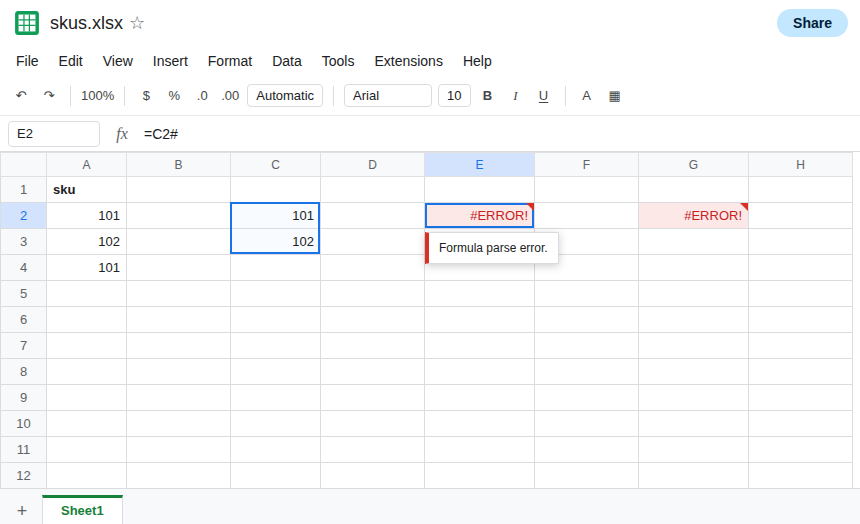
Sheets side, if you have no Excel file. In a blank sheet, A2 101, A3 102, A4 101. In C2 enter =UNIQUE(A2:A4). C2 spills. In E2 enter =C2#. E2 is #ERROR! with Formula parse error, or another refusal of the hash. The spill in C2 still works. The hash is the only problem. Leave E2 broken.
SUM(C2#) and INDEX of a hash fail the same way. The operator is not legal in the formula language here. Typing a backtick or a sheet name will not stand in for it.
What is actually wrong
Section titled “What is actually wrong”- Excel stores “everything this anchor spilled” as one reference. Sheets has no such operator. The importer can drop the formula, keep the hash as text the parser rejects, or turn the reference into
#REF!. None of those keep a live link to the spill. - A working Sheets spill does not need the hash. The anchor formula is the spill. Cells under it have an empty formula bar on purpose. Putting
C2#in another cell is how you point at the block in Excel. Here you point at it by writing the formula you need, or by naming a range you know is big enough. - The hash is not the
#N/Aerror token and not the#REF!token inside a formula. Those tokens are the result. The character inC2#is syntax. See what #N/A means only when the bar shows a realNAresult with no hash operator. - Locale does not make
#legal. Semicolons repair argument commas. They do not repair a spill operator. See locale parse error if the bar has no hash and the tooltip is still Formula parse error.
Leave E2 as the hash formula so the broken operator stays visible.
Point at a Sheets spill, or at an explicit range. Clear G5:G8. In G5 enter =UNIQUE(A2:A4). G5 spills the current skus. Change A2 and G5 follows. In I5 enter =COUNTA(G5:G6) once you can see the spill occupies two cells, or =COUNTA(G5:G8) if you want room for more unique values. I5 counts what is in that range. It does not use #.
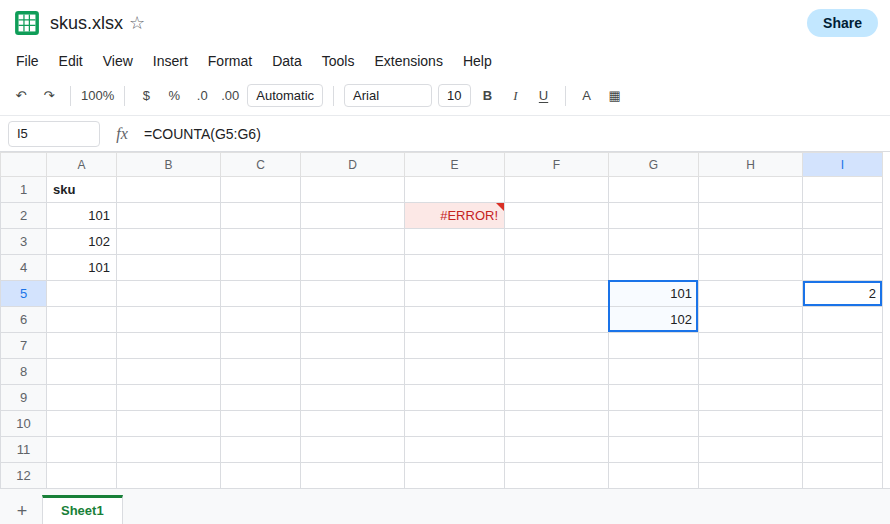
If the anchor already spills in Sheets, delete the hash cell’s formula and use the anchor. Do not add ARRAYFORMULA around C2#. The hash is still illegal inside the wrapper.
If the bar is empty, you have values, not a reference to repair. Enter UNIQUE or FILTER again. See Excel spill to values.
If the formula bar contains # after an address, that reference is Excel’s spill operator. Replace it with the spilling formula or with a normal range. If the bar is empty, the hash is already gone and the block is a snapshot.