

Fix Formula parse error from curly quotes in Google Sheets
Updated
#ERROR! with the tooltip Formula parse error means Sheets could not read the formula as a formula. One common paste does that on a United States spreadsheet, where commas are already the right argument separator: the quote characters are not quotes. Google Docs, Word, and many web pages turn " into “ and ” (U+201C and U+201D) and turn ' into ’ (U+2019). They look like quotes in the formula bar. The parser does not treat them as string delimiters.
This page is those characters. It is not locale parse error (commas versus semicolons after a locale change). It is not unknown function. Keep the Google Sheets UI in English. For this recreate, File → Settings → Locale should be United States so a comma formula is otherwise legal.
Recreate it on a blank sheet
Section titled “Recreate it on a blank sheet”- Open a blank spreadsheet. Locale United States. In A1 type
region. In A2 typeEastwith straight quotes only if you type it by hand — the cell value is the five letters, no quotes stored.
Curly double quotes. In C1 type curly. In C2 paste this exactly, including the curved quotes:
=IF(A2=“East”,“yes”,“no”)
The cell shows #ERROR!. The tooltip is Formula parse error. IF is spelled correctly. The commas are legal on this locale. The characters around East, yes, and no are not the quote key on the keyboard. Leave C2 broken.
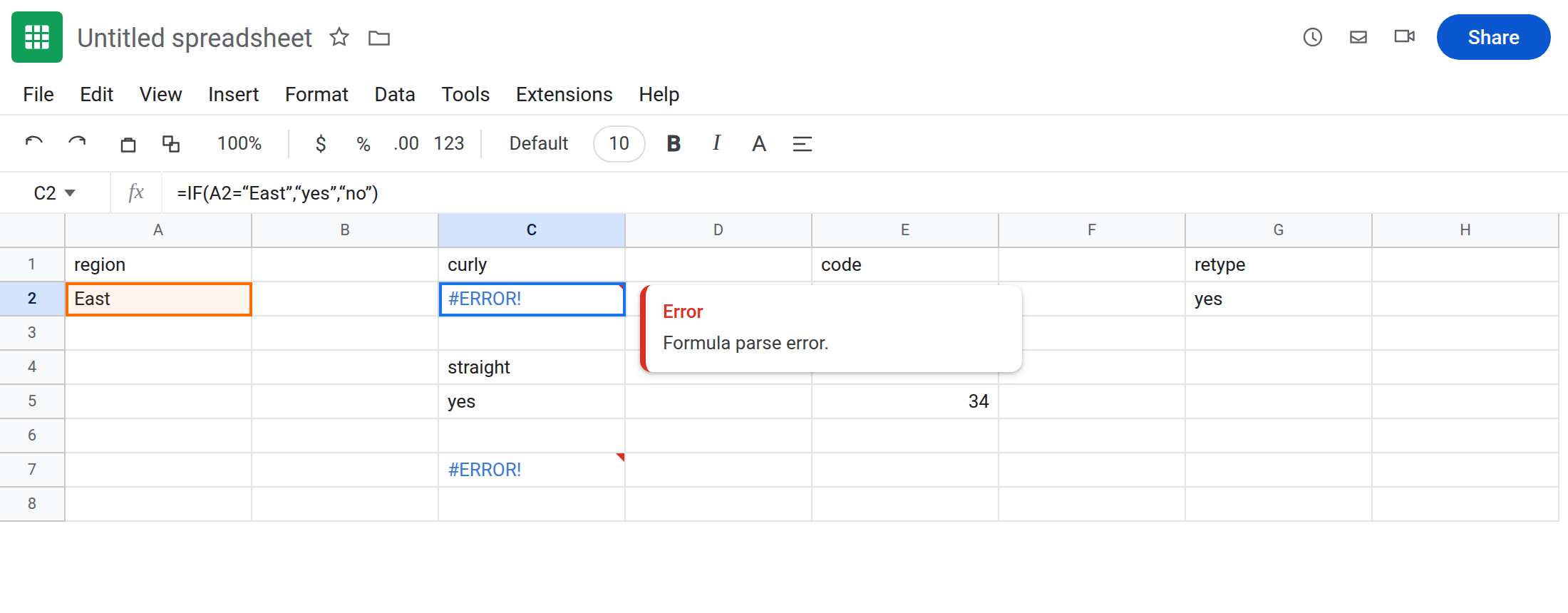
Straight quotes, same words. In C4 type straight. In C5 type =IF(A2="East","yes","no") from the keyboard. Do not paste from Docs. The cell shows yes. That row is the control.
A curly apostrophe. In C7 paste =IF(A2=‘East’,‘yes’,‘no’) using ‘ and ’, not '. #ERROR!, same tooltip. Single curly quotes are not apostrophe-text and not string delimiters. Leave C7 broken.
Prove the character, not the word. In E1 type code. Type a straight apostrophe in E2 so the cell is text, then paste the opening quote from C2 (the character before East). In E3 enter =CODE(E2). A curly double quote is 8220 (the closing one is 8221). In E4 type a keyboard " as text the same way. =CODE(E4) is 34. Same job in the formula, different characters. 8220 will not open a string.
Leave C2 and C7 broken. Leave C5 as yes.
What is actually wrong
Section titled “What is actually wrong”- A Sheets string starts and ends with the character
"(code 34).“(8220) and”(8221) are punctuation. The parser hits“East”and never sees a string, so the whole formula is#ERROR!. It does not get as far as comparing A2. ‘(8216) and’(8217) are not'. A leading keyboard apostrophe makes a cell into text. A curly apostrophe does not. Inside a formula it is not a quote either.- Docs and Word “smart quotes” are a typing feature. Copying a formula out of a paragraph turns every straight quote into a curly one, including quotes you cannot see as different at a glance. The formula bar uses the same font for both.
- Locale is innocent on this sheet. United States uses commas between arguments, and C2 has commas. Switching to Germany would add a second parse problem (semicolons) and hide this one. See locale parse error. Fix the quotes first, on the locale you actually use.
QUERYstrings use single quotes inside a double-quoted query. Those single quotes must also be the keyboard character. A curly‘Widget’inside an otherwise validQUERYcan be a different failure (the query language, not this#ERROR!). If the tooltip is Formula parse error, you have not entered the query yet.
This is not #NAME?. Unknown function means the name is not a function. See unknown function. IF is valid. The tooltip is Formula parse error.
This is not #VALUE! from TEXT or from 10 + pcs. See wrong type. The formula did not run.
This is not an array-literal separator. {A2,B2} versus {A2\B2} is array literal locale. C2 has no braces.
Leave C2 and C7 broken so the curly formulas stay visible. Leave C5 as yes.
Retype the quotes. In G2 enter =IF(A2="East","yes","no") from the keyboard. The cell shows yes. Do not “fix” C2 by changing locale.
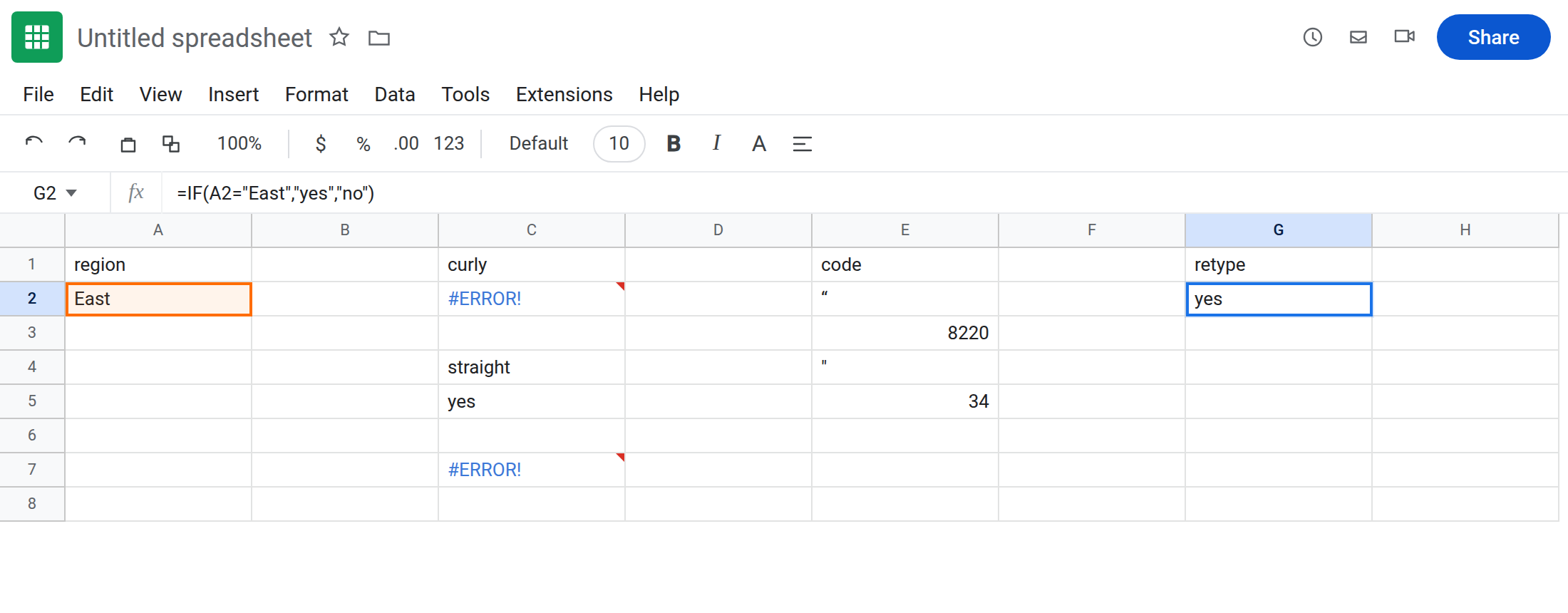
Replace in bulk. Edit → Find and replace. Find “ and replace with ". Then find ” and replace with ". Then ‘ and ’ with '. Check “Also search within formulas.” A single find for " will not match the curly characters. After the replace, C2 should match C5 if those were the only illegal characters.
Paste path. If the formula lives in a Doc, turn off smart quotes there (Tools → Preferences in Docs, “Use smart quotes”) before you copy. Pasting into Sheets does not convert curly quotes back.
Do not wrap #ERROR! in IFERROR. The cell is not a value IFERROR can replace until the formula parses. See IFERROR vs IFNA.
If the tooltip is Formula parse error and the locale already matches the commas you typed, look at the quotes. CODE of 8220, 8221, 8216, or 8217 means the paste is still curly. 34 is the quote Sheets will parse.