

Apps Script custom functions: #NAME?, Loading, and the time limit
Updated
A custom function is a JavaScript function in Extensions → Apps Script on this spreadsheet. After you save, =DOUBLE(4) can return 8. Before you save, or under a different name, the cell is #NAME?. While the script runs, the cell shows Loading…. If it runs too long, it stops. Those are three different states. None of them is Data → Named functions.
Named functions are Named functions. A misspelled built-in (VLOKUP) is unknown function. AI and Gemini as names are reserved when that feature exists. See AI() or Gemini().
Recreate it on a blank sheet
Section titled “Recreate it on a blank sheet”- Open a blank spreadsheet. Keep the Google Sheets UI in English. Extensions → Apps Script. Replace the sample with this function. The name is
DOUBLE, all capitals to match the formula you will type. Apps Script names are matched without case sensitivity, but a typo is still a different name.
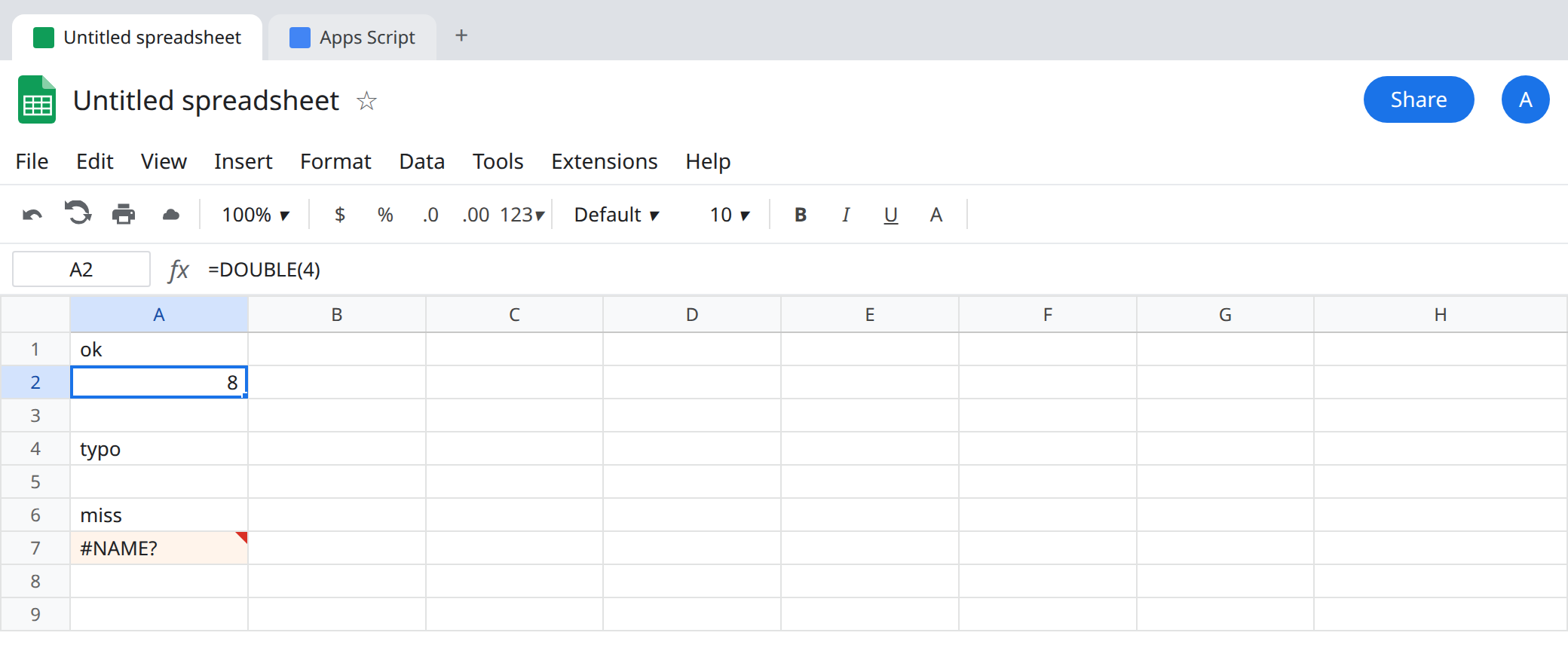
function DOUBLE(n) { return n * 2;}Save the project (the disk icon, or Ctrl+S / Cmd+S). Return to the sheet. In A1 type ok. In A2 enter =DOUBLE(4). After a brief Loading…, the cell shows 8. That Loading… text is normal. It is not a hung sheet. Reload if it never leaves Loading… on this trivial function; a thirty-second multiply means the script did not save or the runtime never started.
Unsaved or wrong name. In the script editor, change the function name to DOUBLEIT and do not save yet. In A4 type typo. In A5 enter =DOUBLEIT(4). The cell shows #NAME?. The tooltip is Unknown function: ‘DOUBLEIT’. The old saved name may still be DOUBLE, so A2 can stay 8 while A5 is #NAME?. If you never saved DOUBLE in the first place, A2 is #NAME? too, tooltip Unknown function: ‘DOUBLE’. Leave A5 broken.
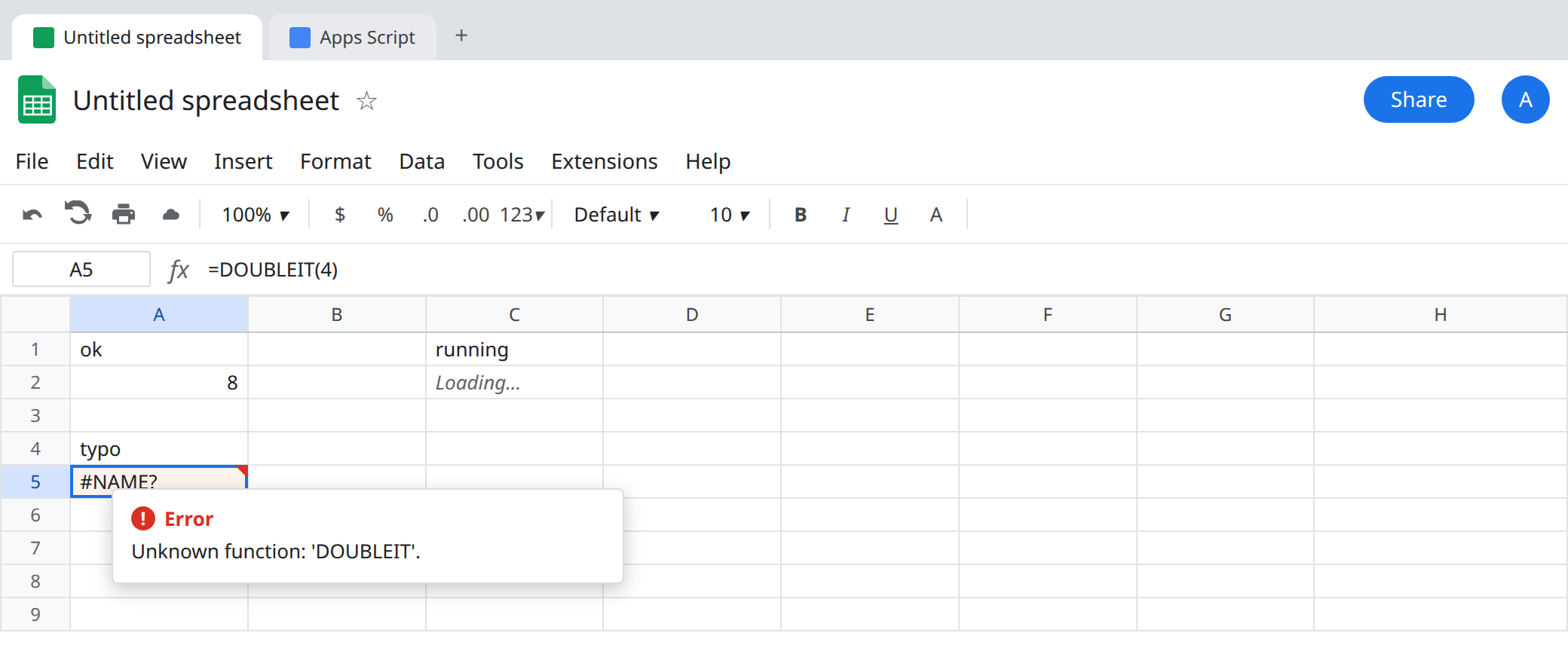
Save after renaming to DOUBLEIT. A5 can then leave #NAME? and show 8. Change it back, or keep both names in the script, so you still have a #NAME? example: in A7 enter =DUBBLE(4). Unknown function: ‘DUBBLE’. Leave A7 broken.
Timeout. A custom function has a hard limit on how long it may run (Google documents about 30 seconds). A loop written to burn that long ends in an error that the execution exceeded the maximum time, not in #NAME? and not in a permanent Loading…. Do not paste a tight infinite loop into a shared sheet to watch it. The lesson is the label: if the cell tried to run and then failed with a time message, the name exists. Saving again will not raise the limit. Return a value sooner, or move the work to a menu function that writes cells.
Not a named function. Data → Named functions is a different list. A name that exists only there is not DOUBLE in Apps Script, and the reverse is also true. An arity error on a named function is #N/A on that other page, not Unknown function.
What is actually wrong
Section titled “What is actually wrong”- The script is bound to this file. A copy of the formula into a new spreadsheet does not copy the script unless you copied the container or moved the project.
#NAME?on the new file means the function is not defined there. - Save is part of the definition. An unsaved editor buffer is invisible to the sheet. A5 before the save is the same tooltip as a misspelled built-in. The repair is not in the formula bar.
Loading…means Sheets has called the function and is waiting. Import functions use the same word. See IMPORTRANGE loading only to avoid mixing the two: a custom function does not need Allow access. It needs a saved script.- Custom functions return a value. They do not rename tabs, show
getUi()dialogs, or write a second range as a side effect. A menu item (a function you run from a custom menu, not from a cell) can do that work. If you callSpreadsheetAppservices that need permission, the first run asks you to authorize. That dialog is not#NAME?. Dismissing it without granting leaves the cell failed. - The return value must be a string, a number, a boolean, or a two-dimensional array of those. A Date object comes back as a Sheets date if you return something Sheets can coerce; a raw object you invented comes back as a failed call. Start with
return n * 2until A2 is8. - Recalculation runs the script again. A function that calls a paid API will call it on every edit that dirties the cell.
Loading…on every keystroke is that design, not a broken name. - Do not name the function
AIorGeminiif your account has the built-in. The built-in takes the name. See AI() or Gemini().
Leave A7 as #NAME?.
Save the name you call. The script contains function DOUBLE(n), the project is saved, and the cell is =DOUBLE(4). A2 is the control.
Loading that never ends, or a time error. Shrink the work. Return a value. Do not raise the limit from inside the sheet; the limit is the platform’s. Split a long job into a script you run from a menu and write results with setValues, which is not a custom function.
Wrong product. If you built the formula under Data → Named functions, debug it on Named functions. Do not look for it in Apps Script.
Do not wrap A7 in IFERROR. You would hide a missing script and return a blank double. See IFERROR vs IFNA.
If the tooltip says Unknown function, the saved project does not contain that name. If the cell says Loading… and then a time error, the name is real and the function ran too long.