

A named function that calls IMPORTRANGE hides the Allow access prompt
Updated
IMPORTRANGE asks you to connect two spreadsheets the first time a file pulls from another. That prompt is Allow access, on the cell that contains the function. A named function (Data → Named functions) whose body is IMPORTRANGE does not show that button reliably. The cell is #REF!. The tooltip may still talk about permissions or about connecting sheets, and there is nothing to click on the result of =PULL(id). Access is granted to the destination spreadsheet for that source, for the account that clicks. A name wrapped around the call does not grant it, and it does not copy a grant into a second file.
The click itself, on a direct formula, is IMPORTRANGE access. A grant that was later removed is IMPORTRANGE revoked. Named-function arity and placeholders are named functions. Keep the Google Sheets UI in English. Sheet Error is an independent formula-error library, not a Google product.
Recreate it on a blank sheet
Section titled “Recreate it on a blank sheet”- You need two spreadsheets you can open, and a network. This page cannot click Allow access for you. If the source is not shared with the account you are using, no formula will connect. Stop there. Sharing is the block.
The source. In the first file, leave the tab named Sheet1. In A1 type sku, B1 name. A2 101, B2 Widget. Copy the spreadsheet id from the URL: the long string between /d/ and /edit.
A direct call, so you can see the real prompt. In the second file, in A1 enter =IMPORTRANGE("SOURCE_ID","Sheet1!A1:B2") with that id. A1 is #REF! until this pair is connected. The tooltip includes You need to connect these sheets, and the cell offers Allow access. Do not click it yet if you want to see the named-function gap first. If A1 already spilled 101 / Widget, this destination was connected earlier. Use a third blank spreadsheet as the destination so the prompt still exists. Leave the unconnected A1 as #REF! with the button, or note that the button already happened.
The same call inside a named function. Data → Named functions → Add new function. Name PULL_SKU. One argument placeholder: sid. Formula definition: =IMPORTRANGE(sid,"Sheet1!A1:B2"). Next, and Create. The placeholder is sid, not a cell address. See named functions if the editor rejects the name.
In C1 type named. In C2 enter =PULL_SKU("SOURCE_ID") with the same id. C2 is #REF!. Look for Allow access on C2. It is not there the way it is on a direct IMPORTRANGE, or the cell stays on #REF! with a permission tooltip and no button that completes the connect. The definition in the sidebar is not a second grant. Leave C2 broken.
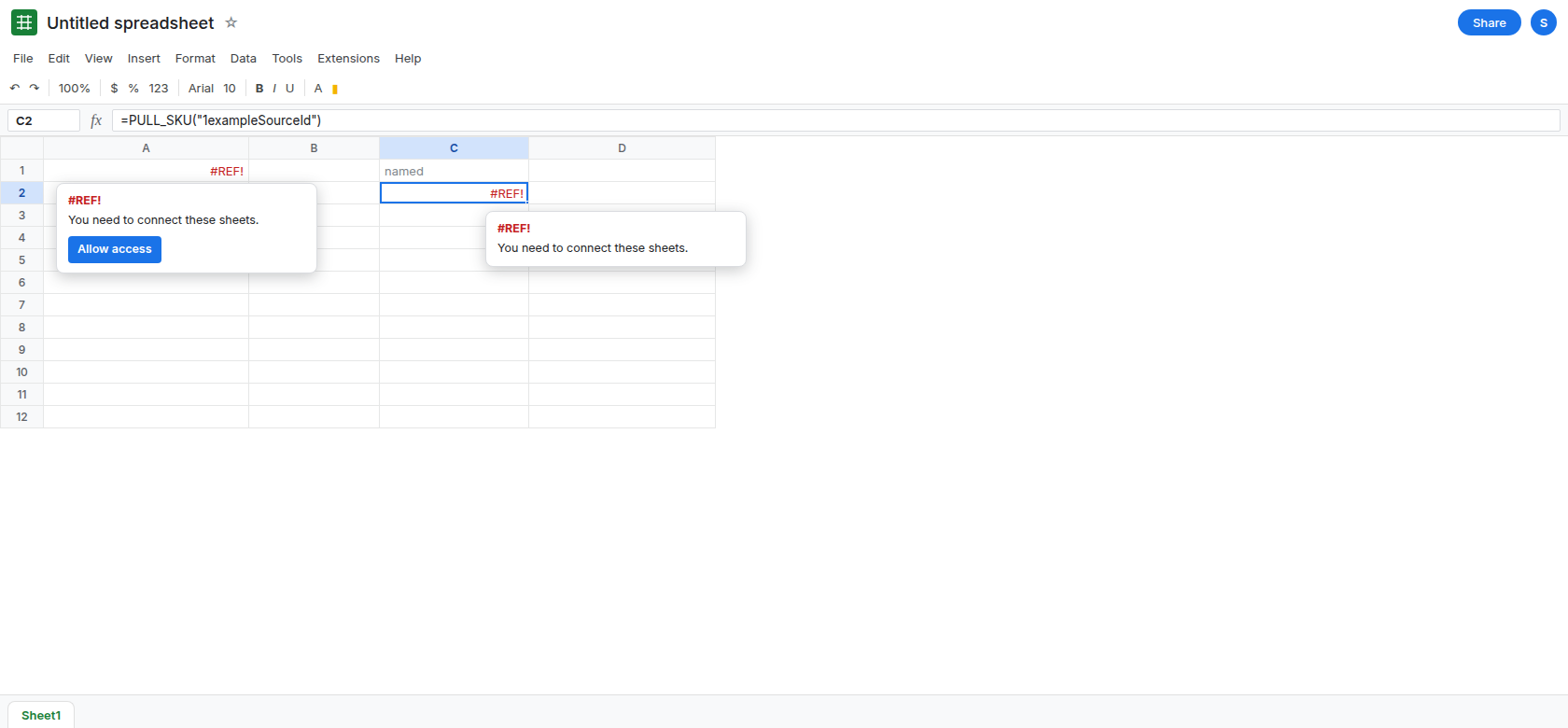
A wrong tab is a different #REF! after you are connected. That case is the second half of IMPORTRANGE access. Do not “fix” C2 by renaming Sheet1 until a direct formula has spilled.
What is actually wrong
Section titled “What is actually wrong”- Allow access is a grant from this destination file to that source file, for this Google account. The UI attaches the button to a cell whose formula is
IMPORTRANGE. A named function evaluatesIMPORTRANGEinside the definition. C2’s formula text isPULL_SKU. The button does not follow the name. - Clicking nothing on C2 does not store a grant. Opening Data → Named functions and reading the body does not store one either. The source id inside
sidcan be correct and C2 stays#REF!. - Importing the named function into another spreadsheet imports the formula, not the permission. Each destination needs its own connect, by an account that can read the source. A viewer who cannot open the source will not get a working
PULL_SKUafter you connected it on your account. See IMPORTRANGE access. - After a real connect, a bad range string is still
#REF!, with no second Allow access. See IMPORTRANGE tab rename. C2’s missing button is this page. A missing tab is that one.
This is not IMPORTRANGE too large and not IMPORTRANGE cell limit. Those tooltips name size. C2 has not pulled a grid yet.
Leave C2 as #REF! until a direct call has connected. Do not delete the source.
Connect with a direct formula, then call the name. On a scratch cell, enter =IMPORTRANGE("SOURCE_ID","Sheet1!A1:B2"). If Allow access appears, click it once. When that cell spills 101 and Widget, the destination is connected to this source. Go back to C2 and let it recalculate. If the id and the range match, C2 can then spill the same two columns. If it stays #REF! and the tooltip names the range, the string inside the named function does not match the tab. Fix the definition. If it stays #REF! and the tooltip still says you need to connect, the click did not apply to this file. Read which spreadsheet is on screen.
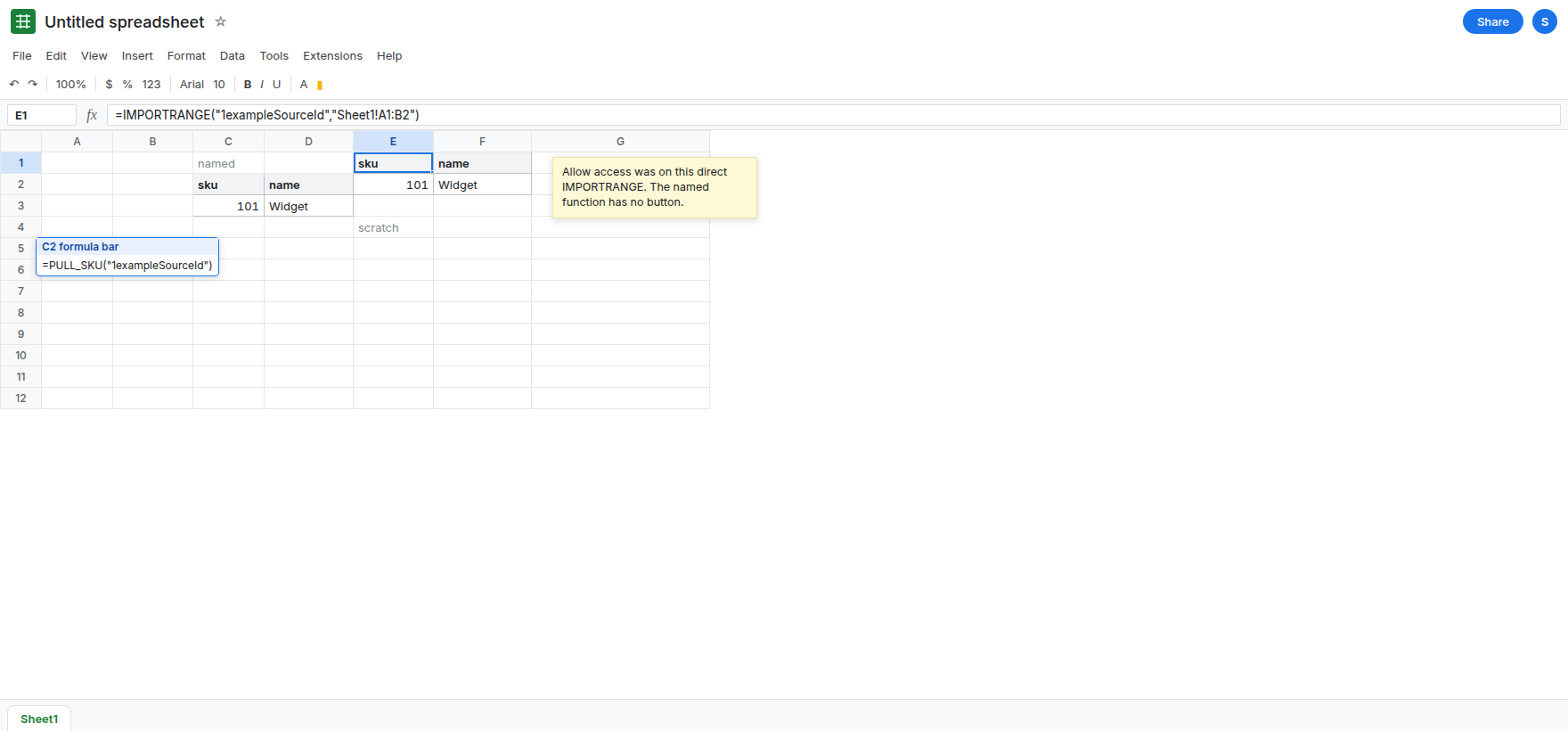
There is no guarantee C2 paints on the next edit. Sharing, a revoked grant, or a source you cannot open will leave #REF! after a perfect named function. This page will not pretend the wrapper creates access. Paste values if you needed a snapshot and the direct cell already spilled. The snapshot does not refresh.
Do not wrap C2 in IFERROR. You would hide a missing grant. See IFERROR vs IFNA.
If the button is on a direct IMPORTRANGE and missing on the named call, click the direct one. If the source is not shared with you, no name will import it. If a second spreadsheet imported PULL_SKU and never showed Allow access, put a direct IMPORTRANGE in that second file and connect it there.