

AI() or Gemini() is unavailable or #NAME? in Google Sheets
Updated
=AI() and =Gemini() are the same Sheets function under two names. On an account that does not have it, the cell is #NAME? or a message that the AI function is not available. That is an account, plan, admin, language, or region limit. It is not a typo you can fix by rewriting the prompt, and it is not proof the function will run on the next sheet you open.
Sheet Error is not a Google product. This page will not show a generated sentence as a successful control. A slogan in someone else’s screenshot does not mean your file can call the model.
Recreate it on a blank sheet
Section titled “Recreate it on a blank sheet”- Open a blank spreadsheet in the account you actually use. File → Settings → Locale can stay United States. Keep the Google Sheets UI in English. In A1 type
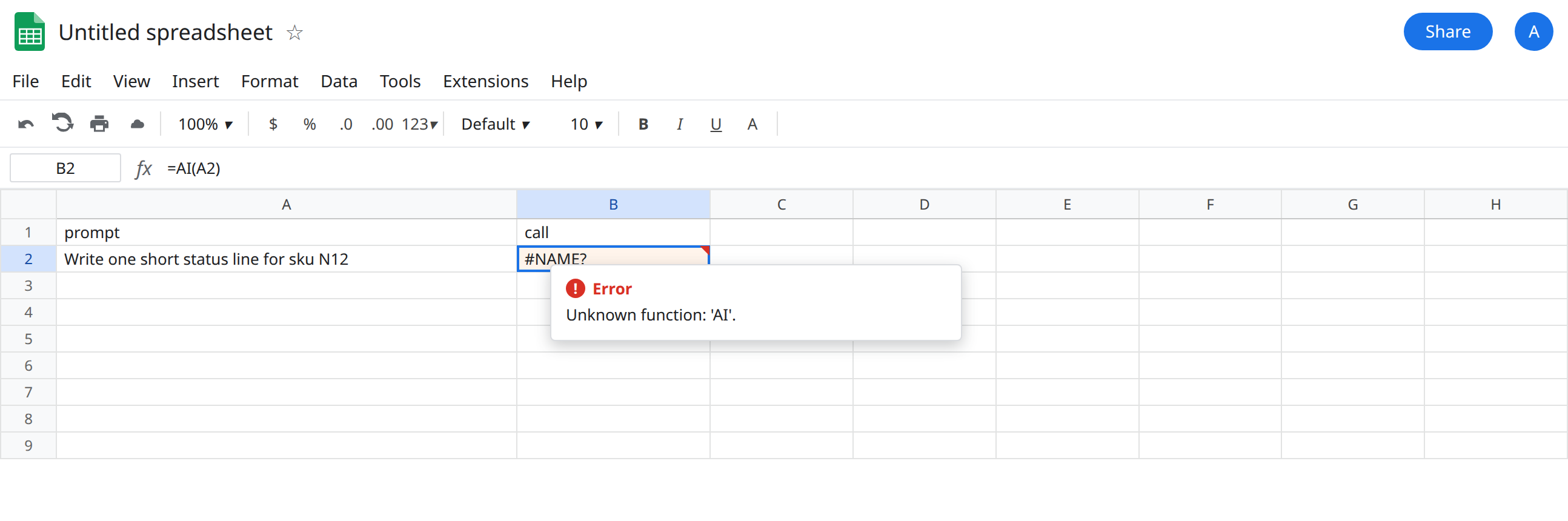
prompt. In A2 typeWrite one short status line for sku N12. In B1 typecall.
The call. In B2 enter =AI(A2). If your build only accepts Gemini, enter =Gemini(A2) in B3 instead of deleting B2. Leave both. One of three things happens. None of them is “the function works for every reader of this page.”
Name unknown. The cell shows #NAME?. The tooltip is Unknown function: ‘AI’ or Unknown function: ‘GEMINI’. Sheets does not have that name on this account. The prompt in A2 is fine. Leave the cell broken.
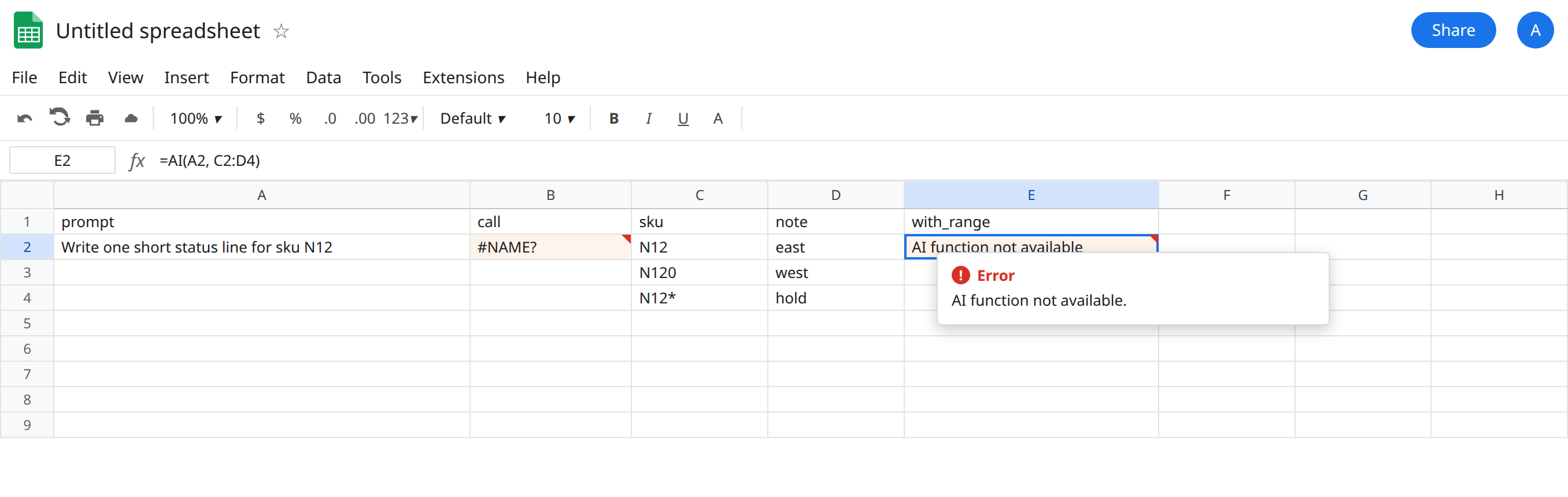
Function named, access blocked. The cell does not calculate a paragraph. Google’s own message for this state is AI function not available. Help text ties that message to Workspace Experiments, a plan that includes the feature, an admin switch, the spreadsheet language, or access that ended after you left an experiment. Leave that cell as the message. Do not paste a fake answer next to it.
A third-party file host. If this spreadsheet was opened through Box, Dropbox, or Egnyte, the AI function is not available in that session even when the same Google account can use it in a normal Drive file. That is a host limit, not a bad prompt.
Do not add =AI("Write a slogan") and treat a paragraph as the lesson. If your account does return text, that result is for your plan and region only. Do not copy it into a tutorial, a support reply, or a sheet you share as “the working formula.”
What is actually wrong
Section titled “What is actually wrong”- Two names, one feature.
AIandGeminicall the same function when the feature exists. A custom Apps Script function that you also namedAIorGeminiis remapped to the built-in when the built-in exists. Your script does not win that name. See Apps Script custom function for a function you define yourself under a different name. - Availability is not universal. Google has documented the feature for eligible Workspace or Google AI plans, and at least one help page limits the current rollout to English in the United States. Another page points at Workspace Experiments, AI Ultra, and AI Pro. An admin can turn the feature off for the domain. The spreadsheet language setting can block it. Leaving an experiment removes it. This page will not rank those gates or tell you which one you failed. Read the message on your cell.
#NAME?means the name is not on this account. It is the same family as unknown function (VLOKUP). Spelling=AI()correctly does not create the function.- “AI function not available” means the name may exist and this file still cannot run it. Rewriting the prompt does not change plan, region, language, or admin policy.
- The function does not see the whole spreadsheet. You pass a range as an argument. It returns text, not a live number format, not a chart, and not an edit to other cells.
- Nesting it inside
IF,ARRAYFORMULA, or another function is unsupported. A#VALUE!or a refused call in that shape is the nesting, not a second account bug. - Opening the file from Box, Dropbox, or Egnyte blocks the call. Copying the formula into a normal Google Sheet is the test. Staying inside the third-party host is not.
Nothing on this page grants access. If a colleague’s sheet shows a paragraph and yours shows #NAME?, you do not have the same feature. Do not promise a client that =AI(A2) will fill their column.
Leave B2 (and B3 if you added it) broken so the failure stays visible.
Confirm the gate before you edit the prompt. Check, in this order, only what you can actually see: the tooltip or the “AI function not available” text; whether this file lives in Drive or in Box, Dropbox, or Egnyte; File language and your Workspace admin’s Gemini / Sheets AI setting; whether the account is on a plan Google lists for the feature. If the help page you open says United States and English only, treat a sheet outside that as out of scope. Do not change A2 until the cell is allowed to run.
When it is allowed, pass the cells you mean. =AI(A2, C2:D4) gives the model the prompt and that range. It still does not grant access to every tab. Keep the call in its own cell. Do not wrap it in IF.
Do not hide it. =IFERROR(AI(A2),"") turns “not available” into a blank status column. The blank looks like a sku with no note. See IFERROR vs IFNA. IFNA does not even cover every failure mode here.
Need a value without this feature? Write the status yourself, or use a normal formula. A missing AI name will not start working because you renamed the tab.
If B2 is #NAME?, this account does not expose AI / Gemini. If the cell says the AI function is not available, the name is not enough: plan, admin, language, region, experiment, or the file host is blocking the call. Neither outcome means the prompt was wrong, and neither outcome is a promise for the next reader.