

A circular formula looks finished once iteration is on, and the arrows do not mean it converged
Updated
A circular formula refers to itself. While iterative calculation is off, the cell is #REF! and the tooltip says Circular dependency detected. Turn the setting on and the triangle can go away. A number sits in the cell and stops moving. That stillness is the iteration limit or the threshold, not proof the loop was a finished total. Excel’s formula auditor can draw arrows that loop back onto the same cells while that number looks calm. People describe those arrows as green or blue, depending on the Excel build. Google Sheets does not draw them. There is no tracer command to turn on. The mask here is quieter: a stable value, a formula bar that still names its own cell, and File → Settings → Calculation with iterative calculation enabled.
Sheet Error is not Microsoft and not Google. Keep the Google Sheets UI in English. An intentional loop that stays #REF! because the max is 1 is iterative calc cap. An accidental SUM of a range that includes itself, which you should not iterate, is circular dependency.
Recreate it on a blank sheet
Section titled “Recreate it on a blank sheet”- Open a blank spreadsheet. In A1 enter
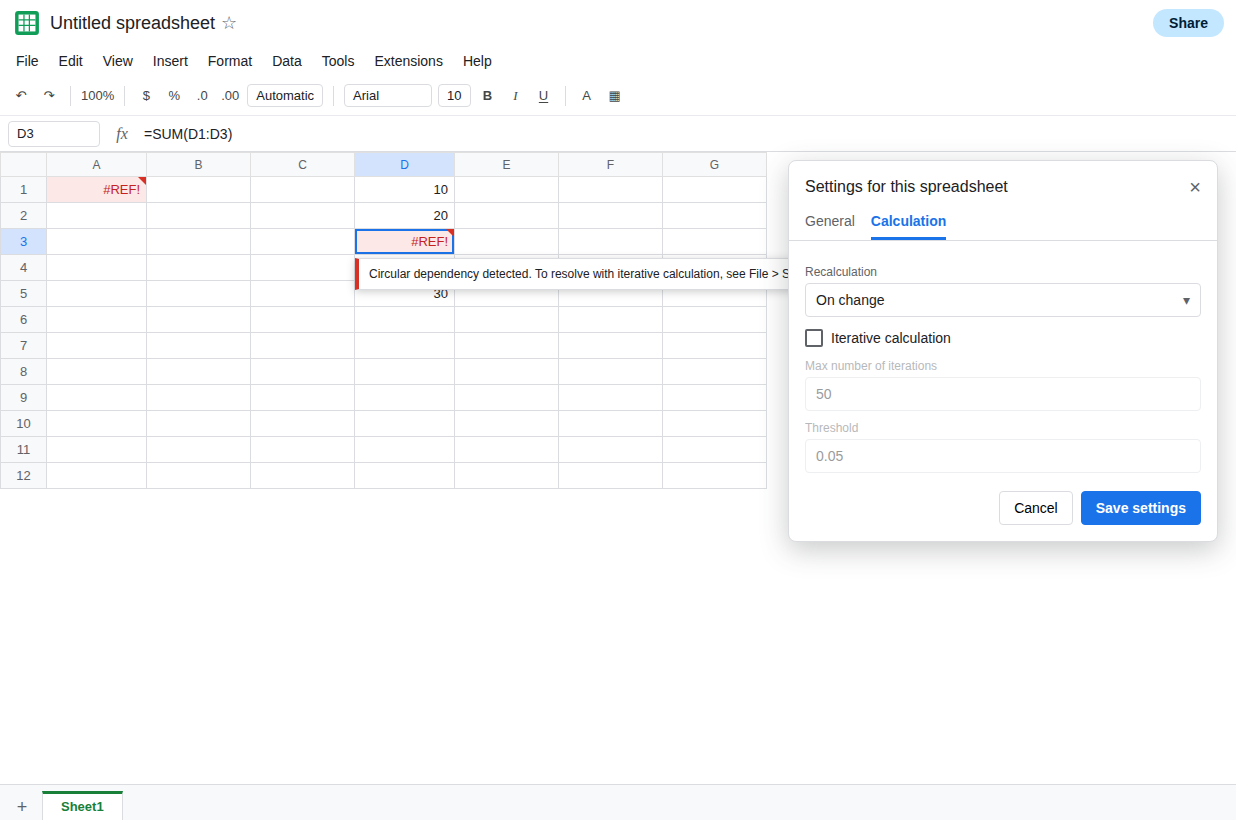
=A1+1. The cell shows#REF!. The tooltip points at File > Settings. The formula bar still says=A1+1. Leave the error up for this step so you know the loop is real.
Let it run, and watch it stop. File → Settings → Calculation. Turn Iterative calculation on. Set Max number of iterations to 50. Set Threshold to 0.05. Save settings. Select A1 and press Enter. A1 shows a number. It is not #REF!. Edit an empty cell, B1, type x, and delete it. A1 does not keep climbing on every casual edit the way an unlimited counter would. It sits on the value iteration produced, often 50 if it started from nothing and added one on each pass, or another stable integer if the seed differed. The number looks done. The formula is still =A1+1. There is no arrow on the cell. Leave A1 as that stable loop.
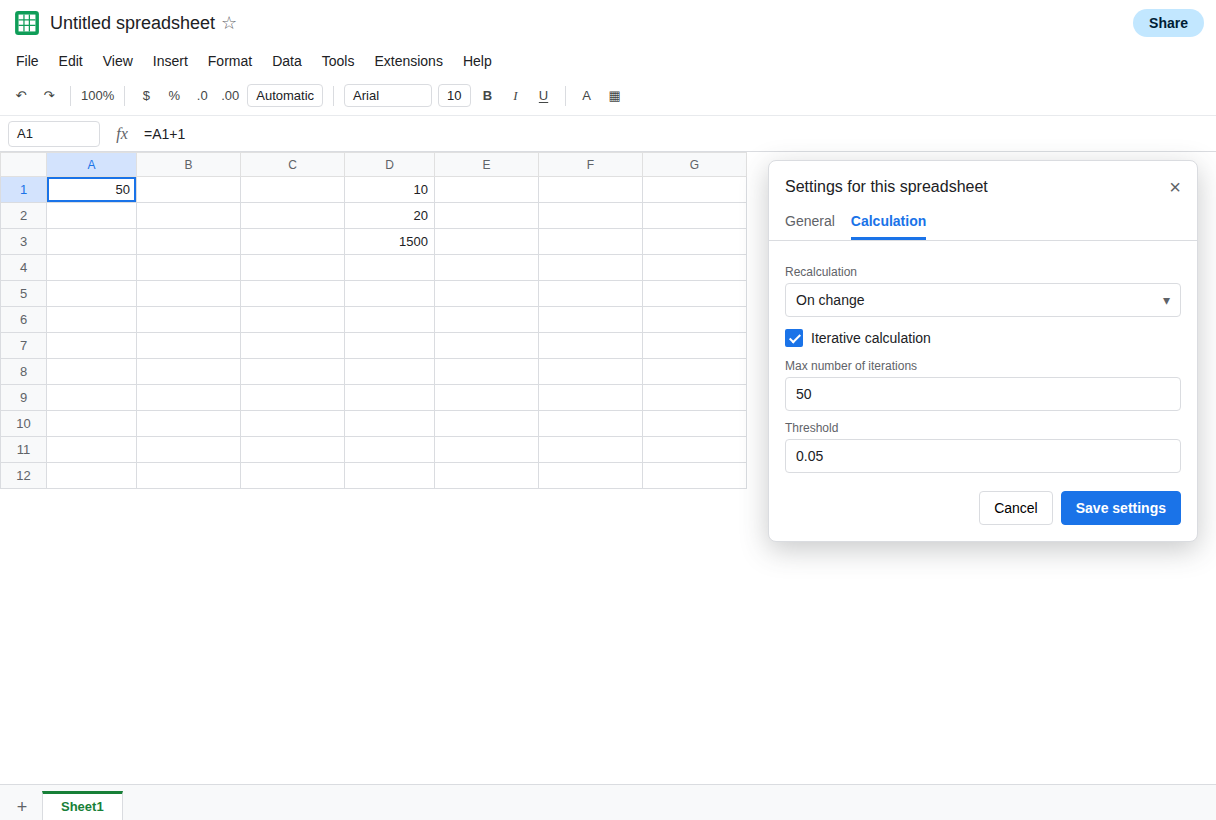
The accidental total looks stable too. In D1 type 10. In D2 type 20. In D3 enter =SUM(D1:D3). With iteration on, D3 shows a number. It is not 30. It stopped because the cap or the threshold stopped it. The status area does not draw a green loop back to D3. The formula bar is the only diagram you get. Leave D3 as that number. It is a masked bug, not a total.
What Excel would have drawn. If this workbook started in Excel, Formulas → Trace Precedents on a circular cell draws arrows, and the status bar can still name a circular reference while the cell shows a value. Those arrows mean “this formula is in its own chain.” They do not mean the value converged to the business total. Sheets will not import the arrows. It imports the formula and, if iteration is on, the quiet number. Do not search the Sheets menus for the arrows. They are not there.
What is actually wrong
Section titled “What is actually wrong”- Iteration replays the formula until the change is smaller than the threshold or the max count is hit.
=A1+1never settles. It stops because the max ran out. The cell looks stable because the next edit does not always budget another 50 additions. Stability is the setting, not the algebra. =SUM(D1:D3)in D3 includes D3. Each pass adds the block again. The number is not10+20. Turning iteration on hid the#REF!the circular-dependency page tells you to keep visible for this kind of mistake.- Sheets has no green circular-arrow overlay. A missing arrow is not a clean bill of health. Read the formula bar. If the cell’s own address appears in its formula, or the range contains the formula cell, the loop is still there.
- The setting is per file. A copy can come in with iteration already on, values already filled, and no tooltip. File → Settings → Calculation is the check. See iterative calc cap if the cell is still
#REF!after you thought you enabled it. A max of1never reaches this “stable” picture. - Threshold can stop a model that really does converge, one step early. That page is the cap and the threshold. This page is the display that makes a bad loop look finished.
This is not a deleted-cell #REF!. The bar does not contain the #REF! token. See after you delete.
Leave A1 as =A1+1 with iteration on, so the stable non-total stays visible. Turn iteration off only after you have decided which loops were intentional.
An accidental SUM is a shorter range, with iteration off. File → Settings → Calculation. Turn Iterative calculation off. Save settings. D3 returns to #REF!, which is the honest state. In D5 enter =SUM(D1:D2). D5 is 30. D3 can stay broken as the lesson, or you can replace it with =SUM(D1:D2) once you have seen the #REF! come back.
An intentional loop stays on, and you test the fixed point. The model =(B1+8)/2 in B1 is supposed to become 8. Raise the max if it is stuck early. See iterative calc cap. =A1+1 has no fixed point. Do not raise the max to “finish” it. It will only sit on a larger integer.
Do not wrap D3 in IFERROR. You would hide the loop a second time. See IFERROR hides cause.
If the value sits still and the formula bar names its own cell, iteration is masking a circular reference. Sheets will not draw an arrow to confirm it. If the cell is #REF!, iteration is off or the cap never ran. If Excel showed looping arrows beside a calm number, those arrows meant the same thing: the formula is still circular.