

Fix VLOOKUP wildcard * and ? surprises in Google Sheets (partial match you did not want, or a literal asterisk in the key)
Updated
VLOOKUP with FALSE (exact match) still treats * and ? in the lookup value as wildcards. * means any run of characters (including none). ? means one character. A sku that looks like N12* is a pattern, not necessarily the row whose key displays N12*. A literal asterisk in the table is easy to miss for the same reason.
This page is wildcard exact-match. It is not VLOOKUP no match (number vs text, trailing space). It is not VLOOKUP wrong row (TRUE / omitted fourth argument on an unsorted list — no * required). Keep the Google Sheets UI in English.
Recreate it on a blank sheet
Section titled “Recreate it on a blank sheet”- Open a blank spreadsheet. In A1 type
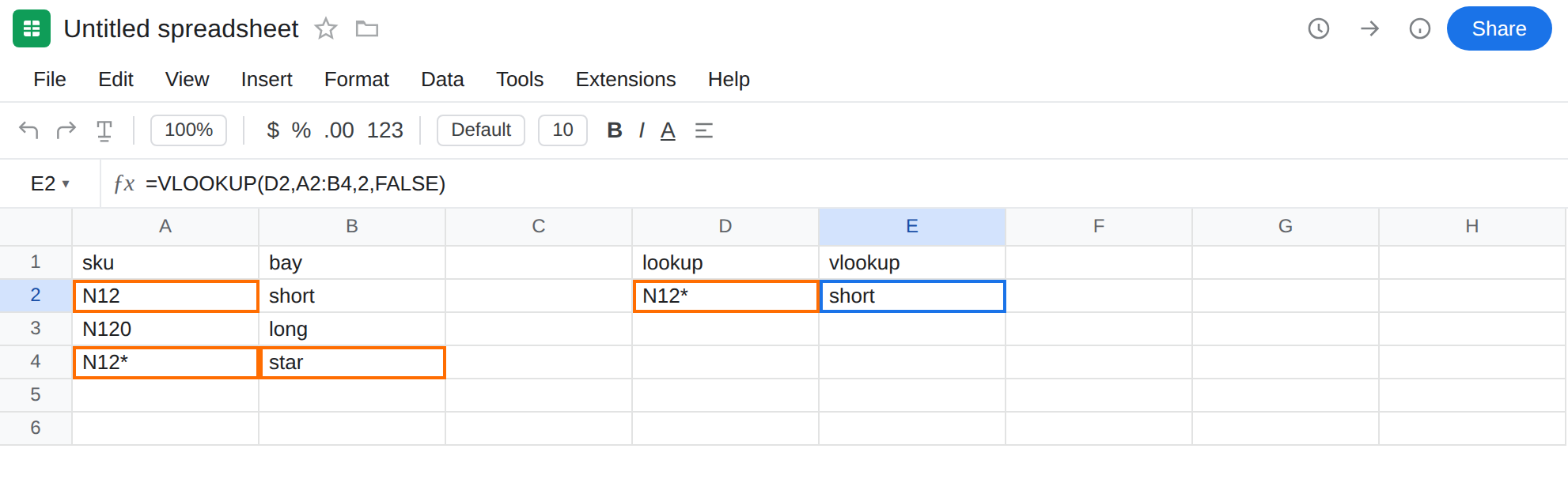
sku, B1bay. A2N12. B2short. A3N120. B3long. A4N12*. B4star. Row 4 is a literal asterisk in the sku. People type that when a part code really contains*.
Lookup of N12* hits the first pattern match, not the star row. In D1 type lookup. In D2 type N12* (no apostrophe needed; it is text). In E1 type vlookup. In E2 enter =VLOOKUP(D2,A2:B4,2,FALSE). The cell shows short, not star. FALSE is on. There is no #N/A. N12* as a pattern means “N12 plus anything.” N12 matches (* may be empty). VLOOKUP returns the first hit. A2 wins. Leave E2 as short.
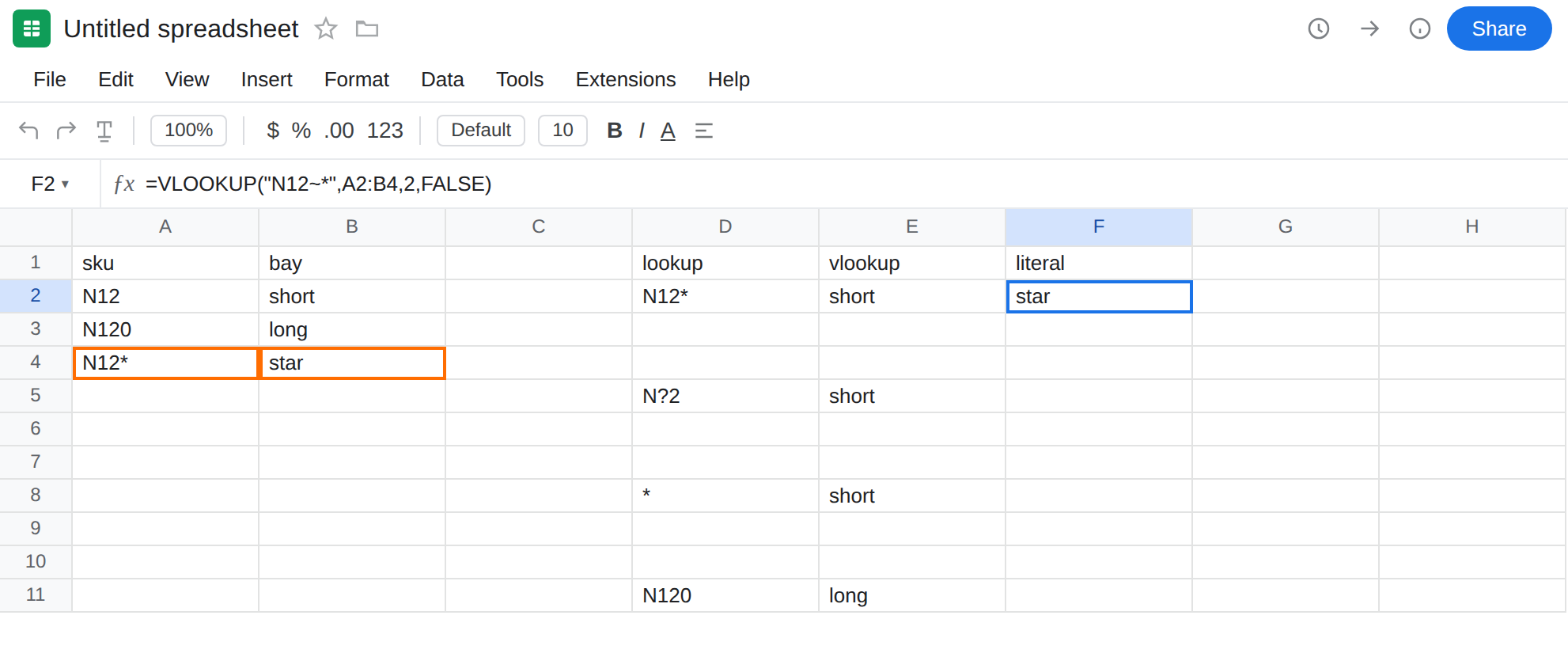
? is one character. In D5 type N?2. In E5 enter =VLOOKUP(D5,A2:B4,2,FALSE). The cell shows short. N?2 matches N12 (one character between N and 2). It does not wait for a sku that is literally the three characters N, ?, 2. Leave E5 as short.
A lone * matches the first row. In D8 type *. In E8 enter =VLOOKUP(D8,A2:B4,2,FALSE). The cell shows short. Every sku matches *. First row wins. Leave E8 as short.
Control — no wildcards, exact sku. In D11 type N120. In E11 enter =VLOOKUP(D11,A2:B4,2,FALSE). The cell shows long. Same FALSE, no * or ? in the lookup value. That row is the control: exact match without pattern syntax.
TRUE contrast. E2 already has FALSE. A wrong bay without * and with TRUE (or a missing fourth argument) is VLOOKUP wrong row. Trailing-space #N/A is VLOOKUP no match. E2 is a hit.
Leave E2, E5, and E8 as the surprising hits. Leave E11 as long.
What is actually wrong
Section titled “What is actually wrong”- With
is_sorted=FALSE, Google Sheets still enables*and?in the search key. The table keys are not the pattern language unless they also contain those characters. The language applies to D2. N12*therefore means N12 + any suffix, including none. A2N12is a match. A3N120would also match, butVLOOKUPstops at the first row. A4N12*is also a match to the pattern, and it never gets a turn.- To treat
*or?as literal characters in the lookup value, escape with a tilde:~*and~?.~~is a literal tilde. #N/Ais not required for this bug. The dangerous case is a quiet wrong bay: E2 looks successful.
This is not number vs text or a trailing space. See VLOOKUP no match. Widget-style misses are #N/A. E2 is short.
This is not approximate match. The fourth argument is FALSE. See VLOOKUP wrong row. Omitting the fourth argument is TRUE and a different wrong row.
This is not lookup-left. The search column is sku. See lookup left of the key.
This is not QUERY contains. contains 'N12' in QUERY is a different language. See QUERY contains / matches.
Leave E2, E5, and E8 as the wildcard hits so the surprise stays on the sheet.
Literal asterisk: escape it. In F1 type literal. In F2 enter =VLOOKUP("N12~*",A2:B4,2,FALSE). The cell shows star. For a cell: =VLOOKUP(SUBSTITUTE(SUBSTITUTE(D2,"~","~~"),"*","~*"),A2:B4,2,FALSE) is the thorough escape (tilde first, then *, and add ? → ~? if needed). If D2 is always a literal sku from a scan, escape. If D2 is meant as a pattern, do not escape — but then do not store a sku that looks like the pattern in the same column and expect A4 to win.
No pattern: keep * out of the lookup value. Look up N12 or N120 as in D11. Do not type N12* as a “starts with” shortcut unless you want every N12… row, first match only.
XLOOKUP exact does not use * as a wildcard in the default match mode. In F5 enter =XLOOKUP(D2,A2:A4,B2:B4). Default exact match looks for the key N12* as characters. On this table that is star (A4). Wildcard mode is a separate XLOOKUP match_mode (2). See XLOOKUP vs VLOOKUP. Do not assume FALSE on VLOOKUP means “no patterns.”
Do not wrap E2 in IFNA. There was no miss. See IFERROR vs IFNA. Do not pass TRUE to “turn wildcards off.” TRUE is approximate match.
If VLOOKUP with FALSE returns a row you did not expect and the lookup cell contains * or ?, you have a pattern match. Escape for a literal code. For #N/A that still looks equal, use the spaces/types primer instead.
Wildcards vs TRUE vs spaces
Section titled “Wildcards vs TRUE vs spaces”Wildcards (FALSE, * / ? in the key). First pattern hit. This page. Escape with ~. XLOOKUP default exact is a way out if you can change functions.
Approximate (TRUE or omitted fourth argument). No star required. See VLOOKUP wrong row. Pass FALSE. Do not sort the sku column to make TRUE look right.
Types and spaces (FALSE, #N/A). '101 vs 101, apple vs apple. See VLOOKUP no match. LEN and ISNUMBER / ISTEXT. TRIM.