

IMPORTRANGE breaks when a named range is renamed or deleted
Updated
IMPORTRANGE(url, "DockPrices") imports whatever range that name points at on the source spreadsheet. Rename the named range, or delete it, and the destination cell is #REF!. The formula still says DockPrices. The source tab can keep the same cells, the same sheet name, and the same values. The string in the second argument is no longer a range Sheets can find.
This page is the name string. First-time access is IMPORTRANGE access. Access removed later is IMPORTRANGE permission revoked. A local named range that broke on this file is named range #REF! / #NAME?. Keep the Google Sheets UI in English.
Recreate it on a blank sheet
Section titled “Recreate it on a blank sheet”- Source spreadsheet: A1
sku, B1name, A2101, B2Widget, A3102, B3Gadget. Leave the tab namedSheet1. Select A1:B3. Data → Named ranges. Name itDockPrices. Create. Copy the spreadsheet id from the URL.
Import the name. Destination spreadsheet, A1: =IMPORTRANGE("SOURCE_ID","DockPrices"). Click Allow access if asked. The spill is the three-by-two block, headers included. That spill is the control. The second argument is the name, not Sheet1!A1:B3.
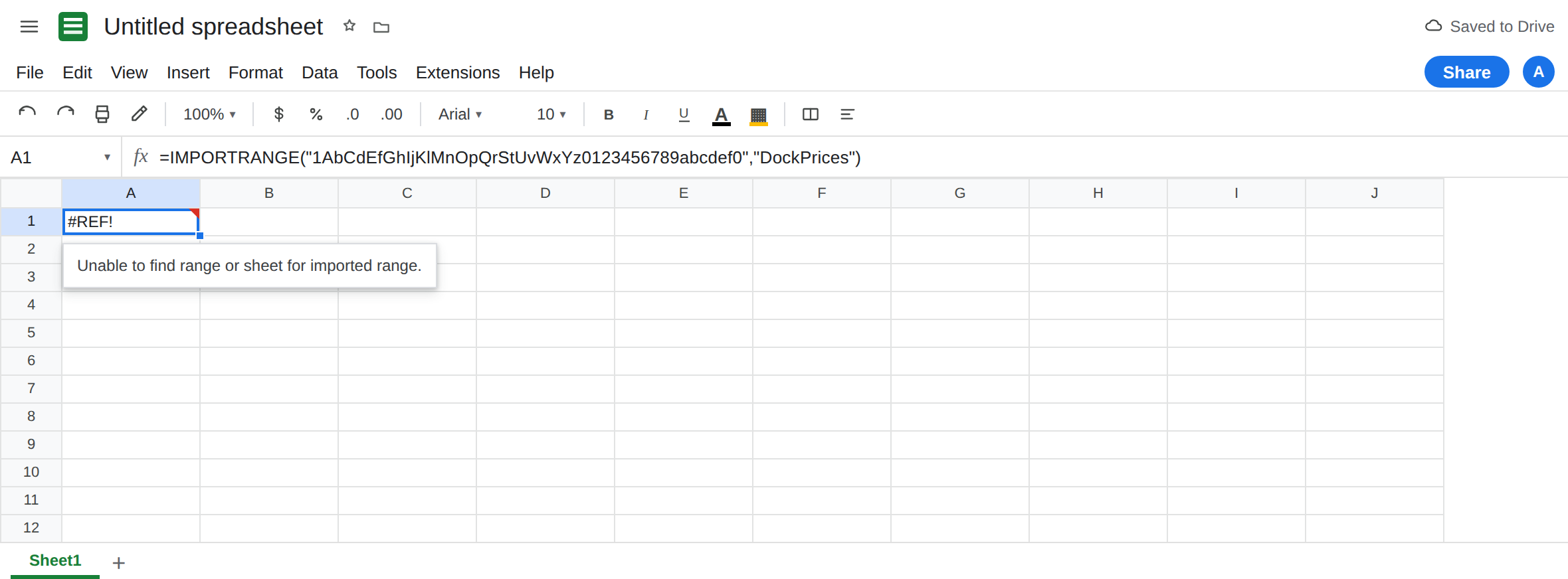
Rename the named range. On the source, Data → Named ranges, open DockPrices, change the name to PriceList. Done. Do not change any cells. Return to the destination and reload if it does not update. A1 is #REF!. The tooltip says the range cannot be found, or the imported range is invalid. The formula bar still shows "DockPrices". Leave A1 broken.
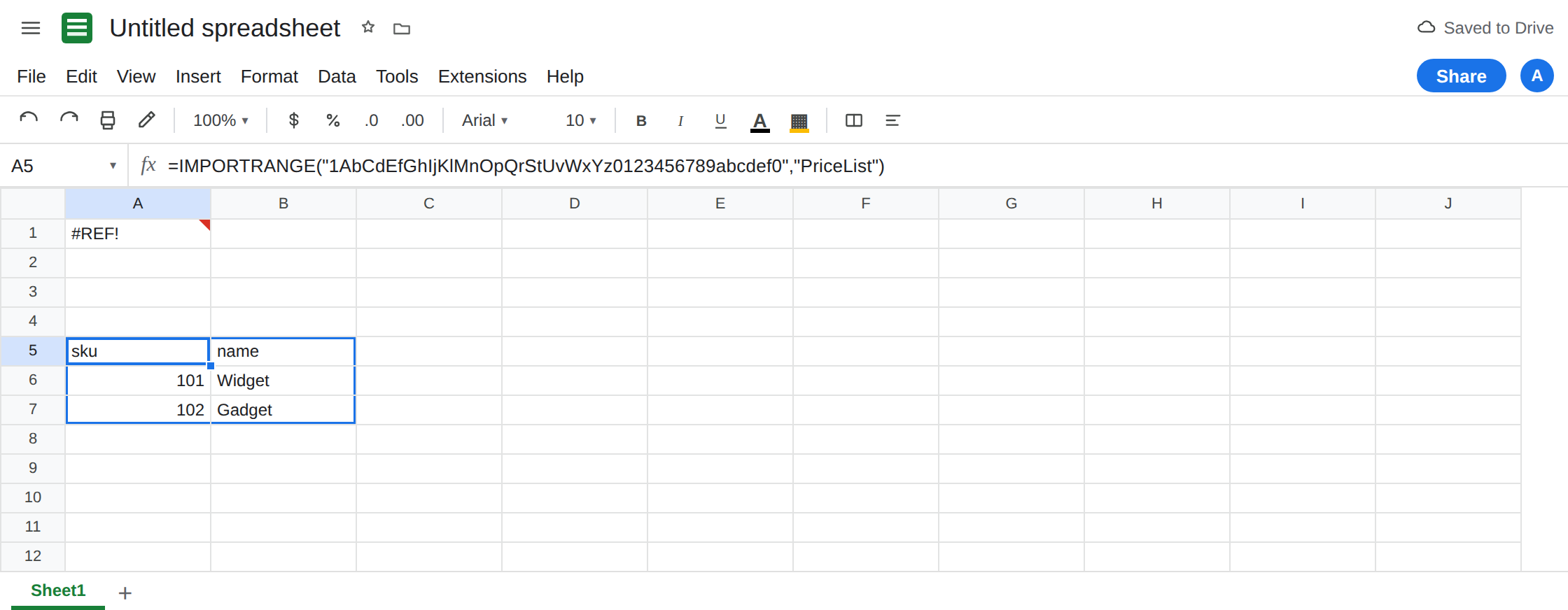
The new name works. In A5 enter =IMPORTRANGE("SOURCE_ID","PriceList"). No second Allow access prompt if this destination already connected to that source. A5 spills the table. That cell is the repaired control. Leave A1 as the old name.
Deleting the name. If you delete PriceList on the source, A5 becomes #REF! too. Recreate PriceList as A1:B3 before you continue so A5 stays a spill. The lesson is the same tooltip as a rename: the string is not a name on the source anymore.
Tab rename versus name rename. With PriceList still pointing at Sheet1!A1:B3, rename the tab from Sheet1 to Docks. A5 still spills. The named range follows the cells. In C1 enter =IMPORTRANGE("SOURCE_ID","Sheet1!A1:B3"). C1 is #REF! because there is no tab Sheet1 now. An A1 string breaks when the tab is renamed. A named-range string breaks when the name is renamed. They fail in opposite edits. Leave C1 broken. Rename the tab back to Sheet1 if you want C1 to recover, or leave the contrast in place.
Permission is a different sentence. If the tooltip says you do not have permission, or You need to connect these sheets, stop. That is IMPORTRANGE permission revoked or the first connect. Renaming a range does not remove Share.
Leave A1 broken on DockPrices. Leave A5 spilling if PriceList still exists.
What is actually wrong
Section titled “What is actually wrong”- The second argument is text. Sheets looks up that text on the source as a sheet address or a named range.
DockPricesandPriceListare different lookups. The cells did not move. The dictionary did. - A named range survives a tab rename because the name stores the range, and Sheets updates that target when the tab changes.
IMPORTRANGEnever sees the tab name in A5. C1 hardcoded it. - Scope: a named range limited to one tab is still called by its name from
IMPORTRANGE. You do not prefix it with the tab ("Sheet1!DockPrices"is not the usual form). If the lookup fails only when you add a tab prefix, drop the prefix. - A typo (
DockPricewith nos) is the same#REF!as a rename. The source still hasPriceList. The destination asked for a name that is not there. - Local names on the destination do not satisfy the string. Defining
DockPriceson the destination file does not fix A1.IMPORTRANGEresolves names on the source. See named range #REF! / #NAME? for a formula that uses the name bare, withoutIMPORTRANGE.
This is not Result too large. A1:B3 is small. See IMPORTRANGE too large.
Leave A1 as the stale name so the #REF! stays visible.
Put the current name in the formula. Keep A5: =IMPORTRANGE("SOURCE_ID","PriceList"). Or edit A1’s string from DockPrices to PriceList after you have seen the error. On the source, avoid renaming a range that other files import. If you must rename, search destination files for the old string.
Prefer a name when tabs move, and prefer A1 when names move. If editors rename tabs and the rectangle stays A1:B3 on whichever tab, a named range is the stable string. If editors rename the named range and never rename the tab, "Sheet1!A1:B3" is the stable string. Pick the one your editors do not change. Do not use both habits on the same formula.
Do not wrap A1 in IFERROR. A rename and a permission failure would look the same: blank. See IFERROR vs IFNA.
If IMPORTRANGE is #REF! and the second argument is a single word, open Data → Named ranges on the source and read the current spelling. Update the string. If the second argument contains ! and the tab was renamed, that recreate is IMPORTRANGE tab rename.